• Home
  • News
  • Software
  • Knowledge
  • MMO
  • Tips
  • Security
  • Network
  • Office
AnonyViet - English Version
  • Home
  • News
  • Software
  • Knowledge
  • MMO
  • Tips
  • Security
  • Network
  • Office
No Result
View All Result
  • Home
  • News
  • Software
  • Knowledge
  • MMO
  • Tips
  • Security
  • Network
  • Office
No Result
View All Result
AnonyViet - English Version
No Result
View All Result

Instructions to reduce RAM when using Chrome browser

AnonyViet by AnonyViet
May 15, 2023
in Tips
0

Instructions to reduce RAM when using Chrome browser

Join the channel Telegram belong to AnonyViet ???? Link ????

Google Chrome is one of the most popular browsers in the world. However, one of the quite serious diseases of Chrome is that it consumes RAM. If you often open many tabs on Google Chrome, your computer will start to slow down and gradually slow down.

Instructions to reduce RAM when using Chrome browser

Chrome will generate a “process” new with each Tab you open. The latest version of Internet Explorer works the same way. And the reason why it works like that is pretty much the same.”ear buds“: each Tab will own a “process“, many tabs will have many”process“. Then if a Tab is “crash” then only that Tab is “crash“Okay, the browser is still working normally. That means you won’t lose all the remaining Tabs if you have 13 Tabs open for example.

However, the disadvantage of this way of working is that each “process” will require a certain amount of RAM. If that Tab has a Flash Player or content that contains a lot of information, then “process” will eat up quite a bit of RAM. Fortunately, you can force Chrome to behave differently by adding the command “process-per-site“. At that time, Chrome will only use a “process” for each web page loaded. Of course, this change will affect Chrome’s performance.

You can check how many”process” that Chrome is using by opening Windows Task Manager (Ctrl+Alt+Del). Skip to item Processes. How much chrome.exe is how many Tabs you have open.

Here’s how to do it

Step 1: Find the shortcut you use to start Chrome, it’s usually located on the desktop.

Step 2: Right-click the shortcut, then select “Properties“.
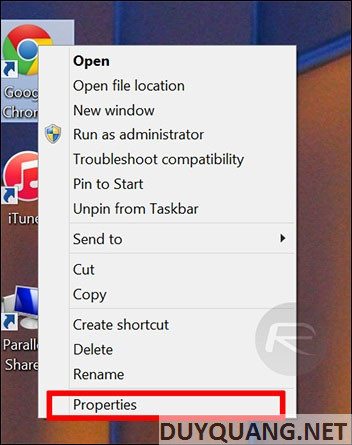
Small trick to reduce RAM when using Chrome browser

Step 3: After the Properties panel appears, select the Shortcut tab. In the Target box, scroll down to the endpoint and add –process-per-site.

Small trick to reduce RAM when using Chrome browser

Step 4: Turn off Chrome and open it again.

Step 5: Enjoy the results!

The article achieved: 5/5 – (100 votes)

Previous Post

How to hack the hot Doggo Go puzzle with the golden boy

Next Post

Instructions for using Stable Diffusion are very simple

AnonyViet

AnonyViet

Related Posts

Instructions on how to change Gmail address without worrying about losing data
Tips

Instructions on how to change Gmail address without worrying about losing data

June 25, 2026
8 quick tips for learning Excel that anyone can learn
Tips

8 quick tips for learning Excel that anyone can learn

June 25, 2026
How to quickly compare the content of 2 Excel files
Tips

How to quickly compare the content of 2 Excel files

June 24, 2026
How to create funny selfies with pets for your pets
Tips

How to create funny selfies with pets for your pets

June 19, 2026
Chrome extension not working error and the fastest way to fix it
Tips

Chrome extension not working error and the fastest way to fix it

June 19, 2026
Instructions to receive Claude Fable 5 for free for 30 days
Tips

Instructions to receive Claude Fable 5 for free for 30 days

June 15, 2026
Next Post
Instructions for using Stable Diffusion are very simple

Instructions for using Stable Diffusion are very simple

0 0 votes
Article Rating
Subscribe
Login
Notify of
guest

guest

0 Comments
Oldest
Newest Most Voted
Inline Feedbacks
View all comments

Recent News

Instructions on how to change Gmail address without worrying about losing data

Instructions on how to change Gmail address without worrying about losing data

June 25, 2026
JG Cache Cleaner: Smart web data cleaning utility

JG Cache Cleaner: Smart web data cleaning utility

June 25, 2026
8 quick tips for learning Excel that anyone can learn

8 quick tips for learning Excel that anyone can learn

June 25, 2026
How to create luxurious portrait photos using the Dola app

How to create luxurious portrait photos using the Dola app

June 24, 2026
Instructions on how to change Gmail address without worrying about losing data

Instructions on how to change Gmail address without worrying about losing data

June 25, 2026
JG Cache Cleaner: Smart web data cleaning utility

JG Cache Cleaner: Smart web data cleaning utility

June 25, 2026
8 quick tips for learning Excel that anyone can learn

8 quick tips for learning Excel that anyone can learn

June 25, 2026
AnonyViet - English Version

AnonyViet

AnonyViet is a website share knowledge that you have never learned in school!

We are ready to welcome your comments, as well as your articles sent to AnonyViet.

Follow Us

Contact:

Email: anonyviet.com[@]gmail.com

Main Website: https://anonyviet.com

Recent News

Instructions on how to change Gmail address without worrying about losing data

Instructions on how to change Gmail address without worrying about losing data

June 25, 2026
JG Cache Cleaner: Smart web data cleaning utility

JG Cache Cleaner: Smart web data cleaning utility

June 25, 2026
  • Home
  • Home 2
  • Home 3
  • Home 4
  • Home 5
  • Home 6
  • Next Dest Page
  • Sample Page

6789 kv999

No Result
View All Result
  • Home
  • News
  • Software
  • Knowledge
  • MMO
  • Tips
  • Security
  • Network
  • Office

6789 kv999

wpDiscuz
0
0
Would love your thoughts, please comment.x
()
x
| Reply