• Home
  • News
  • Software
  • Knowledge
  • MMO
  • Tips
  • Security
  • Network
  • Office
AnonyViet - English Version
  • Home
  • News
  • Software
  • Knowledge
  • MMO
  • Tips
  • Security
  • Network
  • Office
No Result
View All Result
  • Home
  • News
  • Software
  • Knowledge
  • MMO
  • Tips
  • Security
  • Network
  • Office
No Result
View All Result
AnonyViet - English Version
No Result
View All Result

Instructions to design your own room using AI RoomGPT

AnonyViet by AnonyViet
March 30, 2023
in Tips
0

Roomgpt.io is a website that uses artificial intelligence to create dream rooms with different decorating styles. With this tool, you are free to transform your room to see which design style suits you best. Today, Anonyviet I will guide you how to design your own room using AI through the article below.

Join the channel Telegram belong to AnonyViet ???? Link ????

How to use RoomGPT.io to transform living space

To use RoomGPTyou can follow these steps:

Step 1: Visit the website Roomgpt.iosign in to your Google account

Step 2: To start designing the room, click on the line “Generate your dream room”.
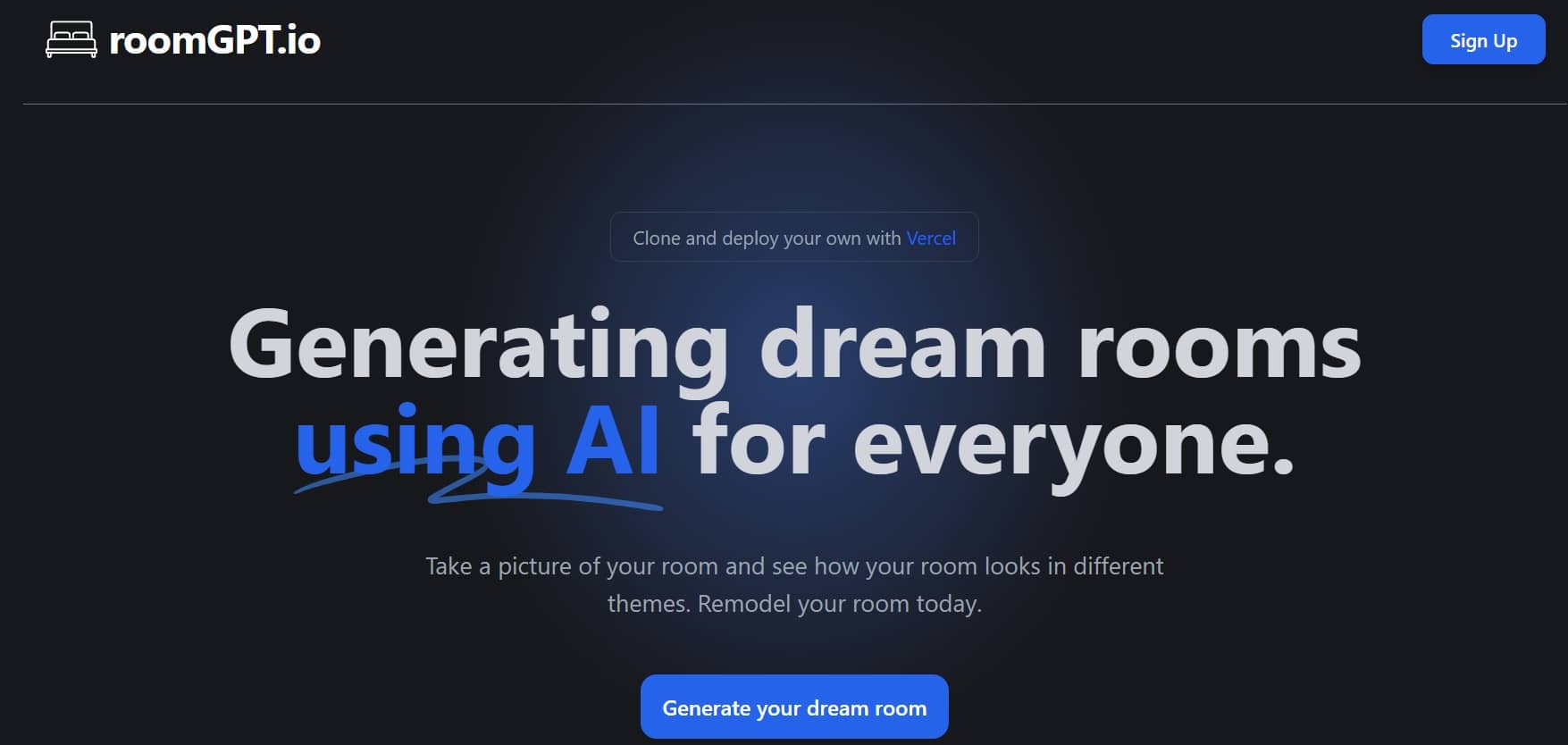
  Design your own room with AI RoomGPT.io
Click on the “Generate your dream room” line.

Step 3: Choose the style for the room that you like, can be:
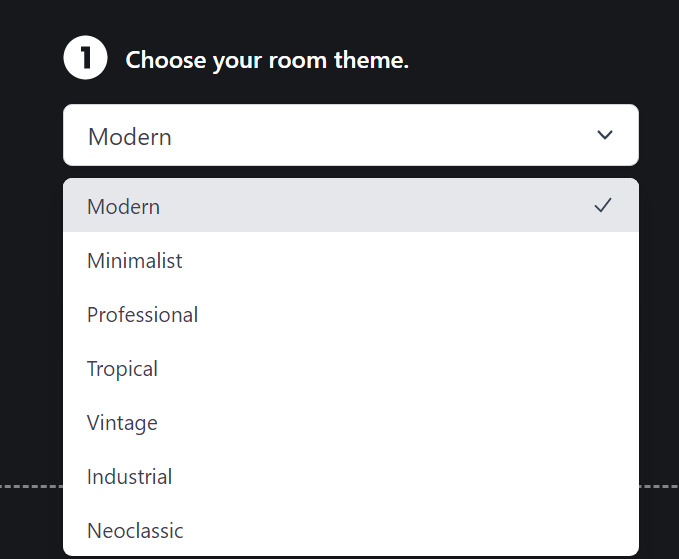
  Design your own room with AI RoomGPT.io
Choose a style for the room
  • Modern: Modern
  • Minimalist: Minimalist
  • Professional: Professional
  • Tropical: Tropical
  • Vintage: Classic
  • Industrial: Industrial
  • Neoclassic: Neoclassical

Step 4: Choose the type of room you want to redesign, including:
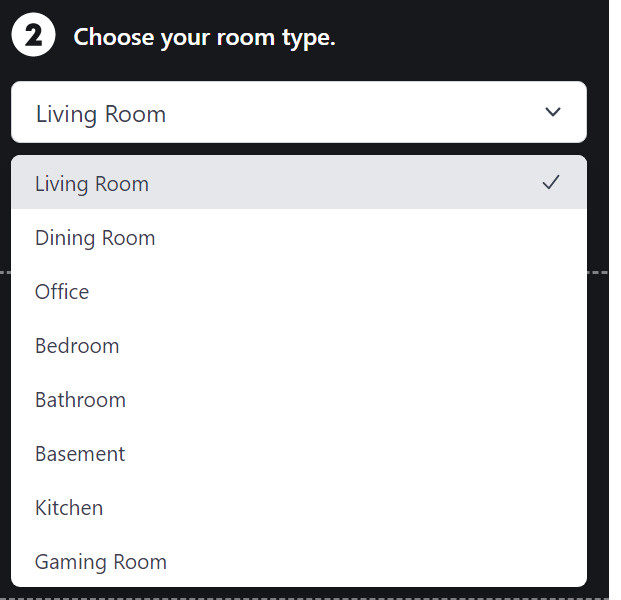
  Design your own room with AI RoomGPT.io
Choose the type of room you want to design
  • Living Room: Living Room
  • Dining Room: Dining room
  • Office: Office
  • Bedroom: Bedroom
  • Bathroom: Bathroom
  • Basement: Warehouse/basement
  • Kitchen: Kitchen
  • Gaming room: Game room

Step 5: Click on the “Upload an image” box to upload a picture of the room you want to renovate on the website
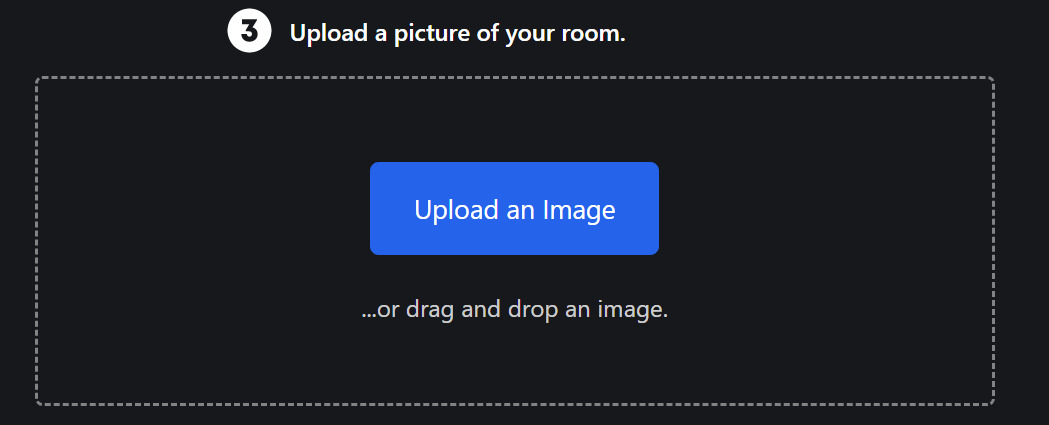
  Design your own room with AI RoomGPT.io
Upload a picture of your room

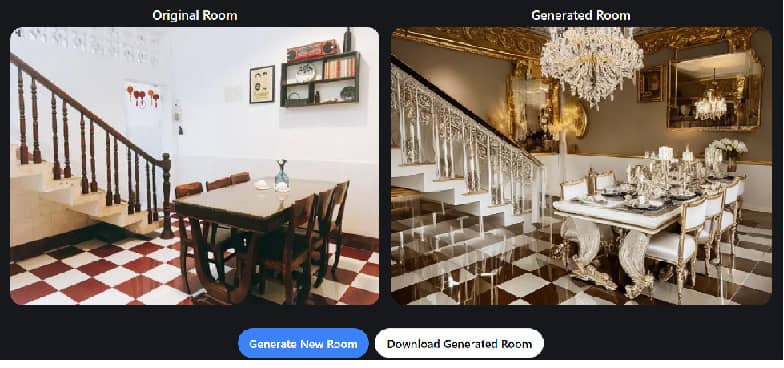
Wait a moment, the system will return the result as shown:
  Design your own room with AI RoomGPT.io
Original image on the left, Image of AI on the right

As you can see the layout of the room remains the same, only the interior is changed to match the style you have chosen.

At this point, you can download the image created by RoomGPT.io to your computer by clicking “Download Generated Room” or try again with another image, different style by selecting “Generate New Room”
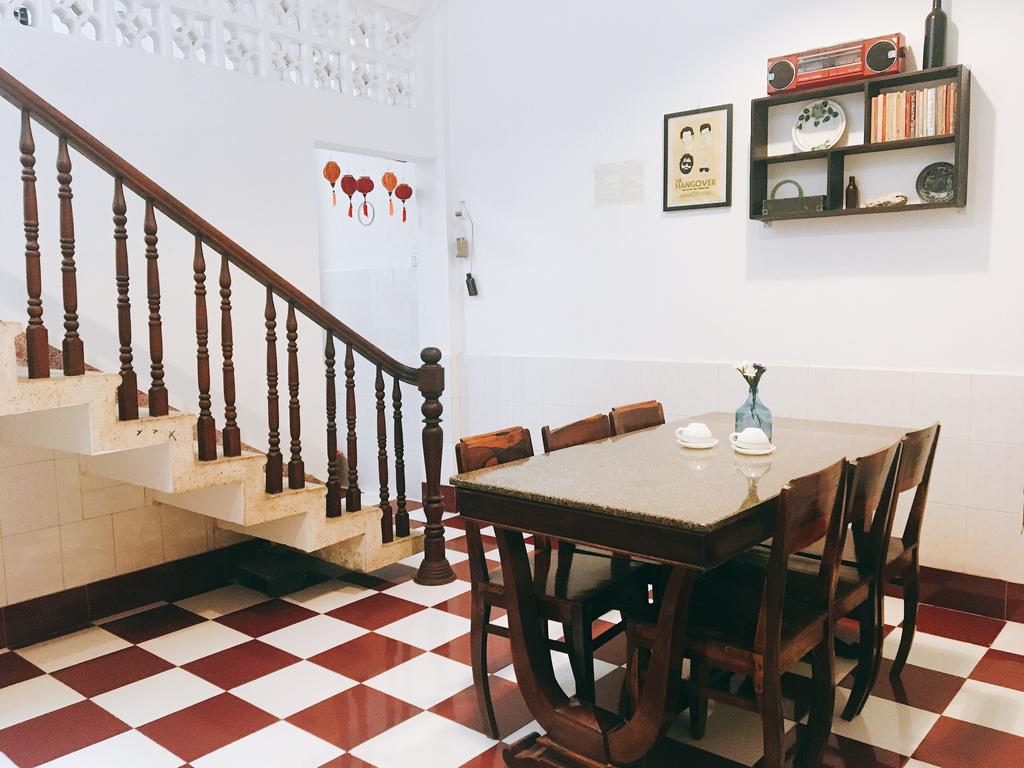

Design your own room with AI RoomGPT.io
Original image
Design your own room with AI RoomGPT.io
Image created by RoomGPT, with “Modern” style

In addition, to make it easier to compare the original image and the image made by AI, you can click the “Side by Side” slider button, use the mouse to move up and down on the image to see the specific difference.
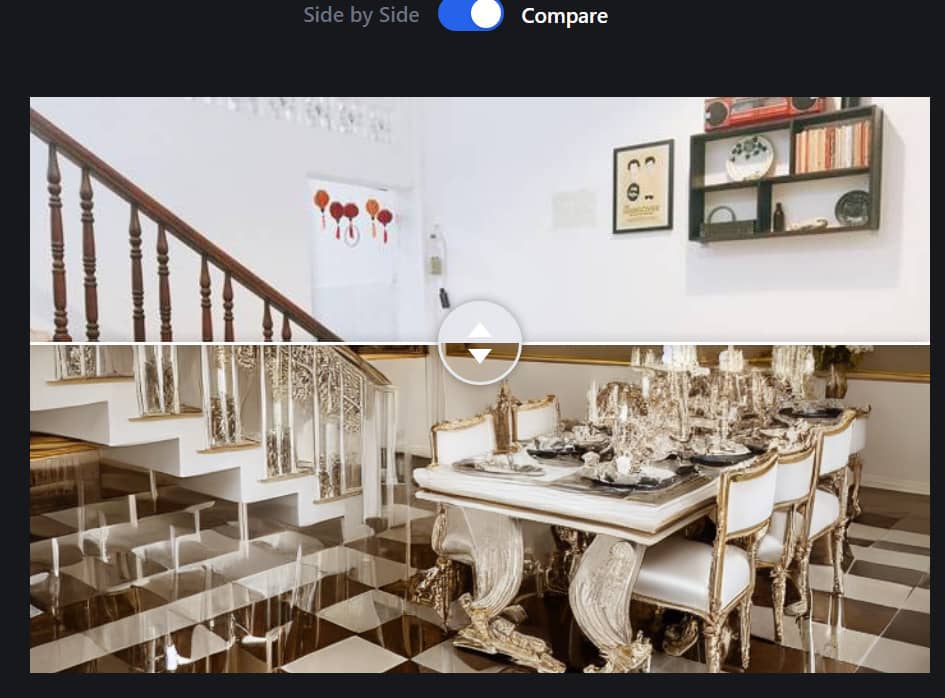
Design your own room with AI RoomGPT.io
Click the “Side by Side” slider for easy comparison

Note: RoomGPT.io allows users to experience the feature only 3 times for free per day. If you want to use more, you have to pay.

Epilogue

Using AI to redesign living spaces is very easy with tools RoomGPT.io. With just a few simple steps, you will have a dream room right away, from which there are many ideas to decorate properly. Hope you are succesful.


Rate this post

Tags: DesignInstructionsroomRoomGPT
Previous Post

[Facebook]Instructions to UnLock Facebook Account

Next Post

What is uraqt? What does uraqt stand for?

AnonyViet

AnonyViet

Related Posts

How to add sliders to Facebook Stories to easily rewind videos
Tips

How to add sliders to Facebook Stories to easily rewind videos

April 21, 2026
How to change the default font on Windows 10
Tips

How to change the default font on Windows 10

April 13, 2026
5 tips for using a Browser to replace an App (helps save RAM, time and money)
Tips

5 tips for using a Browser to replace an App (helps save RAM, time and money)

April 13, 2026
How to make funny MeMe photos without Photoshop within 10 seconds
Tips

How to make funny MeMe photos without Photoshop within 10 seconds

April 11, 2026
How to quickly design your own Logo without Photoshop
Tips

How to quickly design your own Logo without Photoshop

April 10, 2026
How to convert Website into App on Windows
Tips

How to convert Website into App on Windows

April 9, 2026
Next Post
What is uraqt?  What does uraqt stand for?

What is uraqt? What does uraqt stand for?

0 0 votes
Article Rating
Subscribe
Login
Notify of
guest

guest

0 Comments
Oldest
Newest Most Voted
Inline Feedbacks
View all comments

Recent News

How to create a Face Sticker Collection using ChatGPT

How to create a Face Sticker Collection using ChatGPT

April 29, 2026
How to install the cute Bongo Cat mouse pointer for Windows

How to install the cute Bongo Cat mouse pointer for Windows

April 29, 2026
Tips for pinning the step counter to the iPhone screen to monitor your health

Tips for pinning the step counter to the iPhone screen to monitor your health

April 28, 2026
How to turn off password suggestions on iPhone: Prevent Safari from auto-filling passwords

How to turn off password suggestions on iPhone: Prevent Safari from auto-filling passwords

April 27, 2026
How to create a Face Sticker Collection using ChatGPT

How to create a Face Sticker Collection using ChatGPT

April 29, 2026
How to install the cute Bongo Cat mouse pointer for Windows

How to install the cute Bongo Cat mouse pointer for Windows

April 29, 2026
Tips for pinning the step counter to the iPhone screen to monitor your health

Tips for pinning the step counter to the iPhone screen to monitor your health

April 28, 2026
AnonyViet - English Version

AnonyViet

AnonyViet is a website share knowledge that you have never learned in school!

We are ready to welcome your comments, as well as your articles sent to AnonyViet.

Follow Us

Contact:

Email: anonyviet.com[@]gmail.com

Main Website: https://anonyviet.com

Recent News

How to create a Face Sticker Collection using ChatGPT

How to create a Face Sticker Collection using ChatGPT

April 29, 2026
How to install the cute Bongo Cat mouse pointer for Windows

How to install the cute Bongo Cat mouse pointer for Windows

April 29, 2026
No Result
View All Result
  • Home
  • News
  • Software
  • Knowledge
  • MMO
  • Tips
  • Security
  • Network
  • Office

wpDiscuz
0
0
Would love your thoughts, please comment.x
()
x
| Reply