• Home
  • News
  • Software
  • Knowledge
  • MMO
  • Tips
  • Security
  • Network
  • Office
AnonyViet - English Version
  • Home
  • News
  • Software
  • Knowledge
  • MMO
  • Tips
  • Security
  • Network
  • Office
No Result
View All Result
  • Home
  • News
  • Software
  • Knowledge
  • MMO
  • Tips
  • Security
  • Network
  • Office
No Result
View All Result
AnonyViet - English Version
No Result
View All Result

Build a virtual world at your fingertips

AnonyViet by AnonyViet
March 6, 2023
in Tips
0

Do you believe you can create an entire fantasy world with just one click? You do not need to have knowledge of programming or graphics, but you can still create a vivid photo space to your liking. Today, Anonyviet will introduce you to a website with such an interesting feature, which is Skybox from developer Blockade Labs.

What is Skybox?

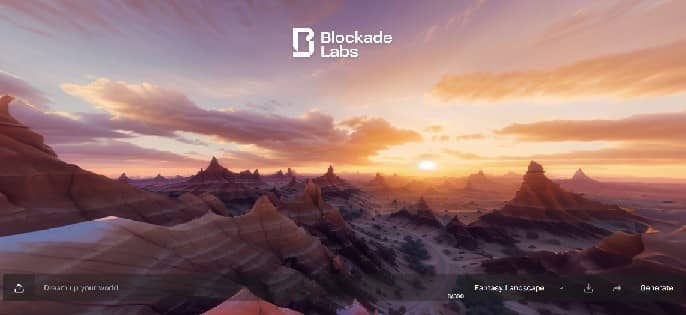
Skybox is a website that uses AI technology to create 360-degree images with just a few lines of simple text.
Skybox builds virtual world
Home page interface

How to use Skybox

You can operate right on Skybox web interface without the need to register an account.

Step 1: Type an image description in the “Dream up your world” box.

Skybox builds virtual world
Type an image description in the “Dream up your world” box.

Step 2: Choose the picture style you like
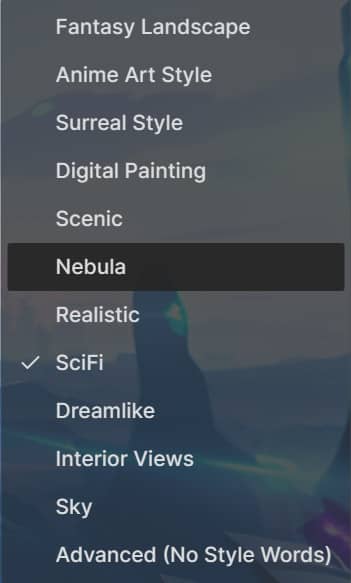
Skybox builds virtual world
Choose a picture style

Step 3: Click “Generate”, wait a few minutes for the system to display the desired image

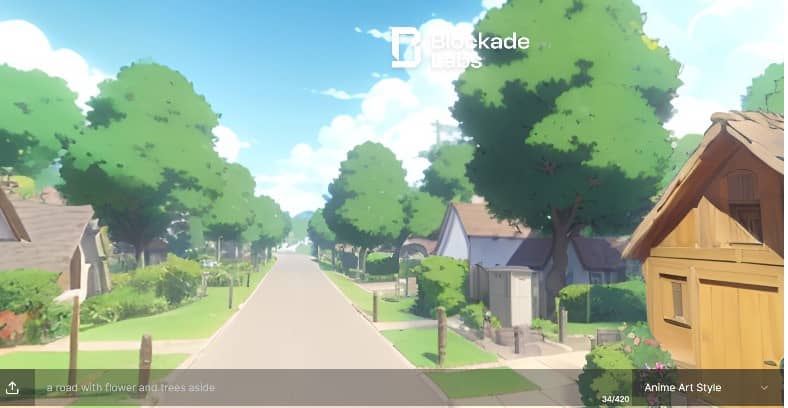
For example, I create an image with the description “A road with flower and trees aside”, style “Anime Art Style” and I get the following result:
Skybox builds virtual world
Results when typing “A road with flower and trees aside”, style “Anime Art Style”

The image will automatically move from left to right for you to enjoy, you can use the mouse to drag the image to any position, or zoom in and out with the mouse wheel. The image is built in 360 degrees, creating an authentic and impressive open space as if you were living in that world.

Besides, you can click “Download” to download the image to your computer.

A few descriptive examples you can apply:

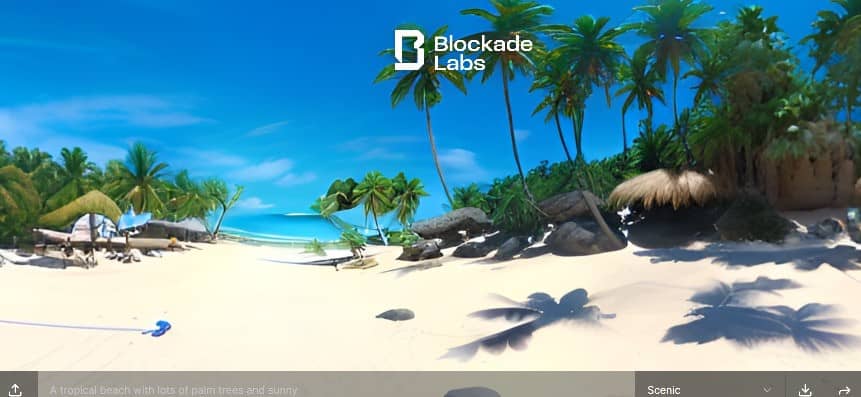
“A tropical beach with lots of palm trees and sunny”, style “Scenic”.
Skybox builds virtual world
“A tropical beach with lots of palm trees and sunny”, style “Scenic”.

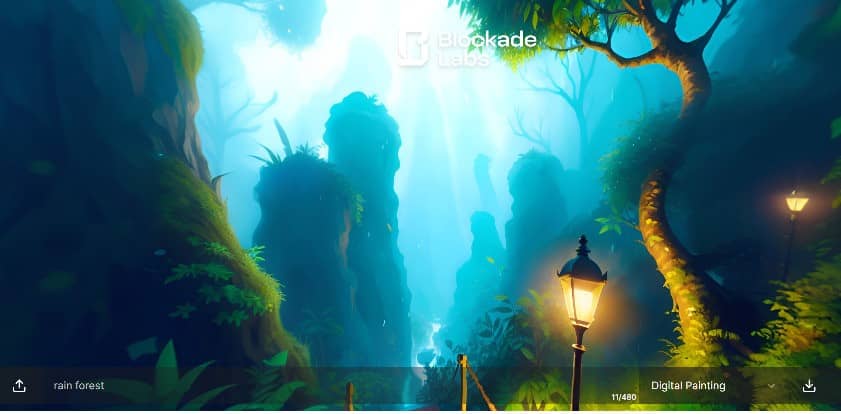
“Rain forest”, “Digital painting” style
Skybox builds virtual world
“Rain forest”, “Digital painting” style

“Milkyway with stars and spaceship”, “SciFi” style
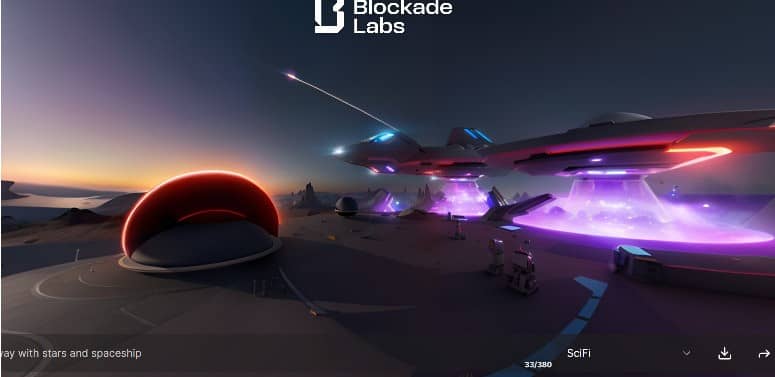
Skybox builds virtual world
“Milkyway with stars and spaceship”, “SciFi” style

“Fantasy wizard world like harry potter”, style “Digital Painting”
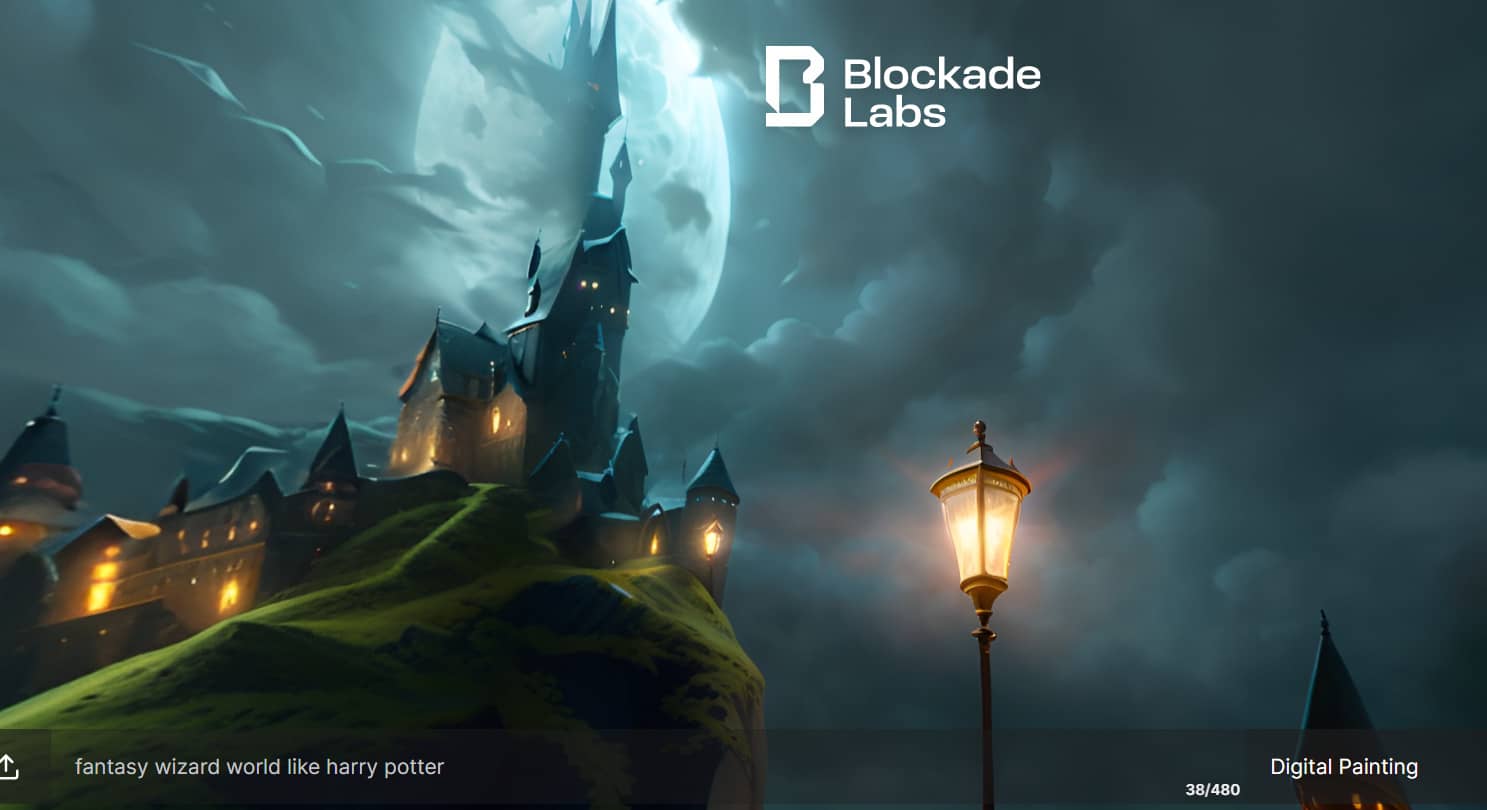
Skybox builds virtual world
“Fantasy wizard world like harry potter”, style “Digital Painting”

Disadvantages of Skybox

Besides the utility to help sketch visual concepts from initial ideas, Skybox There are still some limitations, such as the time to create images is quite long, there are not many editing tools, when uploading to other platforms, you must have the help of a 3rd party.

Although there are many shortcomings, but Skybox still has great potential in the future, especially for the gaming and VR entertainment industry, really Skybox is a cool website that you should try.

How to post Skybox pictures on Facebook

After downloading an image from the Blockade Labs site and you want to post it on Facebook to “show off” to your friends about the world you just created.

However, the image when posted will become a “static” image, which means you can see all the details but will not be able to rotate 360 ​​degrees. It will look very boring and just like a normal photo.
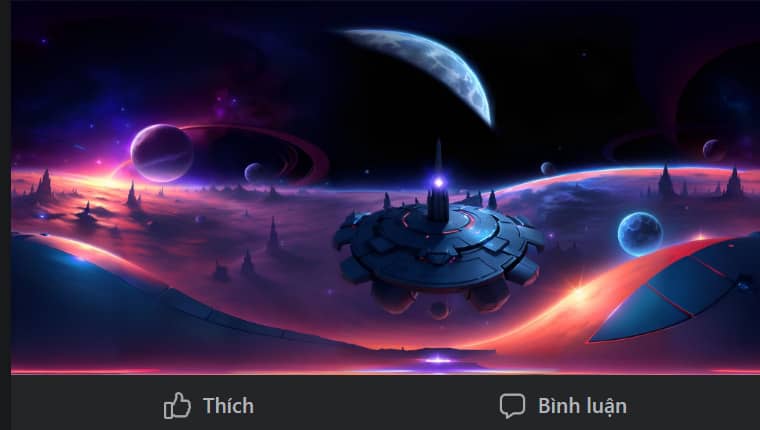
Skybox builds virtual world
When posting on Facebook, it will turn into a “static” image.

To fix this situation as well as keep the 360-degree rotation feature, follow these instructions:

Step 1: Visit website Exif Fixer Online

Step 2: Click “choose file” to download the image you just downloaded from the Blockade Labs site
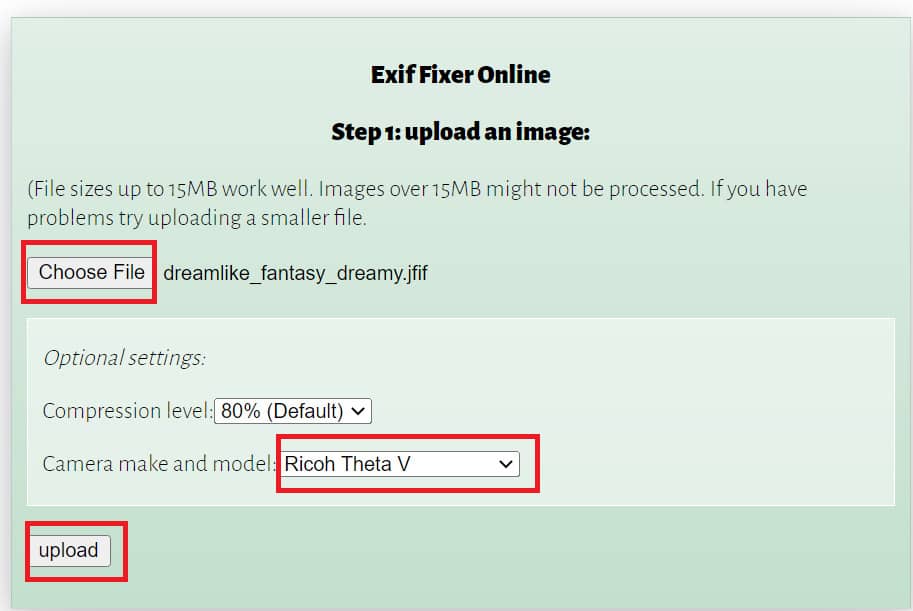
Skybox builds virtual world
How to post 360 degree pictures on Facebook

Step 3: Under “Camera make and model”, select “Ricoh Theta V”

Step 4: Click “Upload”

Step 5: You continue to click “Download your updated file”
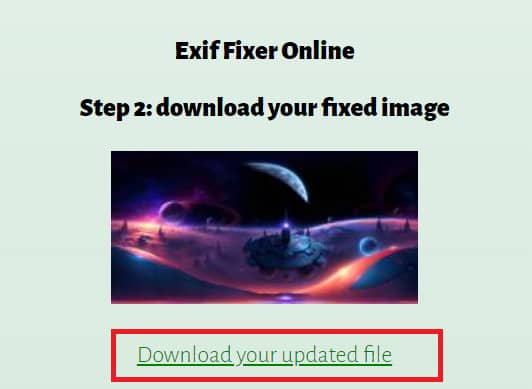
Skybox builds virtual world
You continue to click “Download your updated file”

After the image is downloaded, upload it to facebook and you will see that the 360-degree rotation feature remains the same
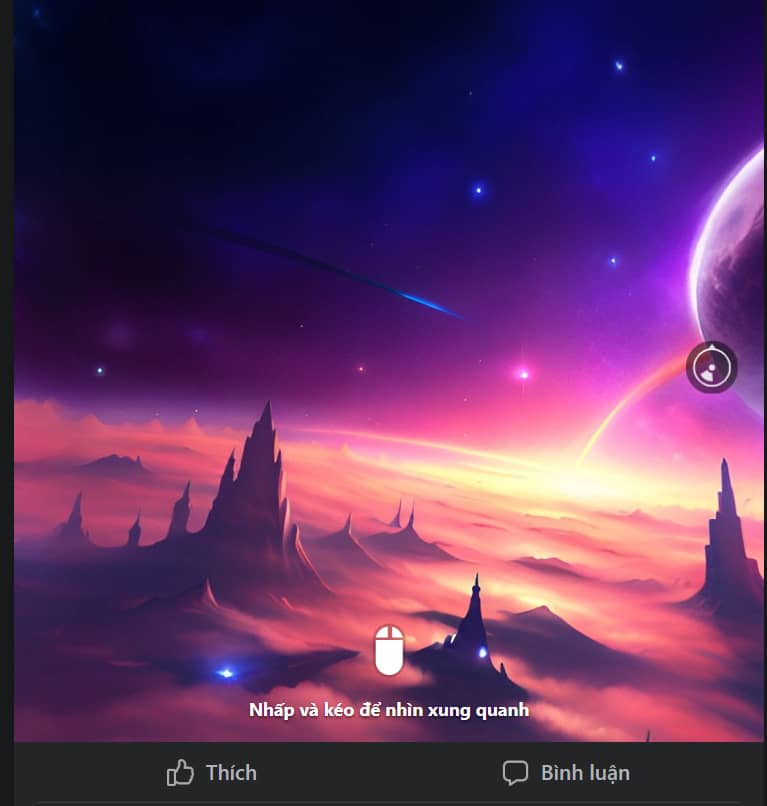
Skybox builds virtual world
The 360-degree rotation feature remains the same

Epilogue

Thanks to Skybox, you can freely create a dream world, turn ideas, text into images in just a short time with many unique styles. Hope you apply successfully and have many impressive photos!


Rate this post

Tags: BuildfingertipsvirtualWorld
Previous Post

Koding User Guide to DDOS (EbolaHttp.py)

Next Post

Which SSL Certificate Is Right For Your Website?

AnonyViet

AnonyViet

Related Posts

How to add sliders to Facebook Stories to easily rewind videos
Tips

How to add sliders to Facebook Stories to easily rewind videos

April 21, 2026
How to change the default font on Windows 10
Tips

How to change the default font on Windows 10

April 13, 2026
5 tips for using a Browser to replace an App (helps save RAM, time and money)
Tips

5 tips for using a Browser to replace an App (helps save RAM, time and money)

April 13, 2026
How to make funny MeMe photos without Photoshop within 10 seconds
Tips

How to make funny MeMe photos without Photoshop within 10 seconds

April 11, 2026
How to quickly design your own Logo without Photoshop
Tips

How to quickly design your own Logo without Photoshop

April 10, 2026
How to convert Website into App on Windows
Tips

How to convert Website into App on Windows

April 9, 2026
Next Post
Which SSL Certificate Is Right For Your Website?

Which SSL Certificate Is Right For Your Website?

0 0 votes
Article Rating
Subscribe
Login
Notify of
guest

guest

0 Comments
Oldest
Newest Most Voted
Inline Feedbacks
View all comments

Recent News

How to create a Face Sticker Collection using ChatGPT

How to create a Face Sticker Collection using ChatGPT

April 29, 2026
How to install the cute Bongo Cat mouse pointer for Windows

How to install the cute Bongo Cat mouse pointer for Windows

April 29, 2026
Tips for pinning the step counter to the iPhone screen to monitor your health

Tips for pinning the step counter to the iPhone screen to monitor your health

April 28, 2026
How to turn off password suggestions on iPhone: Prevent Safari from auto-filling passwords

How to turn off password suggestions on iPhone: Prevent Safari from auto-filling passwords

April 27, 2026
How to create a Face Sticker Collection using ChatGPT

How to create a Face Sticker Collection using ChatGPT

April 29, 2026
How to install the cute Bongo Cat mouse pointer for Windows

How to install the cute Bongo Cat mouse pointer for Windows

April 29, 2026
Tips for pinning the step counter to the iPhone screen to monitor your health

Tips for pinning the step counter to the iPhone screen to monitor your health

April 28, 2026
AnonyViet - English Version

AnonyViet

AnonyViet is a website share knowledge that you have never learned in school!

We are ready to welcome your comments, as well as your articles sent to AnonyViet.

Follow Us

Contact:

Email: anonyviet.com[@]gmail.com

Main Website: https://anonyviet.com

Recent News

How to create a Face Sticker Collection using ChatGPT

How to create a Face Sticker Collection using ChatGPT

April 29, 2026
How to install the cute Bongo Cat mouse pointer for Windows

How to install the cute Bongo Cat mouse pointer for Windows

April 29, 2026
No Result
View All Result
  • Home
  • News
  • Software
  • Knowledge
  • MMO
  • Tips
  • Security
  • Network
  • Office

wpDiscuz
0
0
Would love your thoughts, please comment.x
()
x
| Reply