• Home
  • News
  • Software
  • Knowledge
  • MMO
  • Tips
  • Security
  • Network
  • Office
AnonyViet - English Version
  • Home
  • News
  • Software
  • Knowledge
  • MMO
  • Tips
  • Security
  • Network
  • Office
No Result
View All Result
  • Home
  • News
  • Software
  • Knowledge
  • MMO
  • Tips
  • Security
  • Network
  • Office
No Result
View All Result
AnonyViet - English Version
No Result
View All Result

How to enable the new Windows 11 File Explorer with ViVeTool

AnonyViet by AnonyViet
March 3, 2023
in Tips
0

Recently, I received a notification that Microsoft is working on a major update to the built-in File Explorer application. It will include a new left pane, a new start page with additional details for recently used files. Finally, it will have some new dashboards, such as “Activities”, “Conversations”, “Shared Status”, and “Insights”. If you want to use the new feature on Windows 11 you can use Tool ViVeTool to turn it on.
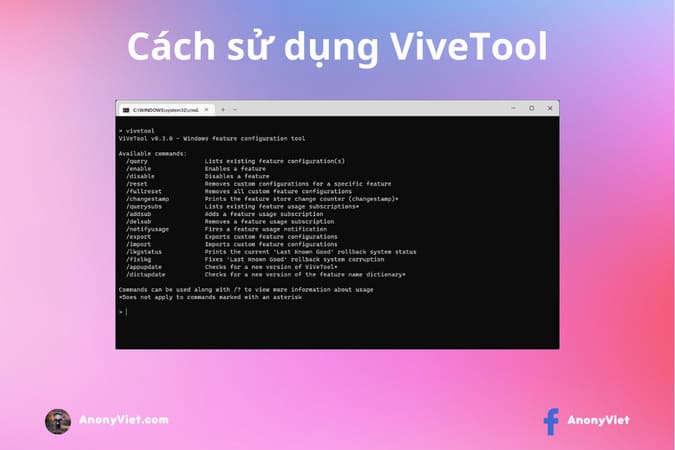
How to enable the new Windows 11 File Explorer with ViVeTool
Microsoft is testing a redesigned version of the details pane for File Explorer. The new version provides more information and actions for a specific file, folder, or drive you select. For example, when selecting a drive, the details pane on the right will display options such as sharing, activity details, file information, related files, etc. Previously, it was quite difficult to experience the new File Explorer. difficult but now with ViVeTool it becomes very easy.

Information about new features discovered in the build Windows 11 25276. It includes the board Details updated to show the following currently active sections: “Insights”, “Activities”, “Properties”, “Related Files”, “Related Conversations” and “Sharing status”.
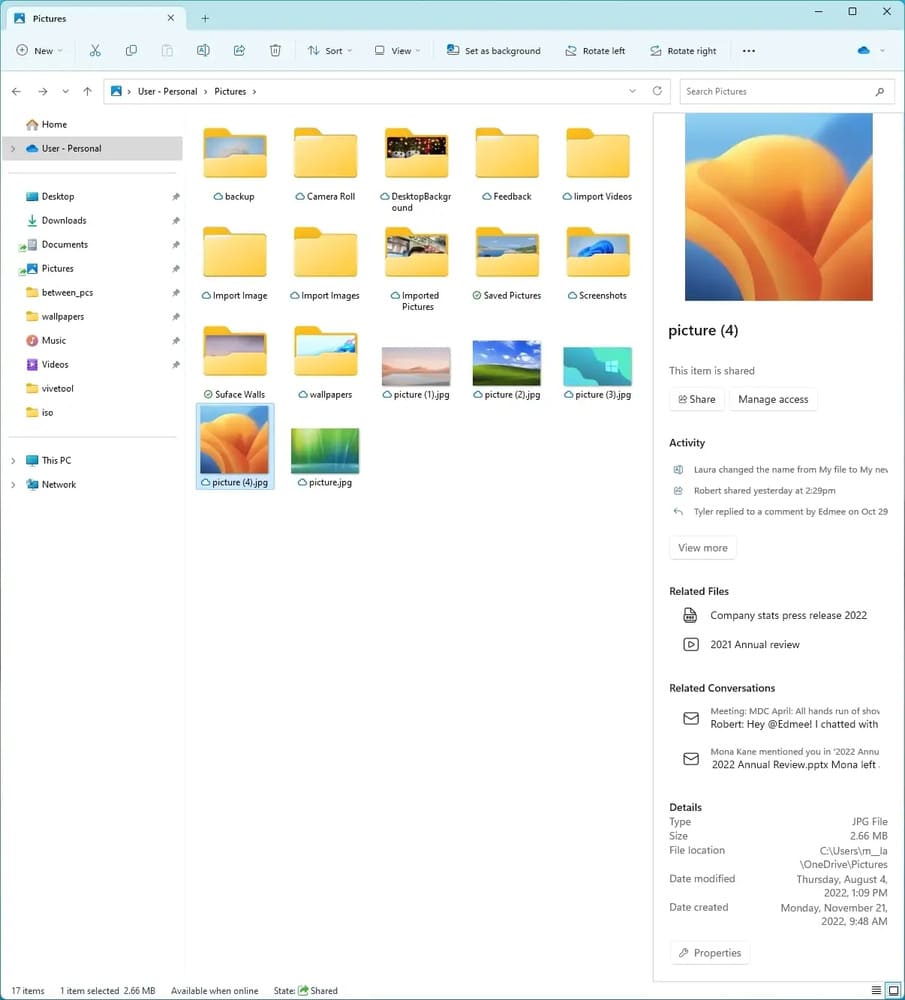
How to enable the new Windows 11 File Explorer with ViVeTool 6

Part “Activities” will display information about the latest changes made to the selected file. Part “Related Conversations” will tell you which email or message the file is part of. As for the “Related Files” shows other files associated with the current file. For example. it can show other files that have been shared for the same project or attached to the same email.

ViVe is a C# library that you can use to create your own programs that interact with the A/B feature testing mechanisms found in Windows 10 and later.
ViVeTool is both an example of how to use ViVe and a simple tool for advanced users who want to use the new APIs right away.
To use ViVe, you must be running Windows 10 build 18963 or later.

Step 1: First, you download the ViveTool tool from this github page.

Step 2: Extract the downloaded folder to the path c:\vivetool.
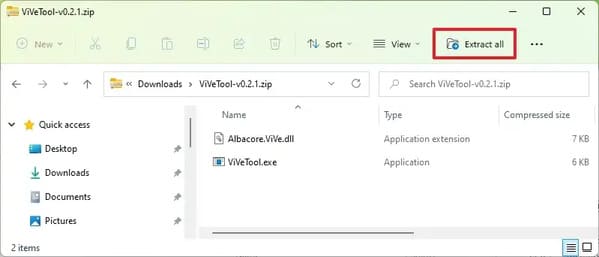
How to enable the new Windows 11 File Explorer with ViVeTool 7

Step 3: Press Win + XD or right click on the Start button and select Terminal (admin).

Step 4: To enable new panes in File Explorer, type the following command in Terminal and press Enter:

c:\vivetool\vivetool /enable /id:38613007

Step 5: Restart your PC.

How to disable File Explorer tab in Windows 11

In case you want to disable tabs in File Explorer, run the commands below one by one after installing ViVeTool on your Windows 11 PC. Then restart your PC.

vivetool /disable /id:36354489
vivetool /disable /id:37634385
vivetool /disable /id:39145991

So that’s it then. Good luck.

Rate this post

Tags: EnableExplorerfileViVeToolWindows
Previous Post

Tot Open Beta: Half Price VPS, Only From 69K CZK

Next Post

Anti Rip Facebook – Fight Rip/Report Facebook

AnonyViet

AnonyViet

Related Posts

Instructions on how to change iPhone fonts beautifully with Lara
Tips

Instructions on how to change iPhone fonts beautifully with Lara

May 20, 2026
Create images of guardian mascots using AI according to year of birth
Tips

Create images of guardian mascots using AI according to year of birth

May 20, 2026
Try the Shopee Profit Calculator now, avoid the risk of selling at a loss
Tips

Try the Shopee Profit Calculator now, avoid the risk of selling at a loss

May 19, 2026
Prompt converts photos into extremely impressive children’s drawings
Tips

Prompt converts photos into extremely impressive children’s drawings

May 17, 2026
Instructions for receiving 1 month of ChatGPT Plus for free
Tips

Instructions for receiving 1 month of ChatGPT Plus for free

May 12, 2026
How to get ChatGPT Business 48 months discount from only 0 VND
Tips

How to get ChatGPT Business 48 months discount from only 0 VND

May 9, 2026
Next Post
Anti Rip Facebook – Fight Rip/Report Facebook

Anti Rip Facebook - Fight Rip/Report Facebook

0 0 votes
Article Rating
Subscribe
Login
Notify of
guest

guest

0 Comments
Oldest
Newest Most Voted
Inline Feedbacks
View all comments

Recent News

Instructions on how to change iPhone fonts beautifully with Lara

Instructions on how to change iPhone fonts beautifully with Lara

May 20, 2026
Don’t rush to buy a new MacBook if you don’t know these differences

Don’t rush to buy a new MacBook if you don’t know these differences

May 20, 2026
Create images of guardian mascots using AI according to year of birth

Create images of guardian mascots using AI according to year of birth

May 20, 2026
Try the Shopee Profit Calculator now, avoid the risk of selling at a loss

Try the Shopee Profit Calculator now, avoid the risk of selling at a loss

May 19, 2026
Instructions on how to change iPhone fonts beautifully with Lara

Instructions on how to change iPhone fonts beautifully with Lara

May 20, 2026
Don’t rush to buy a new MacBook if you don’t know these differences

Don’t rush to buy a new MacBook if you don’t know these differences

May 20, 2026
Create images of guardian mascots using AI according to year of birth

Create images of guardian mascots using AI according to year of birth

May 20, 2026
AnonyViet - English Version

AnonyViet

AnonyViet is a website share knowledge that you have never learned in school!

We are ready to welcome your comments, as well as your articles sent to AnonyViet.

Follow Us

Contact:

Email: anonyviet.com[@]gmail.com

Main Website: https://anonyviet.com

Recent News

Instructions on how to change iPhone fonts beautifully with Lara

Instructions on how to change iPhone fonts beautifully with Lara

May 20, 2026
Don’t rush to buy a new MacBook if you don’t know these differences

Don’t rush to buy a new MacBook if you don’t know these differences

May 20, 2026
No Result
View All Result
  • Home
  • News
  • Software
  • Knowledge
  • MMO
  • Tips
  • Security
  • Network
  • Office

wpDiscuz
0
0
Would love your thoughts, please comment.x
()
x
| Reply