• Home
  • News
  • Software
  • Knowledge
  • MMO
  • Tips
  • Security
  • Network
  • Office
AnonyViet - English Version
  • Home
  • News
  • Software
  • Knowledge
  • MMO
  • Tips
  • Security
  • Network
  • Office
No Result
View All Result
  • Home
  • News
  • Software
  • Knowledge
  • MMO
  • Tips
  • Security
  • Network
  • Office
No Result
View All Result
AnonyViet - English Version
No Result
View All Result

How to turn off write protection (Write protected) on memory cards, USB, hard drives

AnonyViet by AnonyViet
February 15, 2023
in Tips
0

Is your SD memory card write protected? Do you know how to remove write protection from USB or external/internal hard drive and get all data back? Follow this article to unlock your storage devices and repair write-protected hard drives, USB or SD cards.. on Windows 10/8/7 without losing any data.

Join the channel Telegram belong to AnonyViet 👉 Link 👈

Memory card write protection SD means you cannot make any changes in the SD card like adding new files and deleting existing files…

How to turn off write protection (write protected) on memory cards, USB, hard drives

Case 1: My SD card shows up as “write protected” on the computer. I cannot access any data on the card. How to copy data to the device?

Case 2: Do you know how to remove write protection? “write protected” from USB or external hard drive?

Case 3: Strangely, my hard drive is protected mode enabled for no reason at all. Do you know how to disable write protection on Windows 10?

Do you have this problem when your removable storage devices such as external hard drives, USB flash drives, SD cards or Windows hard drives in Windows 10/8/7 suddenly become corrupted. “write protected” Can’t copy data? The data on your hard drive cannot be accessed with the write protected. So how to fix the situation of not being able to copy files to the memory card, usb without losing data? Don’t worry if you have this problem. Please see the step-by-step instructions below.

Method 1: Turn off the Unlock anti-write button on the memory card

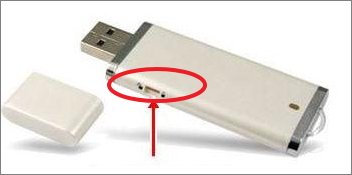
On some SD memory cards, the old USB you notice on the side will have a small slot. You push the lever up is Lock (write-protection lock), push down is Unlock
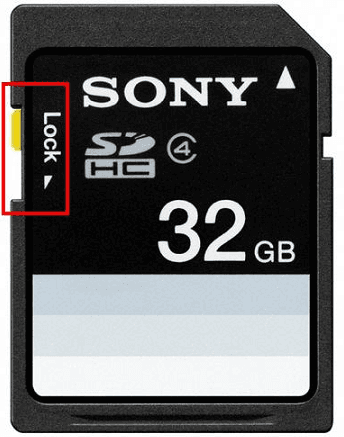
Memory card anti-write lock
write protected usb
USB write-protect lock

This will help you unlock USB or SD memory card to remove write protection. And you won’t lose any data on your USB stick.

Method 2: Remove write protection of memory cards, usb with the command

In the case of memory cards, your usb does not have a Lock/Unlock button but is still locked against writing. You cannot write data to a memory card, USB can be used in the following way:

1. Press the key combination Win + CHEAP Open the RUN command box. Type command cmd and press Enter to open Command Prompt.

2. Type the command: diskpart Press Enter to execute the diskpart command.
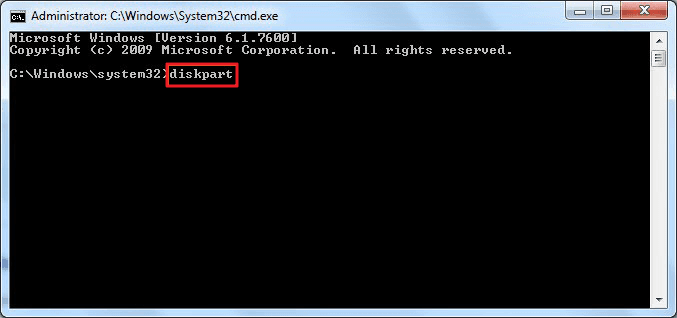
Run DiskPart cmd command to remove write protection.

3. Continue typing the command: list disk and press Enter.

Here will list the serial number of the drives in your computer. Remember the location of a USB drive or memory card that is locked to write protection.
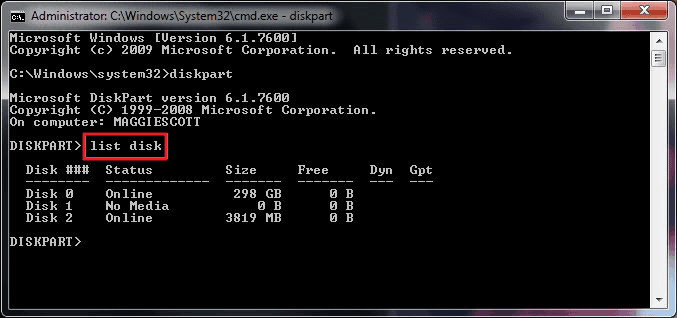
List disk to select remove write protection on disk.

4. Type command select disk 0 (0 is the serial number of the write-protected drive and press Enter.

5. Continue typing the command: attributes disk clear readonly and press Enter to disable write protection on your device.

6. Close the diskpart window after the write-protected erase is complete.

Method 3: Remove write protection of memory cards, usb on Windows 7/8/10 with Registry

Using the Registry to fix write protection errors on USB and memory cards is completely possible. Mishandling with the Registry can erase data on your PC, hard drive, USB, or SD card. Therefore, we recommend that you follow the instructions below very carefully.

1. Connect the recorded mobile device to the computer.

2. Press Start to open the Run > Type dialog box: regedit and press Enter to open Registry .
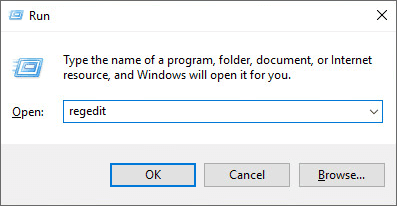
Open Registry to fix write protection on USB, SD or internal/external hard drives.

3. Click HKEY_LOCAL_MACHINE > System > Current Control Set > Control.
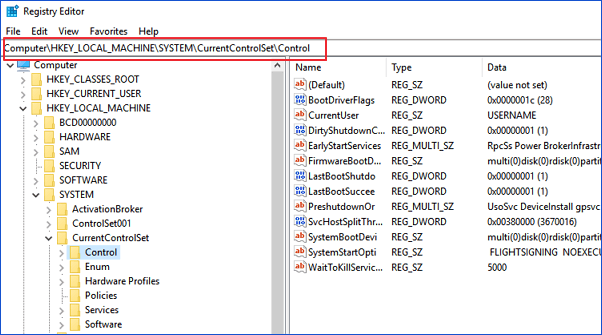
Remove write protection on USB/SD/hard drive in Windows using Registry.

4. Check Storage Device Policies > Change the DWORD value to “0“> Click OK to save changes;

Remove write protection from internal/external hard drive, USB or SD card.

5. Quit Regedit and restart your PC to finish.

Method 4: Remove write protection from BitLocker partition in Windows

When you enable BitLocker on a hard drive partition, BitLocker will protect your data with encryption. And you won’t be able to make any changes to the BitLocker partition unless you remove or unlock the protection.

Here are the instructions to unlock and remove encryption (write protection) from BitLocker folders or partitions on your PC:

1. Open This PC and right click on your BitLocker partition or storage device, select Manage BitLocker.
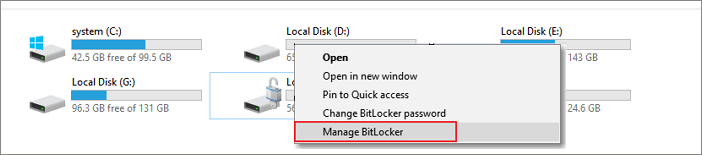
Remove BitLocker protection.

2. Select the correct BitLocker write-protected partition and press Turn off BitLocker.
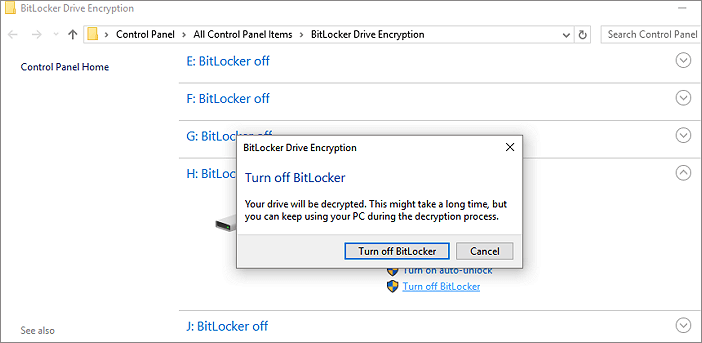
Unlock the BitLocker partition.

3. Wait and BitLocker will decrypt itself.
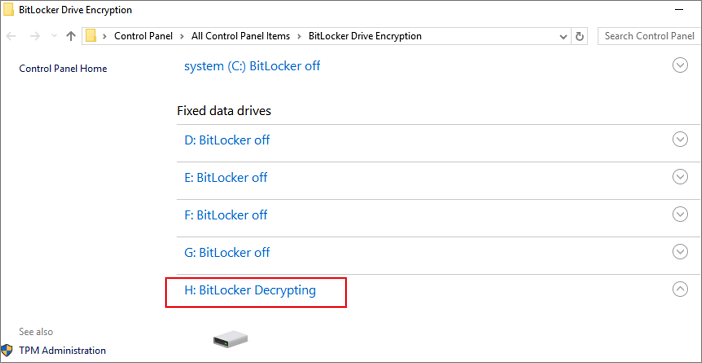
Remove write protection from BitLocker partition.

You should then be able to see your partition or hard drive showing BitLocker. You can manage the data on your partition without BitLocker write protection.
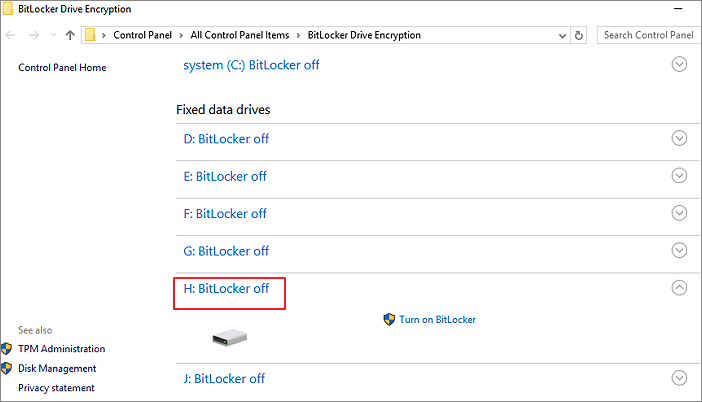

Unlock the BitLocker partition and reuse it.

The article achieved: 5/5 – (100 votes)

Previous Post

Download Hacking Ebook CEH v10 document for free

Next Post

Instructions to recover deleted data on the drive after Format

AnonyViet

AnonyViet

Related Posts

Windows 7/8.1/10 users will be upgraded to Windows 11 for free
Tips

Windows 7/8.1/10 users will be upgraded to Windows 11 for free

July 30, 2026
Instructions for receiving ChatGPT Plus for 1 month for free in 2026
Tips

Instructions for receiving ChatGPT Plus for 1 month for free in 2026

July 28, 2026
Some reasons I don’t like Windows 11
Tips

Some reasons I don’t like Windows 11

July 27, 2026
Instructions on how to get free Facebook white ticks
Tips

Instructions on how to get free Facebook white ticks

July 27, 2026
Collection of Windows 11 wallpapers for computers and phones
Tips

Collection of Windows 11 wallpapers for computers and phones

July 26, 2026
Don’t install leaked Windows 11
Tips

Don’t install leaked Windows 11

July 25, 2026
Next Post

Instructions to recover deleted data on the drive after Format

0 0 votes
Article Rating
Subscribe
Login
Notify of
guest

guest

0 Comments
Oldest
Newest Most Voted

Recent News

Windows 7/8.1/10 users will be upgraded to Windows 11 for free

Windows 7/8.1/10 users will be upgraded to Windows 11 for free

July 30, 2026
Instructions for receiving the free Certified LLM Security Expert certificate

Instructions for receiving the free Certified LLM Security Expert certificate

July 30, 2026
MSI laptops are not just for gamers: Which line is suitable for students, office workers and creative people?

MSI laptops are not just for gamers: Which line is suitable for students, office workers and creative people?

July 29, 2026
What is quantum resistant cryptography? Why must the Internet change?

What is quantum resistant cryptography? Why must the Internet change?

July 29, 2026
Windows 7/8.1/10 users will be upgraded to Windows 11 for free

Windows 7/8.1/10 users will be upgraded to Windows 11 for free

July 30, 2026
Instructions for receiving the free Certified LLM Security Expert certificate

Instructions for receiving the free Certified LLM Security Expert certificate

July 30, 2026
MSI laptops are not just for gamers: Which line is suitable for students, office workers and creative people?

MSI laptops are not just for gamers: Which line is suitable for students, office workers and creative people?

July 29, 2026
AnonyViet - English Version

AnonyViet

AnonyViet is a website share knowledge that you have never learned in school!

We are ready to welcome your comments, as well as your articles sent to AnonyViet.

Follow Us

Contact:

Email: anonyviet.com[@]gmail.com

Main Website: https://anonyviet.com

Recent News

Windows 7/8.1/10 users will be upgraded to Windows 11 for free

Windows 7/8.1/10 users will be upgraded to Windows 11 for free

July 30, 2026
Instructions for receiving the free Certified LLM Security Expert certificate

Instructions for receiving the free Certified LLM Security Expert certificate

July 30, 2026
  • Home
  • Home 2
  • Home 3
  • Home 4
  • Home 5
  • Home 6
  • Next Dest Page
  • Sample Page

say88 tỷ lệ kèo nhà cái kèo nhà cái 5 febet

No Result
View All Result
  • Home
  • News
  • Software
  • Knowledge
  • MMO
  • Tips
  • Security
  • Network
  • Office

say88 tỷ lệ kèo nhà cái kèo nhà cái 5 febet

wpDiscuz
0
0
Would love your thoughts, please comment.x
()
x
| Reply