• Home
  • News
  • Software
  • Knowledge
  • MMO
  • Tips
  • Security
  • Network
  • Office
AnonyViet - English Version
  • Home
  • News
  • Software
  • Knowledge
  • MMO
  • Tips
  • Security
  • Network
  • Office
No Result
View All Result
  • Home
  • News
  • Software
  • Knowledge
  • MMO
  • Tips
  • Security
  • Network
  • Office
No Result
View All Result
AnonyViet - English Version
No Result
View All Result

7 ways to fix multi-word keyboard errors in Windows 10

AnonyViet by AnonyViet
January 28, 2023
in Tips
0

If your keyboard suddenly fails to type a lot of words while working, playing games, it is really annoying, right? So in this article, I will guide you through 7 ways to fix the error of typing many words in the keyboard Windows 10.

Join the channel Telegram of the AnonyViet 👉 Link 👈

7 ways to fix multi-word keyboard errors in Windows 10

7 ways to fix multi-word keyboard errors in Windows 10

1. Restart the PC

When I want to fix any problem, restarting my PC is the first solution that comes to mind. This can fix the problem because it clears any data slowing down your device and stops any tasks that are taking up too much RAM.

In addition, restarting the PC can fix some hardware and peripheral device errors. If your computer has just downloaded an update, you should restart it to make sure it can run smoothly.

2. Check your keyboard for dust

If your keyboard is a bit old, it is possible that it has dust or debris that is preventing it from working as it should, especially if you prefer to use a mechanical keyboard. If you think this is the cause of the problem, then you need to clean your keyboard thoroughly.

For mechanical keyboards, you can use a key puller to remove the keys and clean or use an air blower. If you use a laptop keyboard, it could be a sign that you also need to clean the keyboard.

In addition, a loose connection port of the keyboard is also the cause of the problem. If you are using a USB keyboard, unplug the USB cord and reconnect it, or use a different USB port.

3. Use the Keyboard Troubleshooter

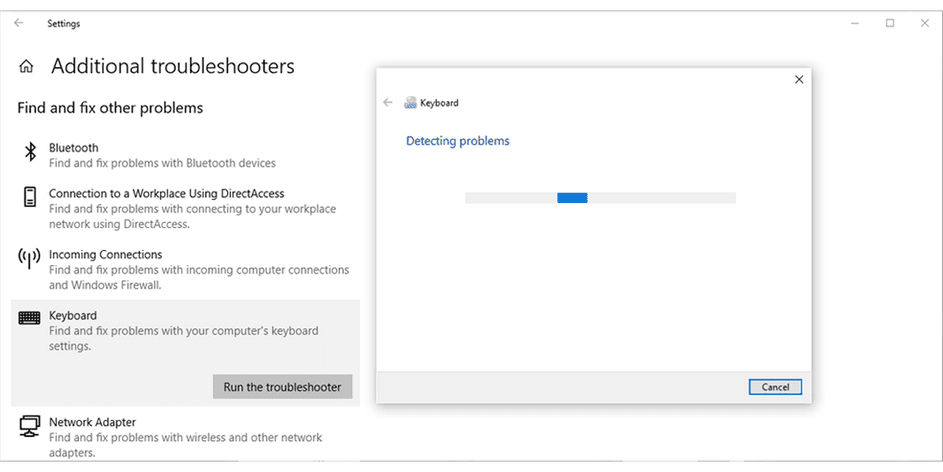
You can use the Troubleshooter tool to fix some hardware problems. Perform the following steps to run the keyboard Troubleshooter:

  1. Right click Start > Settings (or press Win + I).
  2. Then enter Update & Security > Troubleshoot > Additional troubleshooters.
  3. In Find and fix other problemsselect Keyboard > Run the troubleshooter.
  4. Follow the tool’s instructions.

7 ways to fix multi-word keyboard errors in Windows 10 7

4. Using Windows Security Tool

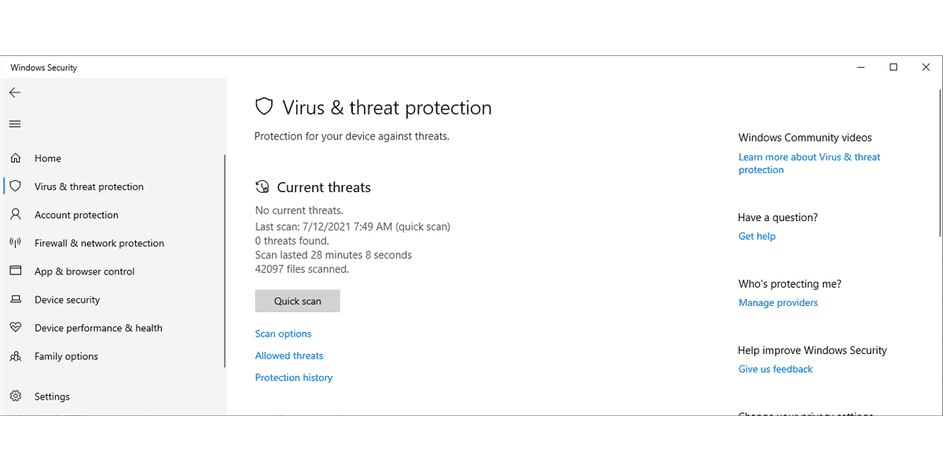
You can use Windows Security to scan your Laptop or PC for malicious files or corrupt files that can cause keyboard errors. Here’s how to do it:

  1. Open Settingsthen select Update & Security.
  2. Select Windows Security > Open Windows Security > Virus and threat protection in the menu on the left.
  3. Press the button Quick scan. Windows 10 will delete any detected harmful files.
  4. Once the scan is complete, test your keyboard again.
7 ways to fix multi-word keyboard errors in Windows 10 8

5. Update Keyboard Driver

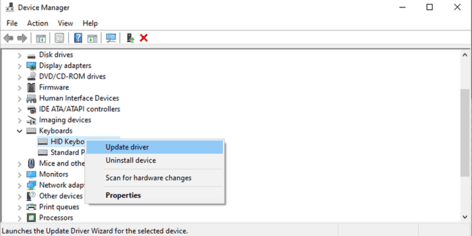
Your keyboard driver may be outdated or damaged. To fix it, you should update the Driver by:

  1. Into the Start > Device manager.
  2. Select Keyboard.
  3. Click on driver and choose Update drivers.
7 ways to fix multi-word keyboard errors in Windows 10 9

If this doesn’t find any errors, look up the manufacturer’s name, your keyboard’s code, and find the driver on its official website. Or you can also use driver scanning software IObit Booster.

6. Check language settings

Windows 10 detects the default input language on your device but sometimes it’s not. Here’s how you can make sure you and your system are using the same language:

  1. Open Settings.
  2. Select Time & Language > Language Keyboard.
  3. In the section Override for default input method, Select the language you want.

7 ways to fix multi-word keyboard errors in Windows 10 10

Also, you should remove any additional languages ​​or keyboard languages ​​that you don’t use. Open menu Language by the steps above and scroll down Preferred languages. There, click on the language you don’t use or have accidentally installed and select Remove.

7. Change the key input delay

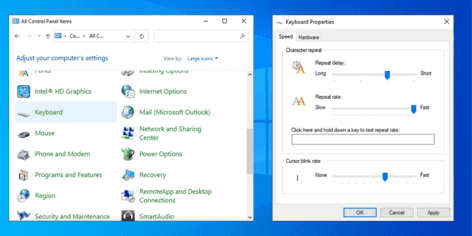
In Windows 10, you can use the keyboard settings to change the key delay from short to long. Follow these steps to adjust the delay between keystrokes:

  1. In the search bar of Start menulet’s search control panel.
  2. Go to the menu View by and choose Large icons or Small icons.
  3. Select Keyboard. Then increase or decrease the delay you want.
  4. Click Apply > OK to save the new settings.
7 ways to fix multi-word keyboard errors in Windows 10 11

If the problem is not fixed, it is best to buy a new keyboard.

The article achieved: 5/5 – (100 votes)

Tags: errorsfixKeyboardmultiwordwaysWindows
Previous Post

Instructions to view security cameras in the world with Cam-Hackers

Next Post

How to install Mod VIP AppCake app store on iOS

AnonyViet

AnonyViet

Related Posts

3 coolest ways to turn off your computer
Tips

3 coolest ways to turn off your computer

July 19, 2026
Instructions for checking Windows copyright using Powershell to avoid penalties
Tips

Instructions for checking Windows copyright using Powershell to avoid penalties

July 19, 2026
Who leaked Windows 11?
Tips

Who leaked Windows 11?

July 18, 2026
Instructions for Getting Netflix 30 Days Free to Watch Movies
Tips

Instructions for Getting Netflix 30 Days Free to Watch Movies

July 18, 2026
How to create a website introducing yourself using Bio Link for free
Tips

How to create a website introducing yourself using Bio Link for free

July 17, 2026
Instructions on how to receive ShopeeVIP for 12 months for free
Tips

Instructions on how to receive ShopeeVIP for 12 months for free

July 16, 2026
Next Post
How to install Mod VIP AppCake app store on iOS

How to install Mod VIP AppCake app store on iOS

0 0 votes
Article Rating
Subscribe
Login
Notify of
guest

guest

0 Comments
Oldest
Newest Most Voted

Recent News

3 coolest ways to turn off your computer

3 coolest ways to turn off your computer

July 19, 2026
Instructions on how to get Norton 360 Deluxe for 1 year for free

Instructions on how to get Norton 360 Deluxe for 1 year for free

July 19, 2026
Instructions for checking Windows copyright using Powershell to avoid penalties

Instructions for checking Windows copyright using Powershell to avoid penalties

July 19, 2026
Who leaked Windows 11?

Who leaked Windows 11?

July 18, 2026
3 coolest ways to turn off your computer

3 coolest ways to turn off your computer

July 19, 2026
Instructions on how to get Norton 360 Deluxe for 1 year for free

Instructions on how to get Norton 360 Deluxe for 1 year for free

July 19, 2026
Instructions for checking Windows copyright using Powershell to avoid penalties

Instructions for checking Windows copyright using Powershell to avoid penalties

July 19, 2026
AnonyViet - English Version

AnonyViet

AnonyViet is a website share knowledge that you have never learned in school!

We are ready to welcome your comments, as well as your articles sent to AnonyViet.

Follow Us

Contact:

Email: anonyviet.com[@]gmail.com

Main Website: https://anonyviet.com

Recent News

3 coolest ways to turn off your computer

3 coolest ways to turn off your computer

July 19, 2026
Instructions on how to get Norton 360 Deluxe for 1 year for free

Instructions on how to get Norton 360 Deluxe for 1 year for free

July 19, 2026
  • Home
  • Home 2
  • Home 3
  • Home 4
  • Home 5
  • Home 6
  • Next Dest Page
  • Sample Page

say88 tỷ lệ kèo nhà cái kèo nhà cái 5 febet

No Result
View All Result
  • Home
  • News
  • Software
  • Knowledge
  • MMO
  • Tips
  • Security
  • Network
  • Office

say88 tỷ lệ kèo nhà cái kèo nhà cái 5 febet

wpDiscuz
0
0
Would love your thoughts, please comment.x
()
x
| Reply