We’ve all used USB to transfer files between computers, but USB has many other features besides storing data. You can use USB to lock and unlock your computer or increase RAM using USB. Please read through this article!
| Join the channel Telegram belong to AnonyViet 👉 Link 👈 |
You can also use USB to connect to a wireless network on all your PCs, increase your computer’s performance, or even run a web server directly from the USB itself. So what are you waiting for, let’s explore other features of USB.

7 other features of USB you may not know
1. Use USB to lock or unlock the computer

Do you want to lock and unlock your computer using USB, just like in the movies? Free tools PREDATOR will help you do that.
PREDATOR Turn your USB drive into a key for your computer. When you’re not using your PC anymore, unplug the USB and your computer will be locked. When you return, insert the USB and your computer will be unlocked.
It’s like using functions Lock in Windows, but you do not need to enter a password when you want to use it.
When you pull out the USB drive, your open windows will minimize and your screen will go dark, plug in the USB and your screen will turn back on.
2. Run Portable applications anywhere
Portable is a pre-packaged application that you can use immediately without installation.
Portable software and games can be easily copied to USB, and run on any computer. Browsers, email tools, messaging apps, and games can all run from a USB drive. You can order yourself created for Portable application Copy it to USB and use it anywhere without clicking the install button.
This is an extremely useful solution if you want to use the software on any PC. This could be in the library, or even an internet cafe.
3. Speed up Windows with ReadyBoost feature using USB
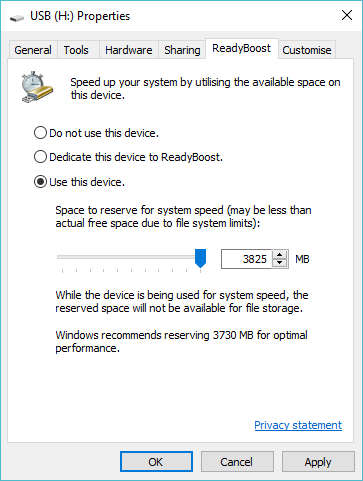
If you’re using a slow or very old hard drive, ReadyBoost can help you speed things up. When you enable ReadyBoost given a drive, it will act as a hard drive cache, caching frequently used files. If your USB is faster than the drive in the system, Windows 10 will read the data in the cache.
You won’t see much performance increase if you use a drive 7200 RPM or more. If you use an SSD, Windows will not let you use ReadyBoost because the USB cache will be slower than your SSD.
To enable ReadyBoost, click Right click on USB in Windows Explorer, select Properties and use the options on the tab ReadyBoost. Windows will only let you enable ReadyBoost if your USB is fast enough, so you may see these options greyed out for some devices. ReadyBoost also requires the flash drive to have at least 256 MB of free space.
4. Backup with Win32 Disk Imager
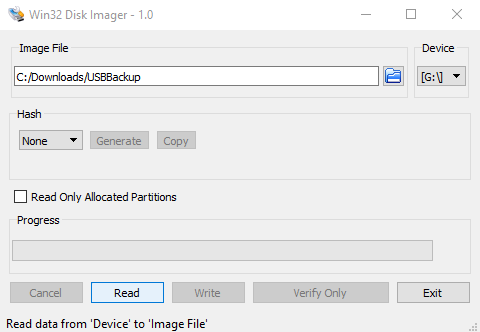
If you are using USB for multiple purposes, backing up data can be very useful. You can do this easily with Win32 Disk Imager.
In spite of Win32 Disk Imager Usually used to make USB boot, but it can also create images. Just download and run Win32 Disk Imager, plug in the USB, and choose a destination and name for the image file. Click Read to back up the contents of the disc.
When you need to restore a disk, just browse to the image and click Write.
5. Store travel documents
If you travel often, you’ve probably made a mistake with your documents. Like booking confirmations, even passports can be easily lost. Putting documents in the wrong bag can lead to trouble if the baggage handler is careless.
The optimal solution is to save all travel documents on a compact USB drive and take it with you. This will be especially useful when you need to show your documents to others. But now they more or less save those documents on USB, instead, they save them on their phone for convenience.
6. Create a rescue USB to handle when Windows fails

Rescue USB Can be used to install a new operating system, recover deleted data, restore Ghost files, delete Windows login password, etc. You just need to download the rescue USB ISO, then burn it to USB. Every time Windows crashes or wants to reinstall the operating system, the rescue USB will help you boot into Windows PE and use the integrated tools.
7. Install a secure operating system on USB
Additionally, you can use USB as a portable operating system. Bring the USB to another computer and boot the USB, you will have your own operating system without having to share it with others.
Tails is a secure operating system designed to be portable, with built-in features that protect your privacy and anonymity. No data is saved on this operating system. Meanwhile, the software encrypts your data, emails and messages, while internet data is redirected through Tor.
Each time you use Tails on your USB, it starts a completely new session without retaining any data. This helps increase your online privacy and security, the only thing left to do is use a strong password. You can also install Kali Linux live USB or Unbuntu USB if you want.
Frequently asked questions
What can USB be used for besides storing data?
In addition to storing data, USB can also be used to lock/unlock the computer, run portable applications, speed up Windows with ReadyBoost, back up data, store travel documents, create rescue USBs, and even install a mobile security operating system.
How to speed up computer using USB?
The ReadyBoost feature in Windows allows using USB as a cache, speeding up data reading. However, the effect is only noticeable on computers with slow hard drives. Not effective on computers using SSD.
Can I use USB to create a secure portable operating system?
Yes, you can install operating systems such as Tails (secure, anonymous operating system) or other Linux distributions onto USB to use as a portable operating system, ensuring data security and privacy.