

USB drives are a common way of storing data between devices. With their compactness and lightness, USB drives are among the best portable storage devices available. Sometimes the copy speed between USB and PC is very slow, so how to increase the USB data Copy speed.
| Join the channel Telegram of the AnonyViet 👉 Link 👈 |
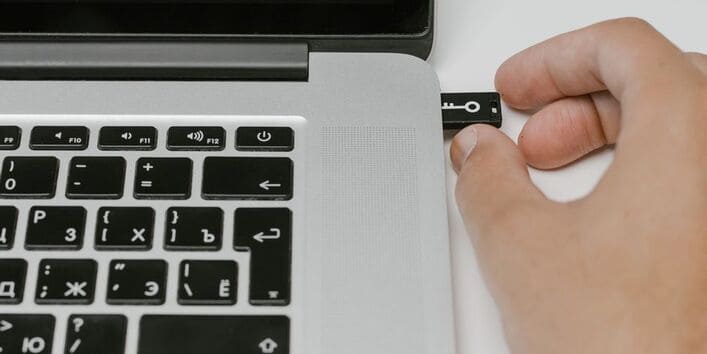
USB data copy speed slower than what is advertised by the manufacturer is quite common. As a result, this becomes frustrating and time consuming. However, while the USB type, its age and the connection port can also slow down the data copying process, the problem can also be with your system.
Therefore, if your Data Copy speed has dropped significantly, try these 6 ways to speed up your USB drive.
6 ways to increase USB data copy speed on Windows
1. Turn off Windows Security
Copy speed can sometimes be limited by Windows Security by real-time protection. You may experience this when connecting USB for the first time or when the device you are connecting to has been infected with malware.
If it is not configured correctly, Windows may detect it as a fake threat, resulting in data copying being slowed down or stopped continuously. Therefore, you are required to turn off Windows security temporarily so as not to slow down the data Copy process.
Here’s how to turn off Windows Security’s real-time protection.
1. Open the app Settings.
2. Click Update and Security.
3. On the left menu, find Windows Security and click it.
4. Select Next Virus & threat protection.
5. Scroll down and click Manage settings right below Virus and threat protection settings.
6. Off Real-time protection and Cloud-delivered protection.
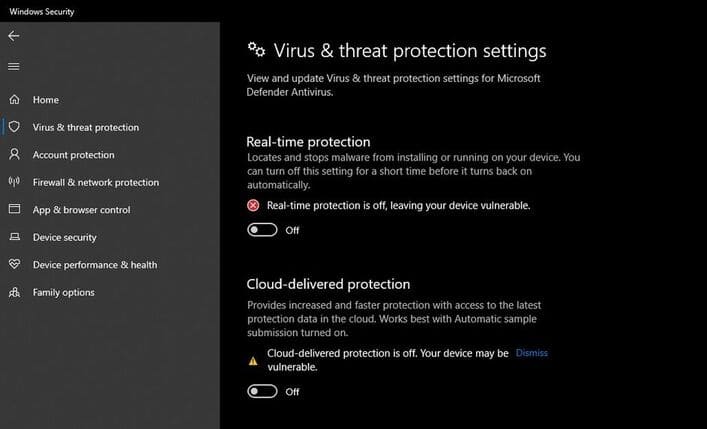
Restart your computer, connect the USB and start moving files. If the speed is still slow, then it seems that your computer has a problem.
2. Update USB Driver
Updating USB drivers will fix outdated settings or corrupted drivers that can slow down USB Data Copy speed. In other words, updating the driver increases the USB data copy speed.
To update the driver, you need to plug the USB into the computer’s USB port. Then right click on This PC and choose Manage. In the pop-up, find Device Manager on the left side and click on it. Expand the catalog Disk drives. From there, right click on your USB drive and click Update drivers.
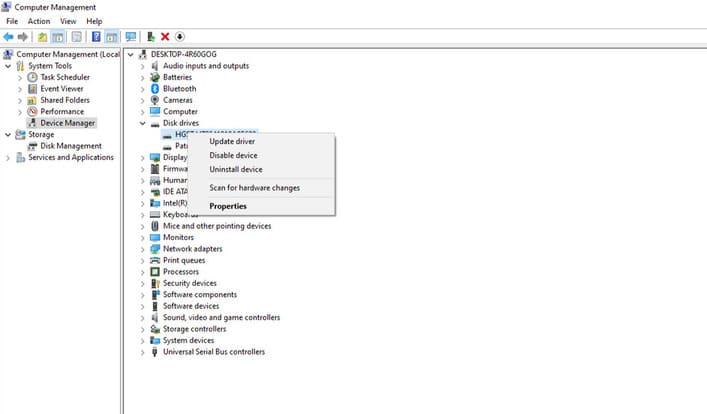
On the pop-up window, you need to select Search automatically for drivers. Once done, Windows will automatically search and install the driver for your PC.
If updating drivers doesn’t solve the problem, you can reinstall them. This will further eliminate the possibility of incorrect settings affecting data copy speed.
3. Reinstall USB Driver
Sometimes, slow copy speed is due to faulty driver installation, but sometimes updating them is not enough. In this case, reinstalling the driver will be able to increase the USB data copy speed.
The USB driver must be reinstalled to completely reset the USB’s configuration and all its system settings. Also, it won’t change your drive data, so reinstalling them won’t cause any damage to your files.
To uninstall the USB driver, follow these steps:
1. Connect the USB to the USB port on the computer.
2. Navigate to Manage by right clicking on This PC.
3. Click Device Manager in the menu on the left.
4. Locate your USB device by expanding the category Disk drives.
5. Right click on the usb and select Uninstall device.
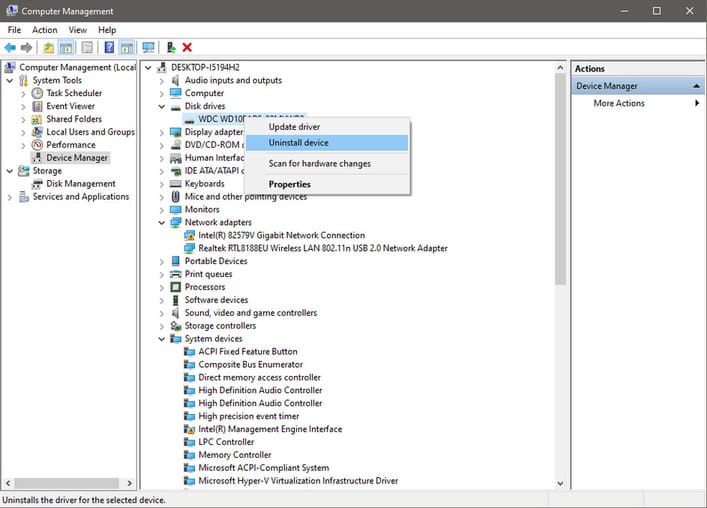
After uninstalling, remove the USB from the computer and reboot the system once. Windows will automatically find and install the USB drivers when you plug in the USB after rebooting.
4. Change the USB port
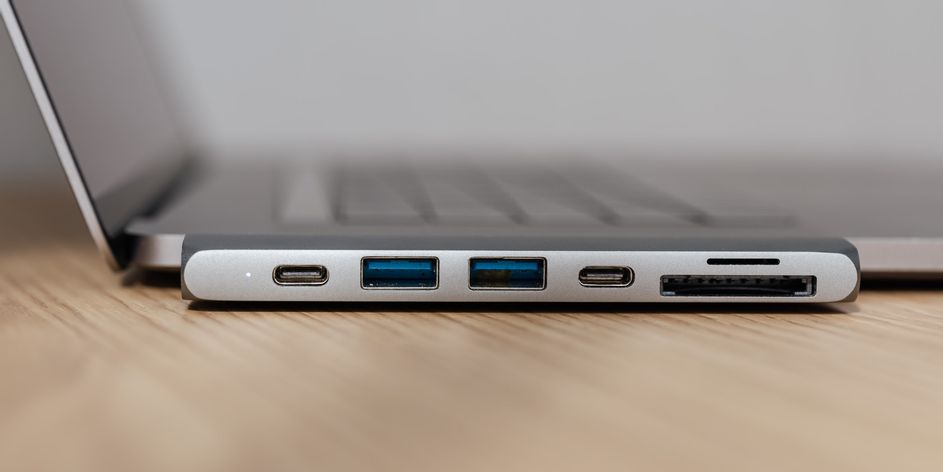
The port on your computer can also be the cause of slow data copying. It is possible that the USB port you are connecting to has worn out over time or may not be compatible with the version of the USB.
Therefore, make sure that you connect the USB to a port that supports the correct version of USB and make sure that the port is in good condition. If your USB uses a higher version of the USB port, try finding a more suitable port on your computer somewhere. Likewise, using a different port eliminates the problem if the port you are using is outdated.
5. Change your device’s performance settings
Changing your device’s performance settings will optimize its performance. By enabling some specific hard drive policies, you can set the maximum Data Copy speed in the machine.
Follow the steps below to change your device’s performance settings:
1. Connect your USB drive to the appropriate USB port.
2. Right-click the Windows icon on your taskbar.
3. Select Disk Management.
4. In the Disk Management window, find your plugged-in USB drive.
5. Right click on your drive and select Properties.
6. Navigate to tab Policiesthen select Better performance.
7. After selecting Better performanceturn on Write Caching on the Device.
8. Finally click OK.
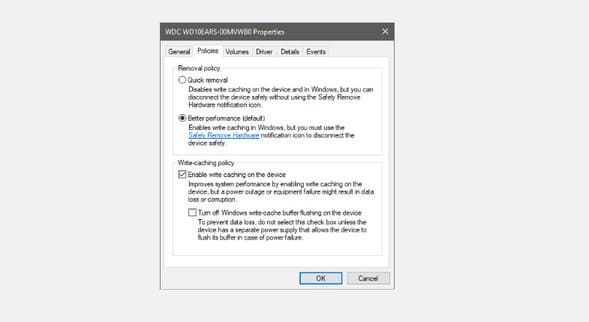
Reconnect your USB drive and see if the Copy speed has improved. If not, the only solution is to replace the USB drive.
6. Upgrade to USB 3.0
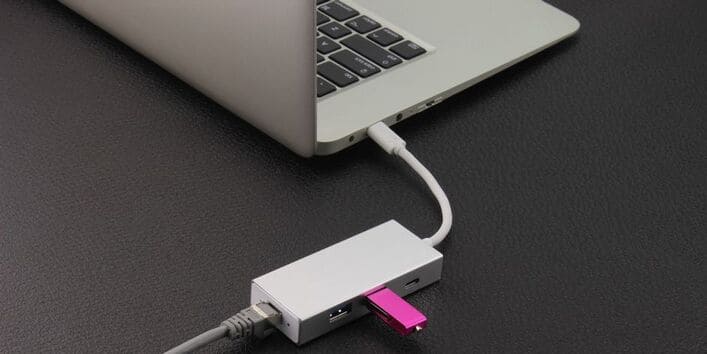
If none of the fixes on this list solve the problem, the problem may be with your USB version. You should consider upgrading your USB to USB 3.0.
Both the Download Copy and Power Copy speeds of USB 3.0 are better than USB 2.0. USB 3.0 has a data copy speed of 4.8 Gbps, higher than 480 Mbps of USB 2.0. Therefore, the download copy speed increases significantly, which will speed up the data copying process. In general, USB 3.0 is a better choice than USB 2.0, 1.1 or 1.0.
Also, you need to make sure that you connect the USB 3.0 drive to the 3.0 port. If it is connected to a 2.0 port, it will provide the maximum Data Copy speed of USB 2.0 instead of 3.0, which defeats the purpose of choosing USB 3.0.









