• Home
  • News
  • Software
  • Knowledge
  • MMO
  • Tips
  • Security
  • Network
  • Office
AnonyViet - English Version
  • Home
  • News
  • Software
  • Knowledge
  • MMO
  • Tips
  • Security
  • Network
  • Office
No Result
View All Result
  • Home
  • News
  • Software
  • Knowledge
  • MMO
  • Tips
  • Security
  • Network
  • Office
No Result
View All Result
AnonyViet - English Version
No Result
View All Result

3 ways to restore deleted Bookmarks on Microsoft Edge

AnonyViet by AnonyViet
February 15, 2024
in Tips
0

Recover deleted bookmarks is a problem that many Edge users often encounter. Bookmarks are a useful feature that helps you save websites that you frequently visit or are interested in. However, sometimes you may accidentally delete these bookmarks This is when cleaning your browsing history, syncing data, or reinstalling your browser. Then you will lose the web pages you have saved and it may be difficult to find them again. So how to restore deleted bookmarks?

Join the channel Telegram belong to AnonyViet 👉 Link 👈

How to restore deleted bookmarks on Microsoft Edge

Microsoft Edge is gaining an edge over its competitors with some powerful features like a built-in PDF editor, full-page image capture, and customizable sidebar, including recovering deleted bookmarks too, how to How to do it, let's follow along!

Method 1: Use the Undo feature

Conveniently, restoring a recently deleted folder or bookmark link in Edge is as simple as pressing Undo. The steps are as follows:

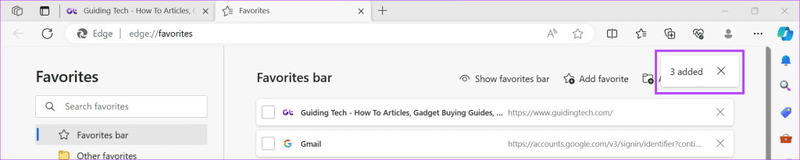
Step 1: Open Microsoft Edge and click the Favorites icon (star icon) on the top bar.

Note: You can also use a keyboard shortcut to open the Favorites menu by pressing Ctrl + Shift + O.

Step 2: Click on the three-dot icon and select 'Open Favorites Page'
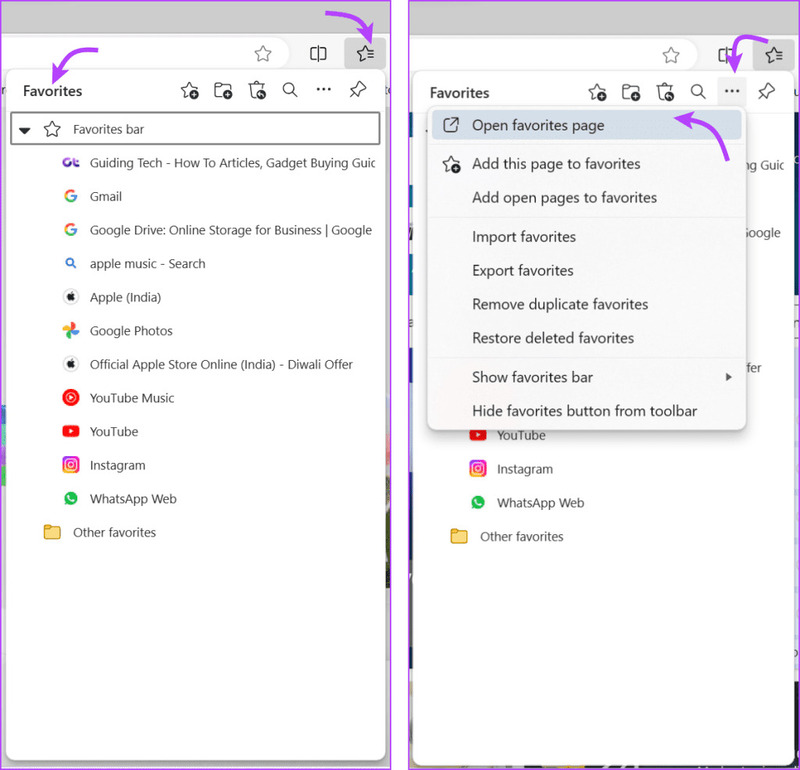
Recover deleted bookmarks
Click the Favorites icon

Step 3: Enter Ctrl+Z to undo.

Recover deleted bookmarks
Press Ctrl + Z

Not only does it restore the most recently deleted bookmarks, but you can also Ctrl + Z a few more times to restore older deleted favorite websites.

Besides, if you are organizing bookmarks on Microsoft Edge and accidentally delete a few, you can restore it by simply clicking the Undo button.
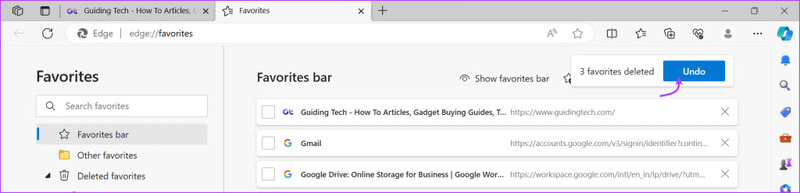
Recover deleted bookmarks
Click the Undo button to undo

Method 2: Use Edge's recovery feature

Microsoft Edge has a built-in tool to help restore your bookmark lists, but to use this feature, you need to note that:

  • Bookmarks must be synced with your Microsoft account.
  • You can only restore bookmarks deleted within 28 days. In other words, Microsoft only saves deleted favorite websites for 28 days from the date of deletion.

Step 1: Open Microsoft Edge → Favorites icon on the top bar.

Step 2: Click on the three-dot icon → Select 'Restore deleted favorites'
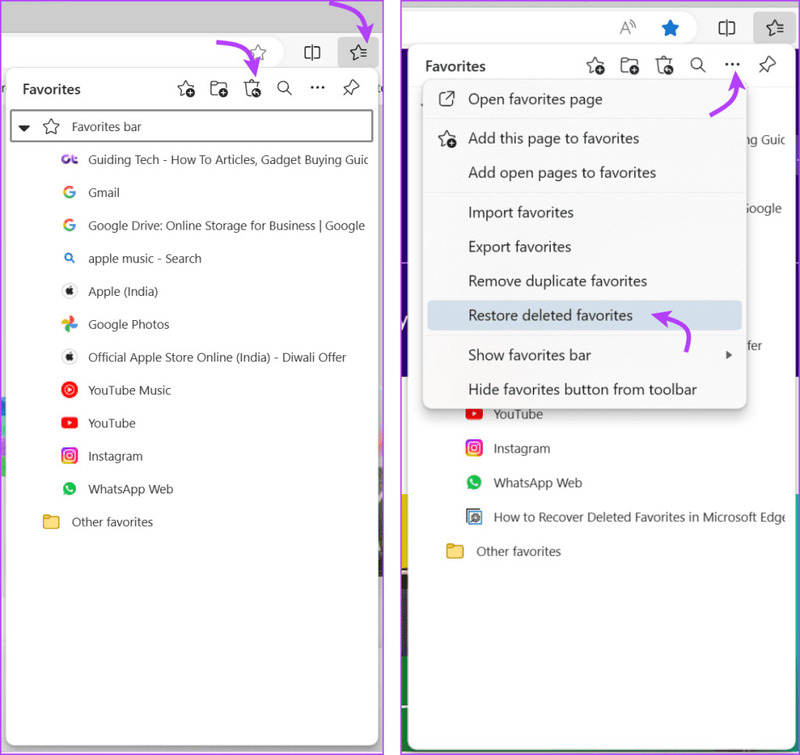
Recover deleted bookmarks
Click on the three-dot icon → Select 'Restore deleted favorites'

Step 3: Select the deleted folder or website to restore it.

Step 4: Next, click 'Restore' to restore.
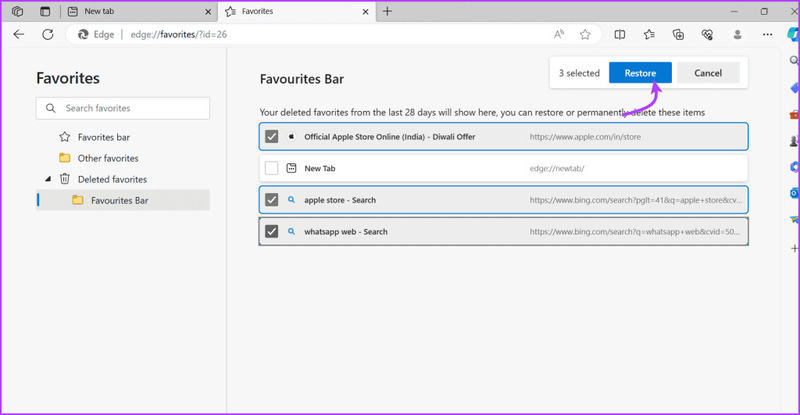
Recover deleted bookmarks
Click 'Restore'

You will immediately find the restored folder back in the Favorites Bar.

Method 3: Use File Explorer

Step 1: Open File Explorer and go to This PC.

Step 2: Here, navigate to C:\Users\UserName.

Step 3: Find the Favorites folder in the list.

Step 4: Right click on the folder and select 'Show more options'

Step 5: Select 'Restore the previous version'
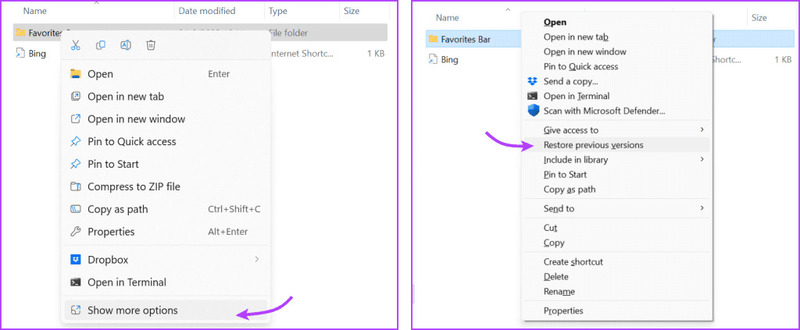
Recover deleted bookmarks
Select 'Restore the previous version'

Step 6: In the window, select the previous version (if available) and click Apply.

Once done, restart Edge and check to see if your favorite bookmarks are back. Now you can export the bookmarks, update Edge again, and import the bookmarks again to make sure nothing is missing.

Note: Don't worry about duplicate bookmark pages. Edge also has a great tool to handle that. You just need to open Edge → Favorites → three-dot icon → select Remove Duplicate Favorites → Remove and you're done.

Epilogue

Recover deleted bookmarks It's not too difficult a job if you know how to do it. Just apply 1 of the 3 ways we have shared in this article, you can get back the websites you have saved on your browser. Good luck!


The article scored: 5/5 – (100 votes)

Tags: BookmarksdeletedEdgeMicrosoftrestoreways
Previous Post

TUT Add Email to Other People's Facebook Without Being Checkpointed

Next Post

Share free UI/UX design course for applications and websites

AnonyViet

AnonyViet

Related Posts

3 OCR Tools Extract Text from Images without Retyping
Tips

3 OCR Tools Extract Text from Images without Retyping

November 8, 2025
Ways hackers use to hack your Facebook and how to fix it
Tips

Ways hackers use to hack your Facebook and how to fix it

November 7, 2025
Create your own Font using your Handwriting
Tips

Create your own Font using your Handwriting

November 6, 2025
Share White Hat Hacker Course – The Complete Ethical Hacking Course
Tips

Share White Hat Hacker Course – The Complete Ethical Hacking Course

November 5, 2025
Instructions on how to get 1 year of ChatGPT Go for free
Tips

Instructions on how to get 1 year of ChatGPT Go for free

November 4, 2025
Instructions for creating your own Chrome Extension using Scratch
Tips

Instructions for creating your own Chrome Extension using Scratch

November 4, 2025
Next Post
Share free UI/UX design course for applications and websites

Share free UI/UX design course for applications and websites

0 0 votes
Article Rating
Subscribe
Login
Notify of
guest

guest

0 Comments
Oldest
Newest Most Voted
Inline Feedbacks
View all comments

Recent News

Instructions for downloading Anh Hai’s Pho Shop game on Android

Instructions for downloading Anh Hai’s Pho Shop game on Android

November 8, 2025
Download training materials on Applying AI in teaching and learning in 2025

Download training materials on Applying AI in teaching and learning in 2025

November 8, 2025
How to pay health insurance on Momo online right at home

How to pay health insurance on Momo online right at home

November 8, 2025
How to create Flycam videos from photos to sell real estate

How to create Flycam videos from photos to sell real estate

November 8, 2025
Instructions for downloading Anh Hai’s Pho Shop game on Android

Instructions for downloading Anh Hai’s Pho Shop game on Android

November 8, 2025
Download training materials on Applying AI in teaching and learning in 2025

Download training materials on Applying AI in teaching and learning in 2025

November 8, 2025
How to pay health insurance on Momo online right at home

How to pay health insurance on Momo online right at home

November 8, 2025
AnonyViet - English Version

AnonyViet

AnonyViet is a website share knowledge that you have never learned in school!

We are ready to welcome your comments, as well as your articles sent to AnonyViet.

Follow Us

Contact:

Email: anonyviet.com[@]gmail.com

Main Website: https://anonyviet.com

Recent News

Instructions for downloading Anh Hai’s Pho Shop game on Android

Instructions for downloading Anh Hai’s Pho Shop game on Android

November 8, 2025
Download training materials on Applying AI in teaching and learning in 2025

Download training materials on Applying AI in teaching and learning in 2025

November 8, 2025
  • Home
  • Home 2
  • Home 3
  • Home 4
  • Home 5
  • Home 6
  • Next Dest Page
  • Sample Page

new88 trang chủ shbet trang chủ f168 trang chủ qq88 nhà cái 78win

No Result
View All Result
  • Home
  • News
  • Software
  • Knowledge
  • MMO
  • Tips
  • Security
  • Network
  • Office

new88 trang chủ shbet trang chủ f168 trang chủ qq88 nhà cái 78win

wpDiscuz
0
0
Would love your thoughts, please comment.x
()
x
| Reply