• Home
  • News
  • Software
  • Knowledge
  • MMO
  • Tips
  • Security
  • Network
  • Office
AnonyViet - English Version
  • Home
  • News
  • Software
  • Knowledge
  • MMO
  • Tips
  • Security
  • Network
  • Office
No Result
View All Result
  • Home
  • News
  • Software
  • Knowledge
  • MMO
  • Tips
  • Security
  • Network
  • Office
No Result
View All Result
AnonyViet - English Version
No Result
View All Result

3 Ways to deal with a broken keyboard on Windows

AnonyViet by AnonyViet
February 1, 2023
in Tips
0

If you have a broken or missing keyboard (keys that you don’t use often). You can assign that key’s function to another key, or the like. Here are a few ideas that you can apply to your situation.broken keyboard

Join the channel Telegram of the AnonyViet 👉 Link 👈

How to check a broken keyboard

To check if your keyboard has broken keys, go to the page Key Test.3 Ways to deal with a broken keyboard on Windows 8

Press all the keys on the keyboard. You will know which key is broken in no time.

The first way: Remap the keys with software

Use the free utility PowerToys by Microsoft, you can assign the function of a broken key to another key that you don’t use often, like Scroll or Caps Lock, or that has a function key.

To do this, first download Microsoft PowerToys. After you launch it, select the “Keyboard Manager” item, and then click “Remap a key”.

I will give an example of a broken Esc key and a rarely used key that is Scroll Lock to replace the function of the key Esc.

3 Ways to deal with a broken keyboard on Windows 9

In the “Remap Keyboard” window, click the plus sign (+) to add a shortcut.3 Ways to deal with a broken keyboard on Windows 10
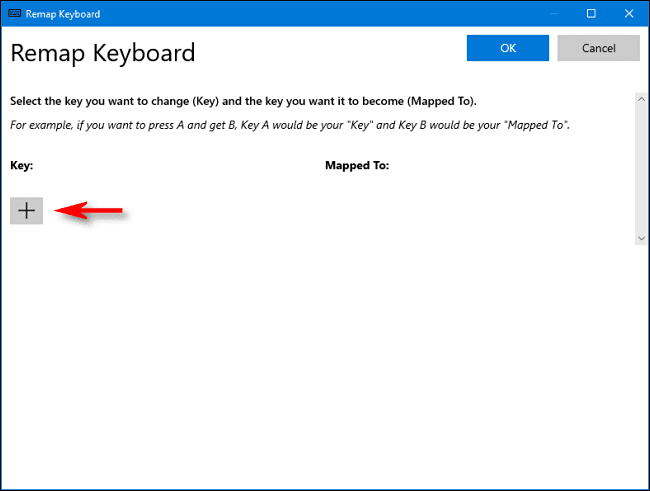
The “Key” section is where you need to define the mapping key. In the “Mapped To” section, select the key that replaces the function of the damaged key.

In this example, the Esc key is broken and I want to replace it with the Scroll Lock key.3 Ways to deal with a broken keyboard on Windows 11

Click “OK” and close the “Remap Keyboard” window, and the alternate key will be activated. Your job is to check if it’s working properly.

If not or your Scroll Lock key is broken, then go back to the “Remap Keyboard” window in PowerToys to change another key. You can also click the trash can icon to completely remove the mapping key.

Second way: Change Keycap or Switch

3 How to handle broken keyboard on Windows 12

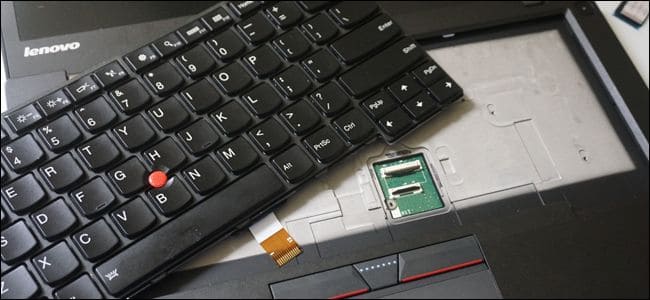
On keyboards there is a piece of plastic to print words called keycap, this is what you press every day, so for you buffalo hands, the possibility of key damage is also higher.

If a keycap is damaged or lost, but the switch underneath it is fine, you just need to replace the keycap.

You can gently remove the keycap with a flat-head screwdriver. Just be careful not to use too much force, but if you slip your hand or pry too hard, you can determine the keyboard.

After you remove the broken keycap, get a new keycap to enter and just press lightly and it will snap right into place. And if the switch is damaged but your key can’t change the hot switch, it’s best to take it to a repair shop, see how people fix it and then learn, if it happens later, you can fix it yourself.

As a last resort, buy a new keyboard
3 Ways to deal with a broken keyboard on Windows

If the options above do not meet your requirements. Or the keycap replacement failed. In this case, it is best to buy a new keyboard, but this case is too difficult, doctor.

If you’re on a PC, just buy a new keyboard, then plug it in and have some combat. But if you use a laptop, you can still buy a plug-in keyboard, keep playing (laughs). Depending on whether your laptop is still under warranty and how the company’s warranty policy is, the company will handle it for you.

As for taking it to a “curbside” shop to replace laptop keys, to tell the truth, in my experience, people just pound old laptops to get keyboards instead of you.

Suggestions for you to use bluetooth keys very well: Keychron K2.

The article achieved: 5/5 – (100 votes)

Tags: brokendealKeyboardwaysWindows
Previous Post

Dork SQL 2015 – AnonyViet

Next Post

Download Welcome to the Game II Full – Game Deep Web creepy, horror

AnonyViet

AnonyViet

Related Posts

How to add sliders to Facebook Stories to easily rewind videos
Tips

How to add sliders to Facebook Stories to easily rewind videos

April 21, 2026
How to change the default font on Windows 10
Tips

How to change the default font on Windows 10

April 13, 2026
5 tips for using a Browser to replace an App (helps save RAM, time and money)
Tips

5 tips for using a Browser to replace an App (helps save RAM, time and money)

April 13, 2026
How to make funny MeMe photos without Photoshop within 10 seconds
Tips

How to make funny MeMe photos without Photoshop within 10 seconds

April 11, 2026
How to quickly design your own Logo without Photoshop
Tips

How to quickly design your own Logo without Photoshop

April 10, 2026
How to convert Website into App on Windows
Tips

How to convert Website into App on Windows

April 9, 2026
Next Post
Download Welcome to the Game II Full – Game Deep Web creepy, horror

Download Welcome to the Game II Full - Game Deep Web creepy, horror

0 0 votes
Article Rating
Subscribe
Login
Notify of
guest

guest

0 Comments
Oldest
Newest Most Voted
Inline Feedbacks
View all comments

Recent News

Tips for pinning the step counter to the iPhone screen to monitor your health

Tips for pinning the step counter to the iPhone screen to monitor your health

April 28, 2026
How to turn off password suggestions on iPhone: Prevent Safari from auto-filling passwords

How to turn off password suggestions on iPhone: Prevent Safari from auto-filling passwords

April 27, 2026
Instructions for looking up prescriptions on VNeID instead of paper medical books

Instructions for looking up prescriptions on VNeID instead of paper medical books

April 26, 2026
Tips to completely turn off CAPTCHA codes on iPhone and Mac are super simple

Tips to completely turn off CAPTCHA codes on iPhone and Mac are super simple

April 25, 2026
Tips for pinning the step counter to the iPhone screen to monitor your health

Tips for pinning the step counter to the iPhone screen to monitor your health

April 28, 2026
How to turn off password suggestions on iPhone: Prevent Safari from auto-filling passwords

How to turn off password suggestions on iPhone: Prevent Safari from auto-filling passwords

April 27, 2026
Instructions for looking up prescriptions on VNeID instead of paper medical books

Instructions for looking up prescriptions on VNeID instead of paper medical books

April 26, 2026
AnonyViet - English Version

AnonyViet

AnonyViet is a website share knowledge that you have never learned in school!

We are ready to welcome your comments, as well as your articles sent to AnonyViet.

Follow Us

Contact:

Email: anonyviet.com[@]gmail.com

Main Website: https://anonyviet.com

Recent News

Tips for pinning the step counter to the iPhone screen to monitor your health

Tips for pinning the step counter to the iPhone screen to monitor your health

April 28, 2026
How to turn off password suggestions on iPhone: Prevent Safari from auto-filling passwords

How to turn off password suggestions on iPhone: Prevent Safari from auto-filling passwords

April 27, 2026
No Result
View All Result
  • Home
  • News
  • Software
  • Knowledge
  • MMO
  • Tips
  • Security
  • Network
  • Office

wpDiscuz
0
0
Would love your thoughts, please comment.x
()
x
| Reply