• Home
  • News
  • Software
  • Knowledge
  • MMO
  • Tips
  • Security
  • Network
  • Office
AnonyViet - English Version
  • Home
  • News
  • Software
  • Knowledge
  • MMO
  • Tips
  • Security
  • Network
  • Office
No Result
View All Result
  • Home
  • News
  • Software
  • Knowledge
  • MMO
  • Tips
  • Security
  • Network
  • Office
No Result
View All Result
AnonyViet - English Version
No Result
View All Result

3 simple ways to find Windows 11 Product Key that anyone can do

AnonyViet by AnonyViet
January 9, 2025
in Tips
0

You are in need Find Windows 11 Product Key but don't know where to start? Do not worry! This article will guide you through the 3 simplest methods to find Windows 11 activation code quickly and effectively.

Join the channel Telegram belong to AnonyViet 👉 Link 👈

What is windows 11 product key and why is it important?

Product Key is a unique 25-character activation code that acts as a “key” to authenticate your Windows license. Maintaining this code is important when:

  • Need to reinstall Windows
  • Upgrade your Windows version
  • Switch devices
  • Software copyright protection

See more: Flyby11: Tool to install Windows 11 24H2 on PC is not compatible

3 ways to find Windows 11 Product Key super quickly and effectively

Method 1: Use the Command Prompt tool (Cmd)

Command Prompt (CMD) – a powerful tool available on Windows, will help you retrieve the Product Key in just a snap. The sequence of steps is as follows:

Step 1: Press the key combination Windows + Xthen select “Windows Terminal (Admin)”

Or search “CMD” in Start Menu, right click and select “Run as administrator”

Step 2: Paste the command into the CMD window:

wmic path SoftwareLicensingService get 0A3xOriginalProductKey
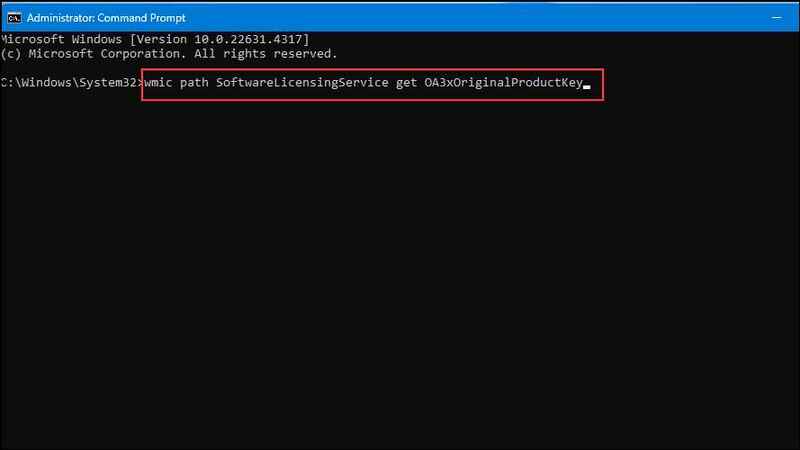
Paste the command into the CMD window

Step 3: Press Enter and wait a moment. The 25-character Product Key code will appear immediately below the command line. You can highlight and copy this key (Ctrl + C)

Method 2: Use PowerShell

In addition to Command Prompt, you can also find the product key using PowerShell. The implementation begins as follows:

Step 1: The first action is to right click on the logo Start and click select Terminal (Admin).
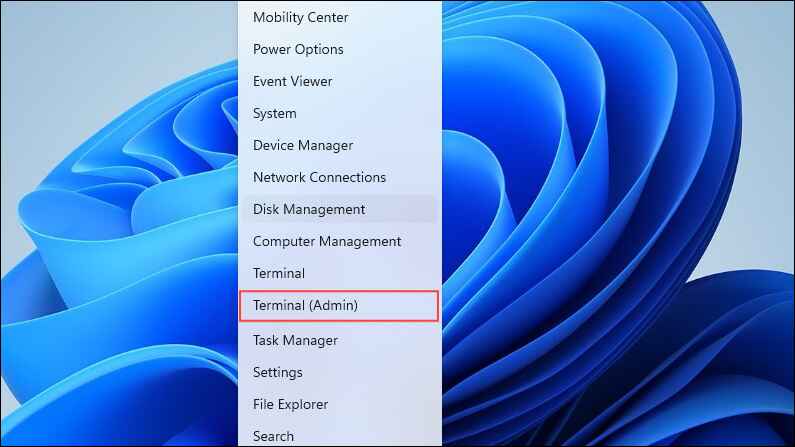
Select Terminal (Admin)

Step 2: When the terminal window opens, click the arrow at the top and select “Windows PowerShell“.
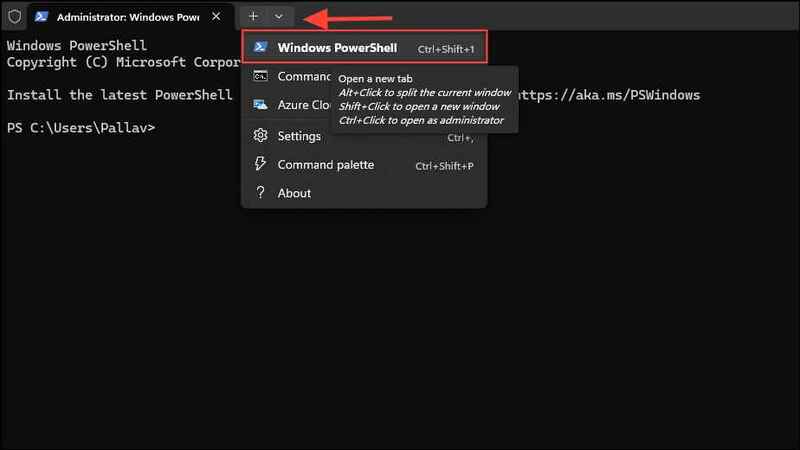
Select "Windows PowerShell"
Select “Windows PowerShell”

Step 3: In PowerShell's signature green interface, you have two command options:

Basic command:

wmic path SoftwareLicensingService get 0A3xOriginalProductKey

Advanced commands (for more detailed results):

powershell "(Get-WmiObject - query 'select * from SoftwareLicensingService').0A3xOriginalProductKey"

Select one of the two commands above → Paste into PowerShell → Enter
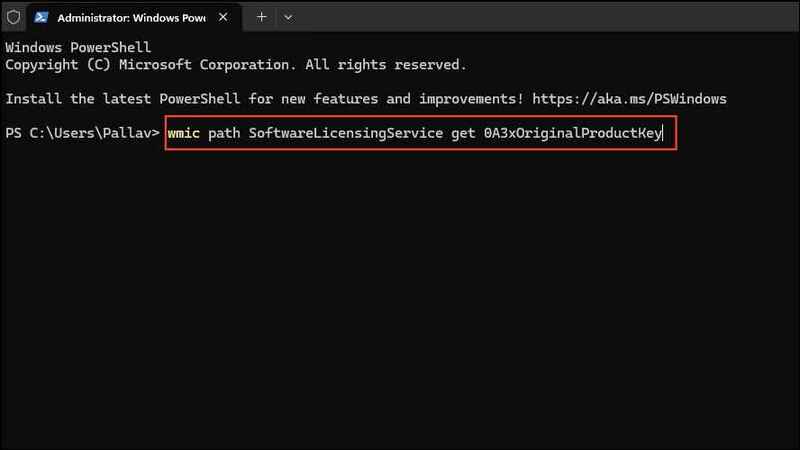
Paste the following command
  • Useful tips: PowerShell allows you to export results to a text file by adding “> D:\key.txt” to the end of the command. This helps store keys safely and conveniently.
  • Important: If you get an “Access Denied” error, make sure to open PowerShell with Administrator rights and try again.

Method 3: Take advantage of Registry Editor

Registry Editor is known as the “heart” of Windows, where all important information is stored, including your Product Key. Let's learn how to search by following these steps:

Step 1: Open the Start menu, type Registry Editor and click the extension when it appears in the search results.
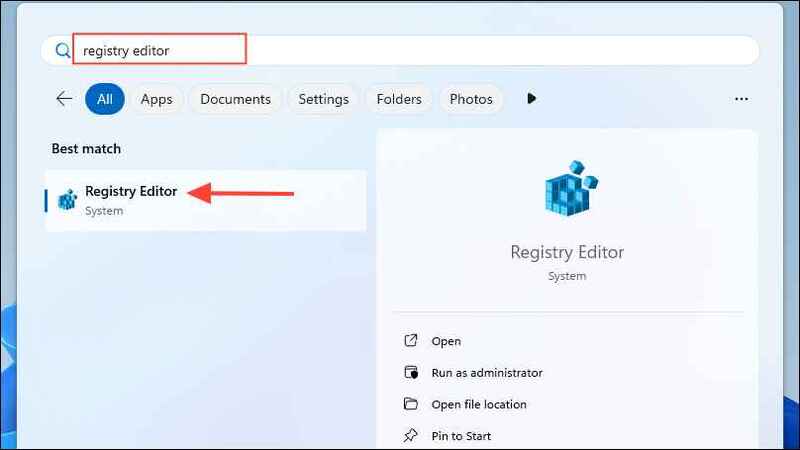
Open Registry Editor

Step 2: After Registry Editor appears, you can copy & paste this link into the address bar:

HKEY_LOCAL_MACHINE\SOFTWARE\Microsoft\Windows NT\CurrentVersion\SoftwareProtectionPlatform
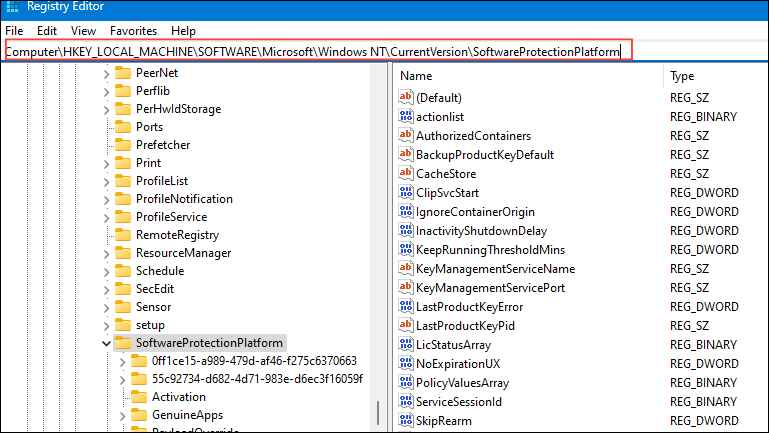
Copy & paste this link

Step 3: Find item BackupProductKeyDefault > Double-click to open, the Product Key will appear in the Value data window.
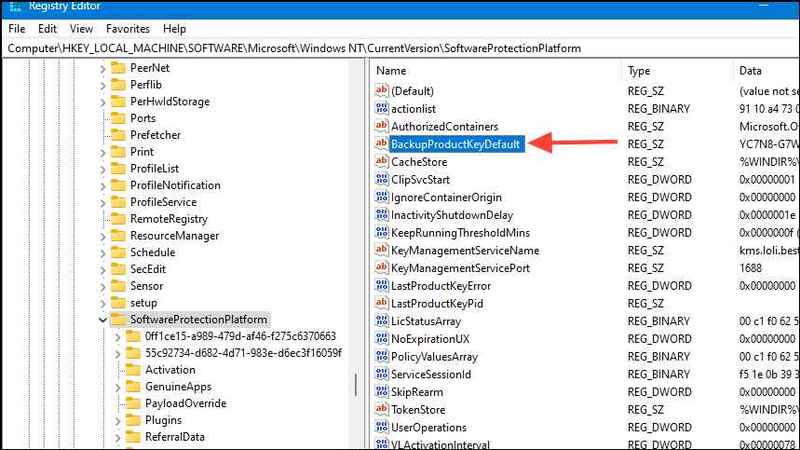
Open the BackupProductKeyDefault section

Distinguishing types of Keys

  • OEM Key: Attached to computer hardware
  • Key Retail: Can switch between devices
  • Key Volume: For business use

Things to note

  • In addition to the above methods, you can also use third-party tools such as ShowKeyPlus to find Windows 11 product key.
  • The product key may change if you upgrade your Windows version from Windows 11 Home to Windows 11 Pro.
  • You should always keep your product key secret and not share it with others to prevent it from being used illegally on other computers.
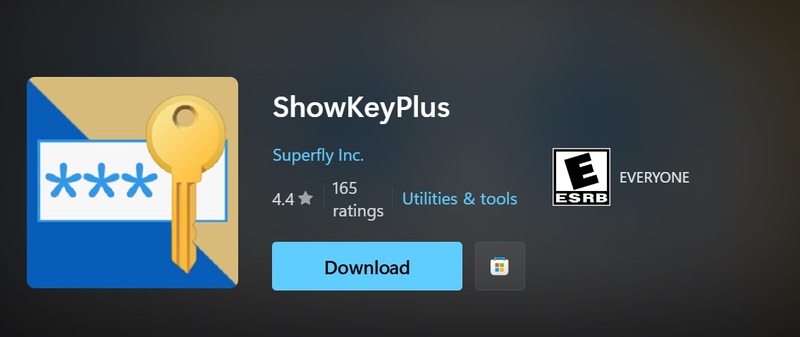
ShowKeyPlus application

See more: Instructions to update Windows 11 24H2 immediately

Conclusion

Job Find Windows 11 Product Key is no longer a difficult problem. With the above 3 methods, you can easily identify your Windows activation code. Remember to store the key safely to avoid unnecessary problems in the future. What solutions have you had success with? Please share in the comments!


Tags: FindKeyproductsimplewaysWindows
Previous Post

Instructions for installing wget on Windows to Download Files like Linux

Next Post

How to change navigation bar color on Android

AnonyViet

AnonyViet

Related Posts

How to add sliders to Facebook Stories to easily rewind videos
Tips

How to add sliders to Facebook Stories to easily rewind videos

April 21, 2026
How to change the default font on Windows 10
Tips

How to change the default font on Windows 10

April 13, 2026
5 tips for using a Browser to replace an App (helps save RAM, time and money)
Tips

5 tips for using a Browser to replace an App (helps save RAM, time and money)

April 13, 2026
How to make funny MeMe photos without Photoshop within 10 seconds
Tips

How to make funny MeMe photos without Photoshop within 10 seconds

April 11, 2026
How to quickly design your own Logo without Photoshop
Tips

How to quickly design your own Logo without Photoshop

April 10, 2026
How to convert Website into App on Windows
Tips

How to convert Website into App on Windows

April 9, 2026
Next Post
How to change navigation bar color on Android

How to change navigation bar color on Android

0 0 votes
Article Rating
Subscribe
Login
Notify of
guest

guest

0 Comments
Oldest
Newest Most Voted
Inline Feedbacks
View all comments

Recent News

How to turn off password suggestions on iPhone: Prevent Safari from auto-filling passwords

How to turn off password suggestions on iPhone: Prevent Safari from auto-filling passwords

April 27, 2026
Instructions for looking up prescriptions on VNeID instead of paper medical books

Instructions for looking up prescriptions on VNeID instead of paper medical books

April 26, 2026
Tips to completely turn off CAPTCHA codes on iPhone and Mac are super simple

Tips to completely turn off CAPTCHA codes on iPhone and Mac are super simple

April 25, 2026
Compare Poco X8 Pro and Poco X7 Pro: A new step for the “king” of mid-range performance

Compare Poco X8 Pro and Poco X7 Pro: A new step for the “king” of mid-range performance

April 24, 2026
How to turn off password suggestions on iPhone: Prevent Safari from auto-filling passwords

How to turn off password suggestions on iPhone: Prevent Safari from auto-filling passwords

April 27, 2026
Instructions for looking up prescriptions on VNeID instead of paper medical books

Instructions for looking up prescriptions on VNeID instead of paper medical books

April 26, 2026
Tips to completely turn off CAPTCHA codes on iPhone and Mac are super simple

Tips to completely turn off CAPTCHA codes on iPhone and Mac are super simple

April 25, 2026
AnonyViet - English Version

AnonyViet

AnonyViet is a website share knowledge that you have never learned in school!

We are ready to welcome your comments, as well as your articles sent to AnonyViet.

Follow Us

Contact:

Email: anonyviet.com[@]gmail.com

Main Website: https://anonyviet.com

Recent News

How to turn off password suggestions on iPhone: Prevent Safari from auto-filling passwords

How to turn off password suggestions on iPhone: Prevent Safari from auto-filling passwords

April 27, 2026
Instructions for looking up prescriptions on VNeID instead of paper medical books

Instructions for looking up prescriptions on VNeID instead of paper medical books

April 26, 2026
No Result
View All Result
  • Home
  • News
  • Software
  • Knowledge
  • MMO
  • Tips
  • Security
  • Network
  • Office

wpDiscuz
0
0
Would love your thoughts, please comment.x
()
x
| Reply