• Home
  • News
  • Software
  • Knowledge
  • MMO
  • Tips
  • Security
  • Network
  • Office
AnonyViet - English Version
  • Home
  • News
  • Software
  • Knowledge
  • MMO
  • Tips
  • Security
  • Network
  • Office
No Result
View All Result
  • Home
  • News
  • Software
  • Knowledge
  • MMO
  • Tips
  • Security
  • Network
  • Office
No Result
View All Result
AnonyViet - English Version
No Result
View All Result

Remove excess objects in Photoshop with one click

AnonyViet by AnonyViet
December 7, 2023
in Tips
0

Deleting an object to ensure the aesthetics of the photo is extremely important. Sometimes things accidentally appear in your photos like a bag of trash, a stranger, or anything that annoys you from your favorite work, so it's even more important to delete them.

Join the channel Telegram belong to AnonyViet 👉 Link 👈

Remove excess objects in Photoshop with one click

Today, AnonyViet will guide you to delete any object in a photo very simply Photoshop. This is the most commonly used professional 2D image editing software in the world.

Instructions for deleting any object in Photoshop

First, open an image file that needs to be deleted in Photoshop.

Step 2: Select Spot on the toolbar and select the function Spot Healing Brush Tool (same picture).
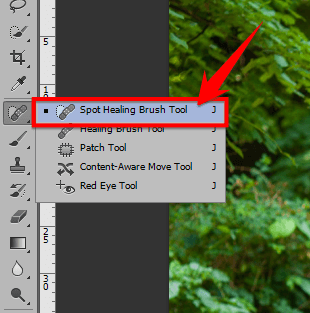
Spot Healing Brush Tool

Step 3: Adjust the size of the brush by dragging the size bar to best fit.
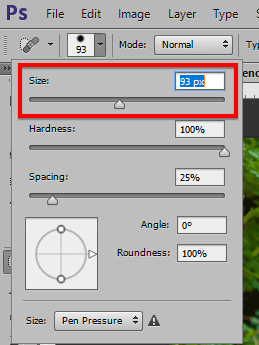
Adjust brush size

Remember to select mode Content-Aware on the options bar.Select Content-Aware

Step 4: Now you just need to paint the area that needs to be erased and wait a few seconds for Photoshop to process it automatically.
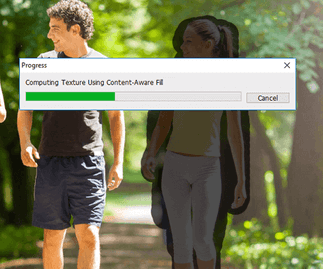
Fill in the area to be deleted

The photo deletion process here is basically complete. However, for some highly complex images, Photoshop's algorithm cannot process them all. Therefore, we have to do step 4 several times until we find it most suitable.
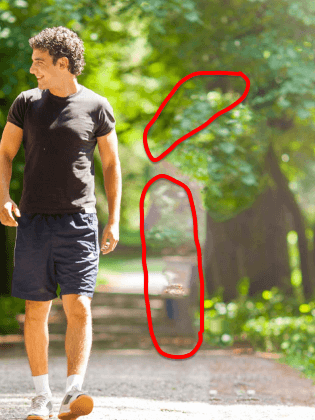
Repeat step 4 for the most complete image

Result finally we get:

Object deleted successfully

Epilogue

So, it only takes a few simple steps plus a little ingenuity. You can now manually remove excess objects from the photo. But if you still wonder why Photoshop can automate the deletion process like that. I will explain a little about this function. When you select and release the mouse, Photoshop will take the textures around that area. Then cover everything in the selected area. That means wherever it is applied, it will be erased. Photoshop will automatically patch the deleted areas with existing ones around so that the image is not punctured.

N1412.

The article scored: 5/5 – (100 votes)

Previous Post

How to share large files using DashDrop

Next Post

How to create temporary and permanent Gmail nicknames. Do you know yet?

AnonyViet

AnonyViet

Related Posts

How to change the default font on Windows 10
Tips

How to change the default font on Windows 10

April 13, 2026
5 tips for using a Browser to replace an App (helps save RAM, time and money)
Tips

5 tips for using a Browser to replace an App (helps save RAM, time and money)

April 13, 2026
How to make funny MeMe photos without Photoshop within 10 seconds
Tips

How to make funny MeMe photos without Photoshop within 10 seconds

April 11, 2026
How to quickly design your own Logo without Photoshop
Tips

How to quickly design your own Logo without Photoshop

April 10, 2026
How to convert Website into App on Windows
Tips

How to convert Website into App on Windows

April 9, 2026
Instructions for getting 3 months of Adobe Express Pro for free
Tips

Instructions for getting 3 months of Adobe Express Pro for free

April 9, 2026
Next Post
How to create temporary and permanent Gmail nicknames.  Do you know yet?

How to create temporary and permanent Gmail nicknames. Do you know yet?

0 0 votes
Article Rating
Subscribe
Login
Notify of
guest

guest

0 Comments
Oldest
Newest Most Voted
Inline Feedbacks
View all comments

Recent News

Japanese Watch Week: Choose the color that suits your destiny, start the new year well at Mobile World

Japanese Watch Week: Choose the color that suits your destiny, start the new year well at Mobile World

April 20, 2026
4K Video Downloader Plus – Tool to download YouTube videos on macOS

4K Video Downloader Plus – Tool to download YouTube videos on macOS

April 20, 2026
How to add Watermark to Google Docs to protect copyright

How to add Watermark to Google Docs to protect copyright

April 19, 2026
How to intercept traffic using Burp Suite to analyze HTTP/HTTPS

How to intercept traffic using Burp Suite to analyze HTTP/HTTPS

April 18, 2026
Japanese Watch Week: Choose the color that suits your destiny, start the new year well at Mobile World

Japanese Watch Week: Choose the color that suits your destiny, start the new year well at Mobile World

April 20, 2026
4K Video Downloader Plus – Tool to download YouTube videos on macOS

4K Video Downloader Plus – Tool to download YouTube videos on macOS

April 20, 2026
How to add Watermark to Google Docs to protect copyright

How to add Watermark to Google Docs to protect copyright

April 19, 2026
AnonyViet - English Version

AnonyViet

AnonyViet is a website share knowledge that you have never learned in school!

We are ready to welcome your comments, as well as your articles sent to AnonyViet.

Follow Us

Contact:

Email: anonyviet.com[@]gmail.com

Main Website: https://anonyviet.com

Recent News

Japanese Watch Week: Choose the color that suits your destiny, start the new year well at Mobile World

Japanese Watch Week: Choose the color that suits your destiny, start the new year well at Mobile World

April 20, 2026
4K Video Downloader Plus – Tool to download YouTube videos on macOS

4K Video Downloader Plus – Tool to download YouTube videos on macOS

April 20, 2026
No Result
View All Result
  • Home
  • News
  • Software
  • Knowledge
  • MMO
  • Tips
  • Security
  • Network
  • Office

wpDiscuz
0
0
Would love your thoughts, please comment.x
()
x
| Reply