Hello friends! Welcome back to the basic Excel tutorial for beginners. With today’s post, I would like to introduce another feature of Excel: Split Cell
| Join the channel Telegram of the AnonyViet 👉 Link 👈 |
Split Cell – Split cells for what?
True to its name. Split Cell is how we split cells together. For example, if you have 4 columns in Excel and you want to add another column in between those 4 columns, usually, people will move 2 columns to leave a space in the middle, but with Split cell it is possible help us do that.
Instructions for using Split Cell – Split Cells
Step 1: Select column

Step 2: Right-click and select Insert

Result

Guide to Merge cells – Merge cells
As its name implies, Merge Cell is used to Merge 2 cells together. This is very useful in making a simple schedule or diagram. Let’s practice together!
Step 1: Select 2 cells B1 and C1
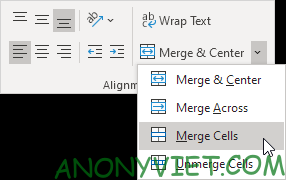
Step 2: In the Home section, Click the down arrow next to Merge and Center and select Merge Cells
Result

Text to Column Tutorial
Text to column will help you to separate words and divide it into different columns. For example: If you want to separate First and Last Name into separate columns, Text to column will help you.
Step 1: Choose a space with first and last name

Step 2: On the toolbar, Select Data -> Text to Column

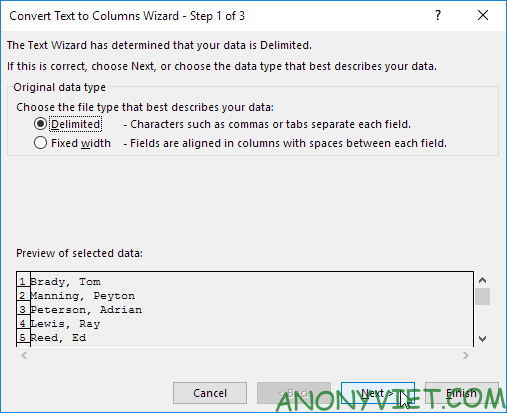
Step 3: A dialog box will appear. Select Delimited and Click Next
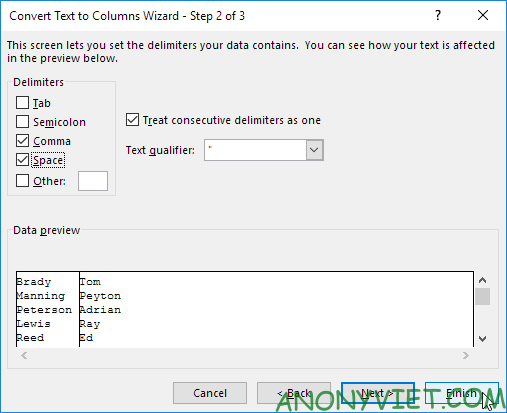
Step 4: In Delimited, Tick Comma and Space (2 these will remove commas and spaces between words)
Step 5: Select Finish
Result
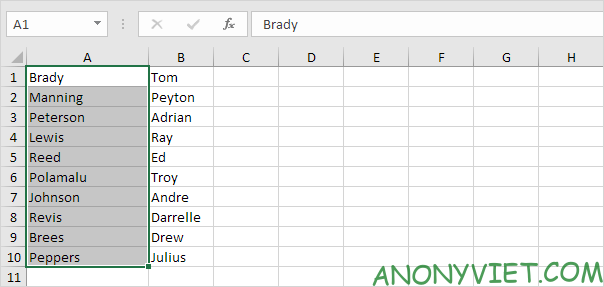
Flash Fill
Flash fill will help people to extract data faster from given data
Making:
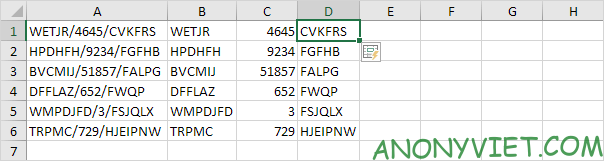
Step 1: Get data from 1 cell and split into many adjacent cells
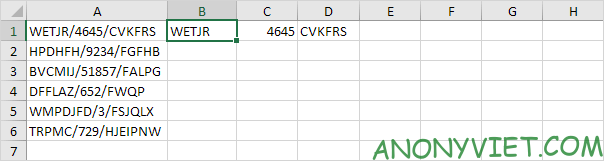
Step 2: Select cell B1 and press CTRL + E (Shortcut of Flash Fill)
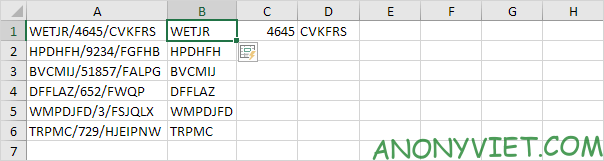
Step 3: Select cell C1 and press CTRL + E
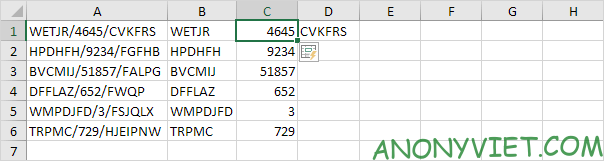
Step 4: Select cell D1 and press CTRL + E
Split Cell using the formula
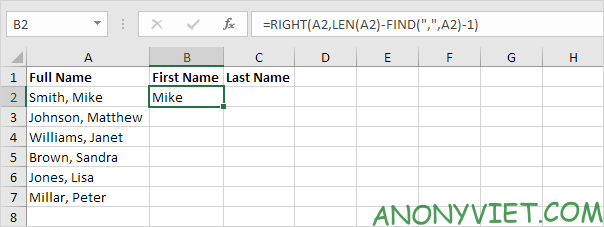
Below formula to return Name
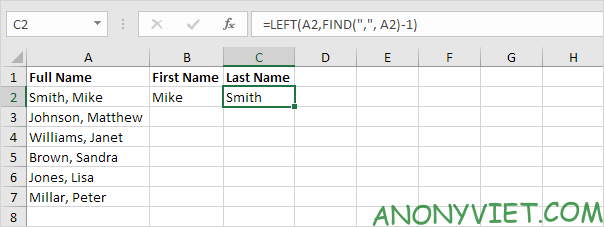
The formula below to return the Last Name
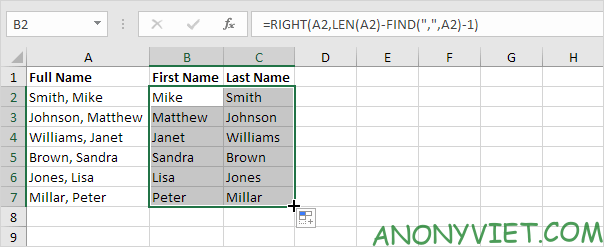
Result
So I just finished the tutorial About Split Cell In Excel. If you have any questions, please leave a comment to let me know