• Home
  • News
  • Software
  • Knowledge
  • MMO
  • Tips
  • Security
  • Network
  • Office
AnonyViet - English Version
  • Home
  • News
  • Software
  • Knowledge
  • MMO
  • Tips
  • Security
  • Network
  • Office
No Result
View All Result
  • Home
  • News
  • Software
  • Knowledge
  • MMO
  • Tips
  • Security
  • Network
  • Office
No Result
View All Result
AnonyViet - English Version
No Result
View All Result

How to insert a table into an email in Gmail

AnonyViet by AnonyViet
January 26, 2023
in Tips
0

Gmail does not provide a tool to insert tables into your email. However, you can create a table in Google Sheets or excel and embed it in your email. How to insert a table into an email in Gmail

Join the channel Telegram of the AnonyViet 👉 Link 👈

How it works

In Gmail, there is no option to create or insert a table into your email directly in the compose window. But you can copy tables from outside of Gmail and paste them into your email.

In this article, I will use Google Sheets to create a table. You’ll create the table in Sheets, copy and paste it into your email in Gmail. Gmail keeps the original formatting of your table, which means your table will look the same whether it’s in Sheets or emailed in Gmail.

You can also use Microsoft Excel or Google Docs to create tables for email.

Insert table into Email from gmail’s website

On a desktop computer like Windows, Mac, Linux, or Chromebook, use the web versions of gmail and Sheets to create and add tables to your email.

To get started, open Google Sheets in a web browser on your computer.

On the Sheets page, if you’ve already created a spreadsheet, tap it to open it. If not, create a new sheet by clicking “Blank” on the web page.

How to insert a table into an email in Gmail 18

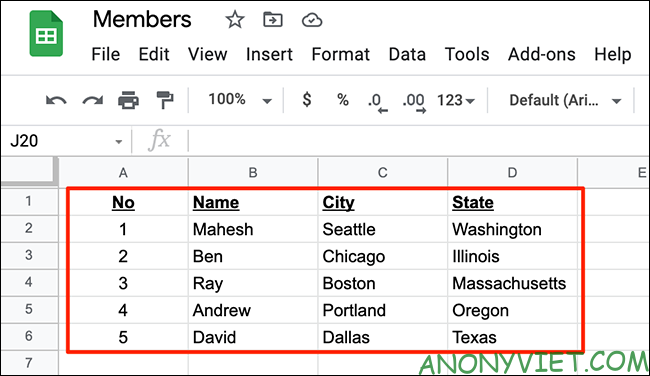
Next, enter all your data into the open sheet. We will use the following spreadsheet as an example:
How to insert a table into an email in Gmail 19

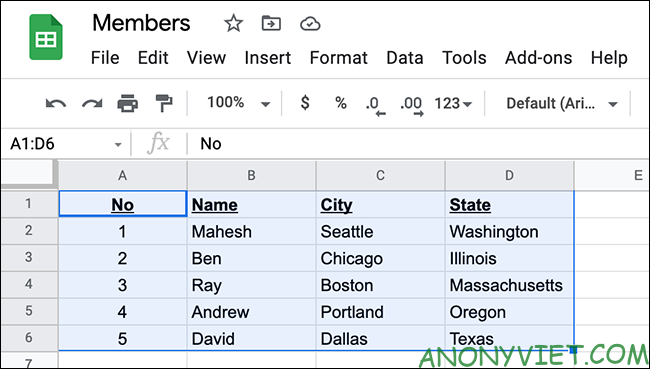
Next, select the imported data container. Use your mouse or the arrow keys on your keyboard to act.

The selected worksheet should look like this:
How to insert a table into an email in Gmail 20

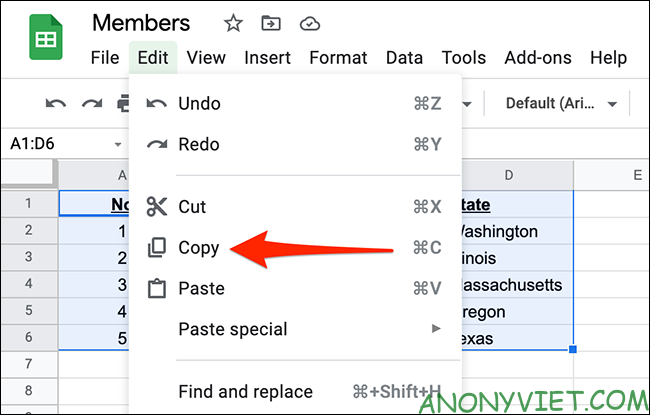
Now, copy the selected area by clicking Edit > Copy. Or, press Ctrl + C on Windows or Command + C on Mac to copy the table.
How to insert a table into an email in Gmail 21

Your table is now copied and you can paste it into an email in Gmail. To do so, open a new tab in your web browser and go to the Gmail page, select the “Compose” button to create a new email.
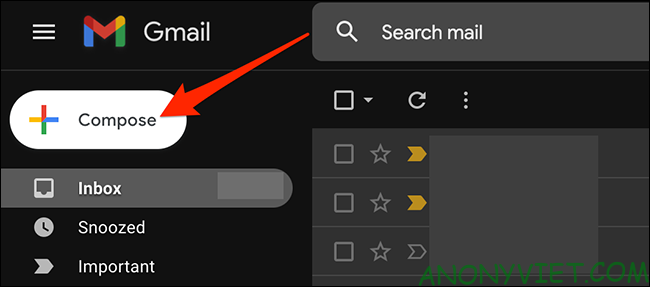
How to insert a table into an email in Gmail 22

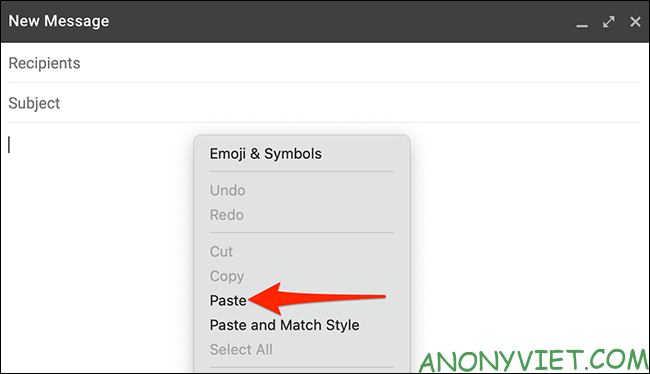
Gmail will open the “New Message” window. In this window, right-click on the email body and select “Paste”.

You can also press Ctrl + V (Windows) or Command + V (Mac) instead to paste the table.
How to insert a table into an email in Gmail 23

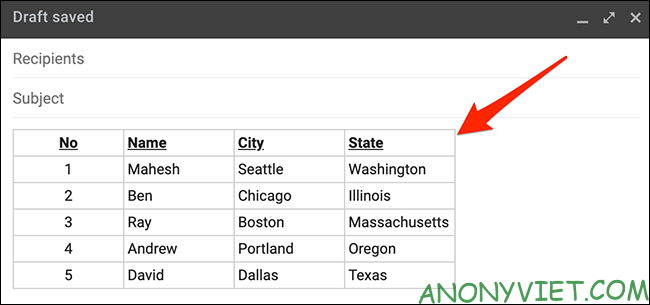
The table you copied from Sheets is now available in your Gmail email. You can now send an email containing your board.
How to insert a table into an email in Gmail 24

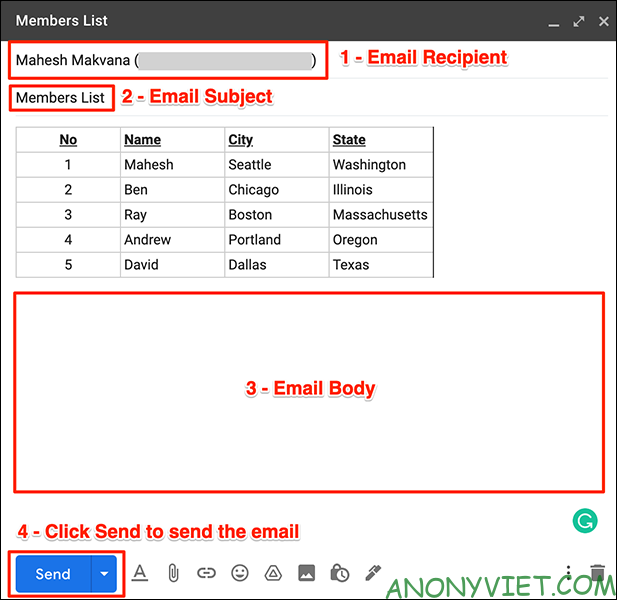
To send an email, fill in the recipient’s information, including the recipient’s email address, the subject of the email, and the email’s body. Finally, click “Send” to send.
How to insert a table into an email in Gmail 25

And the recipient will receive an email with the table you inserted.

Insert Table into Email on Gmail App

If you want to insert a table into an email from your iPhone, iPad, or Android phone, you can use the Gmail and Google Sheets apps. These applications work exactly like the web interface.

To use this, first open the Google Sheets app on your phone.

In the Sheets app, if you’ve already created a spreadsheet, tap it to open it. Otherwise, create a new spreadsheet by tapping the “+” (plus sign) in the lower right corner of the app.
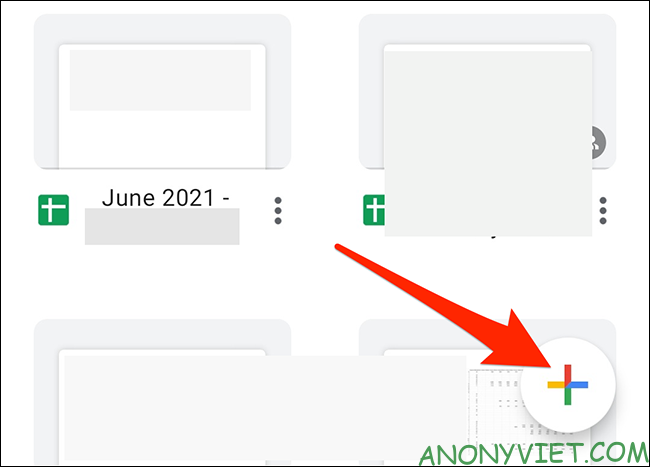
How to insert a table into an email in Gmail 26

Enter the data you want. Then start dragging from the top left corner of the board to the bottom right corner. This will select the table in the worksheet.
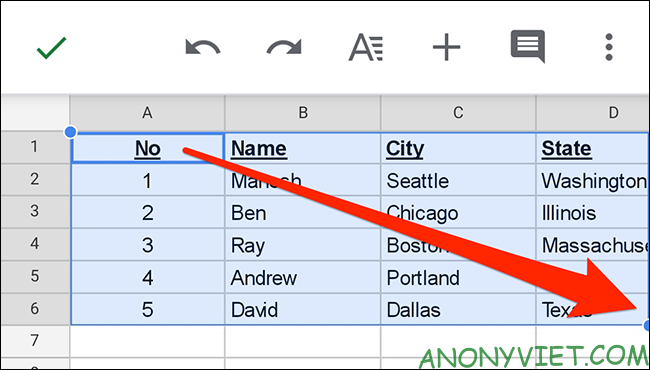
How to insert a table into an email in Gmail 27

Copy the selected table to the clipboard. Do this by touching and holding the screen and selecting “Copy”.How to insert a table into an email in Gmail 28
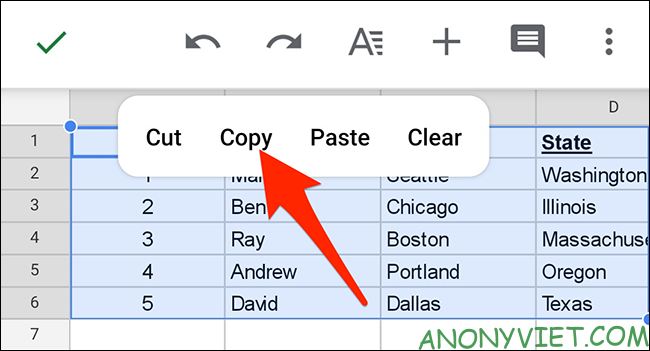
Your table is now copied. Close the Sheets app.

You will now paste your copied table into an email in the Gmail app. To do this, launch the Gmail app on your phone. In the bottom right corner of the application, select “Compose”.
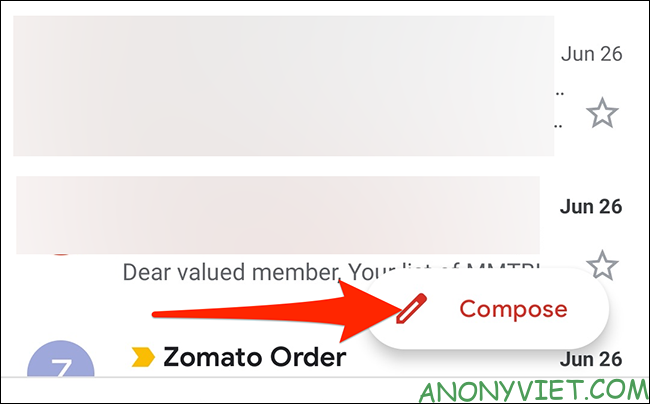
How to insert a table into an email in Gmail 29

On the “Compose” screen, touch and hold the “Compose Email” item.
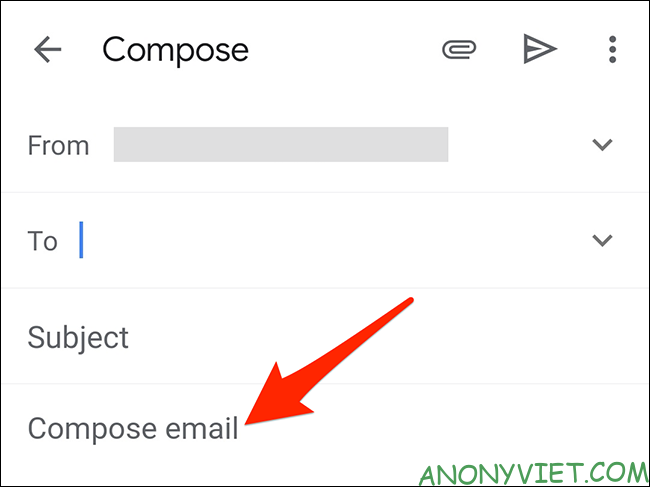
How to insert a table into an email in Gmail 30

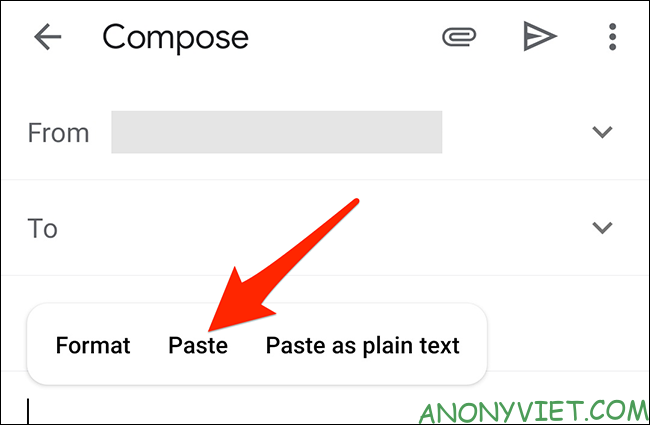
In the pop-up menu, select “Paste”.

How to insert a table into an email in Gmail 31

And the table you copied from Sheets will be pasted into your email.
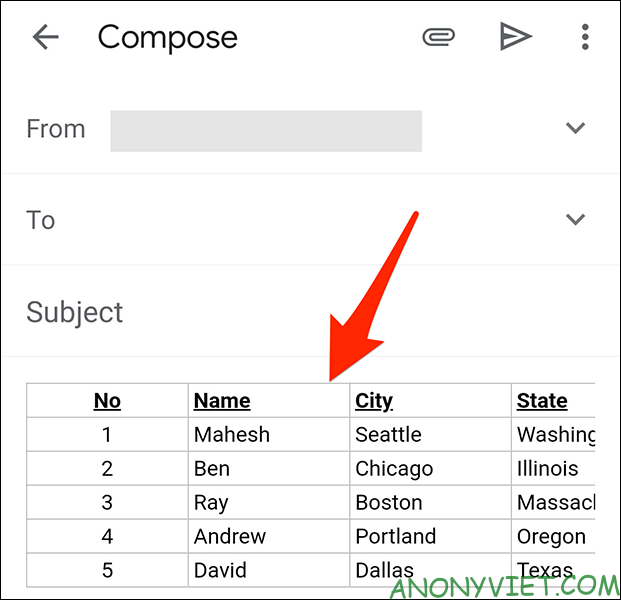
How to insert a table into an email in Gmail 32

You can now fill in other information, like the recipient’s email address and email subject, before hitting the send option.

In addition, you can also use Ghunt to find other people’s information when you know gmail here.

The article achieved: 5/5 – (100 votes)

Tags: emailGmailinsertTable
Previous Post

Fix the error of not being able to create VPS on Google Cloud by creating another Billing

Next Post

Lesson 9: Split Cell – Split Cells – Basic Excel

AnonyViet

AnonyViet

Related Posts

New features of Windows 10 21H1 are coming soon
Tips

New features of Windows 10 21H1 are coming soon

March 16, 2026
How to convert normal music into 8D music with Audioalter
Tips

How to convert normal music into 8D music with Audioalter

March 14, 2026
How to prevent your family’s Security Camera from being hacked
Tips

How to prevent your family’s Security Camera from being hacked

March 13, 2026
Pixel Agents: Turn VS Code into a Pixel Art Office for AI
Tips

Pixel Agents: Turn VS Code into a Pixel Art Office for AI

March 12, 2026
English learning app Memrise is offering a lifetime discount of only 21,000 VND
Tips

English learning app Memrise is offering a lifetime discount of only 21,000 VND

March 11, 2026
Instructions for upgrading to Windows 10 Sun Valley (February 21)
Tips

Instructions for upgrading to Windows 10 Sun Valley (February 21)

March 11, 2026
Next Post
Lesson 9: Split Cell – Split Cells – Basic Excel

Lesson 9: Split Cell - Split Cells - Basic Excel

0 0 votes
Article Rating
Subscribe
Login
Notify of
guest

guest

0 Comments
Oldest
Newest Most Voted
Inline Feedbacks
View all comments

Recent News

Why are iPhones and MacBooks still the number 1 “weapons” of the technology world?

Why are iPhones and MacBooks still the number 1 “weapons” of the technology world?

March 16, 2026
New features of Windows 10 21H1 are coming soon

New features of Windows 10 21H1 are coming soon

March 16, 2026
Receive Advanced SystemCare 19 Pro key for free for 6 months

Receive Advanced SystemCare 19 Pro key for free for 6 months

March 16, 2026
How to install Siri to read application notifications on iPhone 17 is extremely simple

How to install Siri to read application notifications on iPhone 17 is extremely simple

March 16, 2026
Why are iPhones and MacBooks still the number 1 “weapons” of the technology world?

Why are iPhones and MacBooks still the number 1 “weapons” of the technology world?

March 16, 2026
New features of Windows 10 21H1 are coming soon

New features of Windows 10 21H1 are coming soon

March 16, 2026
Receive Advanced SystemCare 19 Pro key for free for 6 months

Receive Advanced SystemCare 19 Pro key for free for 6 months

March 16, 2026
AnonyViet - English Version

AnonyViet

AnonyViet is a website share knowledge that you have never learned in school!

We are ready to welcome your comments, as well as your articles sent to AnonyViet.

Follow Us

Contact:

Email: anonyviet.com[@]gmail.com

Main Website: https://anonyviet.com

Recent News

Why are iPhones and MacBooks still the number 1 “weapons” of the technology world?

Why are iPhones and MacBooks still the number 1 “weapons” of the technology world?

March 16, 2026
New features of Windows 10 21H1 are coming soon

New features of Windows 10 21H1 are coming soon

March 16, 2026
No Result
View All Result
  • Home
  • News
  • Software
  • Knowledge
  • MMO
  • Tips
  • Security
  • Network
  • Office

wpDiscuz
0
0
Would love your thoughts, please comment.x
()
x
| Reply