• Home
  • News
  • Software
  • Knowledge
  • MMO
  • Tips
  • Security
  • Network
  • Office
AnonyViet - English Version
  • Home
  • News
  • Software
  • Knowledge
  • MMO
  • Tips
  • Security
  • Network
  • Office
No Result
View All Result
  • Home
  • News
  • Software
  • Knowledge
  • MMO
  • Tips
  • Security
  • Network
  • Office
No Result
View All Result
AnonyViet - English Version
No Result
View All Result

Lesson 266: How to find profitable investments in Excel

AnonyViet by AnonyViet
January 25, 2023
in Office
0

In this article, I will show you how to find capital investments that maximize total returns in Excel.

Join the channel Telegram of the AnonyViet 👉 Link 👈

Build a model to find investments that maximize returns

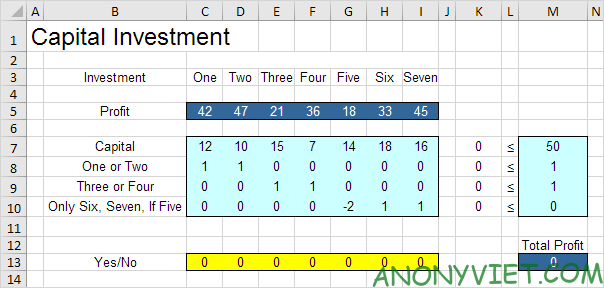
The model we will deal with looks like this in Excel.
Lesson 266: How to find capital investments that optimize total return in Excel

1. To create this binary integer programming (BIP) model, answer the following three questions:

a. What decisions will be made? For this problem, we need Excel to figure out what capital investments to make (Yes = 1, No = 0).

b. What are the constraints on these decisions? First, the amount of capital used for investments must not exceed the existing limited capital (50). For example, Investment One uses 12 units of capital. Second, can only invest One or invest Two. Third, can only invest Three or invest Four. Fourth, investment Six and investment Seven can only be made if investment Five is made.

c. What is the overall measure of performance for these decisions? The overall measure of performance is the total return on capital investments made, so the goal is to maximize this amount.

2. To make the model easier to understand, create named ranges as follows.

Range Name Cells
Profit C5:I5
YesNo C13:I13
TotalProfit M13

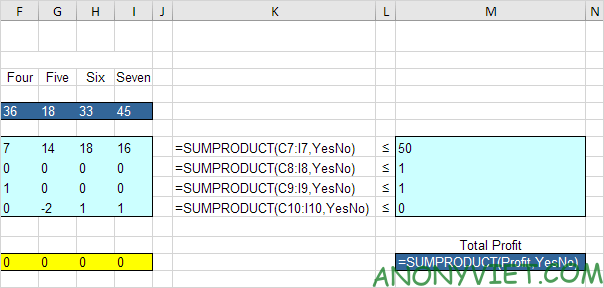
3. Insert the following five SUMPRODUCT functions.
Lesson 266: How to find the most profitable investments in Excel 15

Explanation: cell K7 (the amount of capital used) is equal to the sum of the product of the ranges C7:I7 and YesNo, cell K8 is the sum of the product of the ranges C8:I8 and YesNo… Total Profit is equal to the result results of profits and YesNo.

Try the board and find the mistake

With this formula, the analysis of any test solution becomes easy.

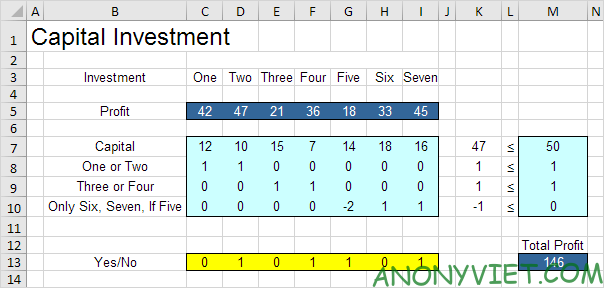
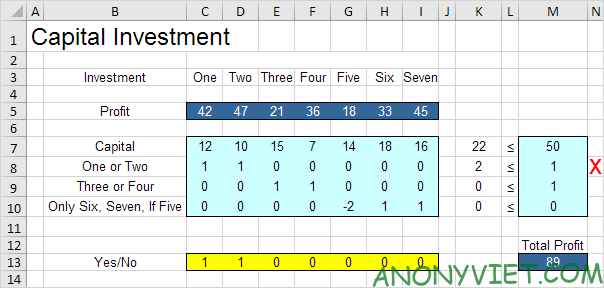
1. For example, if we make investments One and Two, the second constraint will be violated.
Lesson 266: How to find the most profitable investments in Excel 16

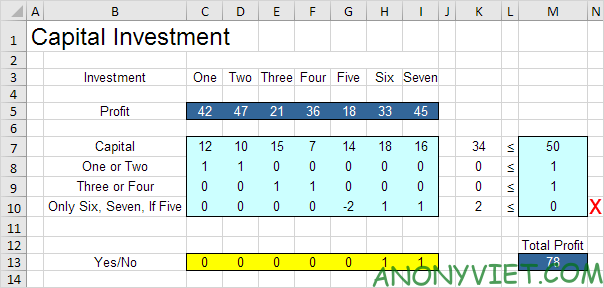
2. For example, if we make investment Six and Seven, but do not make investment Five, then the fourth constraint will be violated.
Lesson 266: How to find the most profitable investments in Excel 17

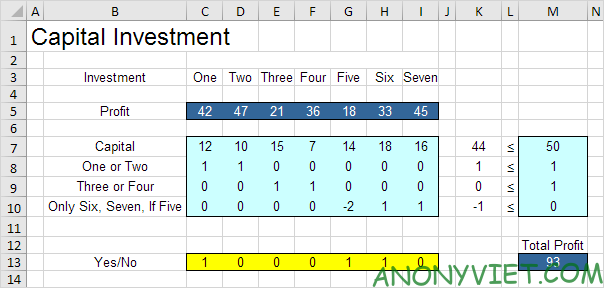
3. However, you should invest One, Five and Six. All constraints are satisfied.
Lesson 266: How to find optimal profitable investments in Excel 18

Next, I will describe how to use Excel Solver to quickly find the optimal solution.

Solve the model

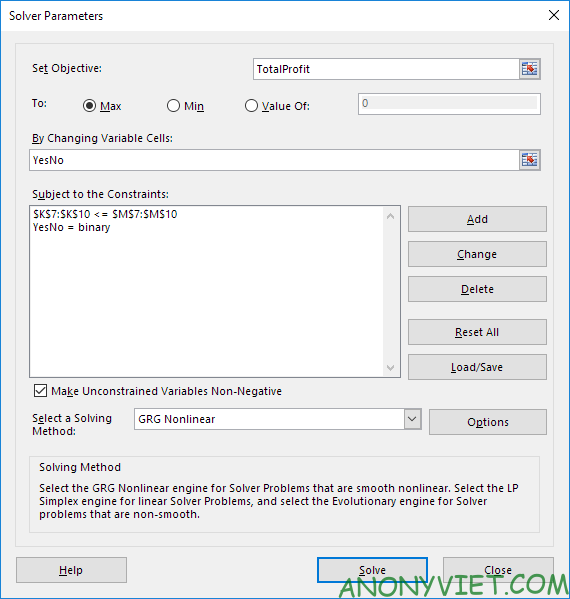
1. On the Data tab, in the Analyze group, click Solver.

Lesson 266: How to find the most profitable investments in Excel 19

Enter data as shown below.

Lesson 266: How to find the most profitable investments in Excel 20

2. Import TotalProfit in Objective.

3. Select Max.

4. Enter YesNo in the By Changing Variable Cells box.

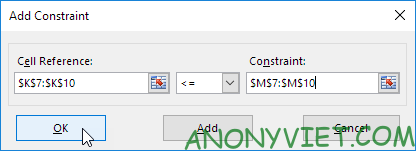
5. Click Add to enter the following constraint.
Lesson 266: How to find the most profitable investments in Excel 21

6. Click Add to enter the following constraint.
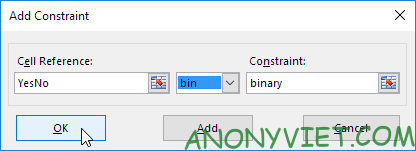
Lesson 266: How to find the most profitable investments in Excel 22

7. Select ‘Make Unconstrained Variables Non-Negative’ and select ‘Simplex LP’.

8. Finally, click Solve.

Result:
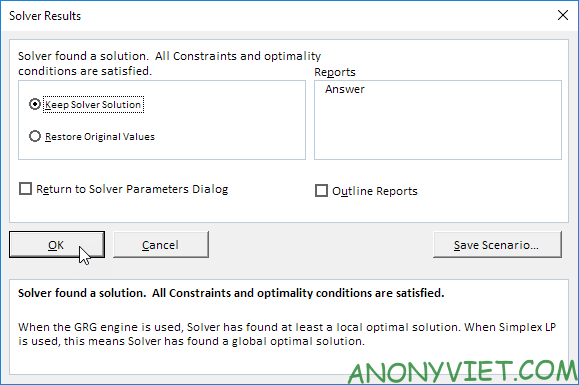
Lesson 266: How to find the most profitable investments in Excel 23

Optimal solution:

Lesson 266: How to find the most profitable investments in Excel 24

Conclusion: investing Two, Four, Five and Seven is optimal. This solution gives a maximum return of 146. All constraints are satisfied.

In addition, you can also view many other excel articles here.

The article achieved: 5/5 – (100 votes)

Tags: ExcelFindinvestmentsLessonProfitable
Previous Post

7 things to do before selling your old phone

Next Post

Instructions for designing beautiful Logo, Favicon with Turbologo

AnonyViet

AnonyViet

Related Posts

How to add Watermark to Google Docs to protect copyright
Office

How to add Watermark to Google Docs to protect copyright

April 19, 2026
Instructions on how to hide formulas in Excel to secure data
Office

Instructions on how to hide formulas in Excel to secure data

February 6, 2026
Top who creates the most beautiful presentation slide today
Office

Top who creates the most beautiful presentation slide today

September 23, 2025
Automatically check and correct spelling errors on Google Docs
Office

Automatically check and correct spelling errors on Google Docs

February 23, 2025
Instructions for downloading Google Docs files easily on any device
Office

Instructions for downloading Google Docs files easily on any device

December 18, 2024
Launching AI image creation feature on Google Docs
Office

Launching AI image creation feature on Google Docs

November 20, 2024
Next Post
Instructions for designing beautiful Logo, Favicon with Turbologo

Instructions for designing beautiful Logo, Favicon with Turbologo

0 0 votes
Article Rating
Subscribe
Login
Notify of
guest

guest

0 Comments
Oldest
Newest Most Voted
Inline Feedbacks
View all comments

Recent News

Instructions to receive Claude Fable 5 for free for 30 days

Instructions to receive Claude Fable 5 for free for 30 days

June 15, 2026
Instructions on how to activate the new Siri on iOS 27

Instructions on how to activate the new Siri on iOS 27

June 15, 2026
Delete all Event Logs on Windows to remove traces of activity

Delete all Event Logs on Windows to remove traces of activity

June 15, 2026
Instructions on how to get the latest 200GB MultCloud for free in 2026

Instructions on how to get the latest 200GB MultCloud for free in 2026

June 14, 2026
Instructions to receive Claude Fable 5 for free for 30 days

Instructions to receive Claude Fable 5 for free for 30 days

June 15, 2026
Instructions on how to activate the new Siri on iOS 27

Instructions on how to activate the new Siri on iOS 27

June 15, 2026
Delete all Event Logs on Windows to remove traces of activity

Delete all Event Logs on Windows to remove traces of activity

June 15, 2026
AnonyViet - English Version

AnonyViet

AnonyViet is a website share knowledge that you have never learned in school!

We are ready to welcome your comments, as well as your articles sent to AnonyViet.

Follow Us

Contact:

Email: anonyviet.com[@]gmail.com

Main Website: https://anonyviet.com

Recent News

Instructions to receive Claude Fable 5 for free for 30 days

Instructions to receive Claude Fable 5 for free for 30 days

June 15, 2026
Instructions on how to activate the new Siri on iOS 27

Instructions on how to activate the new Siri on iOS 27

June 15, 2026
  • Home
  • Home 2
  • Home 3
  • Home 4
  • Home 5
  • Home 6
  • Next Dest Page
  • Sample Page

6789 kv999

No Result
View All Result
  • Home
  • News
  • Software
  • Knowledge
  • MMO
  • Tips
  • Security
  • Network
  • Office

6789 kv999

wpDiscuz
0
0
Would love your thoughts, please comment.x
()
x
| Reply