• Home
  • News
  • Software
  • Knowledge
  • MMO
  • Tips
  • Security
  • Network
  • Office
AnonyViet - English Version
  • Home
  • News
  • Software
  • Knowledge
  • MMO
  • Tips
  • Security
  • Network
  • Office
No Result
View All Result
  • Home
  • News
  • Software
  • Knowledge
  • MMO
  • Tips
  • Security
  • Network
  • Office
No Result
View All Result
AnonyViet - English Version
No Result
View All Result

Lesson 22: How to use Quick Access Toolbar in Microsoft Excel

AnonyViet by AnonyViet
January 26, 2023
in Office
0

If you frequently use an Excel command, you can add it to Quick Access Toolbar. By default, Quick Access Toolbar contains four commands: AutoSave, Save, Undo and Redo.

Join the channel Telegram of the AnonyViet 👉 Link 👈

Lesson 22: How to use Quick Access Toolbar in Microsoft Excel

How to use Quick Access in Microsoft Excel

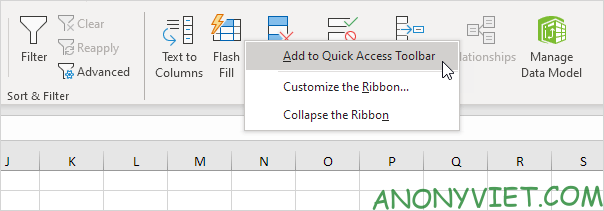
First, right-click the command you want in the toolbar, then select Add to Quick Access Toolbar.
Lesson 22: How to use Quick Access Toolbar in Microsoft Excel 11

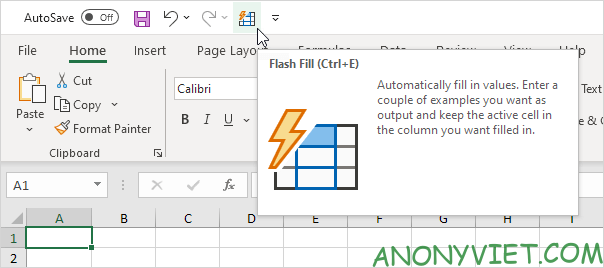
You should now see the command’s icon on the Quick Access Toolbar.
Lesson 22: How to use Quick Access Toolbar in Microsoft Excel 12

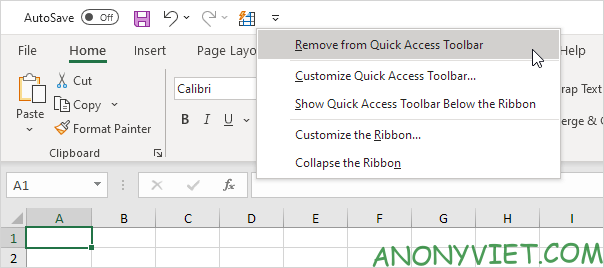
To remove this command from the Quick Access Toolbar, simply right-click the command box and select Remove from Quick Access Toolbar.
Lesson 22: How to use Quick Access Toolbar in Microsoft Excel 13

For commands that are not on the toolbar

To add a command that is not on the toolbar to the Quick Access Toolbar, you need to perform the following steps.

First, click the down arrow on the Quick Access Toolbar.

Next choose More Commands.
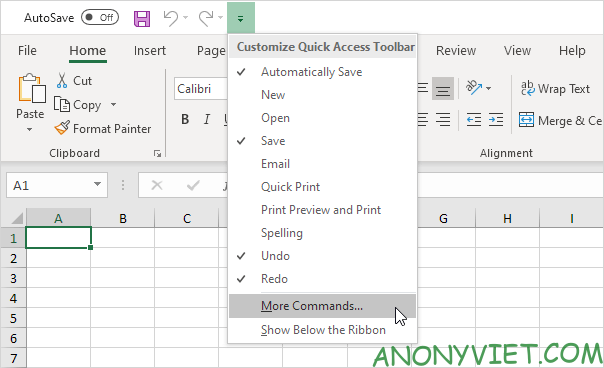
Lesson 22: How to use Quick Access Toolbar in Microsoft Excel 14

In the Choose commands from section, select Commands Not in the Ribbon.

Next select the command you want, then click Add.Lesson 22: How to use Quick Access Toolbar in Microsoft Excel 15
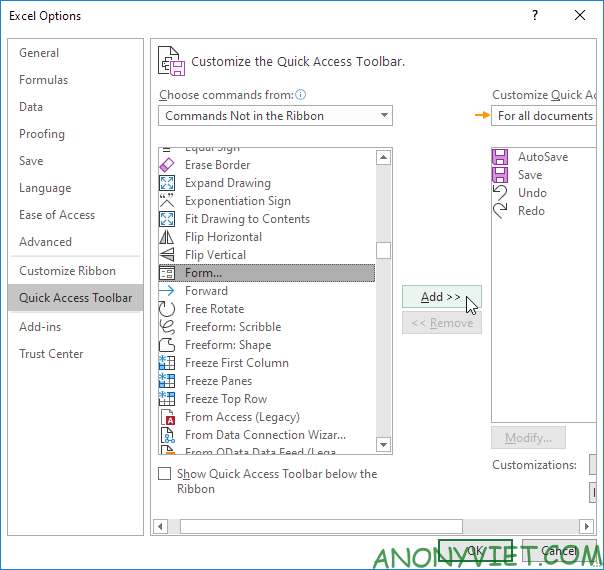
Note: By default, Excel customizes the Quick Access Toolbar for all documents. So you can select the current saved workbook to customize the Quick Access Toolbar only for that workbook.

Finally click OK.

You should now see that command on the Quick Access Toolbar.
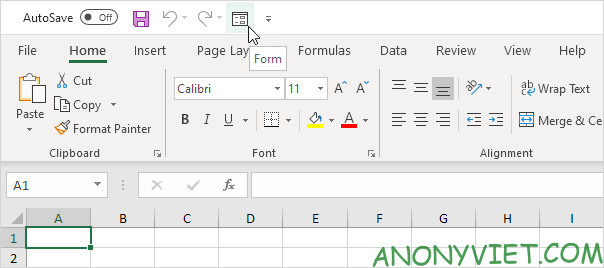
Lesson 22: How to use Quick Access Toolbar in Microsoft Excel 16

In addition, you can also view many other excel articles here.

The article achieved: 5/5 – (100 votes)

Tags: accessExcelLessonMicrosoftQuickToolbar
Previous Post

Instructions to register a free .BEST Domain of OVH

Next Post

How to Download Everything on the Internet to Your Computer

AnonyViet

AnonyViet

Related Posts

How to add Watermark to Google Docs to protect copyright
Office

How to add Watermark to Google Docs to protect copyright

April 19, 2026
Instructions on how to hide formulas in Excel to secure data
Office

Instructions on how to hide formulas in Excel to secure data

February 6, 2026
Top who creates the most beautiful presentation slide today
Office

Top who creates the most beautiful presentation slide today

September 23, 2025
Automatically check and correct spelling errors on Google Docs
Office

Automatically check and correct spelling errors on Google Docs

February 23, 2025
Instructions for downloading Google Docs files easily on any device
Office

Instructions for downloading Google Docs files easily on any device

December 18, 2024
Launching AI image creation feature on Google Docs
Office

Launching AI image creation feature on Google Docs

November 20, 2024
Next Post
How to Download Everything on the Internet to Your Computer

How to Download Everything on the Internet to Your Computer

0 0 votes
Article Rating
Subscribe
Login
Notify of
guest

guest

0 Comments
Oldest
Newest Most Voted
Inline Feedbacks
View all comments

Recent News

Top 5+ utilities to install for Gmail to speed up work processing

Top 5+ utilities to install for Gmail to speed up work processing

April 22, 2026
Decoding the problem of 4GB RAM and processing performance

Decoding the problem of 4GB RAM and processing performance

April 21, 2026
How to add sliders to Facebook Stories to easily rewind videos

How to add sliders to Facebook Stories to easily rewind videos

April 21, 2026
Reputable LG repair service in Hanoi & Ho Chi Minh City with LGservicecenter

Reputable LG repair service in Hanoi & Ho Chi Minh City with LGservicecenter

April 21, 2026
Top 5+ utilities to install for Gmail to speed up work processing

Top 5+ utilities to install for Gmail to speed up work processing

April 22, 2026
Decoding the problem of 4GB RAM and processing performance

Decoding the problem of 4GB RAM and processing performance

April 21, 2026
How to add sliders to Facebook Stories to easily rewind videos

How to add sliders to Facebook Stories to easily rewind videos

April 21, 2026
AnonyViet - English Version

AnonyViet

AnonyViet is a website share knowledge that you have never learned in school!

We are ready to welcome your comments, as well as your articles sent to AnonyViet.

Follow Us

Contact:

Email: anonyviet.com[@]gmail.com

Main Website: https://anonyviet.com

Recent News

Top 5+ utilities to install for Gmail to speed up work processing

Top 5+ utilities to install for Gmail to speed up work processing

April 22, 2026
Decoding the problem of 4GB RAM and processing performance

Decoding the problem of 4GB RAM and processing performance

April 21, 2026
No Result
View All Result
  • Home
  • News
  • Software
  • Knowledge
  • MMO
  • Tips
  • Security
  • Network
  • Office

wpDiscuz
0
0
Would love your thoughts, please comment.x
()
x
| Reply