• Home
  • News
  • Software
  • Knowledge
  • MMO
  • Tips
  • Security
  • Network
  • Office
AnonyViet - English Version
  • Home
  • News
  • Software
  • Knowledge
  • MMO
  • Tips
  • Security
  • Network
  • Office
No Result
View All Result
  • Home
  • News
  • Software
  • Knowledge
  • MMO
  • Tips
  • Security
  • Network
  • Office
No Result
View All Result
AnonyViet - English Version
No Result
View All Result

Lesson 195: How to use the IsError function in Excel

AnonyViet by AnonyViet
January 24, 2023
in Office
0

This article will guide you to use the IsError function in Excel.

Join the channel Telegram of the AnonyViet 👉 Link 👈

How to use the IsError function in Excel

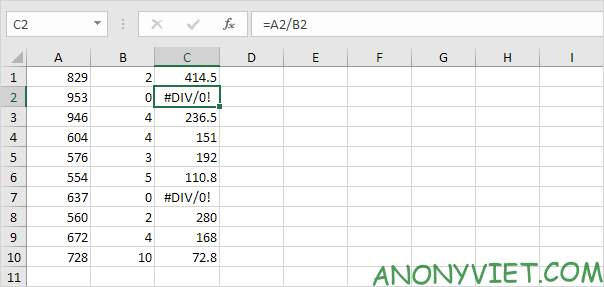
1. For example, Excel displays the #DIV/0! when a formula tries to divide a number by 0.Lesson 195: How to use the IsError function in Excel 9
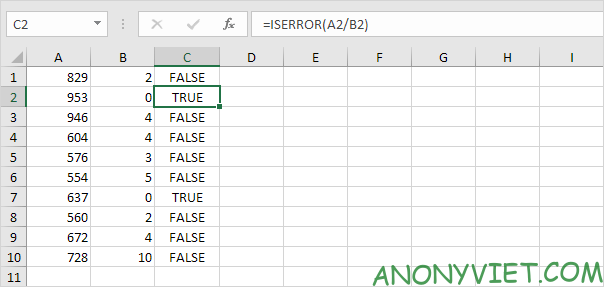
2. The Excel ISERROR function checks if a value is an error and returns TRUE or FALSE.
Lesson 195: How to use the IsError function in Excel

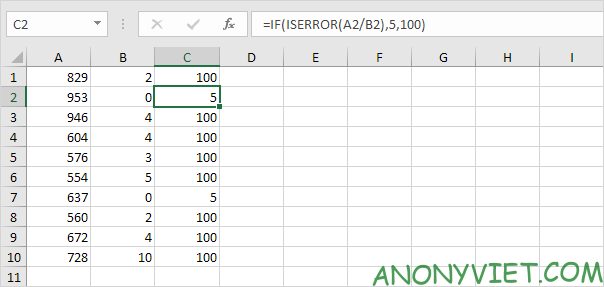
3. Add the IF function. If a cell has an error, the value 5 is returned. Otherwise, the value 100 is returned.
Lesson 195: How to use the IsError function in Excel 10

4. Use the IFERROR function to return the result of the formula (if there is no error) or the error text you want, such as text (if there is an error).
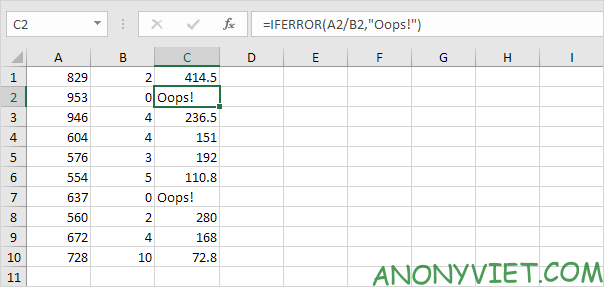
Lesson 195: How to use the IsError function in Excel 11

5. Use COUNT, IF, and ISERROR to count the total number of errors in a range of cells.
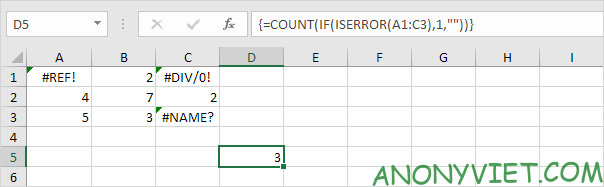
Lesson 195: How to use the IsError function in Excel 12

Note: this is an array formula. You can complete the array formula by pressing CTRL + SHIFT + ENTER. Excel will add curly braces {} on its own.

In addition, you can also view many other excel articles here.

The article achieved: 5/5 – (100 votes)

Tags: ExcelfunctionIsErrorLesson
Previous Post

Some of the best homework apps for students

Next Post

Guide to Active Burp Suite Pro 2022 + Latest BugBounty Pro

AnonyViet

AnonyViet

Related Posts

How to add Watermark to Google Docs to protect copyright
Office

How to add Watermark to Google Docs to protect copyright

April 19, 2026
Instructions on how to hide formulas in Excel to secure data
Office

Instructions on how to hide formulas in Excel to secure data

February 6, 2026
Top who creates the most beautiful presentation slide today
Office

Top who creates the most beautiful presentation slide today

September 23, 2025
Automatically check and correct spelling errors on Google Docs
Office

Automatically check and correct spelling errors on Google Docs

February 23, 2025
Instructions for downloading Google Docs files easily on any device
Office

Instructions for downloading Google Docs files easily on any device

December 18, 2024
Launching AI image creation feature on Google Docs
Office

Launching AI image creation feature on Google Docs

November 20, 2024
Next Post
Guide to Active Burp Suite Pro 2022 + Latest BugBounty Pro

Guide to Active Burp Suite Pro 2022 + Latest BugBounty Pro

0 0 votes
Article Rating
Subscribe
Login
Notify of
guest

guest

0 Comments
Oldest
Newest Most Voted
Inline Feedbacks
View all comments

Recent News

How to create a Face Sticker Collection using ChatGPT

How to create a Face Sticker Collection using ChatGPT

April 29, 2026
How to install the cute Bongo Cat mouse pointer for Windows

How to install the cute Bongo Cat mouse pointer for Windows

April 29, 2026
Tips for pinning the step counter to the iPhone screen to monitor your health

Tips for pinning the step counter to the iPhone screen to monitor your health

April 28, 2026
How to turn off password suggestions on iPhone: Prevent Safari from auto-filling passwords

How to turn off password suggestions on iPhone: Prevent Safari from auto-filling passwords

April 27, 2026
How to create a Face Sticker Collection using ChatGPT

How to create a Face Sticker Collection using ChatGPT

April 29, 2026
How to install the cute Bongo Cat mouse pointer for Windows

How to install the cute Bongo Cat mouse pointer for Windows

April 29, 2026
Tips for pinning the step counter to the iPhone screen to monitor your health

Tips for pinning the step counter to the iPhone screen to monitor your health

April 28, 2026
AnonyViet - English Version

AnonyViet

AnonyViet is a website share knowledge that you have never learned in school!

We are ready to welcome your comments, as well as your articles sent to AnonyViet.

Follow Us

Contact:

Email: anonyviet.com[@]gmail.com

Main Website: https://anonyviet.com

Recent News

How to create a Face Sticker Collection using ChatGPT

How to create a Face Sticker Collection using ChatGPT

April 29, 2026
How to install the cute Bongo Cat mouse pointer for Windows

How to install the cute Bongo Cat mouse pointer for Windows

April 29, 2026
No Result
View All Result
  • Home
  • News
  • Software
  • Knowledge
  • MMO
  • Tips
  • Security
  • Network
  • Office

wpDiscuz
0
0
Would love your thoughts, please comment.x
()
x
| Reply