Software to create mechanical keyboard sounds Keyboard Sounds is the solution for those who feel their keyboard is too quiet. This application brings the pleasant “clicking” sounds of a mechanical keyboard. Although some people will find it unnecessary, for those who love the sound of typing, this is definitely an interesting tool worth exploring.
| Join the channel Telegram belong to AnonyViet 👉 Link 👈 |
What are Keyboard Sounds?
Do you find your keyboard a bit boring and lifeless? Keyboard Sounds is a free and open source application developed by Nathan Fiscaletti, a passionate software engineer. This tool allows you to add sound to each keystroke, simulating the “clicking” feeling typical of expensive mechanical keyboards.
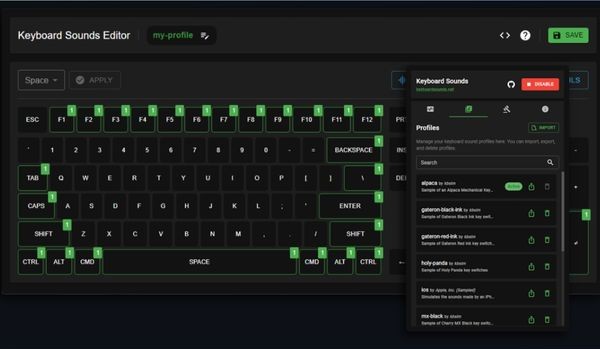
The special feature of the application is customization. Not only can you choose from available sound profiles such as Cherry MX, Gateron, Holy Panda, etc., but you can also create your own unique sound set. Furthermore, the ability to set rules for each application is also a big plus, helping you turn on/off the sound intelligently.
Instructions for installing Keyboard Sounds
Installing Keyboard Sounds is quite simple and depends on the operating system you are using.
1. For Windows users:
The easiest way is to download the desktop version directly from the project’s official website or via the GitHub page HERE.
Important note: Your computer needs to have Python installed. During the Python installation process, remember to tick the “Add Python to PATH” box to ensure the application runs smoothly.
Download Python at: python.org/downloads
2. For Linux, macOS users or want to use the command line on Windows:
You can install through your package manager Python by command:
pip install keyboardsounds
Once installed, you can launch the tool with the command:
kbs –help
How to use the Keyboard Sounds application
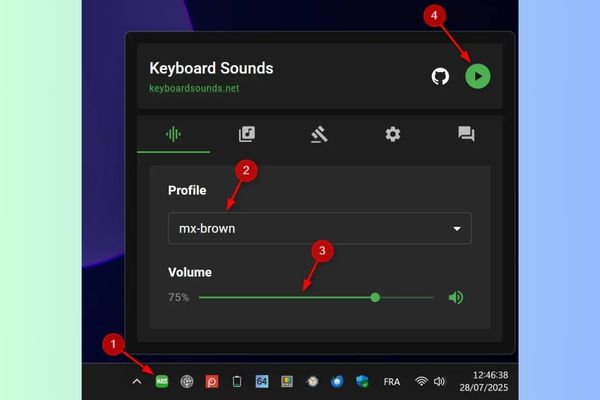
Once installed, Keyboard Sounds will run in the background and sit neatly in the notification area (near the Windows clock). Just one click on the icon, the main interface of the application will appear, very intuitive and easy to understand.
Audio Tab
This is where you can choose an audio profile from 15 available options such as Alpaca, Steelseries, Cherry MX, etc.
- Adjust the volume of the sound to your liking.
- You can also turn on (▶️ Play) or turn off (⏹️ Stop) the keyboard sound at any time.
Profiles tab
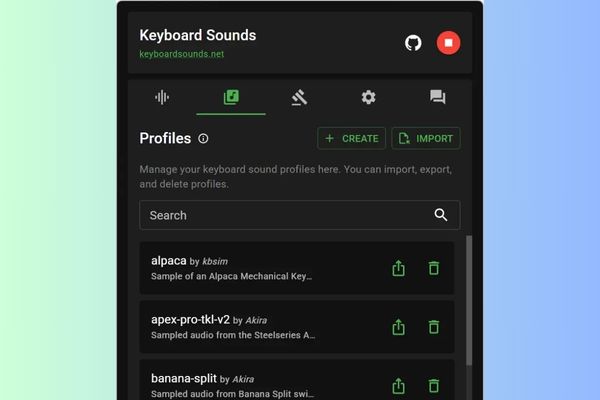
This tab lets you get creative by creating and managing your own sound sets. You can import WAV or MP3 format audio files and assign them to different key types.
Rules Tab
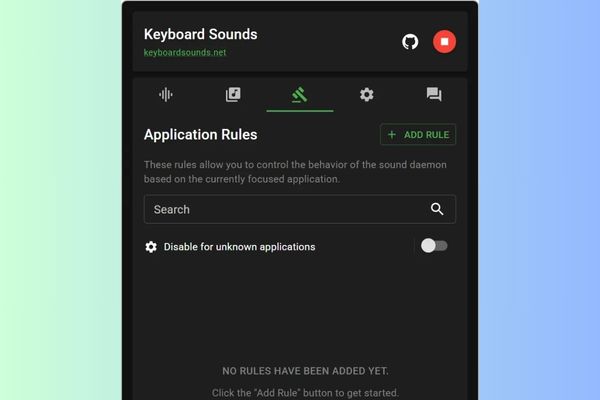
Here, you can set up individual rules for each application.
For example: You can set the sound to only work when you’re typing and automatically turn off when you’re playing games or surfing the web.
Note: This feature is currently only available on Windows operating systems.
Settings Tab
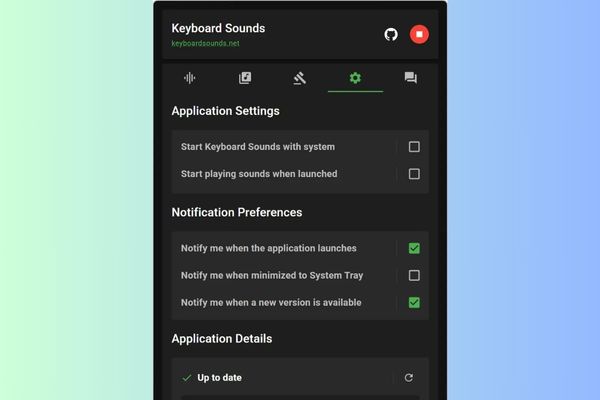
This last tab allows you to tweak utility settings like starting with Windows, automatically turning on sound on launch, notification options, and checking for updates.
Instructions for uninstalling Keyboard Sounds cleanly
If you no longer need to use it, removing Keyboard Sounds is also very quick.
For desktop version (Windows)
You just need to enter Settings > Apps > Installed Apps of Windows and uninstall Keyboard Sounds like any other program.
Note: Uninstalling the desktop version will not automatically remove the Python package. So remember to remove it manually if you no longer use it.
For command line version (CLI)
If you installed via pip, open terminal and run the following command:
pip uninstall keyboardsounds
Conclusion
In short, Keyboard Sounds may not be a life-changing app, but it will definitely add a little fun spice to your daily typing experience. With Software to create mechanical keyboard sounds Hey, every time you “dance” the keys, it becomes much more lively and “ear-catching”!