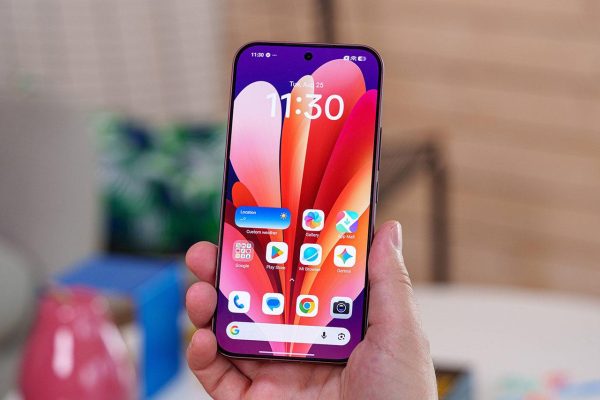
How to create an aquarium on iPhone is an extremely interesting customization trick, helping you bring the vivid ocean world right to your home screen. If you love aquarium fish but are busy, this is the perfect solution to “chill” every day. Let’s discover the secret to transforming your phone in just a few simple steps!
| Join the channel Telegram belong to AnonyViet 👉 Link 👈 |
iScreen – App to create an aquarium on iPhone
To perform this great tip, the indispensable tool is the application “iScreen – Widgets & Wallpaperr”. This is a treasure trove of widgets on the App Store, allowing users to deeply customize the iOS interface, turning the most creative ideas into reality. With iScreenbringing a mini aquarium to your home screen is easier than ever.
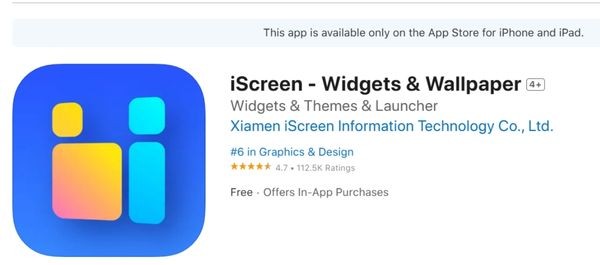
Instructions on how to create an aquarium on the iPhone screen
Let’s start designing your own unique virtual aquarium by following these steps:
Step 1: First, open the App Store on iPhone, type “iScreen – Widgets & Wallpaper” into the search bar and download the application to your device.
Or you can download now HERE.
Step 2: After installation is complete, open iScreen. Here, you will find a widget with a very attractive name Desktop Aquarium and click select (choose any one).
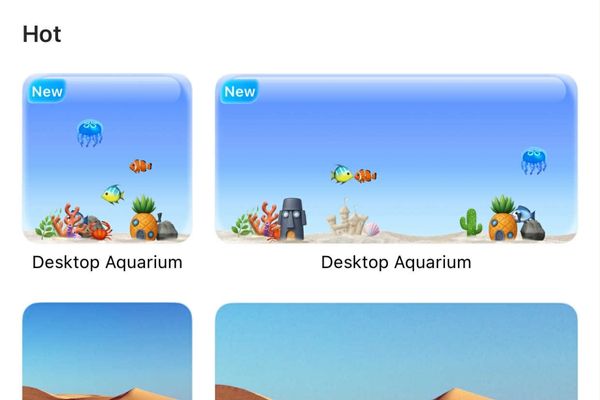
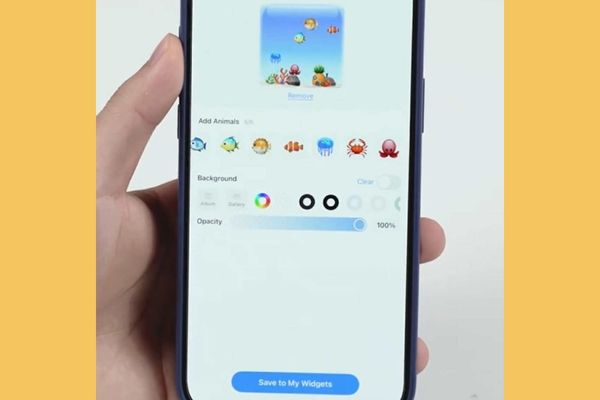
Step 3: The application will open a customized interface where you can freely add your favorite sea creatures such as clownfish, goldfish, jellyfish, crabs, etc.
- You can completely change the background color of the aquarium, adjust the transparency (opacity) so that it blends perfectly with the phone wallpaper.
- When you are satisfied with your “mini aquarium”, press the button Save to My Widgets to save the design.
Step 4: To be able to admire your achievements every day, you need to add the aquarium widget to your iPhone home screen, as follows:
- Return to the home screen, then press and hold on an empty area until the icons start to vibrate > Select Fix > Select Add amenities.
- In the list that appears, scroll down to find and select the iScreen application.
- Scroll through the widget size options and then tap Add amenities and drag it to the position you want on the screen.
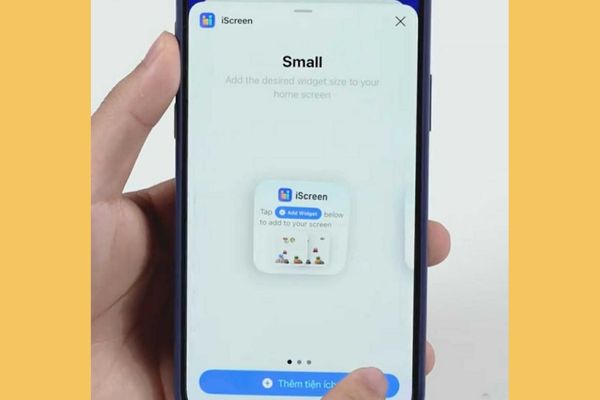
Step 5: Long press on the widget you just added > Select Edit widgets. In section Current Widgetsselect Desktop Aquarium that’s it.
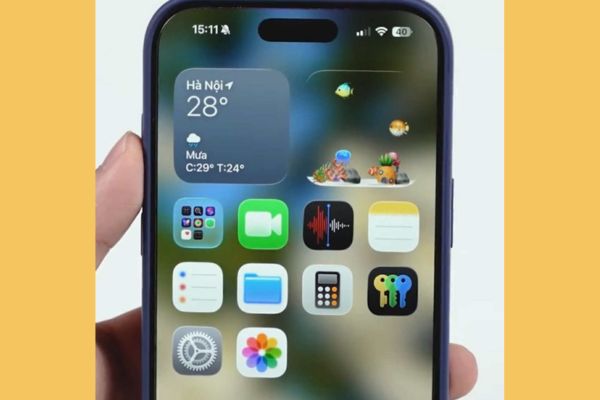
Conclusion
So, you have mastered it How to create an aquarium on the iPhone screen in just a few extremely intuitive steps. Now, your home screen is no longer monotonous but has become a colorful mini aquarium. Let’s start working now to bring a fresh and relaxing breeze to your phone!