
• Home
  • News
  • Software
  • Knowledge
  • MMO
  • Tips
  • Security
  • Network
  • Office
AnonyViet - English Version
  • Home
  • News
  • Software
  • Knowledge
  • MMO
  • Tips
  • Security
  • Network
  • Office
No Result
View All Result
  • Home
  • News
  • Software
  • Knowledge
  • MMO
  • Tips
  • Security
  • Network
  • Office
No Result
View All Result
AnonyViet - English Version
No Result
View All Result

Instructions for connecting Macbook to TV

AnonyViet by AnonyViet
October 28, 2024
in Tips
0

Do you want to enjoy your favorite blockbuster movies or videos on a large TV screen with sharp image quality from your Macbook? Job Connect Macbook to TV It's actually simpler than you think! This article will guide you step by step to make it happen.

Join the channel Telegram belong to AnonyViet 👉 Link 👈

Instructions for connecting Macbook to TV using cable

Prepare before connecting

Before starting, make sure you have the following prepared:

1. Cable for Macbook

  • New Macbooks (from 2016 onwards): Usually use Thunderbolt 3 or USB Type-C ports. You need a cable corresponding to the connection port on your Macbook.
  • Older Macbooks: Can use HDMI, Mini DisplayPort or Thunderbolt 2 ports. Check the connection port on your Macbook and choose the appropriate cable.
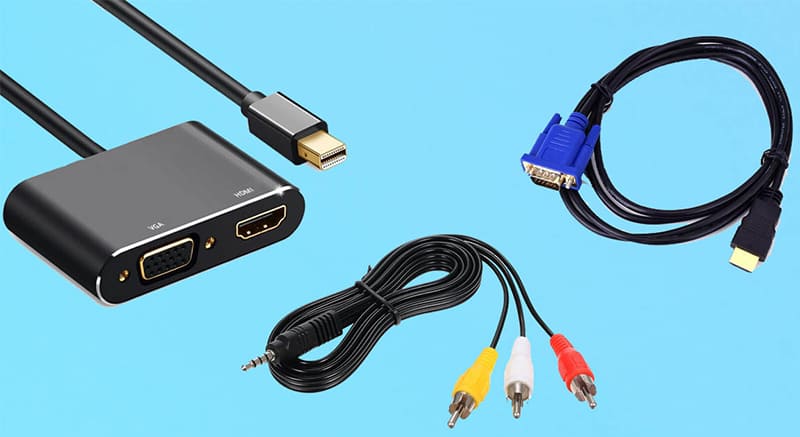
Prepare cables and conversion wires

2. Conversion cord (if needed)

  • If your Macbook does not have an HDMI port, you need a converter cable from the connection port on the Macbook to HDMI. For example: USB-C to HDMI, Mini DisplayPort to HDMI,…
  • Make sure your TV has at least one free HDMI port

See more: Registration instructions Youtube Premium is free on Samsung TVs

Implementation steps

Once fully prepared, follow these steps to connect your Macbook to the TV:

Step 1: Connect the cable

  • Plug one end of the cable into the corresponding connection port on the Macbook.
  • Plug the other end of the cable (or the HDMI end of the adapter) into an empty HDMI port on the TV.
  • Remember the HDMI port number you just used, especially if your TV has multiple HDMI ports.

Step 2: Install on TV

  • Turn on the TV and use the remote to switch to HDMI mode.
  • Select the correct HDMI port corresponding to the port you connected the cable to in step 1.

Step 3: Install on Macbook

  • Click on the Apple icon in the upper left corner of the screen and select “System Preferences…”
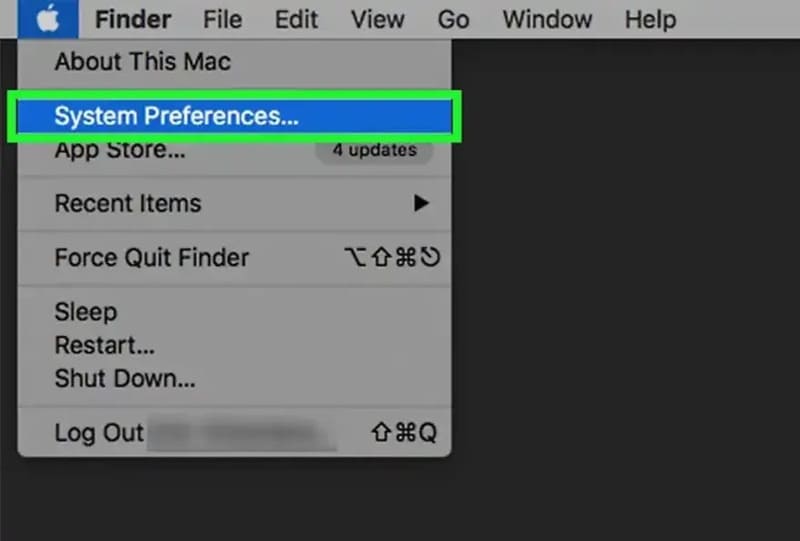
Select System Preferences...
Select System Preferences…
  • In the System Preferences window, click on the “Displays” icon (computer screen icon).
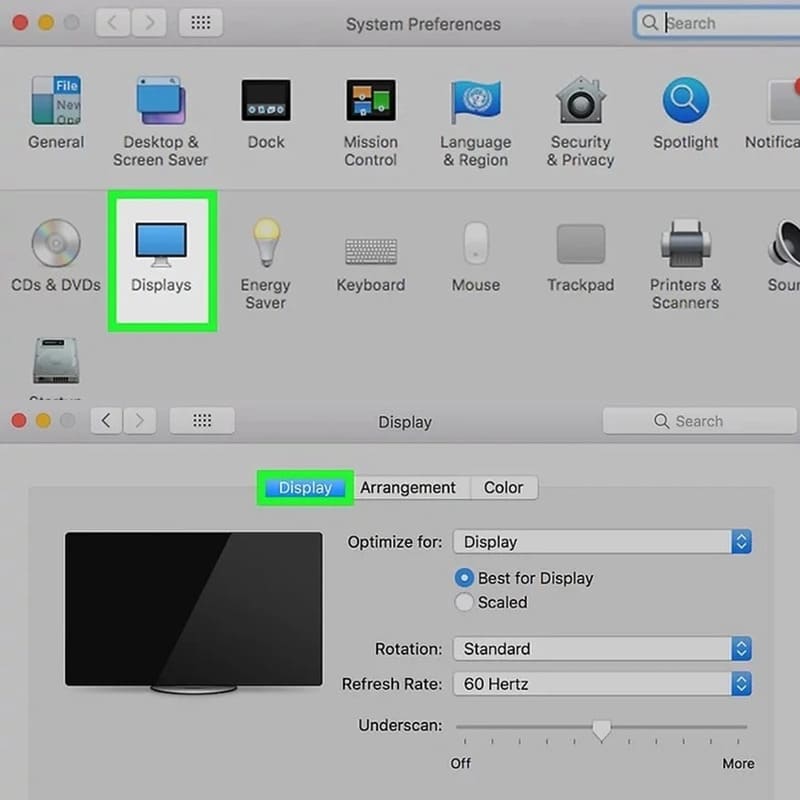
Click on the icon "Displays"
Click on the “Displays” icon
  • Hold down the “Option” key on the Macbook keyboard.
  • In the Displays window, click the “Detect Displays” button to have your Macbook automatically detect the TV screen.

Step 4: Sound settings

  • Return to the System Preferences window and click on the “Sound” icon (speaker icon).
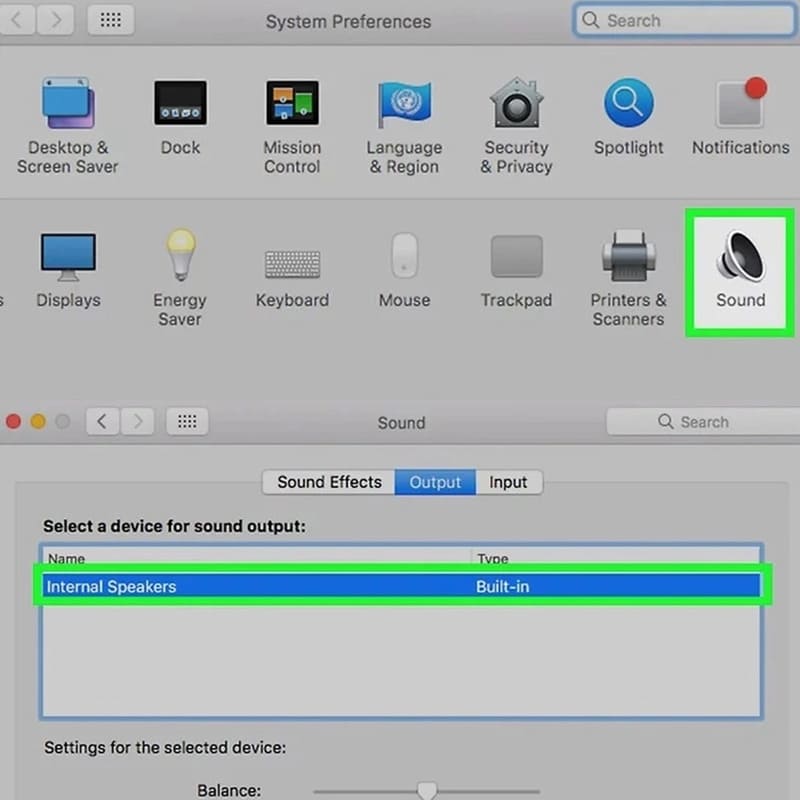
Click on the icon "Sound"
Click on the “Sound” icon
  • In the Sound window, select the “Output” tab.
  • Click on your TV name in the list of audio output devices to have your Macbook output sound to the TV.

After completing the above steps, you have successfully connected your Macbook to the TV! Now you can watch movies, videos, slideshows or any content from your Macbook on a large TV screen with excellent image and sound quality.

Instructions for connecting Macbook to TV using AirPlay

Step 1: Make sure your TV supports AirPlay 2. This information is usually specified in the TV's specifications.

Step 2: Both Macbook and TV must be connected to the same Wi-Fi network.

Step 3: Click on the AirPlay icon (rectangular icon with an up arrow) on the Macbook menu bar > Select your TV name in the list of available AirPlay devices.
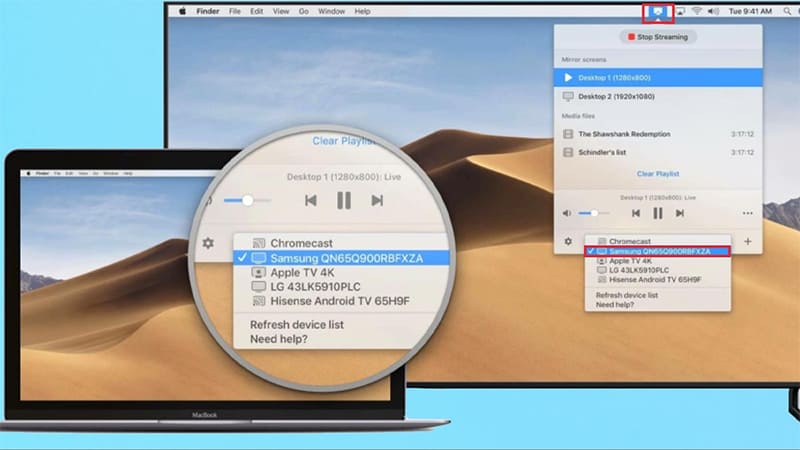
Instructions for connecting Macbook to TV using AirPlay

Once connected, the content on the Macbook screen will be displayed on the TV. You can adjust the volume and other settings directly on your Macbook.
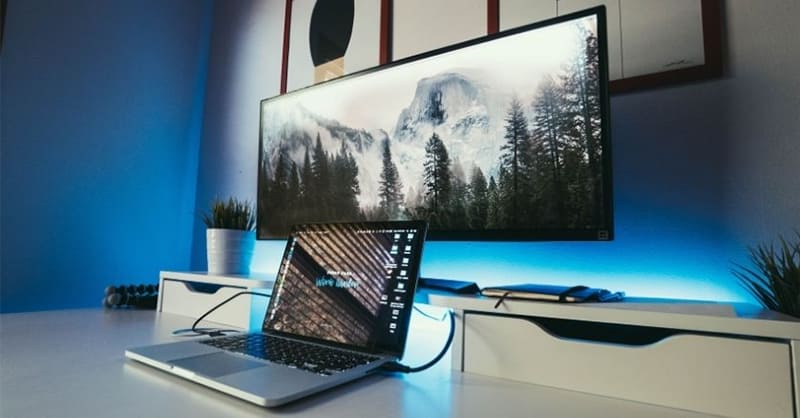
The Macbook screen will be displayed on the TV

See more: 3-way guide Transfer files from Android to MacBook

Conclusion

Job Connect Macbook to TV Helps you enjoy a better entertainment experience on the big screen. You can choose the cable or wireless connection method (AirPlay) depending on your needs and device. Wish you success!


Tags: ConnectingInstructionsMacBook
Previous Post

Instructions for turning off emoji interaction in Gmail

Next Post

Analyze League of Legends opponents easily before the match with LMSS

AnonyViet

AnonyViet

Related Posts

How to add sliders to Facebook Stories to easily rewind videos
Tips

How to add sliders to Facebook Stories to easily rewind videos

April 21, 2026
How to change the default font on Windows 10
Tips

How to change the default font on Windows 10

April 13, 2026
5 tips for using a Browser to replace an App (helps save RAM, time and money)
Tips

5 tips for using a Browser to replace an App (helps save RAM, time and money)

April 13, 2026
How to make funny MeMe photos without Photoshop within 10 seconds
Tips

How to make funny MeMe photos without Photoshop within 10 seconds

April 11, 2026
How to quickly design your own Logo without Photoshop
Tips

How to quickly design your own Logo without Photoshop

April 10, 2026
How to convert Website into App on Windows
Tips

How to convert Website into App on Windows

April 9, 2026
Next Post
Analyze League of Legends opponents easily before the match with LMSS

Analyze League of Legends opponents easily before the match with LMSS

0 0 votes
Article Rating
Subscribe
Login
Notify of
guest

guest

0 Comments
Oldest
Newest Most Voted
Inline Feedbacks
View all comments

Recent News

Tips to completely turn off CAPTCHA codes on iPhone and Mac are super simple

Tips to completely turn off CAPTCHA codes on iPhone and Mac are super simple

April 25, 2026
Compare Poco X8 Pro and Poco X7 Pro: A new step for the “king” of mid-range performance

Compare Poco X8 Pro and Poco X7 Pro: A new step for the “king” of mid-range performance

April 24, 2026
How to compress online videos for free without losing quality

How to compress online videos for free without losing quality

April 24, 2026
Top 5 apps to view good days 2026 for free on iOS and Android

Top 5 apps to view good days 2026 for free on iOS and Android

April 23, 2026
Tips to completely turn off CAPTCHA codes on iPhone and Mac are super simple

Tips to completely turn off CAPTCHA codes on iPhone and Mac are super simple

April 25, 2026
Compare Poco X8 Pro and Poco X7 Pro: A new step for the “king” of mid-range performance

Compare Poco X8 Pro and Poco X7 Pro: A new step for the “king” of mid-range performance

April 24, 2026
How to compress online videos for free without losing quality

How to compress online videos for free without losing quality

April 24, 2026
AnonyViet - English Version

AnonyViet

AnonyViet is a website share knowledge that you have never learned in school!

We are ready to welcome your comments, as well as your articles sent to AnonyViet.

Follow Us

Contact:

Email: anonyviet.com[@]gmail.com

Main Website: https://anonyviet.com

Recent News

Tips to completely turn off CAPTCHA codes on iPhone and Mac are super simple

Tips to completely turn off CAPTCHA codes on iPhone and Mac are super simple

April 25, 2026
Compare Poco X8 Pro and Poco X7 Pro: A new step for the “king” of mid-range performance

Compare Poco X8 Pro and Poco X7 Pro: A new step for the “king” of mid-range performance

April 24, 2026
No Result
View All Result
  • Home
  • News
  • Software
  • Knowledge
  • MMO
  • Tips
  • Security
  • Network
  • Office

wpDiscuz
0
0
Would love your thoughts, please comment.x
()
x
| Reply





