

The mouse is a great invention, but don’t think that the keyboard is useless, you can even browse the web with the keyboard. Thanks to a very cool extension called Vimiumyou can browse the web without touching the mouse.
| Join the channel Telegram of the AnonyViet 👉 Link 👈 |
Imagine this: you are lying on a sofa with your laptop on your feet, so you won’t have space for a mouse, no touchpad. And, moving back and forth between the mouse and the keyboard while lying down is also more inconvenient.
With Vimium, you can browse the web comfortably without taking your hands off the keyboard. Great huh?
Get started with Vimium
Vimium is inspired by the classic text editor called Vim. A favorite among programmers, Vim navigates text files with the keyboard. Vim (and its predecessor, Vi) supports simple keyboard commands to move by line, word or sentence, or to cut and paste text, delete lines and much more.
Extension Vimium is not as complicated as its original version. Because it borrows the idea of controlling a program from the home row (asd row…) of the keyboard to achieve the highest efficiency. Anyone who knows how to use Vim should have no trouble getting used to Vimium, as it uses the same commands as Vim.
Vimium is available for Chrome and Firefox. It also works with Opera, Edge, Brave, and Vivaldi, all of which are based on Chromium — the open source version of Chrome.
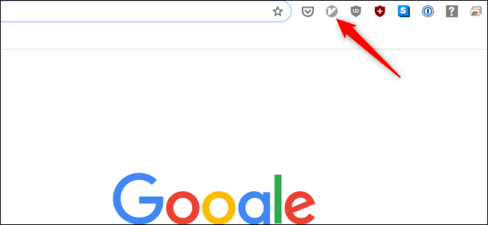
Vimium won’t work with every website, but it should still work with most of the popular ones. When Vimium is not active on a particular website, the Vimium icon in the browser will turn gray, as shown in the image below. When Vimium is active, its icon will be blue.
How to use Vimium’s keyboard shortcuts
It takes a little practice to use the keyboard shortcuts. However, once you get used to this, navigating the web gets a lot easier. I can’t cover all of Vimium’s keyboard shortcuts in this article, so I’ll focus on the most useful ones — especially for those new to Vimium.
Some Vimium shortcuts require lowercase letters. Other keyboard shortcuts require uppercase letters, so you also have to watch out for pressing Shift while typing letters. I will display the letters in the appropriate cases.
First, you need to know how to navigate a website. These shortcuts are similar to those in Vim. To scroll down, press j — you can use taps or long presses j for fast scrolling. To scroll up, tap k. Again, long presses or taps make you work faster or slower.
If you want to scroll down quickly, press d, and vice versa pull up quickly press u (It’s not like pulling, it’s actually going to push most of the site up and down). According to the Vimium team, these commands will scroll up or down about half a page, but in my experience, it scrolls about 1/3 of the page more.

Finally, if you want to go to the top of the page, press g twice. To go to the bottom of the page, press Shift + g. This one surfs face with insta to be much more tired, to avoid having to scroll, but scrolling a lot is also easy to damage the roller.
You can also press f to open the link in the current page or Shift + f to open the link in a new tab. After you press f or Shift + f, any links in the page (as shown below) labeled as DE, F, SE, etc. will be displayed. Now you just need to press the corresponding key to open it.

Opening links can take some time to do, especially on search engine pages where each entry can have three or more links. Spend some time with Vimium and you’ll get used to it.
Now that you understand the basics of navigating a page, it’s time to get familiar with navigating between tabs. There are four useful keyboard shortcuts for this. To go to the next tab on the right, press Shift + KY. To move left, press Shift + J.
You can also move backward or forward in the tab’s history, just like when you click the back or forward button with your mouse. Press Shift + Surname to go back (backward) or Shift + l to go forward.
Some other keyboard shortcuts that will help you: BILLION open new tab, X to close tabs and Shift + X to restore the most recently closed browser tab or window.
Vimium can also open bookmarks, search for a word or phrase on a page, reload a page, open a web page’s HTML source, scroll left or right on a page that doesn’t fit the screen, copy a link’s URL, and many more. something else.
For a complete list of commands, go to page Vimium’s Github. Vimium specifies its keyboard shortcuts using lowercase and uppercase letters. So if you see a command with uppercase letters, you must also press Shift.
Errors on Vimium
Once you get used to the keyboard shortcuts, Vimium is easy to use, but there are a few problems you might run into. The first is the new tab. If you reverse the page to a new tab screen, you won’t be able to go forward because Vimium doesn’t work with empty tabs.
You must use the mouse or touchpad to advance the page or press Ctrl + ERROR to enter the new URL in the address bar.
Another common problem is getting stuck in a text box or address bar where your keypresses will be interpreted as text. In these cases, the easiest way is to press Tab to exit the text input, or use the mouse or touchpad to click.
Overall, Vimium is a great way to browse the web. Equipped with basic keyboard shortcuts that can help you get around the web!










