In addition to the Sun Valley update, Microsoft has also introduced a number of quality of experience improvements for Windows 10. The Redmond giant has rolled out a new Eco mode feature for Windows 10 beta testers to improve battery life and reduce CPU temperatures.
| Join the channel Telegram belong to AnonyViet 👉 Link 👈 |
If your Windows 10 is slow, this feature will improve it for you. Therefore, I will guide you to turn on Eco Mode power saving mode on Windows 10 in this article.
What is Eco Mode on Windows 10?
Eco Mode is an experimental feature on Windows 10, aimed at improving battery life and temperature on laptops. It limits resource-hogging applications and processes in the background. You only have 1 browser tab turned on, but the computer heats up, the fan starts spinning, and the computer shows signs of lag. This happens mainly because apps running in the background eat up resources unnecessarily.
Therefore, Microsoft wants to provide users with the feature to limit resources in any application they want, be it system applications or third-party applications. This feature is integrated into Task Manager, allowing users to find and set other applications to Eco mode.

Eco Mode works by lowering a task’s process priority in a new framework called EcoQoS, giving the CPU a breather. This framework improves the responsiveness of active tasks, reduces fan noise and thermal regulation, and improves battery life. Framework is only used for CPU at this time.
Microsoft is asking programmers to set Eco mode as default in their applications. The good news is that Microsoft Edge and Google Chrome already use the same method that EcoQoS uses. That’s why Task Manager does not allow you to enable Eco mode on these browsers.
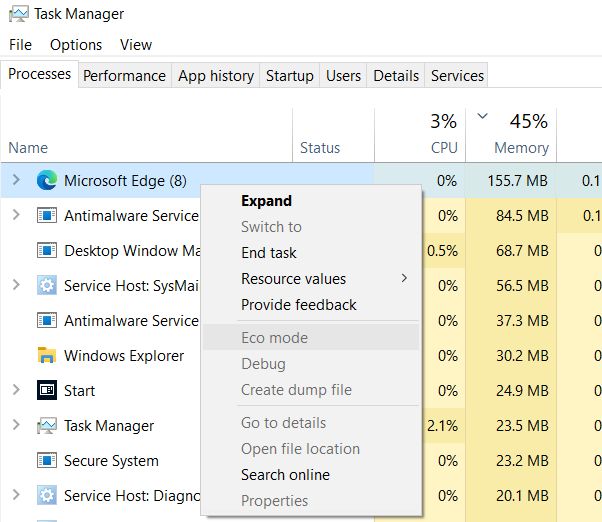
While Eco mode is a great additional feature, there is a possibility that Windows 10 may accidentally set an active application to Eco mode. For example, if you’re using photo editing software, you wouldn’t want Windows 10 to place system resource restrictions on that software. In such cases, you can open Task Manager and turn off Eco mode for that task. This way, you will be able to take full advantage of your PC’s resources.
Turn on or off Eco Mode for applications on Windows 10
Note that the Eco Mode feature is currently only available for Windows Insider version 21364 and above on the Dev channel. If nothing happens, Eco Mode will reach users in the coming months.
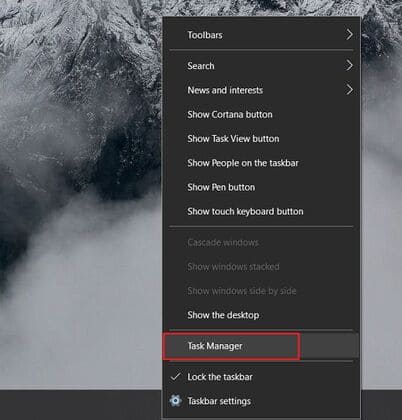
Step 1: Right click on Taskbar and open Task Manager. You can also use the keyboard shortcut Ctrl + Shift + Esc to open it Task Manager.
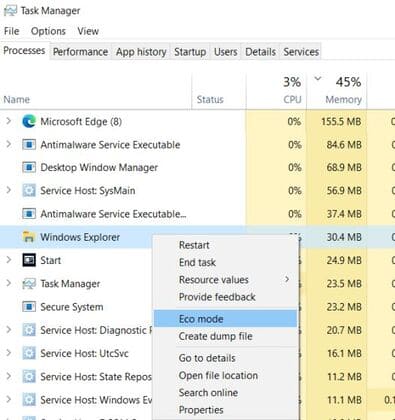
Step 2: Here, in the Status tab, you will find apps that have Eco mode enabled. You can right click on any application to enable or disable ‘Eco mode‘.
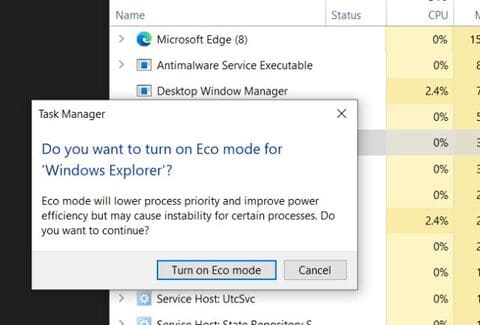
Step 3: After you click ‘Eco Mode’ to enable this feature, click ‘Turn on Eco mode‘ in the new window. And that’s it.
Increase battery life on Windows 10 laptops with Eco Mode
That’s all you need to know about the new Eco mode on Windows 10. The feature is currently available to Windows 10 Insiders, but it will gradually reach all users over the next few months.
If you have a Windows 10 laptop, this article will definitely help you solve battery life and temperature problems. If you want to speed up your Windows 10 computer, I recommend you read this article and join Anonyviet’s new Discord server here.
Frequently asked questions
What is Eco Mode on Windows 10 and how does it work?
Eco Mode is a feature that helps save battery and reduce CPU temperature on Windows 10 by limiting system resources used by background applications. It works by reducing the priority of processes, helping the CPU operate more efficiently.
Which version of Windows 10 do I need to use Eco Mode?
Currently, Eco Mode is only available for Windows Insider version 21364 and above on the Dev channel. The official version will be widely released in the near future.
How to turn on/off Eco Mode for a specific application?
Open Task Manager (Ctrl+Shift+Esc), find the required application, right-click on it and select “Eco Mode” to enable or disable.