• Home
  • News
  • Software
  • Knowledge
  • MMO
  • Tips
  • Security
  • Network
  • Office
AnonyViet - English Version
  • Home
  • News
  • Software
  • Knowledge
  • MMO
  • Tips
  • Security
  • Network
  • Office
No Result
View All Result
  • Home
  • News
  • Software
  • Knowledge
  • MMO
  • Tips
  • Security
  • Network
  • Office
No Result
View All Result
AnonyViet - English Version
No Result
View All Result

How to use the “Find device” feature on Windows 11

AnonyViet by AnonyViet
January 26, 2023
in Tips
0

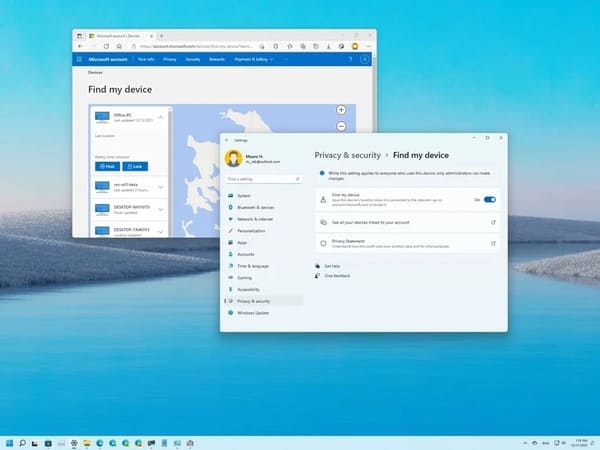
On Windows 11, you can enable the “Find my device” to find your laptop, tablet or desktop device anywhere if it is lost or stolen.

Join the channel Telegram of the AnonyViet 👉 Link 👈

How to use the “Find device” feature on Windows 11

This feature works by taking advantage of your Microsoft account’s ability to sync information to the cloud. When you enable “Find my device”, Windows 11 periodically sends the actual (approximate) location of the device to Microsoft. If your computer has ever been lost or stolen, you can sign in to your Microsoft account to find out where it was last recorded.

How to turn on the find device feature when lost on Windows 11

To enable the “Find my device” feature on Windows 11, follow these steps:

1. Open Settings.

2. Press Privacy & security.

3. In the “Security” section, click Find my device.
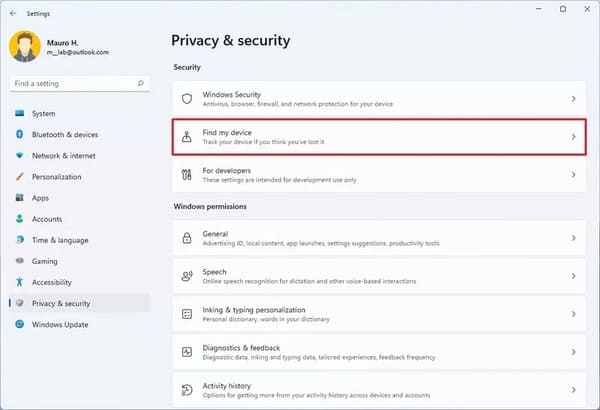
How to use the feature "Find device" on Windows 11 12

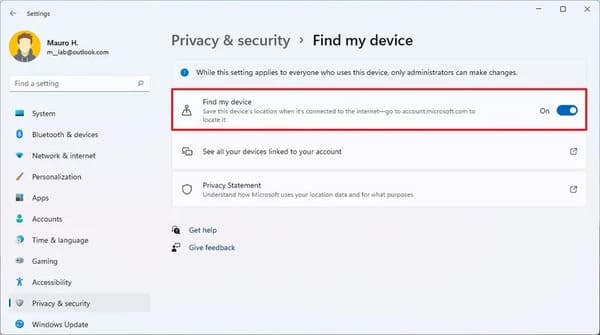
4. Turn on Find my device.

How to use the feature "Find device" on Windows 11 13

After you complete the above steps, Windows 11 will proactively send the approximate location of your device to your Microsoft account in case you need to find your device.

How to locate a lost device on Windows 11

To find a laptop or desktop computer through a Microsoft service, follow these steps:

1. Open Settings.

2. Press Privacy & security.

3. In the “Security” section, click Find my device.

How to use the feature "Find device" on Windows 11 12

4. Click option See all your devices linked to your account.
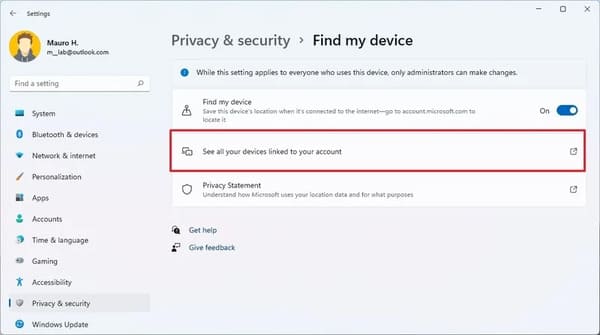
How to use the feature "Find device" on Windows 11 15

5. Sign in with your Microsoft account (if applicable).

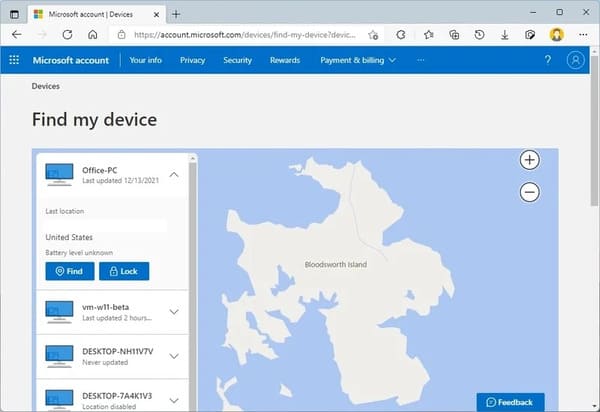
6. In the “Devices” section, click the option Find my device below the computer you want to find.
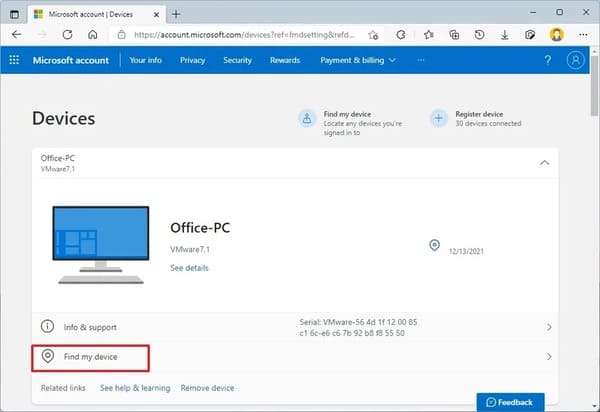
How to use the feature "Find device" on Windows 11 16

7. View the last known location.

How to use the feature "Find device" on Windows 11 17

8. (Optional) Click the button Find to retrieve the current location.

Quick note: This feature will only work if the computer is connected to a network.

After completing the above steps, you will get the lost computer location. However, this service only provides approximate location, which may not always be accurate.

How to turn off the Find my device feature on Windows 11

1. Open Settings.

2. Click Privacy & security.

3. In the “Security” section, click Find my device.

How to use the feature "Find device" on Windows 11 12

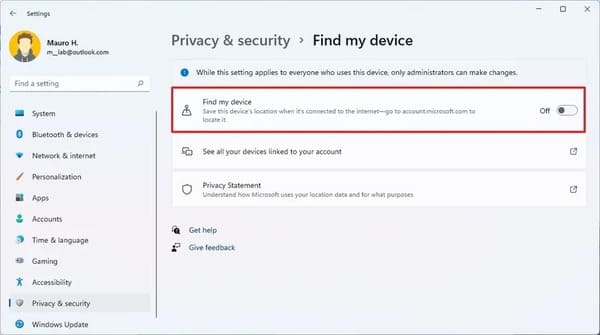
4. Off Find my device.

How to use the feature "Find device" on Windows 11 19

After you complete the above steps, this feature will no longer monitor and save device location on your Microsoft account, and improve privacy.

Alternatively, you can also use AirTag to find lost devices here.

The article achieved: 5/5 – (100 votes)

Tags: devicefeatureFindWindows
Previous Post

Hack answers to online exercises with 100% accuracy

Next Post

Create Website with Domain .com for free using Iban with Jimbo

AnonyViet

AnonyViet

Related Posts

How to see your email account creation date
Tips

How to see your email account creation date

November 11, 2025
Microsoft’s ranking of the 10 best Windows versions
Tips

Microsoft’s ranking of the 10 best Windows versions

November 11, 2025
Recover deleted data on Windows 10 with Windows File Recovery
Tips

Recover deleted data on Windows 10 with Windows File Recovery

November 10, 2025
Tips

Why hasn’t your computer been updated to Windows 10 2004?

November 9, 2025
3 OCR Tools Extract Text from Images without Retyping
Tips

3 OCR Tools Extract Text from Images without Retyping

November 8, 2025
Ways hackers use to hack your Facebook and how to fix it
Tips

Ways hackers use to hack your Facebook and how to fix it

November 7, 2025
Next Post
Create Website with Domain .com for free using Iban with Jimbo

Create Website with Domain .com for free using Iban with Jimbo

0 0 votes
Article Rating
Subscribe
Login
Notify of
guest

guest

0 Comments
Oldest
Newest Most Voted
Inline Feedbacks
View all comments

Recent News

How to install Anh Hai’s Pho Shop on MacBook is super easy

How to install Anh Hai’s Pho Shop on MacBook is super easy

November 11, 2025
How to turn off ads on Yoosee app in just 1 minute

How to turn off ads on Yoosee app in just 1 minute

November 11, 2025
Windows 11 and MS Office 2021 lifetime license, genuine from  during Keysoff’s 11.11 sale

Windows 11 and MS Office 2021 lifetime license, genuine from $14 during Keysoff’s 11.11 sale

November 11, 2025
How to see your email account creation date

How to see your email account creation date

November 11, 2025
How to install Anh Hai’s Pho Shop on MacBook is super easy

How to install Anh Hai’s Pho Shop on MacBook is super easy

November 11, 2025
How to turn off ads on Yoosee app in just 1 minute

How to turn off ads on Yoosee app in just 1 minute

November 11, 2025
Windows 11 and MS Office 2021 lifetime license, genuine from  during Keysoff’s 11.11 sale

Windows 11 and MS Office 2021 lifetime license, genuine from $14 during Keysoff’s 11.11 sale

November 11, 2025
AnonyViet - English Version

AnonyViet

AnonyViet is a website share knowledge that you have never learned in school!

We are ready to welcome your comments, as well as your articles sent to AnonyViet.

Follow Us

Contact:

Email: anonyviet.com[@]gmail.com

Main Website: https://anonyviet.com

Recent News

How to install Anh Hai’s Pho Shop on MacBook is super easy

How to install Anh Hai’s Pho Shop on MacBook is super easy

November 11, 2025
How to turn off ads on Yoosee app in just 1 minute

How to turn off ads on Yoosee app in just 1 minute

November 11, 2025
  • Home
  • Home 2
  • Home 3
  • Home 4
  • Home 5
  • Home 6
  • Next Dest Page
  • Sample Page

new88 trang chủ shbet trang chủ f168 trang chủ qq88 nhà cái 78win

No Result
View All Result
  • Home
  • News
  • Software
  • Knowledge
  • MMO
  • Tips
  • Security
  • Network
  • Office

new88 trang chủ shbet trang chủ f168 trang chủ qq88 nhà cái 78win

wpDiscuz
0
0
Would love your thoughts, please comment.x
()
x
| Reply