You can easily add or modify an environment variable with Command Prompt (CMD)but removing this variable is much more complicated. So in this article, I will guide you to do that.
| Join the channel Telegram belong to AnonyViet 👉 Link 👈 |
How to add or modify environment variables
First, you need to launch Command Prompt or CMD as an administrator. Click Start, enter “cmd” in the search box, then click “Run as Administrator”.
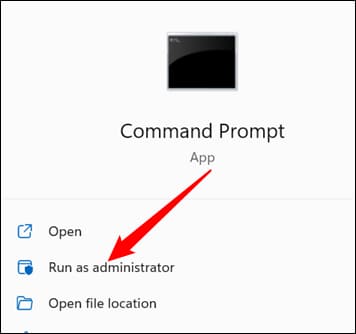
Note: Any user environment variable can be set or modified in a regular Command Prompt window, but changing system-wide environment variables requires an elevated Command Prompt.
There are two different ways to set environment variables.
Set temporary environment variables
First use the set command. Set is used to define a temporary environment variable – in other words, the variable is only active in the window you have open or the script that contains it.
Here is an example: Suppose you want to create an environment variable named LifeAnswerVar and set the value to 42. The command would be set LifeAnswerVar=42.
While that window is open, LifeAnswerVar will have the value 42.
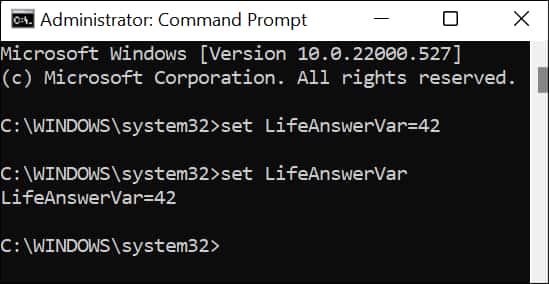
When the window is closed, the environment variable and its value are cleared.
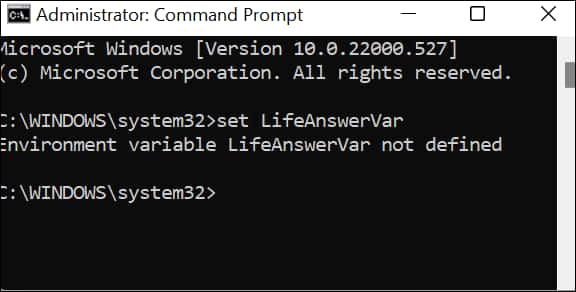
The same method will work if you want to temporarily modify an existing Windows system variable. All you need to do is substitute the system variable you want to change in place of LifeAnswerVar and the value you want to specify as number 42.
For example, if you want to move the TMP folder to C:\Example, you must enter set TMP=C:\"Example Folder".
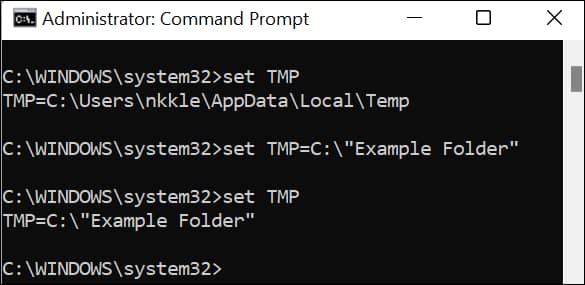
first line, set TMPdisplays the current value of TMP. The second line assigns TMP a new value. The third line confirms that the value has changed.
Set a permanent environment variable
The second way is to use setx. Setx defines permanent Windows environment variables. They exist between windows and between reboots, and are written to the Windows Registry. These environment variables can be defined for a specific user, or they can be defined for system-wide use.
Command setx ExVar1 Tomato /m will create a new environment variable named ExVar1 and assign the value “Tomato” to it. The /m argument specifies that the new variable must be applied system-wide, not just to the current user.
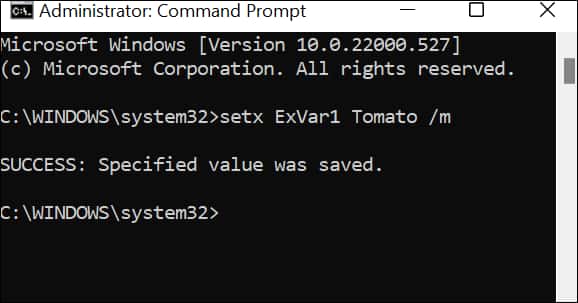
Use the same command above to modify an existing environment variable, substituting ExVar1 for the name of the variable you want to change.
Note: If you use setx to modify a variable and set to view the value of the variable, set will not display the appropriate value until a new Command Prompt window is opened.
If you want to add or modify a user environment variable, simply omit the /m parameter from the command.
How to delete an environment variable
Deleting environment variables is a bit more difficult than adding or modifying them.
Note: As with adding variables, any user environment variable can be deleted in a regular Command Prompt window, but system-wide deletion of environment variables requires an elevated Command Prompt.
Temporarily delete an environment variable
If you want to temporarily remove an environment variable for the current process, such as a script, a PowerShell window, or a Command Prompt window, you can use the set command. All you need to do is assign no value to the variable.
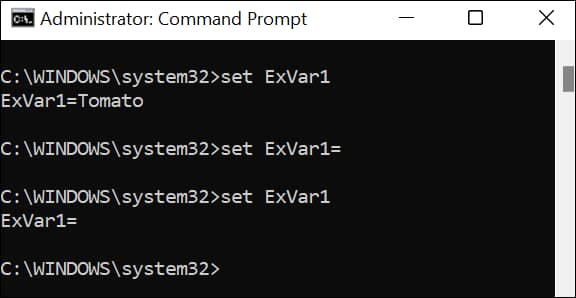
For example, what happens if you define a variable ExVar1=Tomato in system-wide environment variables, but want to ignore it for a specific process? You can enter set ExVar1= Go to Command Prompt or include that line in your script. The variable will be set to zero while the script executes or until you open a new Command Prompt window.
Permanently delete an environment variable
Permanently deleting an environment variable is a bit more complicated – you have to use reg to do it.
Warning: Reg is the command line version of Registry Editor. You should proceed with caution – a typo could lead to you accidentally deleting important content. It is essential to back up the Registry you are editing before making changes.
Environment variables for individual users are stored in HKEY_CURRENT_USER\Environment. System-wide environment variables are stored elsewhere, in HKEY_LOCAL_MACHINE\SYSTEM\CurrentControlSet\Control\Session Manager\Environment.
Let’s use an example ExVar1=Tomato. The ExVar1 environment variable has been defined system-wide, which means it is located in the HKEY_LOCAL_MACHINE folder instead of the HKEY_CURRENT_USER folder. Specifically, the path to the subkey is:
HKEY_LOCAL_MACHINE\SYSTEM\CurrentControlSet\Control\Session Manager\Environment\ExVar1
Note: This path contains a space. Any time there are spaces in a path entered in the command line interface, you must use double quotes, otherwise it will most likely not execute correctly.
Now we need to use the delete reg command to remove it. Remember that you will need to substitute your variable name for ExVar1 in the command below.
reg delete "HKEY_LOCAL_MACHINE\SYSTEM\CurrentControlSet\Control\Session Manager\Environment\" /f /v ExVar1
I will explain each one one by one:
- reg delete — identifies the application (reg) and command (delete) we are using
"HKEY_LOCAL_MACHINE\SYSTEM\CurrentControlSet\Control\Session Manager\Environment\"— Tells reg where to find the key- /f — Delete without confirmation
- /v — Delete subkey
- ExVar1 — The name of the subkey we want to delete
Deleting an environment variable for an individual user is exactly the same as deleting a system-wide variable, except the path will be different. If ExVar1 was a user environment variable, the command to clear it would be:
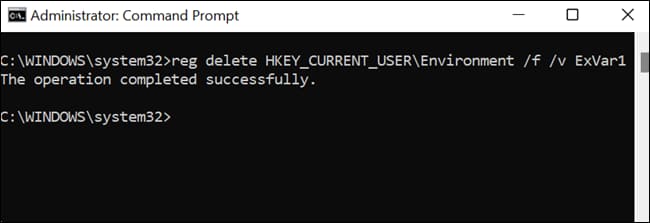
reg delete HKEY_CURRENT_USER\Environment /f /v ExVar1
If the command to delete environment variables is successful, you will see “The operation completed successfully” in Command Prompt.
Any time you delete an environment variable like this, you also need to restart explorer.exe. You can restart Explorer.exe manually, or you can just restart your entire computer. Changes will take effect immediately after reboot.