• Home
  • News
  • Software
  • Knowledge
  • MMO
  • Tips
  • Security
  • Network
  • Office
AnonyViet - English Version
  • Home
  • News
  • Software
  • Knowledge
  • MMO
  • Tips
  • Security
  • Network
  • Office
No Result
View All Result
  • Home
  • News
  • Software
  • Knowledge
  • MMO
  • Tips
  • Security
  • Network
  • Office
No Result
View All Result
AnonyViet - English Version
No Result
View All Result

How to transfer Windows 10/11 license key to another computer

AnonyViet by AnonyViet
January 26, 2023
in Tips
0

If you have a computer with Windows 10 pre-installed, such as a Surface Laptop 4 or Dell XPS 13, you are using an “OEM” license key. In this case, the product key cannot be transferred and you are not authorized to use it to activate another device. Additionally, if you upgraded to Windows 10 Pro from Windows 10 Home when you purchased the upgrade through the Microsoft Store, you can transfer the License Key to the new computer because the product key will be converted to a Technical License Key. digitally associated with your Microsoft account.

How to transfer Windows 10/11 license key to another computer

On a computer with a Windows 10 Retail License Key, you can transfer the product key to a new device. You only have to remove the License Key from the old system and then you apply the same key on the new computer.

Deactivate your old Windows 10 computer

To remove the product key on Windows 10, follow these steps:

1. Open Start.

2. Search for Command Prompt, right-click on the top result and select Run as administrator.

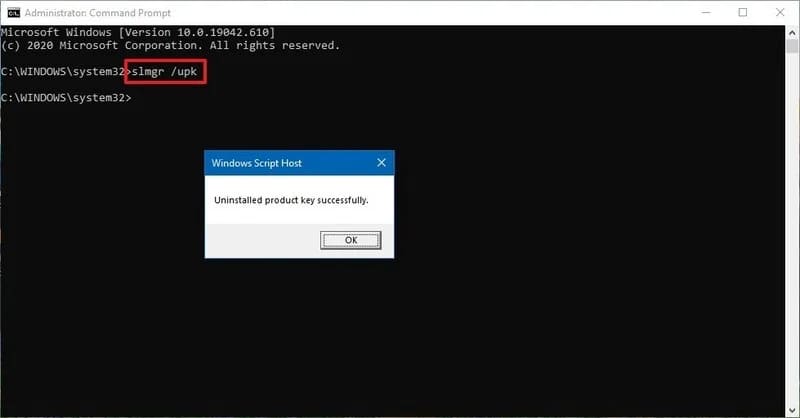
3. Type the following command to delete the current Windows Key and press Enter:

slmgr /upk
How to transfer Windows 10/11 license key to another computer

Quick Tip: If you don’t see the message “Uninstalled product key successfully”, you may need to run the command several times until the message shows up.

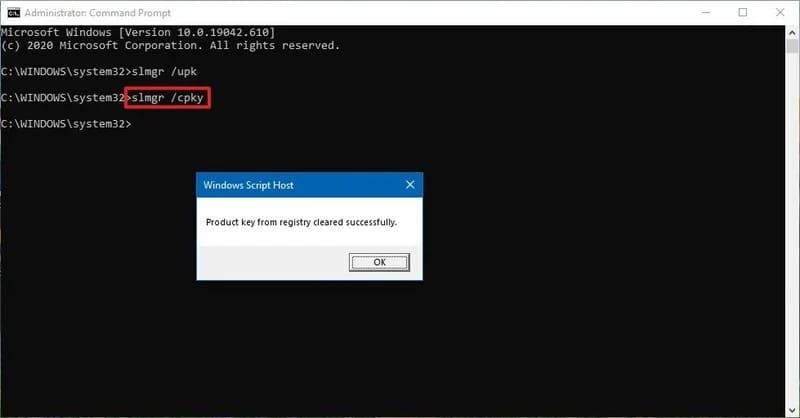
4. Type the following command to remove the License Key from the Registry and press Enter:

slmgr /cpky
How to transfer Windows 10/11 license key to another computer

After completing the above steps, you can already use your product key to activate Windows 10 on the new system.

While the above instructions will uninstall the product key, this process will not remove the activation from the Microsoft servers. Instead, it prevents detection of the same product key being used on multiple devices, allowing you to reactivate another computer.

If the computer is no longer in use or connected to the Internet, you do not need to use these steps as you should be able to use the product key on the new system without problems.

Activate a new Windows 10 computer

After deactivating the previous installation, you can use the product key to activate the new Windows 10 manually. Or you can contact Microsoft support for assistance if the manual process doesn’t work.

Install License Key with Command Prompt

To activate Windows 10 with the previous product key, follow these steps:

1. Open Start.

2. Search for Command Prompt, right-click on the top result and select Run as administrator.

3. Type the following command to reactivate Windows 10 and press Enter:

slmgr /ipk xxxxx-xxxxx-xxxxx-xxxxx-xxxxx

Install the License Key with Microsoft’s support

Alternatively, you may need to contact the Microsoft support line to complete the activation by providing the installation ID from the slui 4 command. However, there have been cases where the command did not work. If this is the case for you, you may have to contact Microsoft directly and explain the situation to activate the setting.

To activate your copy of Windows 10 with the help of Microsoft, follow these steps:

1. Open Start.

2. Search for Command Prompt, right-click on the top result and select Run as administrator.

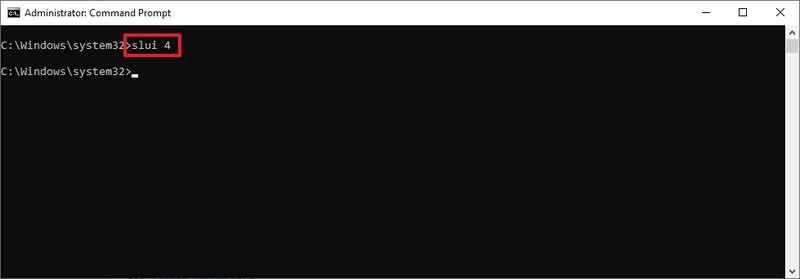
3. Type the following command to activate your copy of Windows 10 and press Enter:

slui 4
How to transfer Windows 10/11 license key to another computer

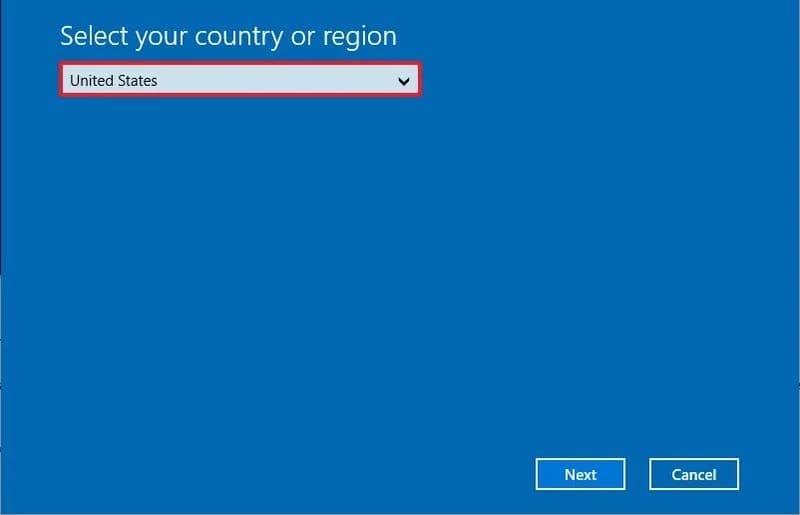
4. Select your region.

How to transfer Windows 10/11 license key to another computer

5. Click the button next.

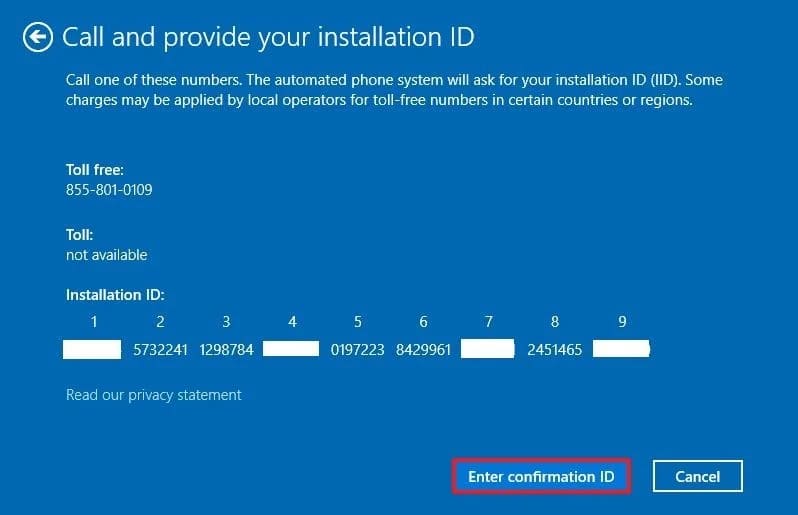
6. Use the phone number to call Microsoft.

Quick tip: In addition to calling the support line directly, you can also use the app “Get Help” to activate the setting. Within the app, share the details of the problem and submit the “Installation ID” as provided in the wizard. The virtual assistant will then provide you with a “Confirmation ID” to activate Windows 10.

7. Confirm number Installation ID.

8. Click the button Enter confirmation ID.
How to transfer Windows 10/11 license key to another computer

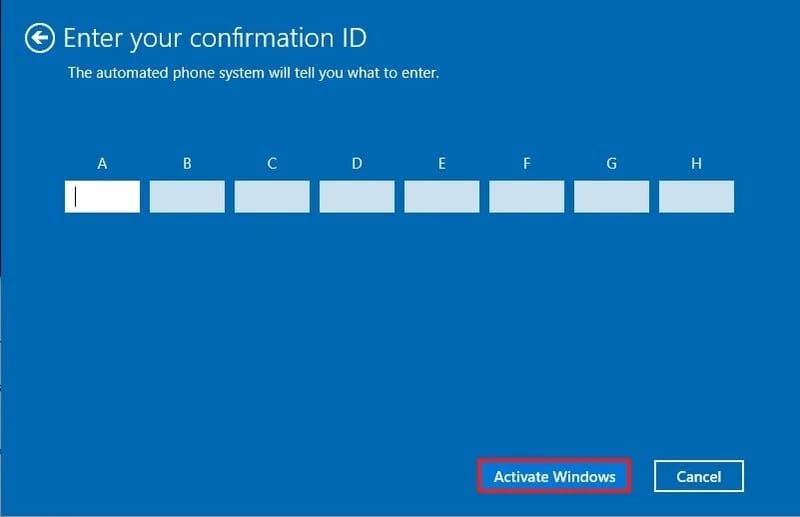
9. Enter the “confirmation ID” provided by Microsoft support.

10. Click the button Activate Windows.
How to transfer Windows 10/11 license key to another computer

After you complete these steps, Windows 10 should activate without major problems.

If you are transferring an existing product key to another computer, make sure it matches the version that the License Key activates for. For example, if you delete your Windows 10 Pro product key, you can only use it to activate Windows 10 Pro. You cannot use the Pro license key to activate the device to run the Home version and vice versa.

In addition, you can also activate and optimize Windows here.

Tags: computerKeyLicenseTransferWindows
Previous Post

Neat Download Manager: software to accelerate Download extremely fast

Next Post

Lesson 35: How to merge worksheets to process data in different Excel files

AnonyViet

AnonyViet

Related Posts

How to use CMD environment variables in Windows
Tips

How to use CMD environment variables in Windows

January 18, 2026
How to add or remove columns in File Explorer Windows 11
Tips

How to add or remove columns in File Explorer Windows 11

January 17, 2026
Sign up for Pluralsight One for 1 year of free access to Online courses
Tips

Sign up for Pluralsight One for 1 year of free access to Online courses

January 16, 2026
How to schedule a Batch file (CMD) to run on Windows
Tips

How to schedule a Batch file (CMD) to run on Windows

January 15, 2026
Instructions for downloading Facebook Videos with new interface 2021
Tips

Instructions for downloading Facebook Videos with new interface 2021

January 14, 2026
How to get ChatGPT K-12 Teacher for free
Tips

How to get ChatGPT K-12 Teacher for free

January 13, 2026
Next Post
Lesson 35: How to merge worksheets to process data in different Excel files

Lesson 35: How to merge worksheets to process data in different Excel files

0 0 votes
Article Rating
Subscribe
Login
Notify of
guest

guest

0 Comments
Oldest
Newest Most Voted
Inline Feedbacks
View all comments

Recent News

How to use automatic verification bot to register for ChatGPT K12, Spotify Student,…

How to use automatic verification bot to register for ChatGPT K12, Spotify Student,…

January 18, 2026
Instructions on how to create head-grabbing photos – New trend causing TikTok storm

Instructions on how to create head-grabbing photos – New trend causing TikTok storm

January 18, 2026
How to use CMD environment variables in Windows

How to use CMD environment variables in Windows

January 18, 2026
Instructions for installing the application “Are you dead yet” – Demumu

Instructions for installing the application “Are you dead yet” – Demumu

January 17, 2026
How to use automatic verification bot to register for ChatGPT K12, Spotify Student,…

How to use automatic verification bot to register for ChatGPT K12, Spotify Student,…

January 18, 2026
Instructions on how to create head-grabbing photos – New trend causing TikTok storm

Instructions on how to create head-grabbing photos – New trend causing TikTok storm

January 18, 2026
How to use CMD environment variables in Windows

How to use CMD environment variables in Windows

January 18, 2026
AnonyViet - English Version

AnonyViet

AnonyViet is a website share knowledge that you have never learned in school!

We are ready to welcome your comments, as well as your articles sent to AnonyViet.

Follow Us

Contact:

Email: anonyviet.com[@]gmail.com

Main Website: https://anonyviet.com

Recent News

How to use automatic verification bot to register for ChatGPT K12, Spotify Student,…

How to use automatic verification bot to register for ChatGPT K12, Spotify Student,…

January 18, 2026
Instructions on how to create head-grabbing photos – New trend causing TikTok storm

Instructions on how to create head-grabbing photos – New trend causing TikTok storm

January 18, 2026
  • Home
  • Home 2
  • Home 3
  • Home 4
  • Home 5
  • Home 6
  • Next Dest Page
  • Sample Page

https://sun52.network

No Result
View All Result
  • Home
  • News
  • Software
  • Knowledge
  • MMO
  • Tips
  • Security
  • Network
  • Office

https://sun52.network

wpDiscuz
0
0
Would love your thoughts, please comment.x
()
x
| Reply