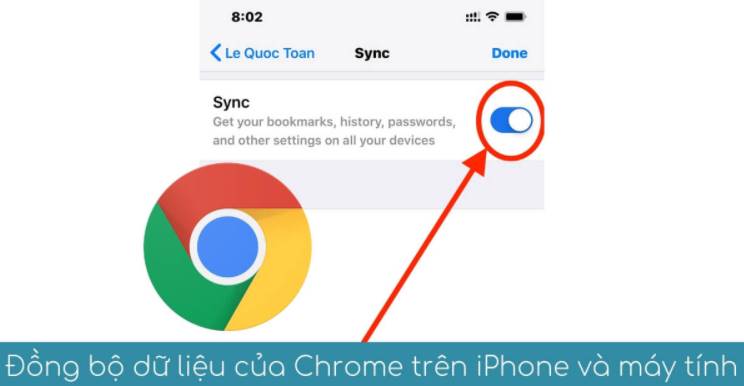
I have many computers, including Desktop, Laptop and company computer, so I use a Google account to use the Chrome Sync feature to synchronize data. Chrome on all devices. However, if you are worried about hackers attacking your private data or Google collecting information, you can encrypt your data with Password to ensure safety.
📢 Join the channel Telegram belong to AnonyViet
Update new articles, cool tools and IT tips fastest

What is Chrome Sync?
Here’s all the information Chrome will save to your Google account when you turn on sync:
- Bookmarks
- History and opened tabs
- Password
- Payment information
- Name, address, and phone number
- Settings and preferences
All this data is backed up to your Google account, which means the Google giant has access to that data store as well. But you can create a Sync Passphrase to encrypt this data store and prevent Google from reading it.
Sync passwords can be set up from Chrome on Windows 10 or Mac, iPhone, iPad or Android. Before doing so, I have a warning for you: You will have to reset Chrome Sync if you turn off Sync Passphrase. This will delete all data that Chrome has associated with your account.
Add Password Sync in Chrome on Windows and Mac
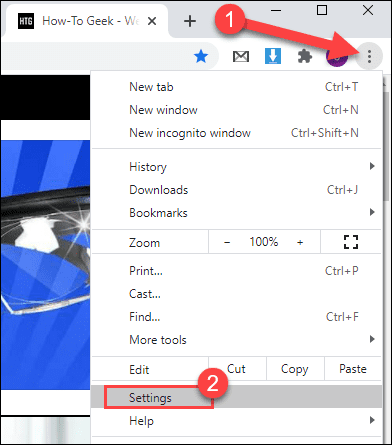
First, select the three-dot menu icon in the top right corner of the Google Chrome browser and select “Settings”.
Next, click “Sync and Google Services” in the “You and Google” section.
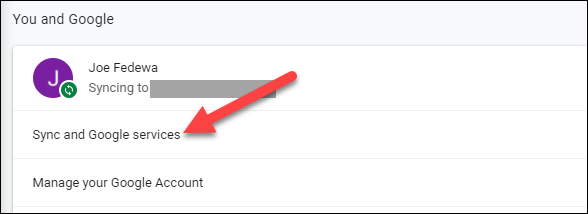
Note: You need to enable sync to continue with the steps below.
Expand “Encryption Options” by clicking the down arrow on the right.

Click on the “Encrypt synced data with your own sync passphrase” option.
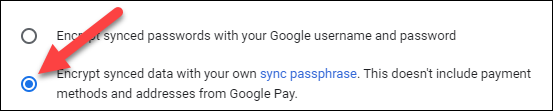
After you click that button, two Password frames will appear below. Enter the Password in the first frame and confirm the Password in the second frame. Click “Save” to complete.
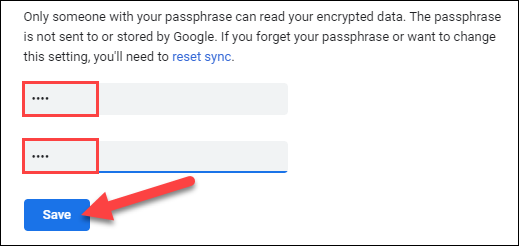
You will now be asked to enter your Password when logging into a new Chrome browser and turning on sync.
Add Sync Passwords in Chrome on Android, iPhone, and iPad
The process is similar on Windows and MacOS. First, open the Chrome mobile web browser, tap the three-dot menu icon in the top right or bottom right corner, then select “Settings”.
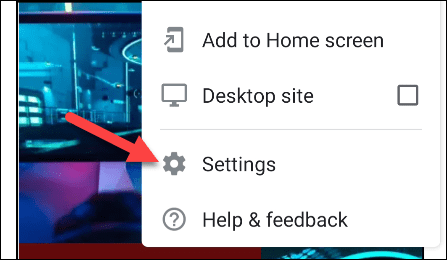
Next, tap “Sync and Google Services” at the top of the menu.
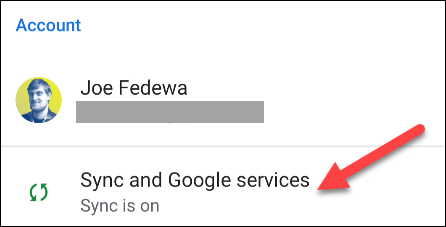
Now, select “Manage Sync”. Make sure Sync is turned on before you do this.
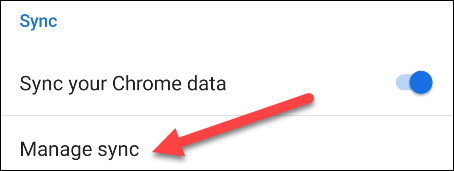
At the bottom of the screen, select “Encryption”.
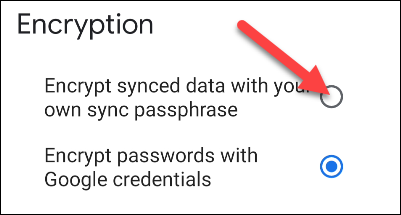
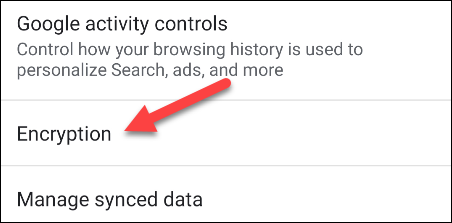 Select “Encrypt synced data with your own sync passphrase”.
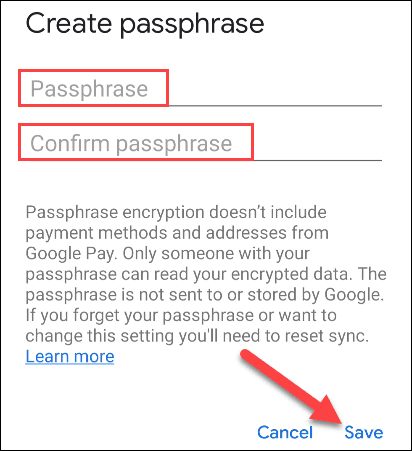
Enter the Password in the first box and re-enter the Password in the second box. Click “Save” or “Submit” once completed.
So you have finished setting the Password for the Chrome sync synchronization feature. All data when synced to Google is encrypted instead of Plaintext, so even if hackers attack, they still cannot read your data.
Frequently asked questions
Do I need to set a password for Chrome Sync?
Setting a password for Chrome Sync is a good security measure to encrypt your sync data, helping protect your personal information from unauthorized access, even if Google has access to that data.
What happens if I forget my Chrome Sync password?
If you forget your password, you won’t be able to access synced data. You’ll need to reset Chrome Sync, which will delete all data associated with your account.
Can I set a password for Chrome Sync on all my devices?
Yes, you can set a password for Chrome Sync on Windows, Mac, Android, iPhone, and iPad. The process is similar on all operating systems.
![[Godot RPG]#5: Autotile](https://anonyviet.com/wp-content/uploads/2021/04/05-04-2021-12-09-36.png "[Godot RPG]#5: Autotile")