How to create a table in Notepad is currently a popular topic among users Windows 11 Most interested after the new update. Previously, this application was simply a raw text editor, but now it has powerful rich-text format support. This article will show you every nook and cranny of this exciting feature!
📢 Join the channel Telegram belong to AnonyViet
Update new articles, cool tools and IT tips fastest
Which Notepad versions support creating tables?
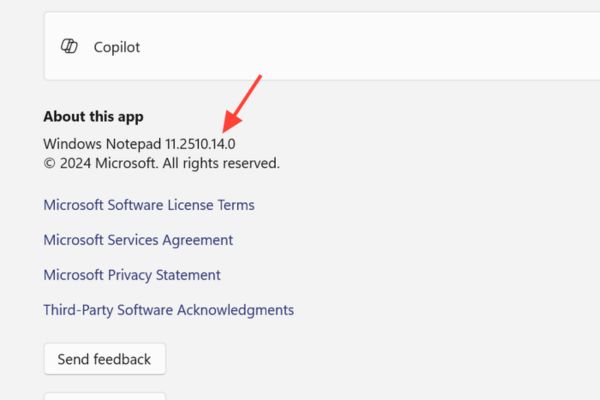
To use this feature, the device needs to have the correct software version installed. The board feature started appearing in the version 11.2510.6.0rolled out first to Windows Insiders (Canary and Dev channels) before general availability.
Step 1: Open Notepad application on computer.
Step 2: Tap the menu icon (three dots) on the title bar.
Step 3: Select application information (About) to confirm the version number.
If the version is lower, users need to go to the Microsoft Store, search for “Windows Notepad” and select update.
Instructions on how to create tables in Notepad
Here are 4 main methods to create tables in Notepad quickly and accurately:
Method 1: Use the grid on the toolbar (Toolbar grid)
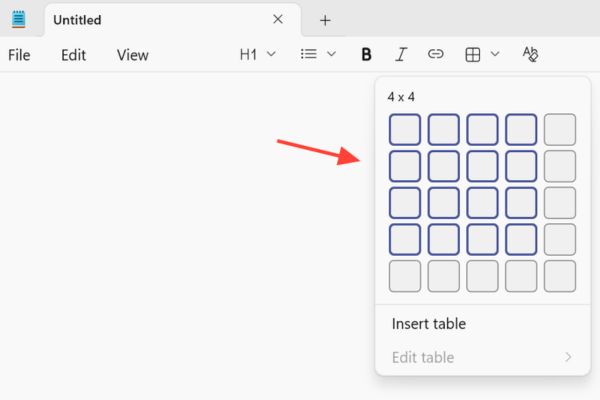
This is the fastest way to create small tables, suitable for short lists.
Step 1: Place the mouse cursor at the location where you want to insert the table.
Step 2: On the formatting toolbar, click the button Table.
Step 3: Move the mouse over the grid to select the number of columns and rows (e.g. 3×4).
Step 4: Left click to insert the table immediately.
Method 2: Use the insert table dialog box
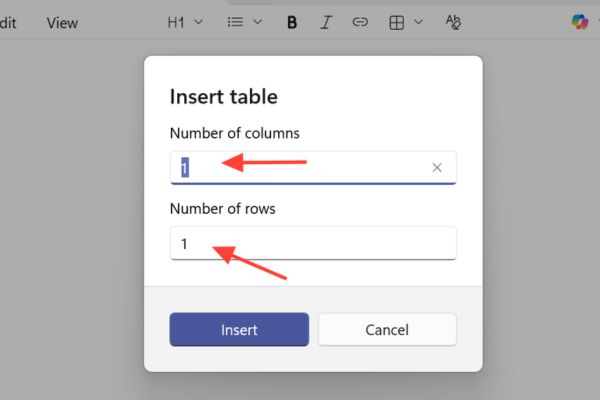
When high precision in the number of cells is needed or when creating tables larger than the limits of the quick select grid, this method is most optimal.
Step 1: Select button Table on the toolbar, then select Insert table.
Step 2: Enter the exact number of columns and rows desired into the dialog box.
Step 3: Press Insert to complete.
This method is convenient for users who have the habit of operating mainly with the mouse.
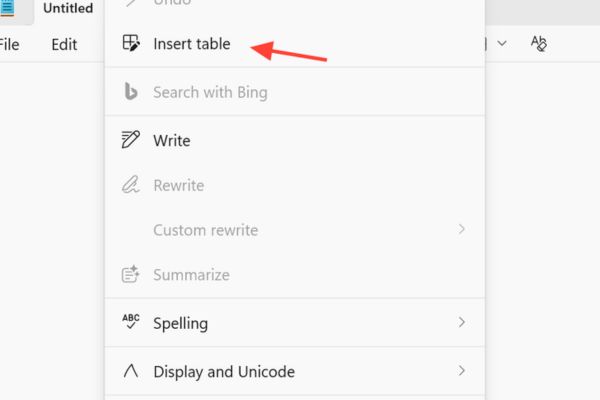
Step 1: Right-click at the text location to create a table.
Step 2: Select Insert table from the menu that appears.
Step 3: Enter the number of rows and columns in the dialog box and then click Insert.
Method 4: Use Markdown syntax
Modern Notepad already understands the Markdown language. This is a great way to create tables without taking your hands off the keyboard, while also ensuring the text displays well in other code editors.
Step 1: Enter the table structure using the dash characters | and dash -.
Step 2: Notepad will automatically render (display) a table with visual borders. Syntax example:
| Name | Age |
| —– | — |
| Alex | 30 |
| Jamie | 27 |
How to edit and format tables in Notepad
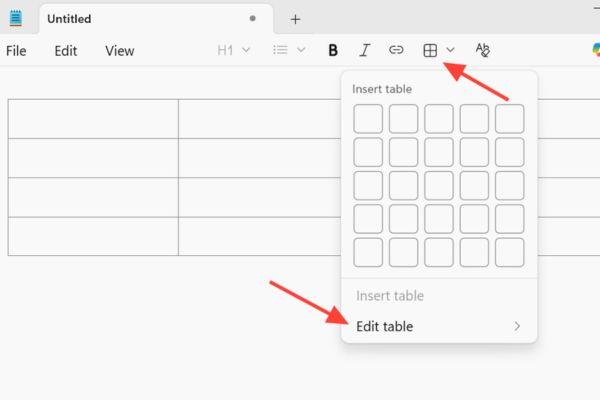
To edit, click any cell in the table, then select the Table button on the toolbar (or right-click) and select Edit table. Options include:
- Insert: Add new row or column based on current cursor position.
- Select: Quickly highlight rows, columns or entire tables.
- Delete: Delete rows, columns or entire tables.
- Fit columns to window width: Automatically align column widths so the table spreads evenly and fits the Notepad window.
In addition, text formats such as bold, italic, underline or inserting links all work well inside cells.
Can Notepad replace Excel?
Notepad was not created to replace Excel. Understanding the limitations helps users choose the right tool for the job.
| Features | Notepad support | Note |
| Insert/Delete rows and columns | ✅ | Easy manual operation |
| Text format (Bold, Italic) | ✅ | Helps highlight data |
| Markdown support | ✅ | Good compatibility with programmers |
| Automatic calculation (Formula) | ❌ | Numeric functions are not supported |
| Sort & Filter (Sort/Filter) | ❌ | Unable to filter data |
| Merge cells | ❌ | Fixed mesh structure |
Conclude: This feature is best for to-do lists, reading diaries, or simple comparison tables.
Instructions for turning off the table creation feature
If you feel the toolbar is too cramped or like the classic interface, users can completely turn off this feature.
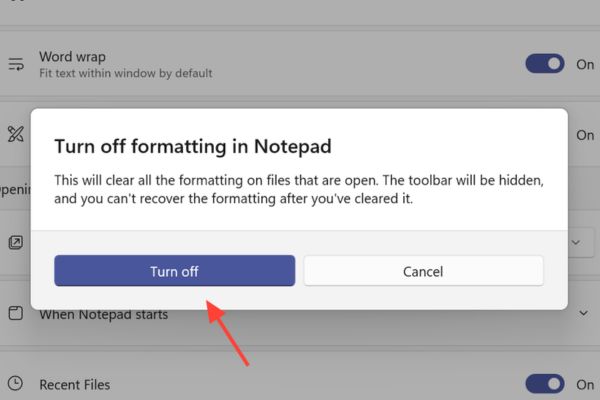
Step 1: Go to the application menu, select Settings.
Step 2: Find the section that manages formatting features.
Step 3: Switch status to Off to hide rich-text tools, returning Notepad to plain text editing state.
Frequently Asked Questions (Q&A)
1. Can Notepad be used instead of Excel?
Are not. Notepad only supports creating static text grids to present information, without the ability to calculate, process data or draw charts like Excel.
2. Can I open an Excel file with Notepad to view the table?
Not recommended. Notepad will display the Excel file as jumbled code. You should copy data from Excel and paste it into Notepad, the table structure will be preserved as text.
3. Why don’t I see the create table button?
You may be using an old version of Windows or have not updated Notepad to version 11.2510.6.0 or higher. Check Microsoft Store for updates.
Conclusion
Hope the above guide has helped you master it How to create a table in Notepad to serve daily work. This is a small step forward for Microsoft but brings great convenience to users who love simplicity. Try updating and experiencing it today!