• Home
  • News
  • Software
  • Knowledge
  • MMO
  • Tips
  • Security
  • Network
  • Office
AnonyViet - English Version
  • Home
  • News
  • Software
  • Knowledge
  • MMO
  • Tips
  • Security
  • Network
  • Office
No Result
View All Result
  • Home
  • News
  • Software
  • Knowledge
  • MMO
  • Tips
  • Security
  • Network
  • Office
No Result
View All Result
AnonyViet - English Version
No Result
View All Result

How to remotely open the computer with Wake On Lan on the phone

AnonyViet by AnonyViet
January 28, 2023
in Tips
0

Wake on Lan is a remote computer turn-on feature that many companies and schools are still using. Let me make an example for you to understand: when you get home, take out your phone to turn on the computer at home first. When I get home, the PC has already started, just go in and fight right away. Sounds good right? Today, I will guide you to do so with Wake On Lan.

Join the channel Telegram of the AnonyViet 👉 Link 👈

How to remotely open the computer with Wake On Lan on the phone

Conditions for using Wake on Lan

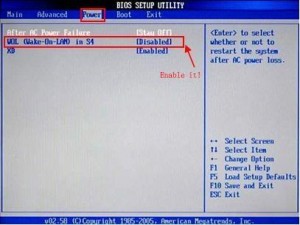
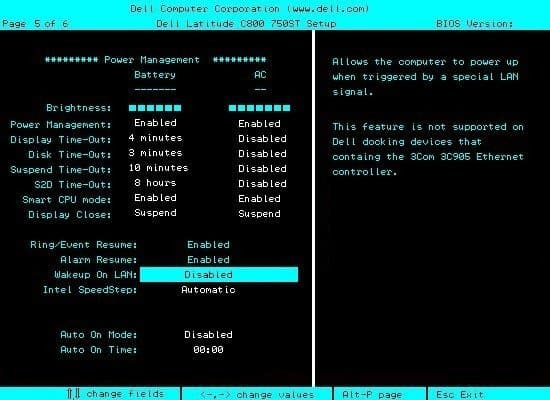
First, your motherboard and network card must support the Wake on Lan feature. Next, your PC must be wired to the LAN. To know if the mainboard supports it, go to the BIOS and find the Wake on Lan item.

Some pictures of Wake On Lan on BIOS:
How to remotely open a computer with Wake On Lan on a 13 phone

How to remotely open a computer with Wake On Lan on a phone 14

Next you need to turn on Wake On Lan on the network card.

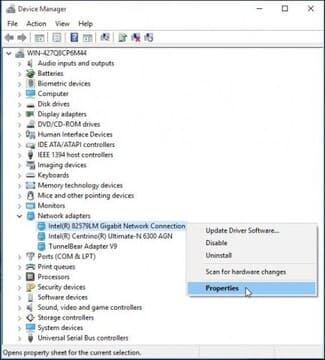
First, you search Device Manager on Windows Search. Select the first item to open Device Manager. Next right click on your LAN card and select Properties.
How to remotely open a computer with Wake On Lan on a phone 15

Switch to tabs Power Management and select the last 2 lines.How to remotely open a computer with Wake On Lan on a 16 . phone

Next, switch to the Advanced tab and scroll down to select Wake on Magic Pocket. Transfer Value of the Wake on Magic Poker luxurious Enabled.How to remotely open the computer with Wake On Lan on the phone 17

Features of Wake on Lan

  • Categorize PCs into groups and batch enable PCs in groups
  • Automatically search for PCs in the network (Find PCs connected to the same network as your phone and add to the list without having to find the MAC address and enter it manually)
  • Any individual device or batch of PCs in a group with just one click
  • Broadcast Support (See instructions inside app help for more details)
  • CSV export/import to share your device list easily
  • Material Design
  • Automatically refresh device operating status
  • Support Wake On Lan (WoL) and Wake On Wan (WoW)

How to turn on a computer that has been turned off with Wake On Lan on the phone

By sending the Magic packet to the Mainboard, the computer will automatically boot up easily.

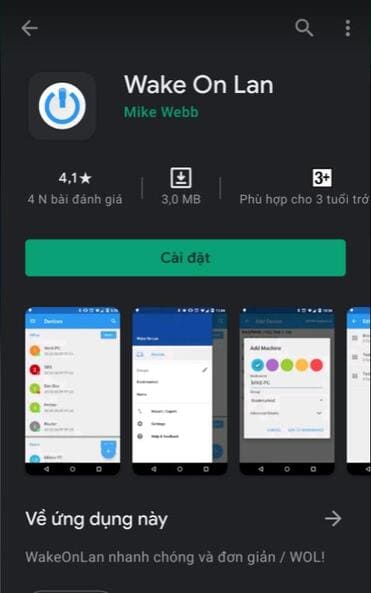
Step 1: First, you need to download Wake On Lan on the phone Android. There are many Wake On Lan App on iOS and Android, you can find for yourself the appropriate software, the function is almost the same.
How to remotely open a computer with Wake On Lan on an 18 . phone

Step 2: After the installation is complete, open the application and click on the button with the plus sign in the lower right corner.

How to remotely open a computer with Wake On Lan on a 19 phone

Step 3: You connect your phone to the Wifi that the PC is using. Then drag from the top to the software search PC.

How to remotely open a computer with Wake On Lan on a phone 20

Step 4: After the search is complete, you will get a list of PC devices in wifi.

How to remotely open the computer with Wake On Lan on the phone 21

Step 5: Tap the device you want to use. You can change the name, color of your PC and other things if you want. When done, click “Add device”.
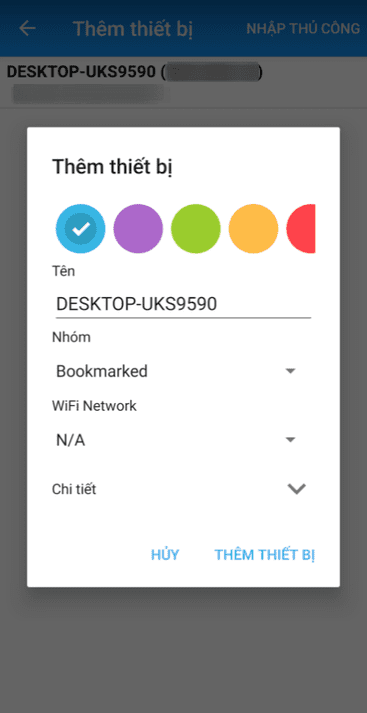
How to remotely open the computer with Wake On Lan on the phone 22

Step 6: So that’s it then. Now if you want to start any PC just click on that PC.

How to remotely open the computer with Wake On Lan on the phone 23

In case you want to open the computer with the wake on lan feature outside the LAN environment. For example, if you are at work and want to open a computer at home, you need NAT Port 7 up.


The article achieved: 5/5 – (100 votes)

Tags: computerLanopenphoneremotelywake
Previous Post

TOP 15 ngôn ngữ lập trình cần thiết để trở thành Hacker

Next Post

How to play RA2 – Red Alert 2 on a free Web browser

AnonyViet

AnonyViet

Related Posts

How to record reaction videos with Android phones, no app needed
Tips

How to record reaction videos with Android phones, no app needed

June 1, 2026
Instructions on how to get Google AI Pro 1 year for free for new accounts
Tips

Instructions on how to get Google AI Pro 1 year for free for new accounts

June 1, 2026
Top free AI tools to help write, test and optimize content
Tips

Top free AI tools to help write, test and optimize content

June 1, 2026
Instructions for receiving Lovable Pro 12 months for free
Tips

Instructions for receiving Lovable Pro 12 months for free

May 29, 2026
Instructions for receiving 1 month of ElevenLabs Creator for free worth
Tips

Instructions for receiving 1 month of ElevenLabs Creator for free worth $22

May 25, 2026
How to create beautiful studio-like preschool graduation photos for your child
Tips

How to create beautiful studio-like preschool graduation photos for your child

May 21, 2026
Next Post
How to play RA2 – Red Alert 2 on a free Web browser

How to play RA2 - Red Alert 2 on a free Web browser

0 0 votes
Article Rating
Subscribe
Login
Notify of
guest

guest

0 Comments
Oldest
Newest Most Voted
Inline Feedbacks
View all comments

Recent News

How to record reaction videos with Android phones, no app needed

How to record reaction videos with Android phones, no app needed

June 1, 2026
Instructions on how to get Google AI Pro 1 year for free for new accounts

Instructions on how to get Google AI Pro 1 year for free for new accounts

June 1, 2026
Top free AI tools to help write, test and optimize content

Top free AI tools to help write, test and optimize content

June 1, 2026
TruyenDrive: Turn Google Drive into a professional manga reader

TruyenDrive: Turn Google Drive into a professional manga reader

May 31, 2026
How to record reaction videos with Android phones, no app needed

How to record reaction videos with Android phones, no app needed

June 1, 2026
Instructions on how to get Google AI Pro 1 year for free for new accounts

Instructions on how to get Google AI Pro 1 year for free for new accounts

June 1, 2026
Top free AI tools to help write, test and optimize content

Top free AI tools to help write, test and optimize content

June 1, 2026
AnonyViet - English Version

AnonyViet

AnonyViet is a website share knowledge that you have never learned in school!

We are ready to welcome your comments, as well as your articles sent to AnonyViet.

Follow Us

Contact:

Email: anonyviet.com[@]gmail.com

Main Website: https://anonyviet.com

Recent News

How to record reaction videos with Android phones, no app needed

How to record reaction videos with Android phones, no app needed

June 1, 2026
Instructions on how to get Google AI Pro 1 year for free for new accounts

Instructions on how to get Google AI Pro 1 year for free for new accounts

June 1, 2026
No Result
View All Result
  • Home
  • News
  • Software
  • Knowledge
  • MMO
  • Tips
  • Security
  • Network
  • Office

wpDiscuz
0
0
Would love your thoughts, please comment.x
()
x
| Reply