• Home
  • News
  • Software
  • Knowledge
  • MMO
  • Tips
  • Security
  • Network
  • Office
AnonyViet - English Version
  • Home
  • News
  • Software
  • Knowledge
  • MMO
  • Tips
  • Security
  • Network
  • Office
No Result
View All Result
  • Home
  • News
  • Software
  • Knowledge
  • MMO
  • Tips
  • Security
  • Network
  • Office
No Result
View All Result
AnonyViet - English Version
No Result
View All Result

How to Install Linux in VirtualBox

AnonyViet by AnonyViet
January 13, 2023
in Network
0

If you want to try out Linux distributions like Ubuntu, Centos, Redhat…, then you can install Linux in a virtual machine (VM) before dual booting or set it as the main operating system. You just need to choose an easy-to-use distribution like Ubuntu and run it in a virtual machine using VirtualBox.

Join the channel Telegram of the AnonyViet 👉 Link 👈

How to Install Linux in VirtualBox

What is VirtualBox?

VirtualBox is a program that allows you to install and run different operating systems (OS) inside your existing operating system using virtual machines. A VM is a virtual machine that can run different programs and operating systems.

Before you begin, note that your computer needs to have enough system resources to handle both the virtual machine and the main operating system to create and run the virtual machine smoothly. Here are the minimum specs to run the virtual machine smoothly:

  • 8GB RAM
  • 10GB of available memory per virtual machine
  • Processor with at least four cores

Install VirtualBox on Windows, Linux and Mac

Installing VirtualBox on Windows, Linux, and macOS is fairly easy, although installing an operating system in VirtualBox will take some time.

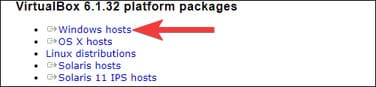
To install VirtualBox on Windows, go to VirtualBox download page and click “Windows Hosts” to download the VirtualBox for Windows installer.
How to Install Linux in VirtualBox 23

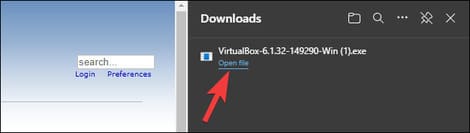
Double-click the installation file to launch it and follow the steps to install VirtualBox on Windows.
How to Install Linux in VirtualBox 24

To install VirtualBox on your Mac, you need to go to the download page and click on “OS X hosts.” Once the DMG file is downloaded, open it and drag its contents to your Applications folder.

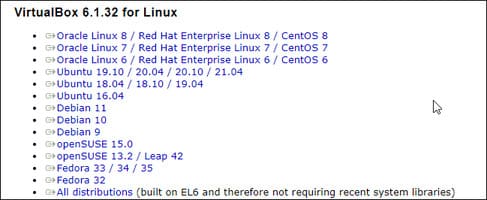
Installing VirtualBox on different Linux distributions is also quite easy. You need to visit the page Download Linux and download the installation package for your distribution.
How to Install Linux in VirtualBox 25

Ubuntu and Debian use DEB files, while Fedora, OpenSUSE, RedHat Enterprise Linux, and CentOS use RPM files. Download the relevant package and double-click it to install VirtualBox. If you get stuck, learn how install DEB . file and RPM file in Linux.

Install Linux on VirtualBox

The steps to install Linux in VirtualBox are pretty much the same on Windows, Linux, and macOS. First, you need to choose a distribution and download the ISO file of that distribution.

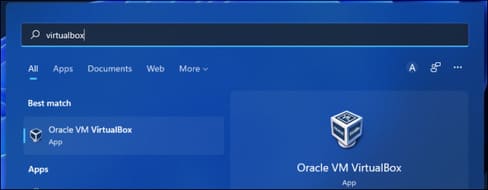
Launch VirtualBox from the Start Menu.
How to Install Linux in VirtualBox 26

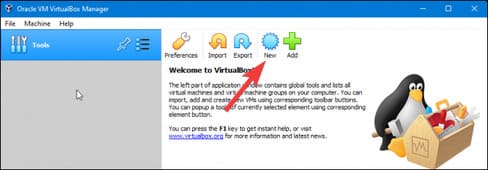
Click “New”.

How to Install Linux in VirtualBox 27

Name your virtual machine, choose the location where you want to save the virtual machine, change the Type to “Linux” and set the Version to the distribution you are using. If you don’t see the distribution name, then select the nearest distribution or based on it. For example, choose Ubuntu for an Ubuntu-based distro like Pop! _OS or Linux Mint.

Next click “Next”.

How to Install Linux in VirtualBox 28

Allocate RAM using the slider or enter the amount of GB of RAM you want to make available to the virtual machine. If you are installing Ubuntu or Ubuntu-based distributions, I recommend choosing at least 4GB of RAM. Then, click “Next”.
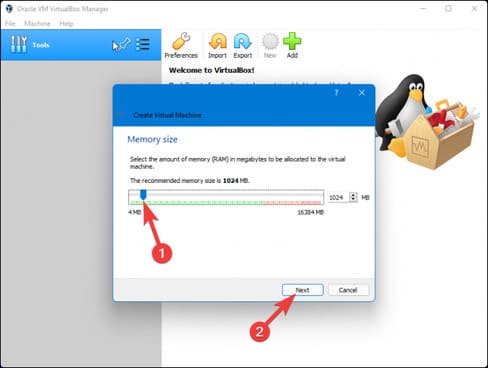
How to Install Linux in VirtualBox 29

Select “Create a Virtual Hard Disk” and click “Create”.
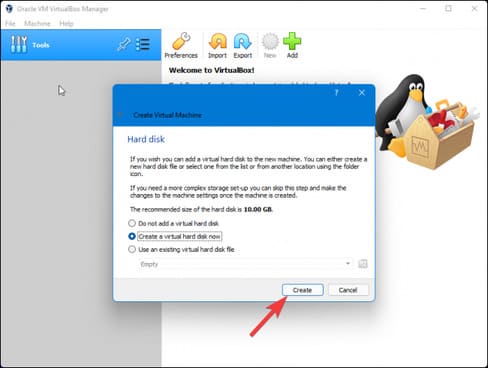
How to Install Linux in VirtualBox 30

Select “VDI (VirtualBox Disk Image)” and click “Next”.
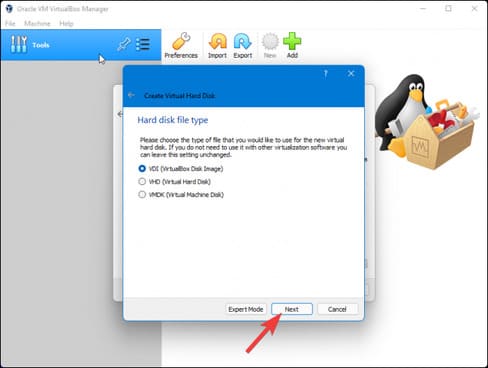
How to Install Linux in VirtualBox 31

Finally, select “Dynamically Allocated” if you want to keep your memory consumption as low as possible, then click “Create”.
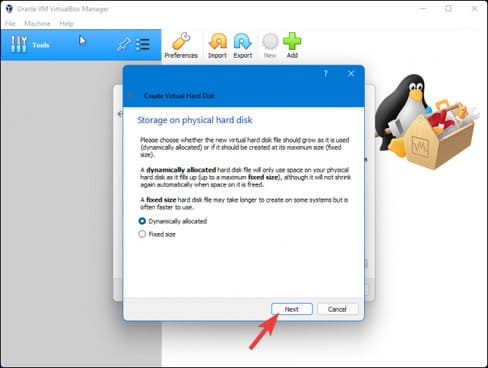
How to Install Linux in VirtualBox 32

Select the amount of storage you want to make available to the virtual machine. If your goal is just to try it out, then 15GB should be enough.
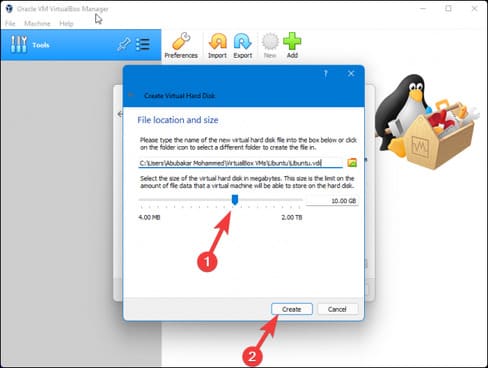
How to Install Linux in VirtualBox 33

Once done, you should see an Ubuntu virtual machine on the VirtualBox home page. Click on the virtual machine and press “Start”.
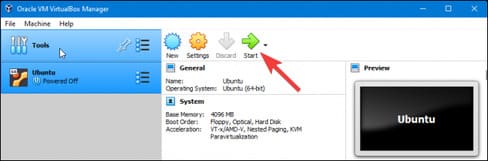
How to install Linux in VirtualBox 34

The VM window will pop up with the “Select start-up disk” pop-up. Click the small “File” icon to select the ISO.
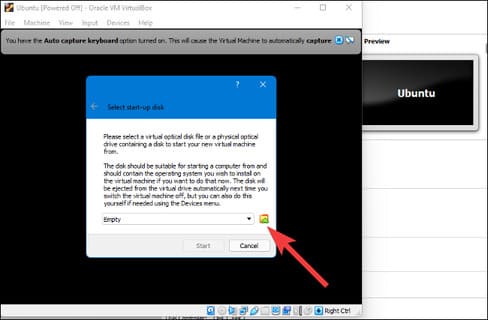
How to Install Linux in VirtualBox 35

Click the “Add” icon and select the ISO file of the distribution. If you already have a bootable Linux USB, you can also boot it from the USB drive in VirtualBox.

Finally, click “Choose” and start the virtual machine.
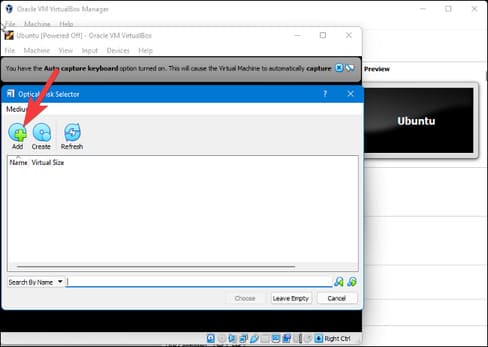
How to Install Linux in VirtualBox 36

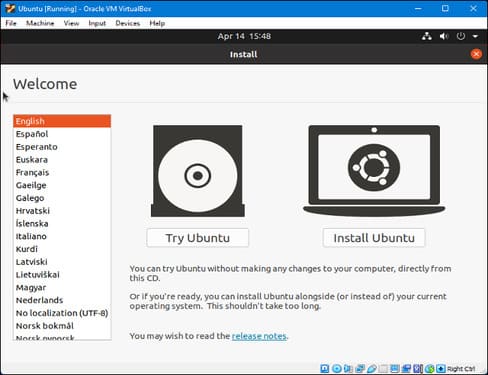
The virtual machine will then boot into your chosen Linux distribution. Once the installation is done, you won’t have to choose the ISO file anymore and just launch the VM from the VirtualBox home page.
How to Install Linux in VirtualBox 37

Install VirtualBox Extension Pack (Extension Pack)

If you want extra features and control over the virtual machine then you can install the VirtualBox Extension Pack which adds support for USBs, webcams and more.

Download VirtualBox Extension Pack here.

How to install Linux in VirtualBox 38

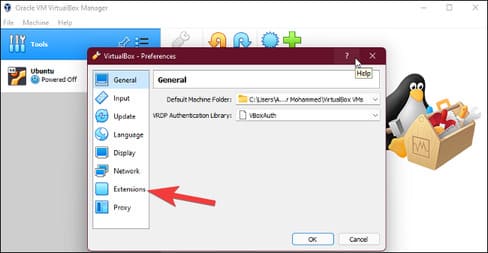
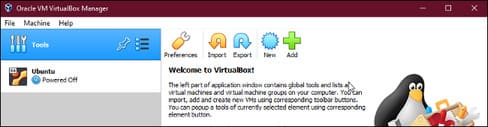
Open VirtualBox and click “Tools”, then click “Preferences”.
How to Install Linux in VirtualBox 39

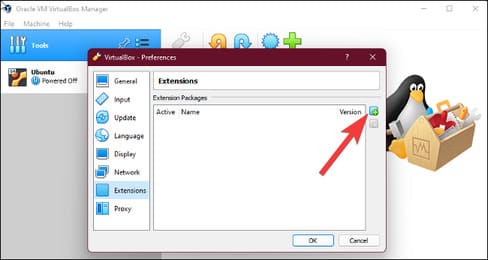
Go to the “Extensions” tab.

How to Install Linux in VirtualBox 40

Click the small “+” icon located in the far right corner of the window.
How to Install Linux in VirtualBox 41

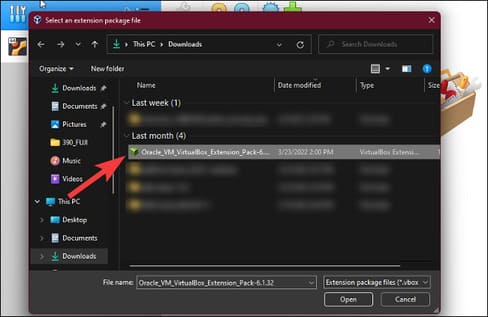
Select the VirtualBox Extension Pack you downloaded and click “Open”.
How to Install Linux in VirtualBox 42

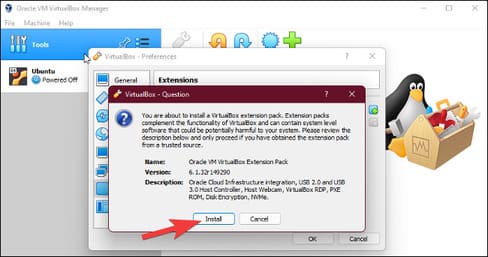
Finally, click “Install”.

How to Install Linux in VirtualBox 43

Now your Linux virtual machine is up and running. Alternatively, you can also install VMWare 16 Full Serial here.


The article achieved: 5/5 – (100 votes)

Tags: installLinuxVirtualBox
Previous Post

The value of a good resume when applying for a job

Next Post

11 common mistakes when building PC configuration

AnonyViet

AnonyViet

Related Posts

Save image as Type contains malicious code: Remove immediately before losing money unfairly!
Network

Save image as Type contains malicious code: Remove immediately before losing money unfairly!

March 19, 2026
Instructions on how to register a .co.uk domain name for free for 1 year
Network

Instructions on how to register a .co.uk domain name for free for 1 year

March 12, 2026
How to Setup Paperclip AI: Create a Company for AI Agent
Network

How to Setup Paperclip AI: Create a Company for AI Agent

March 12, 2026
Compilation of free and cheap APIs to run OpenClaw stably
Network

Compilation of free and cheap APIs to run OpenClaw stably

March 10, 2026
3 Services to Determine IP Location for Website (IP Geolocation API)
Network

3 Services to Determine IP Location for Website (IP Geolocation API)

March 10, 2026
How to buy a .STORE domain name for 1 USD (2026): Detailed instructions from A–Z
Network

How to buy a .STORE domain name for 1 USD (2026): Detailed instructions from A–Z

March 3, 2026
Next Post
11 common mistakes when building PC configuration

11 common mistakes when building PC configuration

0 0 votes
Article Rating
Subscribe
Login
Notify of
guest

guest

0 Comments
Oldest
Newest Most Voted
Inline Feedbacks
View all comments

Recent News

Common errors when using Bosch products and how to fix them

Common errors when using Bosch products and how to fix them

April 22, 2026
Top 5+ utilities to install for Gmail to speed up work processing

Top 5+ utilities to install for Gmail to speed up work processing

April 22, 2026
Decoding the problem of 4GB RAM and processing performance

Decoding the problem of 4GB RAM and processing performance

April 21, 2026
How to add sliders to Facebook Stories to easily rewind videos

How to add sliders to Facebook Stories to easily rewind videos

April 21, 2026
Common errors when using Bosch products and how to fix them

Common errors when using Bosch products and how to fix them

April 22, 2026
Top 5+ utilities to install for Gmail to speed up work processing

Top 5+ utilities to install for Gmail to speed up work processing

April 22, 2026
Decoding the problem of 4GB RAM and processing performance

Decoding the problem of 4GB RAM and processing performance

April 21, 2026
AnonyViet - English Version

AnonyViet

AnonyViet is a website share knowledge that you have never learned in school!

We are ready to welcome your comments, as well as your articles sent to AnonyViet.

Follow Us

Contact:

Email: anonyviet.com[@]gmail.com

Main Website: https://anonyviet.com

Recent News

Common errors when using Bosch products and how to fix them

Common errors when using Bosch products and how to fix them

April 22, 2026
Top 5+ utilities to install for Gmail to speed up work processing

Top 5+ utilities to install for Gmail to speed up work processing

April 22, 2026
No Result
View All Result
  • Home
  • News
  • Software
  • Knowledge
  • MMO
  • Tips
  • Security
  • Network
  • Office

wpDiscuz
0
0
Would love your thoughts, please comment.x
()
x
| Reply