• Home
  • News
  • Software
  • Knowledge
  • MMO
  • Tips
  • Security
  • Network
  • Office
AnonyViet - English Version
  • Home
  • News
  • Software
  • Knowledge
  • MMO
  • Tips
  • Security
  • Network
  • Office
No Result
View All Result
  • Home
  • News
  • Software
  • Knowledge
  • MMO
  • Tips
  • Security
  • Network
  • Office
No Result
View All Result
AnonyViet - English Version
No Result
View All Result

How to default open “This PC” instead of “Quick Access” in File Explorer

AnonyViet by AnonyViet
January 29, 2023
in Tips
0

By default, when you open File Explorer on the Windows 10 taskbar, it will open Quick Access. If you want it to open to “This PC” instead, you can easily change that in the File Explorer settings.

Join the channel Telegram of the AnonyViet 👉 Link 👈

Quick Access is the shortest path to the files you’re working on and the folders you frequently use. These are your frequently accessed folders and recent files. Although Quick Access is very convenient, it is very annoying for those of you who do not often need to use this feature to access frequently used folders or files.

How to default open “This PC” instead of “Quick Access” in File Explorer

You can also use Files on Windows Stores. Using the new design definition Fluent Design of Windows 10. Fluent Design can be said to be the inheritance of the good points of Material Design – Google, developing more optimizations for virtual reality and new user experiences.

Default way to open “This PC” instead of “Quick Access” in File Explorer

First, open any File Explorer window. In the menu, click File > Change folder and search options.
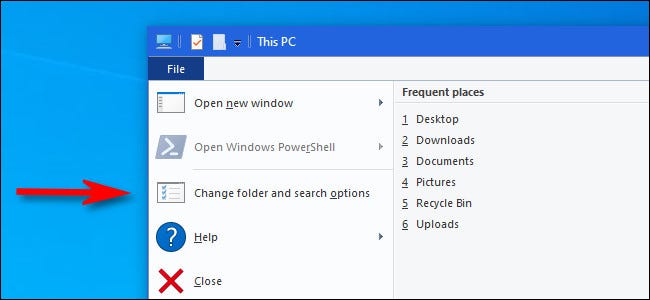
Change folder and search options

Under “Folder Options,” click the “General” tab, then click the menu next to “Open File Explorer to.”
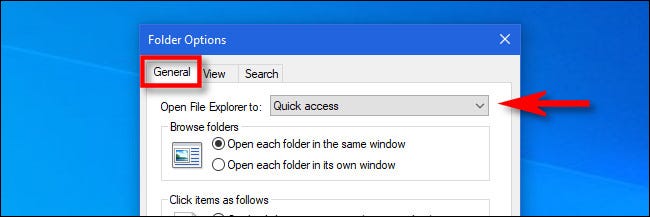
Open File Explorer to

In the menu that appears, select “This PC”.

Here’s how to replace “Quick access” to “This PC” on Windows. “This PC” shows drives, external storage devices, Network and frequently used folders like Download, Desktop and Documents folders.. on Windows
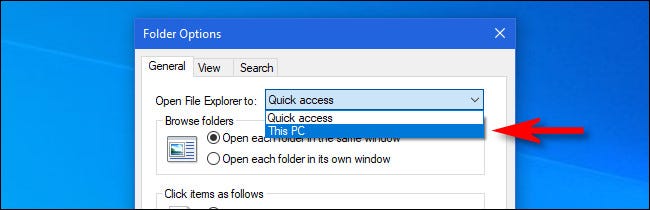
replace “Quick access” to "This PC"

Click OK and “Folder Options” will close. The next time you open File Explorer, you’ll see “This PC” instead of “Quick access”.

If you don’t like Windows 10’s Quick Access, there are other ways to turn off the Quick Access feature if you’re not familiar.


The article achieved: 5/5 – (100 votes)

Tags: accessdefaultExplorerfileopenQuick
Previous Post

How to create a virtual Pet, a virtual character running around on the Desktop to relax

Next Post

Instructions for playing Wild Rift on PC – Computer

AnonyViet

AnonyViet

Related Posts

How to record reaction videos with Android phones, no app needed
Tips

How to record reaction videos with Android phones, no app needed

June 1, 2026
Instructions on how to get Google AI Pro 1 year for free for new accounts
Tips

Instructions on how to get Google AI Pro 1 year for free for new accounts

June 1, 2026
Top free AI tools to help write, test and optimize content
Tips

Top free AI tools to help write, test and optimize content

June 1, 2026
Instructions for receiving Lovable Pro 12 months for free
Tips

Instructions for receiving Lovable Pro 12 months for free

May 29, 2026
Instructions for receiving 1 month of ElevenLabs Creator for free worth
Tips

Instructions for receiving 1 month of ElevenLabs Creator for free worth $22

May 25, 2026
How to create beautiful studio-like preschool graduation photos for your child
Tips

How to create beautiful studio-like preschool graduation photos for your child

May 21, 2026
Next Post
Instructions for playing Wild Rift on PC – Computer

Instructions for playing Wild Rift on PC - Computer

0 0 votes
Article Rating
Subscribe
Login
Notify of
guest

guest

0 Comments
Oldest
Newest Most Voted
Inline Feedbacks
View all comments

Recent News

How to check network speed on Apple TV when the image is jerky or lagging

How to check network speed on Apple TV when the image is jerky or lagging

June 3, 2026
Instructions on how to prevent acquaintances from seeing your Tiktok

Instructions on how to prevent acquaintances from seeing your Tiktok

June 2, 2026
How to record reaction videos with Android phones, no app needed

How to record reaction videos with Android phones, no app needed

June 1, 2026
Instructions on how to get Google AI Pro 1 year for free for new accounts

Instructions on how to get Google AI Pro 1 year for free for new accounts

June 1, 2026
How to check network speed on Apple TV when the image is jerky or lagging

How to check network speed on Apple TV when the image is jerky or lagging

June 3, 2026
Instructions on how to prevent acquaintances from seeing your Tiktok

Instructions on how to prevent acquaintances from seeing your Tiktok

June 2, 2026
How to record reaction videos with Android phones, no app needed

How to record reaction videos with Android phones, no app needed

June 1, 2026
AnonyViet - English Version

AnonyViet

AnonyViet is a website share knowledge that you have never learned in school!

We are ready to welcome your comments, as well as your articles sent to AnonyViet.

Follow Us

Contact:

Email: anonyviet.com[@]gmail.com

Main Website: https://anonyviet.com

Recent News

How to check network speed on Apple TV when the image is jerky or lagging

How to check network speed on Apple TV when the image is jerky or lagging

June 3, 2026
Instructions on how to prevent acquaintances from seeing your Tiktok

Instructions on how to prevent acquaintances from seeing your Tiktok

June 2, 2026
No Result
View All Result
  • Home
  • News
  • Software
  • Knowledge
  • MMO
  • Tips
  • Security
  • Network
  • Office

wpDiscuz
0
0
Would love your thoughts, please comment.x
()
x
| Reply