• Home
  • News
  • Software
  • Knowledge
  • MMO
  • Tips
  • Security
  • Network
  • Office
AnonyViet - English Version
  • Home
  • News
  • Software
  • Knowledge
  • MMO
  • Tips
  • Security
  • Network
  • Office
No Result
View All Result
  • Home
  • News
  • Software
  • Knowledge
  • MMO
  • Tips
  • Security
  • Network
  • Office
No Result
View All Result
AnonyViet - English Version
No Result
View All Result

How to customize Windows 10 lock screen

AnonyViet by AnonyViet
December 20, 2025
in Tips
0

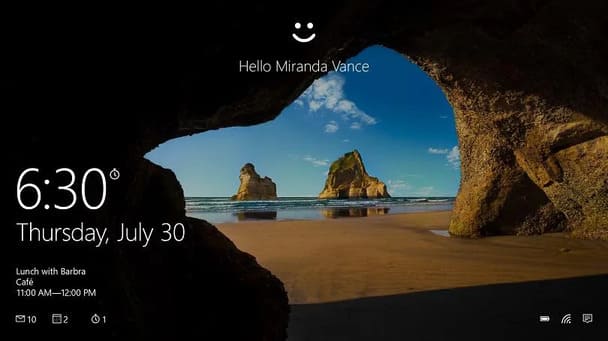
You can do a lot of cool things in Windows 10, but the first thing that greets you when you start the operating system is the lock screen. Hovering up or tapping it will take you to the login screen where you log into Windows. It may seem unnecessary, but it carries some information that might be useful before you launch Windows.

Join the channel Telegram belong to AnonyViet 👉 Link 👈

How to customize Windows 10 lock screen

From the lock screen, you can view information for certain apps, including calendar, weather, and other useful features. People who are using the update Windows 10 Anniversary and above can also chat with Cortana. And you can customize the screen with your favorite wallpaper or slideshow.

To start customizing your lock screen, you need to access your lock screen settings by going to Settings > Personalization > Lock screen.

Choose a Windows 10 lock screen wallpaper

The first thing you can change is the lock screen wallpaper. In section Backgroundyou can choose Windows spotlight, static wallpaper, or slideshow for multiple wallpapers.
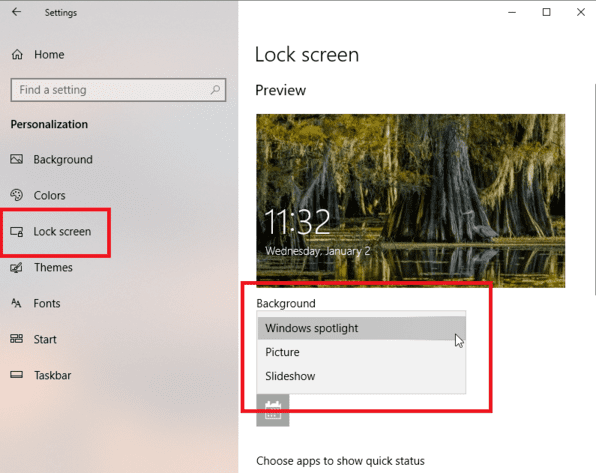
Windows 10 lock screen wallpaper

If you select Windows spotlight, the lock screen will display different images periodically. You can vote for which image you like (select the “Like what you see?” section at the top right to vote yes or no), Windows 10 will better understand your preferences and display the image you want.

If you want to set the wallpaper yourself, select Picture. You can also find your own photo by selecting the image you like. The Slideshow option will allow you to select multiple images to display alternately.

If you’re happy with your lock screen wallpaper, you can keep it the same for your sign-in screen. Just scroll down under Lock screen to enable the “Show lock screen background picture on the sign-in screen” option.
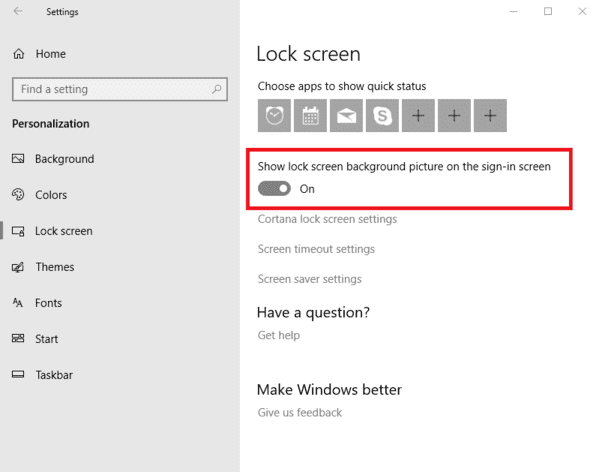
Show lock screen background picture on the sign-in screenAdd Apps on Windows 10 lock screen

Windows 10 also allows you to add certain information to your lock screen. Click the plus sign below “CChoose an app to show detailed status”.
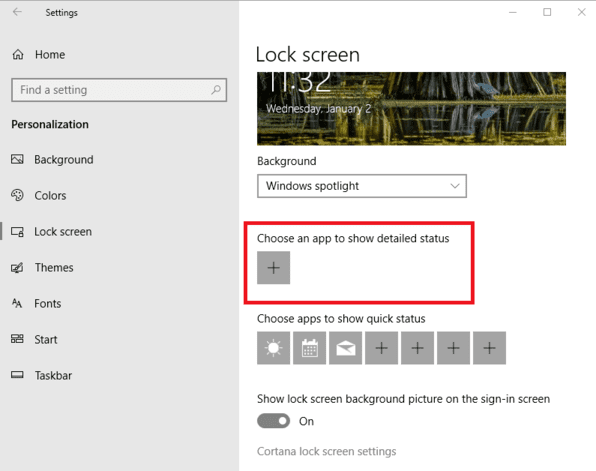
Add Apps on lock screen

Here, you can choose to view applications such as Xbox, Messaging, Mail, 3D Viewer, Weather, and Calendar, etc. For example, selecting Calendar can show you appointments for the day, while selecting Weather will display the current temperature.
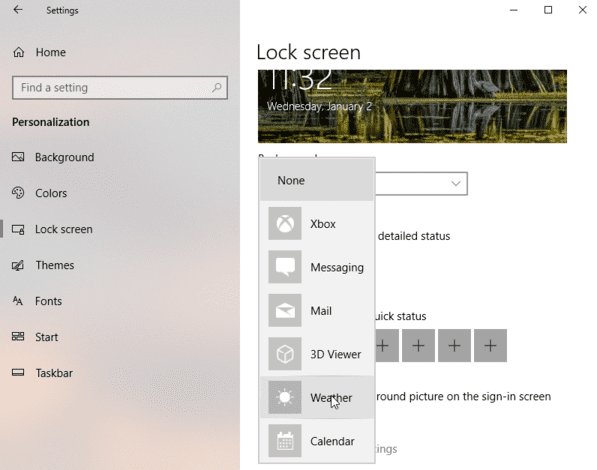
select windows 10 display apps

Then you can also choose some apps to display quick information. Click on each icon under the phrase “Choose apps to show quick status”. Once again, you can choose from apps like Weather, Messaging, and Calendar as well as BAlarms & Clock, Mail, and Windows Store. The next time the lock screen pops up, you’ll see information from the apps you selected.
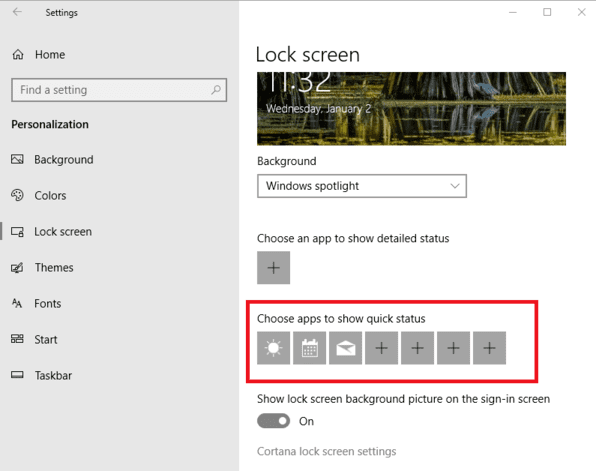
Choose apps to show quick status

Chat with Cortana on the lock screen

The most interesting option might be the ability to chat with Cortana on the lock screen without having to log in. On the Lock screen menu, scroll down and click “Cortana lock screen settings.” Scroll down to Lock Screen and make sure the “SUse Cortana even when my device is locked” option is enabled.
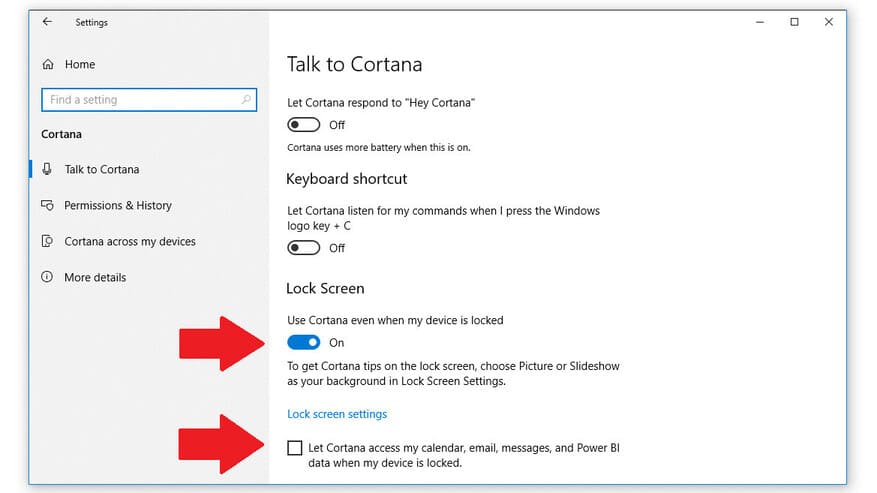
Chat with Cortana on the lock screen

As long as this option is enabled, you can say “Hey, Cortana” and chat directly with Microsoft’s virtual assistant, even if you’re not signed into Windows 10. The catch is, you must be using the Windows 10 Anniversary update or higher.

To enhance your interaction with Cortana on the lock screen, select the option to enable integration with calendar, email, messages, and Power BI data even when your device is locked.

Above are the ways you can customize the Windows 10 lock screen according to your preferences. If you have any good tips, please comment.

Frequently asked questions

How can I change the Windows 10 lock screen wallpaper?

You enter Settings > Personalization > Lock screen. In section Backgroundchoose between Windows spotlight, static wallpaper (Picture), or slideshow.

How to add an application to display information on the lock screen?

In lock screen settings (Settings > Personalization > Lock screen), you select the application you want to display detailed information (Choose an app to show detailed status) and quick information (Choose apps to show quick status).

Can I use Cortana on the lock screen?

Only on Windows 10 Anniversary Update or later. Enter Settings > Personalization > Lock screen > Cortana lock screen settings and enable the option Use Cortana even when my device is locked.


Previous Post

Share AnyViewer PRO key for 1 year for free

Next Post

5+ commands to create sparkling Christmas photos for mothers and babies at home

AnonyViet

AnonyViet

Related Posts

Cách Đăng ký Nhận Code ChatGPT Business
Tips

Cách Đăng ký Nhận Code ChatGPT Business

November 2, 2026
Instructions for cleaning LG TV with Antigravity to help it run faster
Tips

Instructions for cleaning LG TV with Antigravity to help it run faster

October 30, 2026
Quét lỗ hổng bảo mật cho Vide Coding bằng Security Audit Skill
Tips

Quét lỗ hổng bảo mật cho Vide Coding bằng Security Audit Skill

October 27, 2026
Instructions for registering for OxionAI Pro for 1 year with many powerful AI models
Tips

Instructions for registering for OxionAI Pro for 1 year with many powerful AI models

October 24, 2026
How are Windows 11 Pro and Windows 10 Pro different?
Tips

How are Windows 11 Pro and Windows 10 Pro different?

October 23, 2026
Instructions for using CleanYourTV: Remove ads on Android TV, Google TV
Tips

Instructions for using CleanYourTV: Remove ads on Android TV, Google TV

October 23, 2026
Next Post
5+ commands to create sparkling Christmas photos for mothers and babies at home

5+ commands to create sparkling Christmas photos for mothers and babies at home

0 0 votes
Article Rating
Subscribe
Login
Notify of
guest

guest

0 Comments
Oldest
Newest Most Voted

Recent News

What to eat for lunch today: Website suggested dishes for CS2-style office workers

What to eat for lunch today: Website suggested dishes for CS2-style office workers

November 11, 2026
Tool to get transcript of entire YouTube channel extremely fast and free

Tool to get transcript of entire YouTube channel extremely fast and free

November 10, 2026
Keysoff 11.11 discount: Office 2024 Pro only .58, Windows 11 Pro from .58

Keysoff 11.11 discount: Office 2024 Pro only $26.58, Windows 11 Pro from $15.58

November 9, 2026
How to create an Android App using Google AI Studio without code

How to create an Android App using Google AI Studio without code

November 9, 2026
What to eat for lunch today: Website suggested dishes for CS2-style office workers

What to eat for lunch today: Website suggested dishes for CS2-style office workers

November 11, 2026
Tool to get transcript of entire YouTube channel extremely fast and free

Tool to get transcript of entire YouTube channel extremely fast and free

November 10, 2026
Keysoff 11.11 discount: Office 2024 Pro only .58, Windows 11 Pro from .58

Keysoff 11.11 discount: Office 2024 Pro only $26.58, Windows 11 Pro from $15.58

November 9, 2026
AnonyViet - English Version

AnonyViet

AnonyViet is a website share knowledge that you have never learned in school!

We are ready to welcome your comments, as well as your articles sent to AnonyViet.

Follow Us

Contact:

Email: anonyviet.com[@]gmail.com

Main Website: https://anonyviet.com

Recent News

What to eat for lunch today: Website suggested dishes for CS2-style office workers

What to eat for lunch today: Website suggested dishes for CS2-style office workers

November 11, 2026
Tool to get transcript of entire YouTube channel extremely fast and free

Tool to get transcript of entire YouTube channel extremely fast and free

November 10, 2026
  • Home
  • Home 2
  • Home 3
  • Home 4
  • Home 5
  • Home 6
  • Next Dest Page
  • Sample Page

say88 tỷ lệ kèo nhà cái kèo nhà cái 5 febet

No Result
View All Result
  • Home
  • News
  • Software
  • Knowledge
  • MMO
  • Tips
  • Security
  • Network
  • Office

say88 tỷ lệ kèo nhà cái kèo nhà cái 5 febet

wpDiscuz
0
0
Would love your thoughts, please comment.x
()
x
| Reply