• Home
  • News
  • Software
  • Knowledge
  • MMO
  • Tips
  • Security
  • Network
  • Office
AnonyViet - English Version
  • Home
  • News
  • Software
  • Knowledge
  • MMO
  • Tips
  • Security
  • Network
  • Office
No Result
View All Result
  • Home
  • News
  • Software
  • Knowledge
  • MMO
  • Tips
  • Security
  • Network
  • Office
No Result
View All Result
AnonyViet - English Version
No Result
View All Result

How to Create Meeting Notes with Google Calendar

AnonyViet by AnonyViet
January 27, 2023
in Tips
0

Taking notes from meetings is very important. You can list attendees, content items, and any important comments. With Google Calendar, you can create meeting notes directly from the event.

Join the channel Telegram of the AnonyViet 👉 Link 👈

How to Create Meeting Notes with Google Calendar

With the click of a button, you can create a note template. Then add your meeting items to it in Google Docs. A link to the notes remains in the Google Calendar event for all attendees to access.

Note: As of October 2021, this feature is available to Google Workspace, G Suite Basic, and Business customers.

How to create meeting notes from Google Calendar

You can create meeting notes from the event on the calendar screen or event details page at the time you set up the event.

For a new event on the page Google Calendar, click the Add Description or attachment section. Select option Create Meeting Notes.
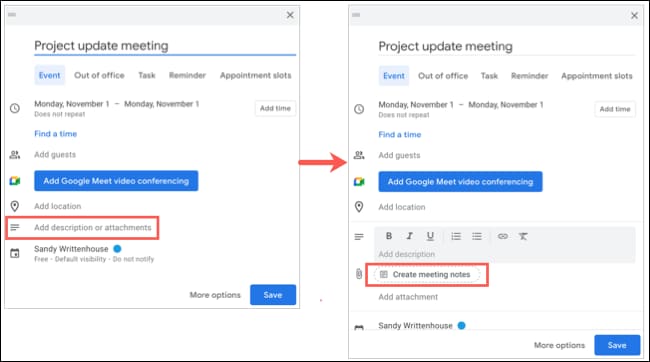
How to Create Meeting Notes with Google Calendar 9

For an existing event on the main Google Calendar page, click “Take Meeting Notes”.
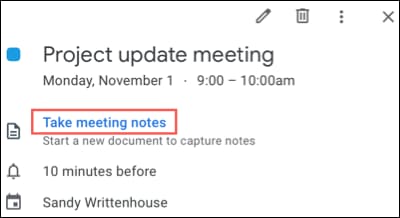
How to Create Meeting Notes with Google Calendar 10

For a new or existing event on the event details page, go to the Description section. Click “Create Meeting Notes”.
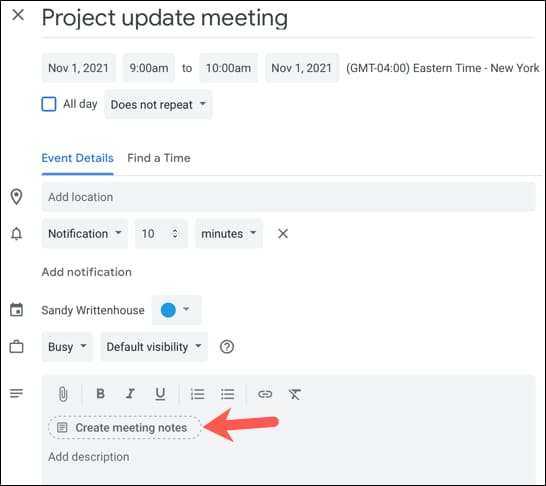
How to Create Meeting Notes with Google Calendar 11

You will then be redirected to Google Docs, where a meeting note template is waiting. You’ll see the event name, date, and attendees, along with sections for action items and notes.
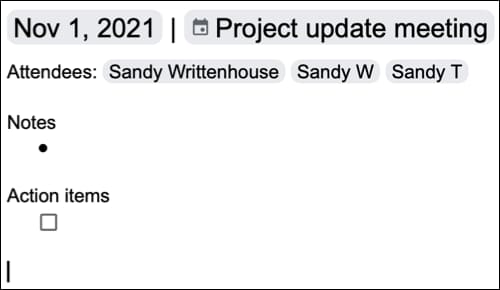
How to Create Meeting Notes with Google Calendar 12

You can make edits if you want, or just close the notes and reopen them when it’s time to meet. As with any other Google Docs document, your changes will be saved automatically.

View Meeting Notes

The Create Meeting Notes option you initially selected converts to a direct link to the notes in Google Docs.
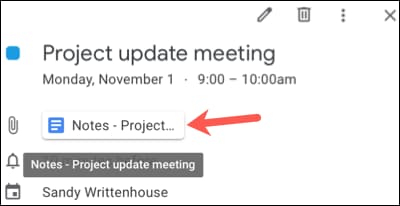
How to Create Meeting Notes with Google Calendar 13

So when it’s time for the meeting, click the link to the note in the event, on the event details page, or go to Google Docs. Add your entries to the meeting notes and again, all the changes you make are automatically saved.

How to Create Meeting Notes with Google Calendar 14

Any attendees invited to the event can click that link to access the notes in Google Docs.

That’s it, very quickly, isn’t it? Alternatively, you can also see how to schedule a meeting in Google Meet using Google Calendar here.


The article achieved: 5/5 – (100 votes)

Tags: CalendarcreateGooglemeetingNotes
Previous Post

Tool Get Proxy of Anonymous members

Next Post

10 reasons you should use Brave instead of Chrome

AnonyViet

AnonyViet

Related Posts

How to write Shell Script in Linux/Unix
Tips

How to write Shell Script in Linux/Unix

December 6, 2025
How to completely uninstall WSL on Windows 11?
Tips

How to completely uninstall WSL on Windows 11?

December 6, 2025
Kinh nghiệm mua Laptop cho sinh viên nhóm ngành kế toán, kinh tế, xã hội…
Tips

Kinh nghiệm mua Laptop cho sinh viên nhóm ngành kế toán, kinh tế, xã hội…

December 5, 2025
8 tips for more successful PowerPoint presentations
Tips

8 tips for more successful PowerPoint presentations

December 4, 2025
Chrome extensions to improve productivity in 2021
Tips

Chrome extensions to improve productivity in 2021

December 2, 2025
How to create photos that run KPIs while crying using Gemini for the 12 zodiac animals
Tips

How to create photos that run KPIs while crying using Gemini for the 12 zodiac animals

December 1, 2025
Next Post
10 reasons you should use Brave instead of Chrome

10 reasons you should use Brave instead of Chrome

0 0 votes
Article Rating
Subscribe
Login
Notify of
guest

guest

0 Comments
Oldest
Newest Most Voted
Inline Feedbacks
View all comments

Recent News

How to create Mind Map and Flowchart using ChatGPT is super simple

How to create Mind Map and Flowchart using ChatGPT is super simple

December 7, 2025
Free Gemini Google certification exam guide and Answers

Free Gemini Google certification exam guide and Answers

December 6, 2025
How to write Shell Script in Linux/Unix

How to write Shell Script in Linux/Unix

December 6, 2025
How to completely uninstall WSL on Windows 11?

How to completely uninstall WSL on Windows 11?

December 6, 2025
How to create Mind Map and Flowchart using ChatGPT is super simple

How to create Mind Map and Flowchart using ChatGPT is super simple

December 7, 2025
Free Gemini Google certification exam guide and Answers

Free Gemini Google certification exam guide and Answers

December 6, 2025
How to write Shell Script in Linux/Unix

How to write Shell Script in Linux/Unix

December 6, 2025
AnonyViet - English Version

AnonyViet

AnonyViet is a website share knowledge that you have never learned in school!

We are ready to welcome your comments, as well as your articles sent to AnonyViet.

Follow Us

Contact:

Email: anonyviet.com[@]gmail.com

Main Website: https://anonyviet.com

Recent News

How to create Mind Map and Flowchart using ChatGPT is super simple

How to create Mind Map and Flowchart using ChatGPT is super simple

December 7, 2025
Free Gemini Google certification exam guide and Answers

Free Gemini Google certification exam guide and Answers

December 6, 2025
  • Home
  • Home 2
  • Home 3
  • Home 4
  • Home 5
  • Home 6
  • Next Dest Page
  • Sample Page

trang chủ f168 nhà cái 78win https://www.qq8827.com/

No Result
View All Result
  • Home
  • News
  • Software
  • Knowledge
  • MMO
  • Tips
  • Security
  • Network
  • Office

trang chủ f168 nhà cái 78win https://www.qq8827.com/

wpDiscuz
0
0
Would love your thoughts, please comment.x
()
x
| Reply