• Home
  • News
  • Software
  • Knowledge
  • MMO
  • Tips
  • Security
  • Network
  • Office
AnonyViet - English Version
  • Home
  • News
  • Software
  • Knowledge
  • MMO
  • Tips
  • Security
  • Network
  • Office
No Result
View All Result
  • Home
  • News
  • Software
  • Knowledge
  • MMO
  • Tips
  • Security
  • Network
  • Office
No Result
View All Result
AnonyViet - English Version
No Result
View All Result

How to create a free 15GB RAM Windows VPS from Google

AnonyViet by AnonyViet
January 25, 2023
in Network
0

Google is giving developers a free 15GB RAM Windows VPS to test code. I tested the download speed of VPS to about 136Mbps, too fast. If you are in need of using a Windows VPS to Donwload or Upload in a short time, you can follow the instructions below:

Join the channel Telegram of the AnonyViet 👉 Link 👈

Now this tut has been fixed, Tut create free 7Gb ram VPS from Githubused for 6 hours still can be used.

Because Windows VPS is free, we will have some advantages and disadvantages below, you need to read carefully and follow each step to avoid errors.

Advantage:

  • 4 CPUs
  • 15 Gb RAM
  • HDD: 45 Gb
  • Internet speed > 100Mb/s
  • Free, no credit card required

Weakness:

  • Time to use each VPS is about 5 hours.
  • It takes a while to create an account for the first time.

Step 1. Get Ngrok . authtoken

Now you need Create account Ngrok to get access token authtoken code.

After creating an account, you go to the page https://dashboard.ngrok.com/get-started/setup.

Scroll down to see the place 2. Connect your account, Copy the authtoken code.

Get Ngrok .'s authtoken

Step 2. Prepare Script to create Windows VPS

Replace YOUR_NGROK_AUTHTOKEN_HERE Fort authtoken code in Step 1. (Line 4 from the bottom counts up).

Remember to put the authtoken in the ” ” sign.

version: 2.1 
 
orbs:
  win: circleci/[email protected]
 
jobs:
  build: 
    executor:
      name: win/default 
      size: "medium" 
 
    steps:
      - checkout      
      - run: Set-LocalUser -Name "Administrator" -Password (ConvertTo-SecureString -AsPlainText "P@ssword123" -Force)
      - run: Get-LocalUser -Name "Administrator" | Enable-LocalUser 
      - run: Invoke-WebRequest https://bin.equinox.io/c/4VmDzA7iaHb/ngrok-stable-windows-amd64.zip -OutFile ngrok.zip
      - run: tar xf ngrok.zip
      - run: Copy ngrok.exe C:\Windows\System32
      - run: cmd /c echo ./ngrok.exe authtoken "YOUR_NGROK_AUTHTOKEN_HERE" >a.ps1
      - run: cmd /c echo cmd /k start ngrok.exe tcp 3389 >>a.ps1
      - run: cmd /c echo ping -n 999999 10.10.10.10 >>a.ps1
      - run: .\a.ps1

Step 3. Create a BitBucket account

First you need to create account at BitBucket. After creating, remember Check your mail to activate your account.

Note: Should use temporary algae mail to be able to create multiple accs and create multiple free 15GB RAM Windows VPS.

When activating mail, the web will ask to create a username, choose a username and press Tiếp tục.

Create a BitBucket account

Next screen tap Skip.

Next, select Create repository.

Create reponstory

Name your Project name and Repository name, then press Create repository.

Name the Project name and Repository name

Step 4. Create a Circleci . account

Now you create an account at circleci.com. Click on the place Sign up with bitbucket (use the newly created Bitbucket account to login).

Select Grant access to grant permission circleci share an account with bitbucket.

Create a Circleci . account

Click on Username Bitbucket you created.

Username Bitbucket

Now you will see the Reponsite name on Bitbucket appear, select Set Up Project

Set Up Project

Copy the Script to create a Windows VPS with 15GB RAM in Step 2 into the Code editing box below, then click Commit and Run.

Commit and Run

You wait about 1-2 minutes to create VPS, you can click on the place Build to see the progress.

BUILD

Wait for the step to appear Request timed out.

Request timed out

Step 5. Get VPS login IP

Now you access the account Ngrok created in Step 1. Select Menu Endpoint -> Status to get the Windows VPS access IP.

If the message appears There are no tunnels currently online in your accountthen you press F5 to reload the page.

Get VPS login IP

And this is the IP/Host used to access VPS.

IP/Host used to access VPS

Step 6. How to Login to Google’s Free Windows VPS

Now you open the Windows Remte Desktop program (Open RUN type command mstscpress Enter)

Enter the IP that Ngrok gave you, remove tcp:// Go.

How to login VPS

  • Username: Administrator
  • Password: P@ssword123

How to create a free 15GB RAM Windows VPS of Google 4

If successful, you will be able to access Google’s Windows 2019 Datacenter VPS. Now just test it out.

How to create a free 15GB RAM Windows VPS of Google 5

Note that the time to use VPS is only about 5 hours. Expiry you re-create another VPS for free, but the previous data will be lost.


The article achieved: 5/5 – (100 votes)

Tags: 15GBcreatefreeGoogleRAMVPSWindows
Previous Post

Lesson 107: How to check for unequal values ​​in Excel

Next Post

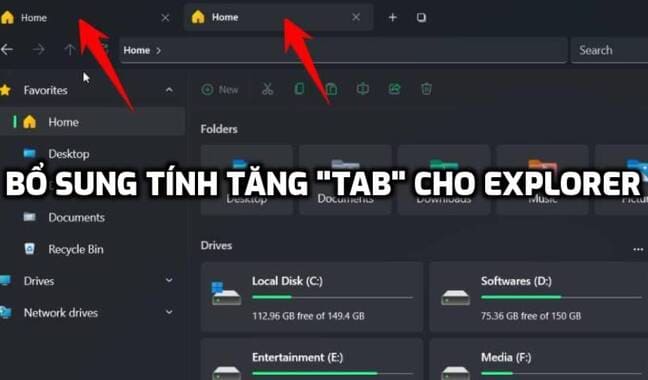
Files – Add Tab feature for Explorer to manage File, Folder

AnonyViet

AnonyViet

Related Posts

Save image as Type contains malicious code: Remove immediately before losing money unfairly!
Network

Save image as Type contains malicious code: Remove immediately before losing money unfairly!

March 19, 2026
Instructions on how to register a .co.uk domain name for free for 1 year
Network

Instructions on how to register a .co.uk domain name for free for 1 year

March 12, 2026
How to Setup Paperclip AI: Create a Company for AI Agent
Network

How to Setup Paperclip AI: Create a Company for AI Agent

March 12, 2026
Compilation of free and cheap APIs to run OpenClaw stably
Network

Compilation of free and cheap APIs to run OpenClaw stably

March 10, 2026
3 Services to Determine IP Location for Website (IP Geolocation API)
Network

3 Services to Determine IP Location for Website (IP Geolocation API)

March 10, 2026
How to buy a .STORE domain name for 1 USD (2026): Detailed instructions from A–Z
Network

How to buy a .STORE domain name for 1 USD (2026): Detailed instructions from A–Z

March 3, 2026
Next Post
Files – Add Tab feature for Explorer to manage File, Folder

Files - Add Tab feature for Explorer to manage File, Folder

0 0 votes
Article Rating
Subscribe
Login
Notify of
guest

guest

0 Comments
Oldest
Newest Most Voted
Inline Feedbacks
View all comments

Recent News

Create an avatar to celebrate April 30 with a beautiful red flag shirt with yellow stars

Create an avatar to celebrate April 30 with a beautiful red flag shirt with yellow stars

April 30, 2026
How to get 2 months of Super Duolingo for free worth 300k

How to get 2 months of Super Duolingo for free worth 300k

April 30, 2026
How to create a Face Sticker Collection using ChatGPT

How to create a Face Sticker Collection using ChatGPT

April 29, 2026
How to install the cute Bongo Cat mouse pointer for Windows

How to install the cute Bongo Cat mouse pointer for Windows

April 29, 2026
Create an avatar to celebrate April 30 with a beautiful red flag shirt with yellow stars

Create an avatar to celebrate April 30 with a beautiful red flag shirt with yellow stars

April 30, 2026
How to get 2 months of Super Duolingo for free worth 300k

How to get 2 months of Super Duolingo for free worth 300k

April 30, 2026
How to create a Face Sticker Collection using ChatGPT

How to create a Face Sticker Collection using ChatGPT

April 29, 2026
AnonyViet - English Version

AnonyViet

AnonyViet is a website share knowledge that you have never learned in school!

We are ready to welcome your comments, as well as your articles sent to AnonyViet.

Follow Us

Contact:

Email: anonyviet.com[@]gmail.com

Main Website: https://anonyviet.com

Recent News

Create an avatar to celebrate April 30 with a beautiful red flag shirt with yellow stars

Create an avatar to celebrate April 30 with a beautiful red flag shirt with yellow stars

April 30, 2026
How to get 2 months of Super Duolingo for free worth 300k

How to get 2 months of Super Duolingo for free worth 300k

April 30, 2026
No Result
View All Result
  • Home
  • News
  • Software
  • Knowledge
  • MMO
  • Tips
  • Security
  • Network
  • Office

wpDiscuz
0
0
Would love your thoughts, please comment.x
()
x
| Reply