• Home
  • News
  • Software
  • Knowledge
  • MMO
  • Tips
  • Security
  • Network
  • Office
AnonyViet - English Version
  • Home
  • News
  • Software
  • Knowledge
  • MMO
  • Tips
  • Security
  • Network
  • Office
No Result
View All Result
  • Home
  • News
  • Software
  • Knowledge
  • MMO
  • Tips
  • Security
  • Network
  • Office
No Result
View All Result
AnonyViet - English Version
No Result
View All Result

How to create a Bot in Discord

AnonyViet by AnonyViet
January 28, 2023
in Tips
0

By adding bots to your Discord server, you can automate many tasks such as monitoring member behavior, creating memes, and managing the server more easily. So in this article, I will show you how to add bots to the Discord server.

Join the channel Telegram of the AnonyViet 👉 Link 👈

How to create a Bot in Discord

How to Add Bot to Discord

First, you need to enable the “Manage Server” permission.

To add bots to Discord server, you need “Manage Server” permission for your user account. Your administrator can grant this permission to you from the server settings menu.

If you already have this permission, you can move on to the next section.

To enable this permission with an administrative account, launch Discord in a desktop web browser Windows, Mac, Linux, or your Chromebook. You can use the Discord app, but you still have to log in to Discord on the web to add a server, so I recommend using the web version.

On the Discord website, in the left menu bar, select the server you want to add the bot to.
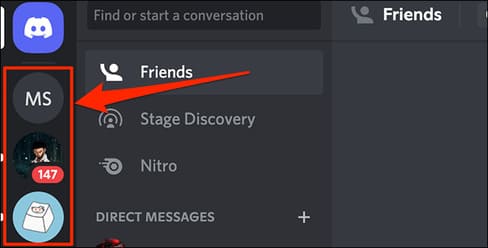
How to create a Bot in Discord 18

Click the down arrow icon in the upper right corner.
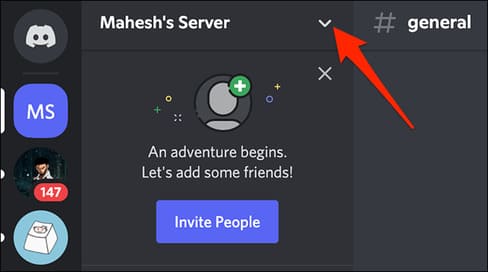
How to create a Bot in Discord 19

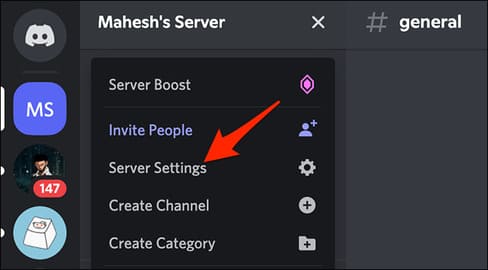
Next select “Server Settings”.

How to Create a Bot in Discord 20

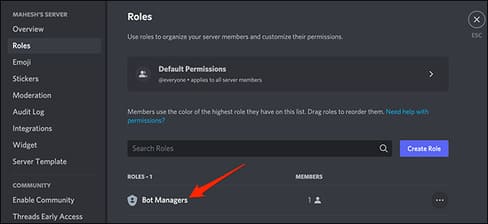
On the “Server Overview” page, in the menu on the left, select “Roles”.
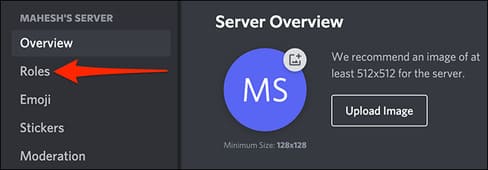
How to create a Bot in Discord 21

Select the user role you want to grant permission to add bots.
How to create a Bot in Discord 22

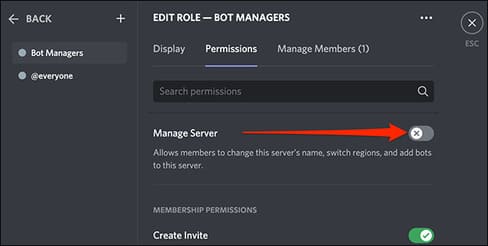
On the “Edit Role” page, at the top, select the “Permissions” tab.

How to create a Bot in Discord 23

Under the “Permissions” tab, enable the “Manage Server” option.
How to create a Bot in Discord 24

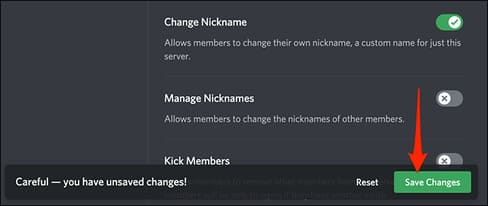
A reminder will appear at the bottom of the page. Click “Save Changes” to save the newly made changes.
How to create a Bot in Discord 25

And that’s how you allow users to add bots to the Discord server.

Next, find a Discord Bot

It’s time to find the bot you want to add to your Discord server. There are several Discord bot repositories online that offer hundreds of free Discord bots to add to your server.

Discord bot repositories include Carbonitex, Top.gg and GitHub. Feel free to use any of these sites, or you can even create your own Discord bot.

Finally, add the selected Bot to your server

On the website where you found the bot, you will see an option that says “Add Bot to Server”, “Invite” or similar options. You will use this option to add bots to your server.

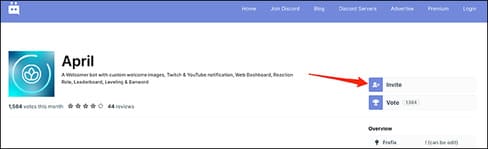
For example, I will install the bot “April” from the Top.gg website. To add bots, visit April’s website in your computer’s web browser. On the right side of the web page, tap “Invite”.
How to create a Bot in Discord 26

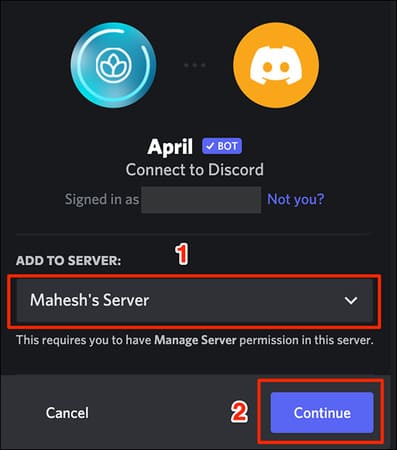
The website will open a new tab in your browser. In this new tab, click the “Add to Server” drop-down menu and select your Discord server. Then press “Continue”.
How to create a Bot in Discord 27

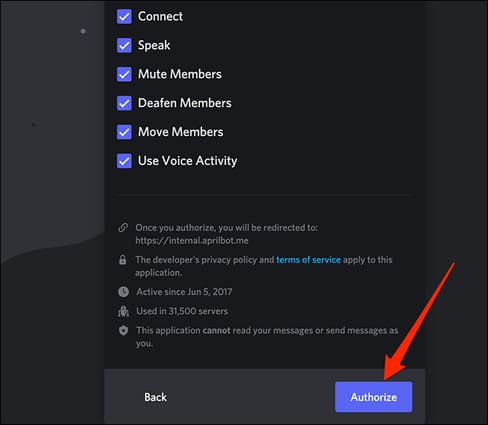
Discord will display a list of permissions that will be granted to your bot. At the bottom of this list of permissions, tap “Authorize.”

Warning: Giving third-party bots access to your Discord server can have significant privacy implications. Make sure you fully trust the bot and read any privacy policy before giving it access to your server.
How to create a Bot in Discord 28

Confirm captcha.

How to create a Bot in Discord 29

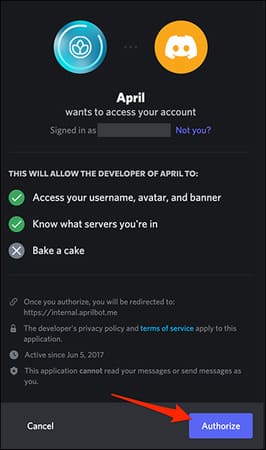
The bot will ask to access your Discord account details. Confirm by clicking “Authorize” at the bottom of the page.
How to create a Bot in Discord 30

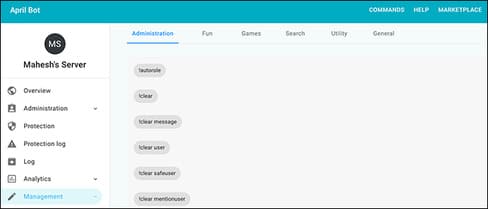
Next, the bot will take you to its website, where you can configure various options for the bot. Here you can specify how the bot will behave on your Discord server.
How to create a Bot in Discord 31

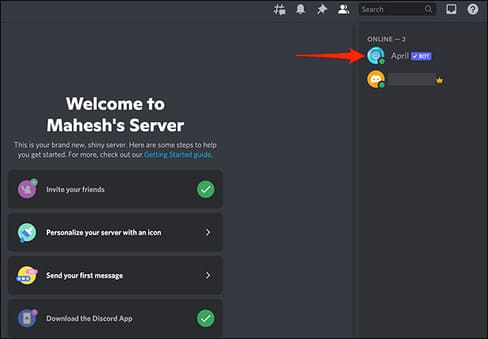
To confirm the bot is indeed added to your server, visit your server on Discord. On the right side of the screen, you will see the new bot added to the list of users.
How to create a Bot in Discord 32

So the bot has been successfully added.

The article achieved: 5/5 – (100 votes)

Tags: BotcreateDiscord
Previous Post

How to make free calls to all carriers with Viber Out

Next Post

How to install App store, Game MOD vShare on Android

AnonyViet

AnonyViet

Related Posts

How to record reaction videos with Android phones, no app needed
Tips

How to record reaction videos with Android phones, no app needed

June 1, 2026
Instructions on how to get Google AI Pro 1 year for free for new accounts
Tips

Instructions on how to get Google AI Pro 1 year for free for new accounts

June 1, 2026
Top free AI tools to help write, test and optimize content
Tips

Top free AI tools to help write, test and optimize content

June 1, 2026
Instructions for receiving Lovable Pro 12 months for free
Tips

Instructions for receiving Lovable Pro 12 months for free

May 29, 2026
Instructions for receiving 1 month of ElevenLabs Creator for free worth
Tips

Instructions for receiving 1 month of ElevenLabs Creator for free worth $22

May 25, 2026
How to create beautiful studio-like preschool graduation photos for your child
Tips

How to create beautiful studio-like preschool graduation photos for your child

May 21, 2026
Next Post
How to install App store, Game MOD vShare on Android

How to install App store, Game MOD vShare on Android

0 0 votes
Article Rating
Subscribe
Login
Notify of
guest

guest

0 Comments
Oldest
Newest Most Voted
Inline Feedbacks
View all comments

Recent News

How to check network speed on Apple TV when the image is jerky or lagging

How to check network speed on Apple TV when the image is jerky or lagging

June 3, 2026
Instructions on how to prevent acquaintances from seeing your Tiktok

Instructions on how to prevent acquaintances from seeing your Tiktok

June 2, 2026
How to record reaction videos with Android phones, no app needed

How to record reaction videos with Android phones, no app needed

June 1, 2026
Instructions on how to get Google AI Pro 1 year for free for new accounts

Instructions on how to get Google AI Pro 1 year for free for new accounts

June 1, 2026
How to check network speed on Apple TV when the image is jerky or lagging

How to check network speed on Apple TV when the image is jerky or lagging

June 3, 2026
Instructions on how to prevent acquaintances from seeing your Tiktok

Instructions on how to prevent acquaintances from seeing your Tiktok

June 2, 2026
How to record reaction videos with Android phones, no app needed

How to record reaction videos with Android phones, no app needed

June 1, 2026
AnonyViet - English Version

AnonyViet

AnonyViet is a website share knowledge that you have never learned in school!

We are ready to welcome your comments, as well as your articles sent to AnonyViet.

Follow Us

Contact:

Email: anonyviet.com[@]gmail.com

Main Website: https://anonyviet.com

Recent News

How to check network speed on Apple TV when the image is jerky or lagging

How to check network speed on Apple TV when the image is jerky or lagging

June 3, 2026
Instructions on how to prevent acquaintances from seeing your Tiktok

Instructions on how to prevent acquaintances from seeing your Tiktok

June 2, 2026
No Result
View All Result
  • Home
  • News
  • Software
  • Knowledge
  • MMO
  • Tips
  • Security
  • Network
  • Office

wpDiscuz
0
0
Would love your thoughts, please comment.x
()
x
| Reply