• Home
  • News
  • Software
  • Knowledge
  • MMO
  • Tips
  • Security
  • Network
  • Office
AnonyViet - English Version
  • Home
  • News
  • Software
  • Knowledge
  • MMO
  • Tips
  • Security
  • Network
  • Office
No Result
View All Result
  • Home
  • News
  • Software
  • Knowledge
  • MMO
  • Tips
  • Security
  • Network
  • Office
No Result
View All Result
AnonyViet - English Version
No Result
View All Result

How to change the Trash Can Icon to a cat with its mouth open

AnonyViet by AnonyViet
January 25, 2023
in Tips
0

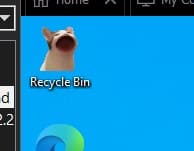
If you are too bored with the default Windows icons, you can change the ICONs to other shapes as you like. Currently, there is a trend of changing the Trash Can image to a cute cat with its mouth open and closed. Please follow the instructions below.

Join the channel Telegram of the AnonyViet 👉 Link 👈

The computer can be where you do your work, or do you use it to play games? Indeed, with computers, you can do a lot of things. But do you want your computer to look more interesting? You absolutely can. And today I will show you how to change the original icons into other icons that look cooler or look funnier!

Benefits of changing icons on your desktop

Are you bored with your default Windows icons? Do you feel that the Icons are too big or not suitable for you? Do you feel like you want to do something interesting with your icons? If that’s what you want, then you’ve come to the right place.

Changing the icon will help you be more excited when you open the computer as well as make you not feel too bored with the repetitive images. Not only that, if you are a student, surely you also want something to show off to your friends, right? Then let’s proceed to the guide to changing icons on your Windows!

Instructions to change the Icon on your computer

I really like the pop cat meme so I’m going to set the trash can on my computer to look like that cat! You can download the file Icon Pop Cat here or you can visit icon-icons.com to find your favorite icons.

When the trash is empty, the cat will open its mouth and nothing, if you delete a file, the cat will close its mouth like eating garbage. Changing the trash can ICON will help you be less boring with the default Desktop screen.

How to change the Trash Can Icon to a cat with its mouth open

Step 1: You right-click on the desktop and select Personalize at the bottom of the Right-click Menu
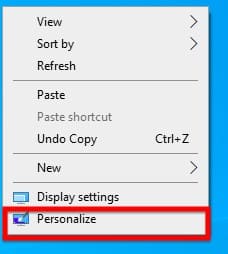
Right-click menu

Step 2: In the settings section, you select the Themes section in the Task Bar on the left
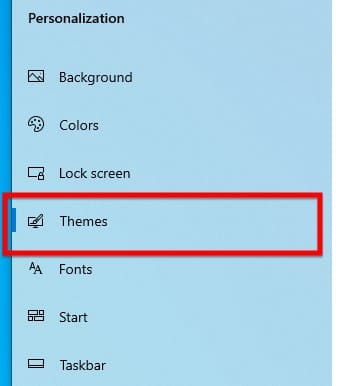
Choose a theme

Step 3: You scroll down, find and select Desktop Icon Settings in the Related Settings section
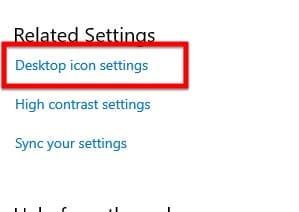
Desktop Icon Settings

Step 4: Select the Icon you want to change and select Change Icon near the bottom right hand corner of the window. Then you choose Browse to select the Icon you want to change. Once done, find the icon and click Ok.
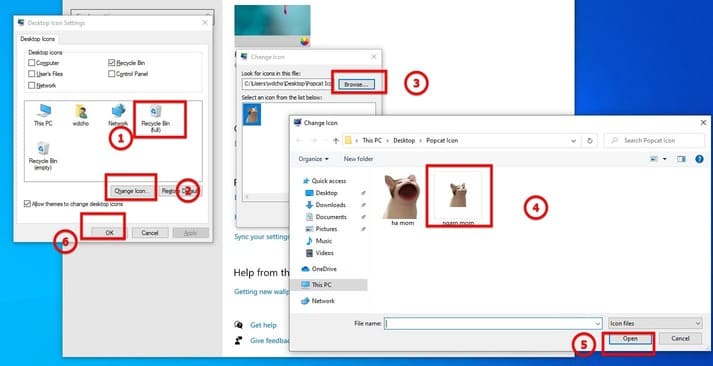
Steps to change Icon

And here are the results

Result

Instructions on how to change icons through Properties

Step 1: You proceed to right-click on the folder, the tool needs to change the icon and select Properties
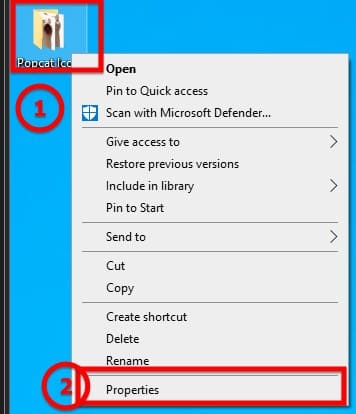
Select Properties

Step 2: You go to Customize according to the top bar and select Change Icon
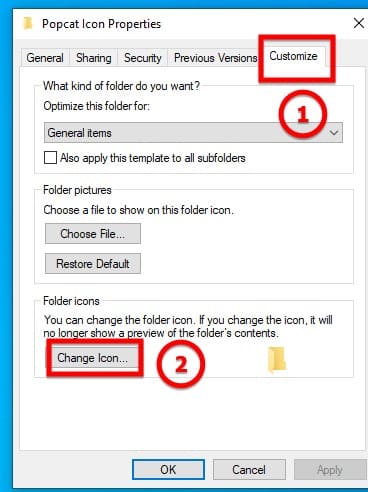
Change Icon

Step 3: You choose the Icon you want to change and you’re done

Maybe you also want to see: FakeLogonScreen – Utility to fake Windows login screen

The article achieved: 5/5 – (100 votes)

Tags: catchangeIconmouthopenTrash
Previous Post

How to find Bitlocker password on Windows

Next Post

The reason why North Korea still uses the outdated Linux operating system

AnonyViet

AnonyViet

Related Posts

How to change the default font on Windows 10
Tips

How to change the default font on Windows 10

April 13, 2026
5 tips for using a Browser to replace an App (helps save RAM, time and money)
Tips

5 tips for using a Browser to replace an App (helps save RAM, time and money)

April 13, 2026
How to make funny MeMe photos without Photoshop within 10 seconds
Tips

How to make funny MeMe photos without Photoshop within 10 seconds

April 11, 2026
How to quickly design your own Logo without Photoshop
Tips

How to quickly design your own Logo without Photoshop

April 10, 2026
How to convert Website into App on Windows
Tips

How to convert Website into App on Windows

April 9, 2026
Instructions for getting 3 months of Adobe Express Pro for free
Tips

Instructions for getting 3 months of Adobe Express Pro for free

April 9, 2026
Next Post
The reason why North Korea still uses the outdated Linux operating system

The reason why North Korea still uses the outdated Linux operating system

0 0 votes
Article Rating
Subscribe
Login
Notify of
guest

guest

0 Comments
Oldest
Newest Most Voted
Inline Feedbacks
View all comments

Recent News

How to add Watermark to Google Docs to protect copyright

How to add Watermark to Google Docs to protect copyright

April 19, 2026
How to intercept traffic using Burp Suite to analyze HTTP/HTTPS

How to intercept traffic using Burp Suite to analyze HTTP/HTTPS

April 18, 2026
How to avoid Adblock detection on Youtube with 4 good tips

How to avoid Adblock detection on Youtube with 4 good tips

April 17, 2026
How to transfer ChatGPT data to Claude is extremely simple

How to transfer ChatGPT data to Claude is extremely simple

April 16, 2026
How to add Watermark to Google Docs to protect copyright

How to add Watermark to Google Docs to protect copyright

April 19, 2026
How to intercept traffic using Burp Suite to analyze HTTP/HTTPS

How to intercept traffic using Burp Suite to analyze HTTP/HTTPS

April 18, 2026
How to avoid Adblock detection on Youtube with 4 good tips

How to avoid Adblock detection on Youtube with 4 good tips

April 17, 2026
AnonyViet - English Version

AnonyViet

AnonyViet is a website share knowledge that you have never learned in school!

We are ready to welcome your comments, as well as your articles sent to AnonyViet.

Follow Us

Contact:

Email: anonyviet.com[@]gmail.com

Main Website: https://anonyviet.com

Recent News

How to add Watermark to Google Docs to protect copyright

How to add Watermark to Google Docs to protect copyright

April 19, 2026
How to intercept traffic using Burp Suite to analyze HTTP/HTTPS

How to intercept traffic using Burp Suite to analyze HTTP/HTTPS

April 18, 2026
No Result
View All Result
  • Home
  • News
  • Software
  • Knowledge
  • MMO
  • Tips
  • Security
  • Network
  • Office

wpDiscuz
0
0
Would love your thoughts, please comment.x
()
x
| Reply