• Home
  • News
  • Software
  • Knowledge
  • MMO
  • Tips
  • Security
  • Network
  • Office
AnonyViet - English Version
  • Home
  • News
  • Software
  • Knowledge
  • MMO
  • Tips
  • Security
  • Network
  • Office
No Result
View All Result
  • Home
  • News
  • Software
  • Knowledge
  • MMO
  • Tips
  • Security
  • Network
  • Office
No Result
View All Result
AnonyViet - English Version
No Result
View All Result

How to change folder color in Windows 11/10

AnonyViet by AnonyViet
January 26, 2023
in Tips
0

You want to change the folder color to distinguish each folder instead of naming it. It’s a bit sad that no version of Windows offers us a way to change the folder color. Therefore, the only way is to use 3rd party software.

Join the channel Telegram of the AnonyViet 👉 Link 👈

How to change folder color in Windows 11/10

There are some software that allow you to customize the color of folders on Windows 11. But in this article, I will use the free software Rainbow Folders to change the color of folders.

How to install Rainbow Folders

Rainbow Folder is a lightweight tool that you can install on most Windows platforms. This software allows you to adjust colors for selected folders with Hue and Saturation bars.

1. First, open the page Rainbow Folders Softpedia in your browser.

2. Click the button Download Now to download the software ZIP file.

3. Select the rf ZIP file and press Extract all.
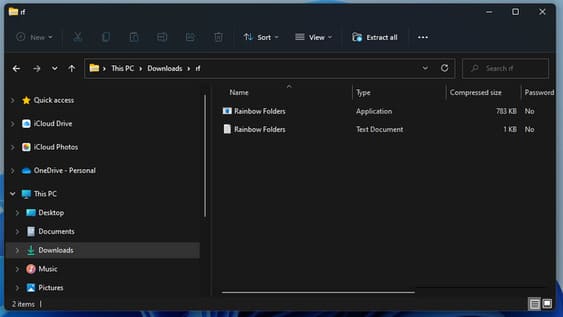
How to change folder color in Windows 11/10 15

4. Then click option Show extracted files when complete.

5. Select Extract.
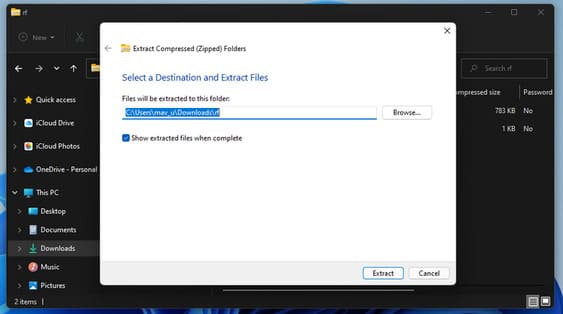
How to change folder color in Windows 11/10 16

6. Open the extracted rf folder.

7. Click Rainbow Folder.How to change folder color in Windows 11/10 17
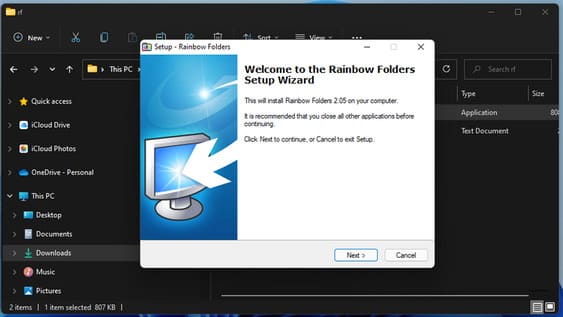
8. Press the buttons nextselect the folder to install the software and select Install.

9. Alternatively, check the box Install system shell extension.

How to change folder color in Windows 11

Open the Rainbow Folders program you just installed.
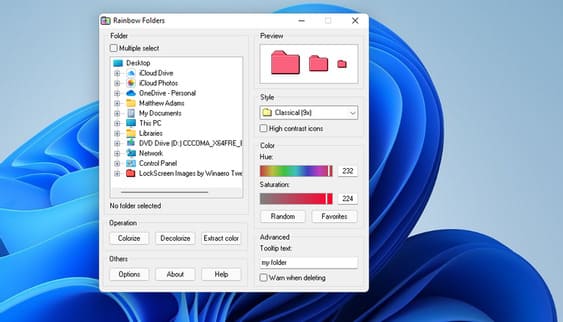
How to change folder color in Windows 11/10 18

Click This PC in the folder selection to expand that category. Then choose Local Disk (C:) to see your directory tree. Select a folder to change the color. You can select multiple folders by clicking option Multiple select.

You can use the slider Hue and Saturation to choose color. Then press the button Colorize to apply the selected color.

Next, open the File Explorer window. Open the folder you changed the color to to see the result.
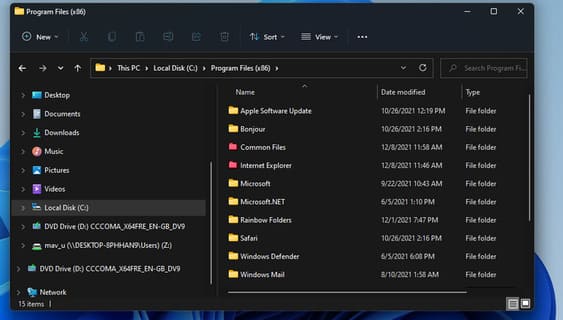
How to change folder color in Windows 11/10 19

You can also open Rainbow Folders from the context menu. To do so, right-click the folder in File Explorer and select Show more options. Select Rainbow Folders to display the window.

You can now change the color of the folder you right clicked on. Note that you may have to close and reopen File Explorer for the color changes to take effect.
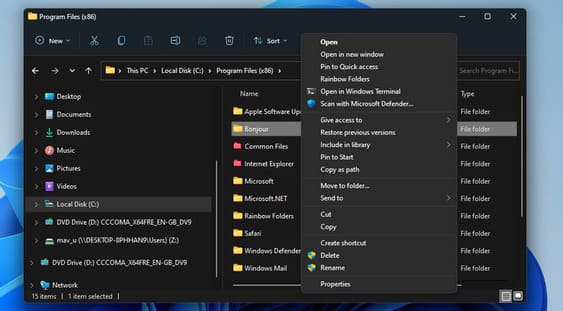
How to change folder color in Windows 11/10 20

Adjust permissions for folders where you can’t change the color

If the error message “Failed to write icon file” pops up and the color of the folder does not change, you may need to adjust the permissions for the folder. For Rainbow Folders to work, you need to have full control to modify the folders.

1. Right click on the folder you need to change color and select Properties.

2. Select Advanced on tab Security is shown below.
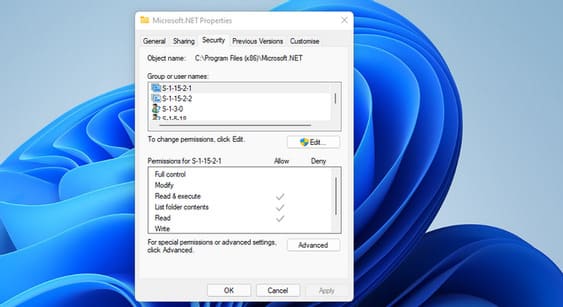
How to change folder color in Windows 11/10 21

3. Click Change on the Advanced Security Settings window.

4. Enter Everyone in the Select User or Group window and click the OK button.
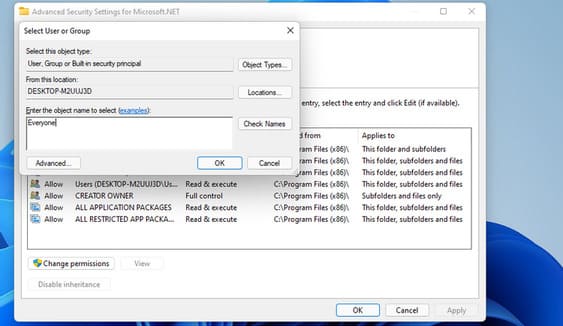
How to change folder color in Windows 11/10 22

5. Then select Replace owner on subcategories and objects.
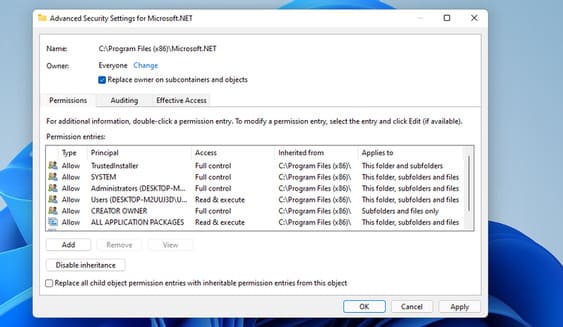
How to change folder color in Windows 11/10 23

6. Click Apply to save options.

7. Select OK to exit the Advanced Security Settings window

8. Press the button Edit on the properties window.

9. Press the button Add.
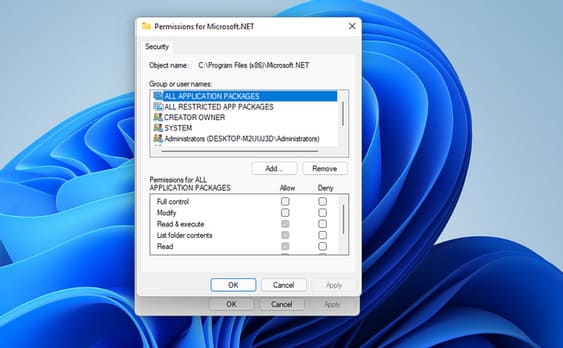
How to change folder color in Windows 11/10 24

10. Enter Everyone and click OK to exit.

11. Select group Everyone.

12. Then select Full control and Modify in Permissions for Everyone.
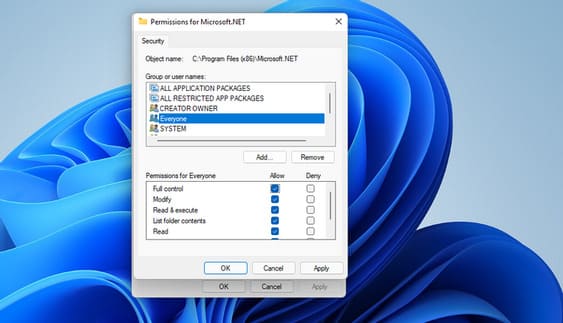
How to change folder color in Windows 11/10 25

13. Press Apply and OK.

14. Finally, click OK in the properties window.

15. Now try to change the color of the folder where you changed the permissions.

So that’s it then. In addition, you can also try to change the interface of windows 10 to windows 11 here Please.


The article achieved: 5/5 – (100 votes)

Tags: changecolorFolderWindows
Previous Post

Instructions to receive $ 50 to create a VPS of Linode for 1 month use

Next Post

Lesson 25: How to use the Status Bar in Excel

AnonyViet

AnonyViet

Related Posts

Instructions for creating Minecraft-style food photos
Tips

Instructions for creating Minecraft-style food photos

June 9, 2026
Get free Cambridge courses to prepare for IELTS, Starters, Movers
Tips

Get free Cambridge courses to prepare for IELTS, Starters, Movers

June 4, 2026
How to record reaction videos with Android phones, no app needed
Tips

How to record reaction videos with Android phones, no app needed

June 1, 2026
Instructions on how to get Google AI Pro 1 year for free for new accounts
Tips

Instructions on how to get Google AI Pro 1 year for free for new accounts

June 1, 2026
Top free AI tools to help write, test and optimize content
Tips

Top free AI tools to help write, test and optimize content

June 1, 2026
Instructions for receiving Lovable Pro 12 months for free
Tips

Instructions for receiving Lovable Pro 12 months for free

May 29, 2026
Next Post
Lesson 25: How to use the Status Bar in Excel

Lesson 25: How to use the Status Bar in Excel

0 0 votes
Article Rating
Subscribe
Login
Notify of
guest

guest

0 Comments
Oldest
Newest Most Voted
Inline Feedbacks
View all comments

Recent News

Cách làm mờ khuôn mặt trên iPhone, không cần tải app

Cách làm mờ khuôn mặt trên iPhone, không cần tải app

June 11, 2026
Website to check the World Cup 2026 match schedule intuitively, with automatic calendar synchronization

Website to check the World Cup 2026 match schedule intuitively, with automatic calendar synchronization

June 11, 2026
PDF editing application on Android worth 199k is free

PDF editing application on Android worth 199k is free

June 10, 2026
Instructions for creating Minecraft-style food photos

Instructions for creating Minecraft-style food photos

June 9, 2026
Cách làm mờ khuôn mặt trên iPhone, không cần tải app

Cách làm mờ khuôn mặt trên iPhone, không cần tải app

June 11, 2026
Website to check the World Cup 2026 match schedule intuitively, with automatic calendar synchronization

Website to check the World Cup 2026 match schedule intuitively, with automatic calendar synchronization

June 11, 2026
PDF editing application on Android worth 199k is free

PDF editing application on Android worth 199k is free

June 10, 2026
AnonyViet - English Version

AnonyViet

AnonyViet is a website share knowledge that you have never learned in school!

We are ready to welcome your comments, as well as your articles sent to AnonyViet.

Follow Us

Contact:

Email: anonyviet.com[@]gmail.com

Main Website: https://anonyviet.com

Recent News

Cách làm mờ khuôn mặt trên iPhone, không cần tải app

Cách làm mờ khuôn mặt trên iPhone, không cần tải app

June 11, 2026
Website to check the World Cup 2026 match schedule intuitively, with automatic calendar synchronization

Website to check the World Cup 2026 match schedule intuitively, with automatic calendar synchronization

June 11, 2026
  • Home
  • Home 2
  • Home 3
  • Home 4
  • Home 5
  • Home 6
  • Next Dest Page
  • Sample Page

6789 kv999

No Result
View All Result
  • Home
  • News
  • Software
  • Knowledge
  • MMO
  • Tips
  • Security
  • Network
  • Office

6789 kv999

wpDiscuz
0
0
Would love your thoughts, please comment.x
()
x
| Reply