Chrome extension error not working This usually happens when the version you are using is too old or has a system conflict. Instead of waiting for the browser to refresh itself, you can completely proactively control this to ensure your work is not interrupted. Let’s find out with AnonyViet how to thoroughly handle this problem right here.
📢 Join the channel Telegram belong to AnonyViet
Update new articles, cool tools and IT tips fastest
Why do we often encounter the error of Chrome extension not working?
While using the browser, many times we fall into situations where extensions suddenly “go on strike”. The main cause of the Chrome extension not working error often stems from the fact that the current version of the extension is outdated and no longer compatible with the latest version of Google Chrome.
In addition, software conflicts between utilities or browser cache errors are also common culprits. Normally, Chrome will automatically update these extensions in the background, but this process can be delayed from a few days to a week. If you urgently need a new feature or need to fix a recently announced security bug, waiting is not feasible.
Instructions to fix Chrome extension not working error
To thoroughly solve this problem, we will carry out a two-stage process:
Stage 1: Access the utility management page
Step 1: Open the Google Chrome browser on your computer (Windows or Mac). Observe the top right corner, click on the three vertical dots icon (Menu).
Step 2: Hover over “Utilities” (Extensions), then select “Manage utilities” (Manage Extensions).
A little tip for those who like it quick, just type chrome://extensions/ Go to the address bar and press Enter to access the utility’s “headquarters” directly.
Stage 2: Enable developer mode and force update
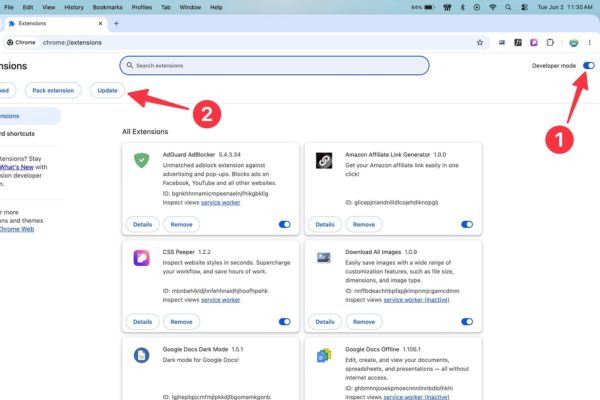
Step 1: At the management interface that has just appeared, look at the upper right corner of the screen. Find the text Developer mode and turn the switch to the On/ position.
Step 2: Immediately, a new toolbar will appear in the upper left. You will see the button Update next to other options.
Step 3: Click on the button Update. At this time, the browser will scan the entire list of extensions and compare it with the Chrome Web Store server.
Step 4: Observe the bottom of the browser window, a black message will appear saying “Updating…”. Please wait about 5-10 seconds until it changes to the words “Utilities updated” (Extensions updated).
Step 5: To complete the process of fixing the Chrome extension not working error, close the entire browser and reopen it. This helps the system reload the utility’s latest executable files.
How to check the version to confirm a successful update
After performing the above steps, how can I be sure that the Chrome extension not working error has been resolved through updating? You can check the version number of each utility.
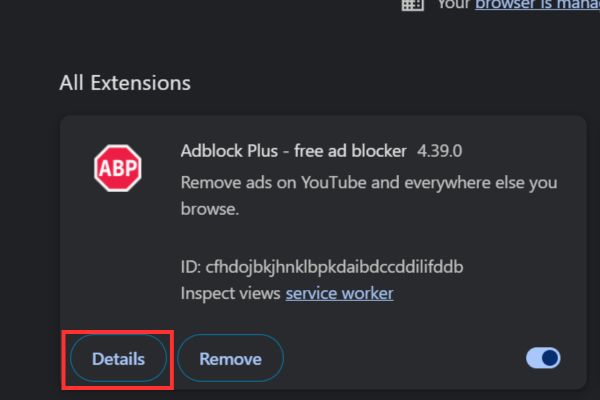
Step 1: At chrome://extensions/, find the extension you suspect is having an error.
Step 2: Click the button Details located within the widget’s frame.
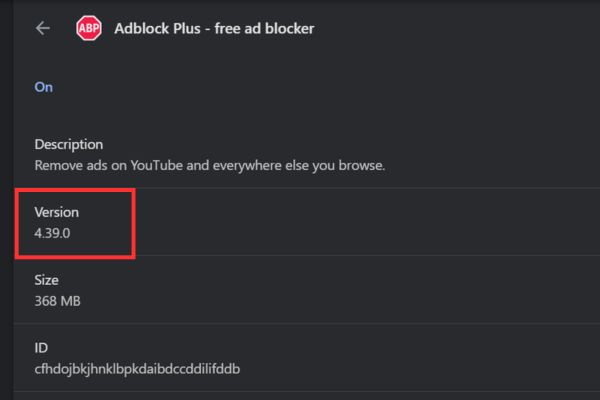
Step 3: Find the line Version. You can record this number before pressing the Update button and compare it with the number after Update. If the number changes (for example from 1.2.0 to 1.2.1), you have successfully updated. If the number stays the same, it means the developer hasn’t released a newer patch or you’re already on the latest version.
Notes to keep the browser running stably
Knowing how to fix Chrome extension not working is great, but “prevention is better than cure” is always the top criterion. You should not install too many unnecessary utilities because they will consume RAM resources and easily cause system conflicts.
Periodically clean out your utility inventory, removing names that have not been used for a long time. Also, always make sure that your Google Chrome browser itself is on the latest version by going to Help > Introducing Google Chrome.
Conclusion
Hope this article has helped you thoroughly handle it Chrome extension error not working quickly and most effectively. Proactively updating manually not only helps fix errors but also brings the latest features without you having to wait. Don’t forget to follow our other useful tech tips to optimize your daily computer experience.
Frequently Asked Questions (Q&A)
1. Why have I pressed the Update button but the add-on version hasn’t changed?
This means that the extension developer has not released a newer version on the Chrome Web Store, or the version you are currently using is already the latest version.
2. Is enabling Developer Mode dangerous for your computer?
Absolutely not. This mode only opens up advanced management options for users. However, you should only install utilities from reputable sources to ensure safety.
3. Do I need to restart my computer after updating the extension?
Unnecessary. You just need to close the Google Chrome browser and reopen it and the utility changes will be completely applied.