• Home
  • News
  • Software
  • Knowledge
  • MMO
  • Tips
  • Security
  • Network
  • Office
AnonyViet - English Version
  • Home
  • News
  • Software
  • Knowledge
  • MMO
  • Tips
  • Security
  • Network
  • Office
No Result
View All Result
  • Home
  • News
  • Software
  • Knowledge
  • MMO
  • Tips
  • Security
  • Network
  • Office
No Result
View All Result
AnonyViet - English Version
No Result
View All Result

How to compress images and change image resolution with Word

AnonyViet by AnonyViet
February 6, 2023
in Tips
0

Compress photos and essentials so you can save storage space. Nowadays, compressing images is very easy with available software. However, there are some software you have to buy a license. Now Microsoft Word can also help you reduce image size and resize images. With the convenience of not having to install any additional software, you can do it right on your computer.

Join the channel Telegram belong to AnonyViet 👉 Link 👈

Currently, almost everyone’s computer has Word installed to serve as word processing. In addition to the Microsoft Word editing function, it also supports many other functions such as: remove the image background with Word. The following article will guide you through a half function of compressing images in word and changing the resolution.

Compress a picture or change its resolution with Word

To compress an image, you will remove the excess pixels to reduce the image size. This can be done on Word without image compression software other.

Step 1: Open the Word application in the Microsoft Office suite, select the picture you want to reduce the size of.

Step 2: Under Picture Toolin Tab Formatin group Adjust press Compress photos .

How to compress images and change image resolution with Word

If you don’t see the tab Picture Tool – Format make sure you have clicked on the image. You can double click on the image and open tab Format .

Also, depending on your screen size, you may only see icons for group Adjust. Knot Compress Pictures only icon but no title.

word image compression

To compress the selected image, without affecting other images, be sure to check Apply to: Selected pictures.

Section Change resolution, you choose the resolution you want to change:

  • Web/Screen: suitable resolution for website or screen presentation
  • Print: suitable for printing (96 dpi)

change dpi picture

Note:

  • Compression changes are made when you close the dialog box. If you are not satisfied with the results, you can undo the changes. (Ctrl + Z)
  • Compressing images can make images look different due to loss of detail. Therefore, you should back up the image before performing image compression with Word.

Change default resolution and disable image compression in Word

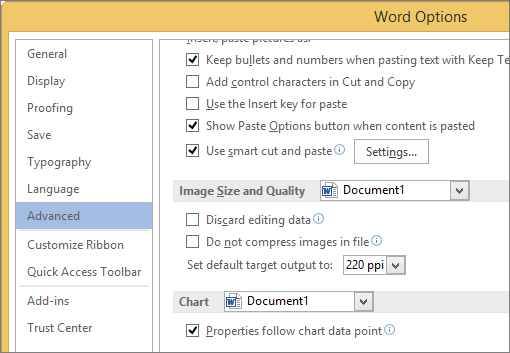
Photos in Office are automatically compressed for printing at 220 ppi. You can change the default image resolution or turn off image compression.

  1. Click File > Options.
  2. In box Optionsclick Advanced.
  3. Scroll down to the heart Image Size and Qualityfollow the steps below:option word
  4. If you want to turn off the default image compression, check: Do not compress images in files
  5. If you want to change the default resolution: Set default target out to: choose the appropriate ppi


The article achieved: 5/5 – (100 votes)

Tags: changeCompressimageimagesresolutionword
Previous Post

Copyrighted Winrar decompression software

Next Post

Copyright Avast Internet Security 2016

AnonyViet

AnonyViet

Related Posts

How to add sliders to Facebook Stories to easily rewind videos
Tips

How to add sliders to Facebook Stories to easily rewind videos

April 21, 2026
How to change the default font on Windows 10
Tips

How to change the default font on Windows 10

April 13, 2026
5 tips for using a Browser to replace an App (helps save RAM, time and money)
Tips

5 tips for using a Browser to replace an App (helps save RAM, time and money)

April 13, 2026
How to make funny MeMe photos without Photoshop within 10 seconds
Tips

How to make funny MeMe photos without Photoshop within 10 seconds

April 11, 2026
How to quickly design your own Logo without Photoshop
Tips

How to quickly design your own Logo without Photoshop

April 10, 2026
How to convert Website into App on Windows
Tips

How to convert Website into App on Windows

April 9, 2026
Next Post
Copyright Avast Internet Security 2016

Copyright Avast Internet Security 2016

0 0 votes
Article Rating
Subscribe
Login
Notify of
guest

guest

0 Comments
Oldest
Newest Most Voted
Inline Feedbacks
View all comments

Recent News

Tips for pinning the step counter to the iPhone screen to monitor your health

Tips for pinning the step counter to the iPhone screen to monitor your health

April 28, 2026
How to turn off password suggestions on iPhone: Prevent Safari from auto-filling passwords

How to turn off password suggestions on iPhone: Prevent Safari from auto-filling passwords

April 27, 2026
Instructions for looking up prescriptions on VNeID instead of paper medical books

Instructions for looking up prescriptions on VNeID instead of paper medical books

April 26, 2026
Tips to completely turn off CAPTCHA codes on iPhone and Mac are super simple

Tips to completely turn off CAPTCHA codes on iPhone and Mac are super simple

April 25, 2026
Tips for pinning the step counter to the iPhone screen to monitor your health

Tips for pinning the step counter to the iPhone screen to monitor your health

April 28, 2026
How to turn off password suggestions on iPhone: Prevent Safari from auto-filling passwords

How to turn off password suggestions on iPhone: Prevent Safari from auto-filling passwords

April 27, 2026
Instructions for looking up prescriptions on VNeID instead of paper medical books

Instructions for looking up prescriptions on VNeID instead of paper medical books

April 26, 2026
AnonyViet - English Version

AnonyViet

AnonyViet is a website share knowledge that you have never learned in school!

We are ready to welcome your comments, as well as your articles sent to AnonyViet.

Follow Us

Contact:

Email: anonyviet.com[@]gmail.com

Main Website: https://anonyviet.com

Recent News

Tips for pinning the step counter to the iPhone screen to monitor your health

Tips for pinning the step counter to the iPhone screen to monitor your health

April 28, 2026
How to turn off password suggestions on iPhone: Prevent Safari from auto-filling passwords

How to turn off password suggestions on iPhone: Prevent Safari from auto-filling passwords

April 27, 2026
No Result
View All Result
  • Home
  • News
  • Software
  • Knowledge
  • MMO
  • Tips
  • Security
  • Network
  • Office

wpDiscuz
0
0
Would love your thoughts, please comment.x
()
x
| Reply