With so many potential weaknesses in the internet, it’s hard to know if everything is properly secured. Is your connection secure and how do you know where the error is? So, in this article, I will show you 5 ways to check internet security at home.
| Join the channel Telegram of the AnonyViet 👉 Link 👈 |
1. Check Firewall
The first internet security check port on a PC is a firewall or Firewall. The main job of a firewall is to protect the internet in/out ports on your computer from unauthorized access. Therefore, you should check these ports to make sure unauthorized connections cannot appear on your PC.
You don’t need to hire a hacker to attack your firewall to find vulnerabilities. Services such as ShieldUp! will test the security for you and report back if the port is less secure. If your firewall can’t protect you, you should try some other more secure firewall. Firewalls are usually built into the program Paid antivirusyou can consult and install.
2. Check the power of anti-virus software
Antivirus software will scan downloaded files to make sure nothing malicious has entered your system. Therefore, you should make sure that the software is working and performing its function properly. A bad antivirus will not see threats as they appear and will let them infect your computer.
To safely check your anti-virus software, you can load EICAR files. EICAR files themselves are harmless, but anti-virus programs are trained to detect it as a virus. EICAR files may be downloaded separately or compressed in ZIP file layers to attempt to hide the file from antivirus programs. This makes EICAR files the ultimate way to test your antivirus without exposing your PC to real threats.
3. Check the connection protocol on the browser
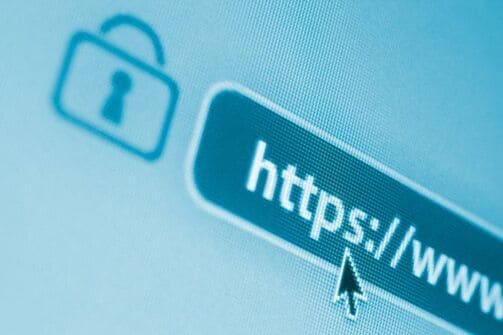
When you send data to a website that uses the HTTP protocol, that data is sent as “plain text”. This means that your data and the server will not be encrypted. People can monitor what you are sending to the server and record that information. This makes HTTP dangerous to use on public wifi networks, as you can never tell if anyone is spying on your data.
On the other hand, HTTPS will encrypt your data. HTTPS is usually used when you log into a website, so your information is hidden. You can tell if a site uses HTTPS by looking at the URL; it will start with “HTTPS” if your connection is secure. The browser may also display an icon next to the address bar to let you know your data is encrypted. For example, Google Chrome will display a small padlock to let you know that the trusted site is using HTTPS.
When you log into a website, be sure to check its connection protocol first. If it uses HTTPS, you can login securely. If you don’t see the padlock icon, the site is using HTTP and is not secure. If this happens when you visit a popular website, chances are the malware has redirected you to a fake website that looks exactly like the real one. Hackers do this to get your login information on the real website.
If you are worried whether the site has HTTPS enabled, you can use the extension HTTPS Everywhere cross-browser compatibility makes your communications with many major websites more secure.
4. Protect your Wifi Router from Hacker
Router (router) is the central processor for your home’s internet connection. It decides who can and cannot use your connection, which makes it a prime target for hackers. Therefore, you should secure your router to avoid any future threats.
Make sure you are using WPA2 or WPA3 security standards for wifi. The recent newer routers are all equipped with that WPA2 security standard, so you don’t need to worry. Older models will use WPA or worse, WEP. There are plenty of reasons why you shouldn’t use WEP, so make sure the router you’re buying is equipped with the WPA2 security standard.
Whether your wifi network is easy to hack or not depends on your wifi password and the modem’s admin password. Today, routers use random passwords for every device to prevent hacks. However, older or cheaper devices will likely use the default username and password, such as “username: admin, password: admin”. If this is the case, change it immediately.
If you still feel nervous, you can change or hide always the router’s SSID. By default, your router will display the SSID based on the product name. So hackers will rely on the SSID to find out which router you are using and find the vulnerability of that device family.
Giving your router a funny SSID name will hide the device name and make it harder for hackers to crack the wifi router.
5. Check your VPN connection for any leaks
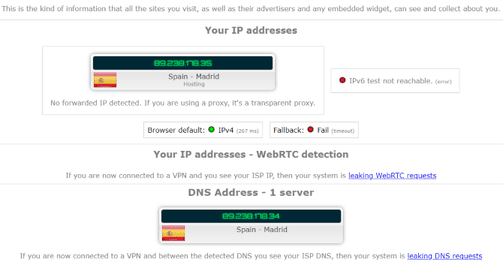
Is your internet connection leaking DNS? If you use a VPN, you should double-check that it leaks information about your real whereabouts. If you use a VPN, you can double check that the service is hiding your information with IP Leak. This will ensure that the traffic connecting to the VPN is safe and does not “leak” your real information. If you visit a website without a VPN, that website can find out all your information.
When you visit the website again after activating the VPN, the website will now connect to the VPN’s server instead of connecting to your own computer. If you see your details, it means the VPN is not protecting your connection properly. You can refer to how to use vpn here.