• Home
  • News
  • Software
  • Knowledge
  • MMO
  • Tips
  • Security
  • Network
  • Office
AnonyViet - English Version
  • Home
  • News
  • Software
  • Knowledge
  • MMO
  • Tips
  • Security
  • Network
  • Office
No Result
View All Result
  • Home
  • News
  • Software
  • Knowledge
  • MMO
  • Tips
  • Security
  • Network
  • Office
No Result
View All Result
AnonyViet - English Version
No Result
View All Result

How to Rename Columns or Rows in Google Sheets

AnonyViet by AnonyViet
January 29, 2023
in Tips
0

If you’re creating a Google Sheets spreadsheet for someone else to use, and you want that person to easily find parts of your data, you can use named ranges to change the column or row names. In this article, I will guide you to do so.

Join the channel Telegram of the AnonyViet 👉 Link 👈

How to Rename Columns or Rows in Google Sheets

What are Named Ranges?

Named ranges allows you to rename columns or rows of a group of cells, an entire column or row. Renaming a column or row doesn’t overwrite the original cell references (A1, A2,..), but it makes it easier to refer to these cells (and the data within them) when you add formulas new.

Using Name Box

The fastest way to rename a column or row in a Google Sheet is to use the Name Box. This is the cell to the left of the formula bar, showing you cell references or the currently selected cells in your spreadsheet.

First, open Google Sheets and select a new column or row. Then, replace the existing cell reference in the Name box with a new name, and then press the Enter key to save the column or row name.
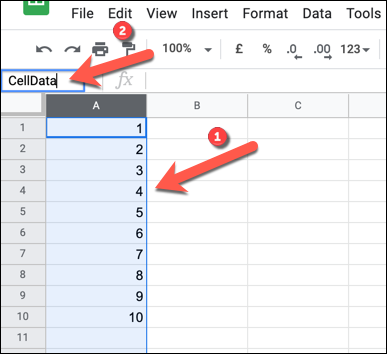
Using Name Box

Google Sheet will apply the new name to your column or row immediately. You can view a list of available name ranges by clicking the down arrow button located to the right of the name box.

A list of named cells, including their original cell references, will appear in the list below.
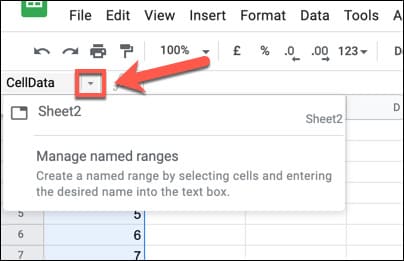
How to rename a Column or Row in Google Sheets 6

You can click on any name ranges to select those cells, or click “Manage Named Ranges” to make changes to existing name ranges.

Another way to rename columns or rows is to use the Name Range menu. This menu allows you to manage existing name ranges as well as create new name ranges.

Add new name range

First, open a Google Sheet and select the row or column you want to rename. Then right click on the selected cells and select “Define The Named Range”.
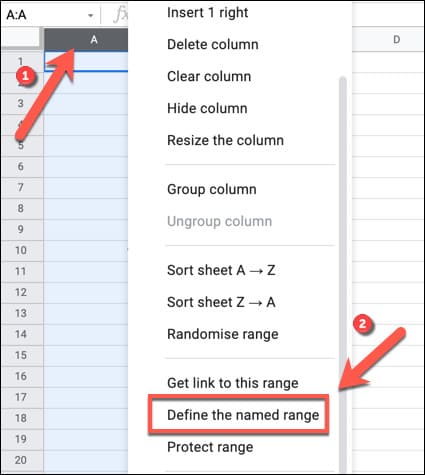
Add new name range

The “Named Ranges” menu will appear as a panel on the right. Enter your chosen name in the first box. You can also change the selected column, row, or range of cells by changing the underlying cell reference.
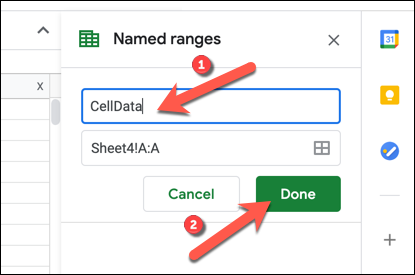
Named Ranges

Edit or delete Name Range

To edit or delete the name range, right-click any cell in the spreadsheet and select “Define Named Range”. You will see a list of available name ranges in the right panel. Hover over the name range you want and press the “Edit” button.
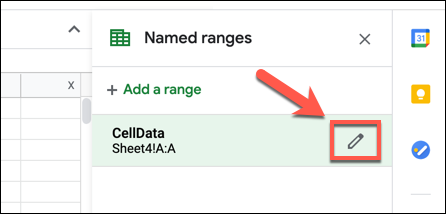
Edit or delete Name Range

You can then make changes to the name range (including changing the name and cell range). If you want to delete the named range, press the “Remove” button.
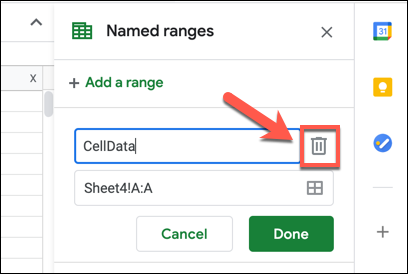
Remove

You need to confirm your choice — press “Remove” in the dialog box to confirm.
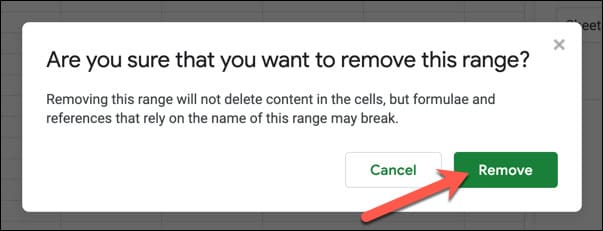
confirm

Using Name Range in Google Sheet

With the newly added name range, you can now refer to this name range elsewhere in a new formula. For example, if you name your range “CellData”, you can find the average of the values ​​in those cells by using the following formula:

=MEDIAN(CellData)

Name range (CellData) replaces cell references with columns, rows, or ranges of cells in your formula. For example, if CellData is a name range of all the cells in column A, you can use A:A or CellData to refer to those cells.
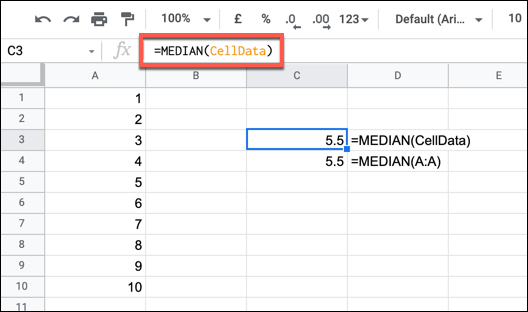
Using Name Range in Google Sheet

Using a name range allows you to quickly refer to the data you want to use without requiring reference to the original cells. Plus, if you don’t use Google Sheets, you can learn 20 Excel tricks that turn you into an expert here.


The article achieved: 5/5 – (100 votes)

Tags: ColumnsGoogleRenameRowsSheets
Previous Post

Summary of the 20 most powerful KeyLogger today

Next Post

Recognize the signs of a hacked phone and How to prevent it

AnonyViet

AnonyViet

Related Posts

How to change the default font on Windows 10
Tips

How to change the default font on Windows 10

April 13, 2026
5 tips for using a Browser to replace an App (helps save RAM, time and money)
Tips

5 tips for using a Browser to replace an App (helps save RAM, time and money)

April 13, 2026
How to make funny MeMe photos without Photoshop within 10 seconds
Tips

How to make funny MeMe photos without Photoshop within 10 seconds

April 11, 2026
How to quickly design your own Logo without Photoshop
Tips

How to quickly design your own Logo without Photoshop

April 10, 2026
How to convert Website into App on Windows
Tips

How to convert Website into App on Windows

April 9, 2026
Instructions for getting 3 months of Adobe Express Pro for free
Tips

Instructions for getting 3 months of Adobe Express Pro for free

April 9, 2026
Next Post
Recognize the signs of a hacked phone and How to prevent it

Recognize the signs of a hacked phone and How to prevent it

0 0 votes
Article Rating
Subscribe
Login
Notify of
guest

guest

0 Comments
Oldest
Newest Most Voted
Inline Feedbacks
View all comments

Recent News

How to intercept traffic using Burp Suite to analyze HTTP/HTTPS

How to intercept traffic using Burp Suite to analyze HTTP/HTTPS

April 18, 2026
How to avoid Adblock detection on Youtube with 4 good tips

How to avoid Adblock detection on Youtube with 4 good tips

April 17, 2026
How to transfer ChatGPT data to Claude is extremely simple

How to transfer ChatGPT data to Claude is extremely simple

April 16, 2026
How to authenticate the owner’s SIM on VNeID from April 15

How to authenticate the owner’s SIM on VNeID from April 15

April 15, 2026
How to intercept traffic using Burp Suite to analyze HTTP/HTTPS

How to intercept traffic using Burp Suite to analyze HTTP/HTTPS

April 18, 2026
How to avoid Adblock detection on Youtube with 4 good tips

How to avoid Adblock detection on Youtube with 4 good tips

April 17, 2026
How to transfer ChatGPT data to Claude is extremely simple

How to transfer ChatGPT data to Claude is extremely simple

April 16, 2026
AnonyViet - English Version

AnonyViet

AnonyViet is a website share knowledge that you have never learned in school!

We are ready to welcome your comments, as well as your articles sent to AnonyViet.

Follow Us

Contact:

Email: anonyviet.com[@]gmail.com

Main Website: https://anonyviet.com

Recent News

How to intercept traffic using Burp Suite to analyze HTTP/HTTPS

How to intercept traffic using Burp Suite to analyze HTTP/HTTPS

April 18, 2026
How to avoid Adblock detection on Youtube with 4 good tips

How to avoid Adblock detection on Youtube with 4 good tips

April 17, 2026
No Result
View All Result
  • Home
  • News
  • Software
  • Knowledge
  • MMO
  • Tips
  • Security
  • Network
  • Office

wpDiscuz
0
0
Would love your thoughts, please comment.x
()
x
| Reply