• Home
  • News
  • Software
  • Knowledge
  • MMO
  • Tips
  • Security
  • Network
  • Office
AnonyViet - English Version
  • Home
  • News
  • Software
  • Knowledge
  • MMO
  • Tips
  • Security
  • Network
  • Office
No Result
View All Result
  • Home
  • News
  • Software
  • Knowledge
  • MMO
  • Tips
  • Security
  • Network
  • Office
No Result
View All Result
AnonyViet - English Version
No Result
View All Result

How to use MobaXterm to Remote VPS Linux from Windows

AnonyViet by AnonyViet
January 27, 2023
in Network
0

As you know, Linux VPS is often used command line to configure, few have Desktop interface like Ubuntu Desktop. But most administrators will use SSH tool to Remote to Linux Server. Currently, there are many popular SSH software such as: Putty, Bitvise SSH Client, MobaXterm… Of which AnonyViet finds MobaXterm the easiest to use. Therefore, this article will guide you in detail to use MobaXterm to Remote VPS Linux.

Join the channel Telegram of the AnonyViet 👉 Link 👈

What is MobaXterm?

MobaXterm is software that helps you communicate Windows with Linux. This is an essential tool for programmers, webmasters, and IT administrators who need to work on Linux, Unix or Mac. You will be provided with a command line interface to interact with the underlying system. In other words, you use MobaXterm to manage Linux systems. Let’s take a look at the features from MobaXterm:

Support multiple connections under separate Tab

MobaXterm Support multiple connections to multiple VPS at the same time. Each connection you will manage in a separate Tab. This is a feature that many people like because other tools don’t have it yet. Each tab can connect many different purposes.

Eg: Tab 1 you connect SSH to Server A, Tab 2 connects FTP to Server B.

How to use MobaXterm to Remote VPS Linux from Windows

Graphical Mode SFTP – File Management on Linux Easier

When you are connected to the remote server, the left panel will switch to display File Explorer of Windows. By default it points to the connected user’s home directory but you can change it to the terminal directory by checking the check-box for the terminal directory. This is really an interesting feature and saves a lot of time when managing files on Linux.

File explorer of MobaXterm

How to use MobaXterm to manage Linux VPS

MobaXterm There are 2 versions: free of charge and pay fees. For basic users, the free version is already fully featured. The paid version is only different in that the number of connections is unlimited. You just Download MobaXterm Home About the installation is fine.

The first screen of MobaXterm will look like the image below. You click on the icon Session to create a connection to the Linux VPS.

Session

For Linux VPS you will use SSH protocol to connect to the Server. Usually suppliers will give you information IP and Password Root of VPS.

The default user of a Linux VPS is usually: root

Eg: how to connect to Fastmako 1 month free VPS

The VPS account email I received from Fastmako is:
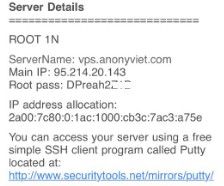
The VPS account email I received from Fastmako

You choose the protocol SSHwill appear fields to enter login information:

  • Remote host: 95.214.20.143
  • Check in ✓ into the Specify username: root
  • Press Ok

SSH protocol

The screen will now appear Terminal on the rightyou enter Password Root Enter to login.

Note: When entering the password on the screen will not display the character. You have to fill it correctly and then press Enter.

you enter Password Root

Upon successful login, you will see:

  • Left frame: is a folder browsing window, you can drag and drop files to Upload / Download
  • Right frame: is the Terminal command line tab. You use the Shell Linux command to configure the VPS.

successfully logged in MobaXterm

Now you can configure VPS using MobaXterm according to your needs. Can install Web Server, Set interface for VPS with VNCServer, View VPS parameters ….

If you do not know how to configure VPS, please comment so I can guide you in the following articles.


The article achieved: 5/5 – (100 votes)

Tags: LinuxMobaXtermRemoteVPSWindows
Previous Post

[Tạo 2D Platformer Game với Godot] Part 19: Designing UI with Custom Styles

Next Post

Top 10 Best Open World Games today

AnonyViet

AnonyViet

Related Posts

Save image as Type contains malicious code: Remove immediately before losing money unfairly!
Network

Save image as Type contains malicious code: Remove immediately before losing money unfairly!

March 19, 2026
Instructions on how to register a .co.uk domain name for free for 1 year
Network

Instructions on how to register a .co.uk domain name for free for 1 year

March 12, 2026
How to Setup Paperclip AI: Create a Company for AI Agent
Network

How to Setup Paperclip AI: Create a Company for AI Agent

March 12, 2026
Compilation of free and cheap APIs to run OpenClaw stably
Network

Compilation of free and cheap APIs to run OpenClaw stably

March 10, 2026
3 Services to Determine IP Location for Website (IP Geolocation API)
Network

3 Services to Determine IP Location for Website (IP Geolocation API)

March 10, 2026
How to buy a .STORE domain name for 1 USD (2026): Detailed instructions from A–Z
Network

How to buy a .STORE domain name for 1 USD (2026): Detailed instructions from A–Z

March 3, 2026
Next Post
Top 10 Best Open World Games today

Top 10 Best Open World Games today

0 0 votes
Article Rating
Subscribe
Login
Notify of
guest

guest

0 Comments
Oldest
Newest Most Voted
Inline Feedbacks
View all comments

Recent News

How to turn off Gemini Nano on Chrome to free up 4GB of memory

How to turn off Gemini Nano on Chrome to free up 4GB of memory

May 30, 2026
Instructions for receiving Lovable Pro 12 months for free

Instructions for receiving Lovable Pro 12 months for free

May 29, 2026
How to extract text from photos using Zalo is super simple

How to extract text from photos using Zalo is super simple

May 29, 2026
HONOR 600 in hand – High-end design, 200MP camera, not cheap price

HONOR 600 in hand – High-end design, 200MP camera, not cheap price

May 28, 2026
How to turn off Gemini Nano on Chrome to free up 4GB of memory

How to turn off Gemini Nano on Chrome to free up 4GB of memory

May 30, 2026
Instructions for receiving Lovable Pro 12 months for free

Instructions for receiving Lovable Pro 12 months for free

May 29, 2026
How to extract text from photos using Zalo is super simple

How to extract text from photos using Zalo is super simple

May 29, 2026
AnonyViet - English Version

AnonyViet

AnonyViet is a website share knowledge that you have never learned in school!

We are ready to welcome your comments, as well as your articles sent to AnonyViet.

Follow Us

Contact:

Email: anonyviet.com[@]gmail.com

Main Website: https://anonyviet.com

Recent News

How to turn off Gemini Nano on Chrome to free up 4GB of memory

How to turn off Gemini Nano on Chrome to free up 4GB of memory

May 30, 2026
Instructions for receiving Lovable Pro 12 months for free

Instructions for receiving Lovable Pro 12 months for free

May 29, 2026
No Result
View All Result
  • Home
  • News
  • Software
  • Knowledge
  • MMO
  • Tips
  • Security
  • Network
  • Office

wpDiscuz
0
0
Would love your thoughts, please comment.x
()
x
| Reply