

If you have a laptop or desktop computer running Windows 11, looking at system memory specifications or testing RAM (Random Access Memory) – it can be helpful to troubleshoot issues with tech support. specification or confirm the changes after adjusting the settings in the Unified Extensible Firmware Interface (UEFI).
| Join the channel Telegram of the AnonyViet 👉 Link 👈 |
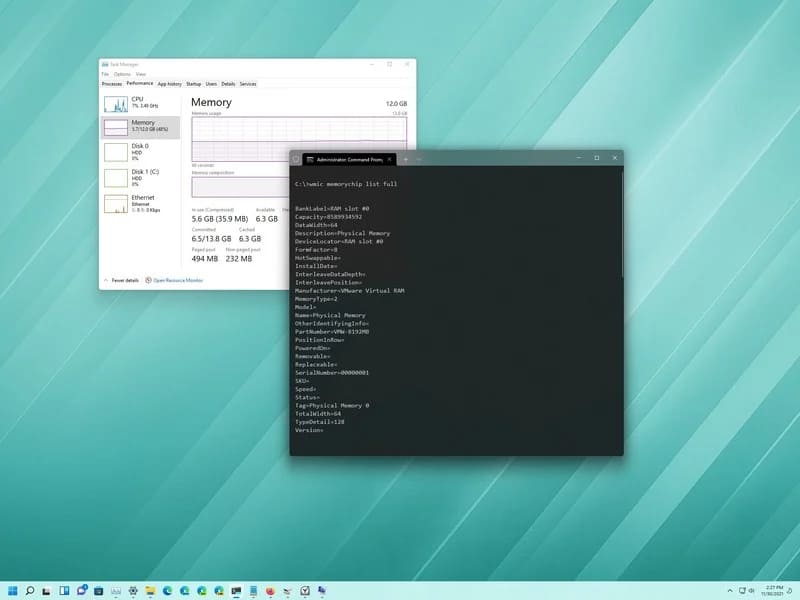
Plus, if you’re upgrading your computer, understanding the details of RAM can help determine the brand, speed, size, and other information you may need to purchase the right RAM to improve performance. system.
Whatever the reason, you can use Command Prompt on Windows 11 to find all the information quickly without using Task Manager or third-party tools.
How to check RAM using Command Prompt on Windows 11
First you need to understand What is RAM? and concepts to know about RAM.
Using Command Prompt, you can view many details of the RAM on your computer, including manufacturer, part and serial number, capacity information, speed, type, form factor, and more.
Although you can use the Command Prompt to find various details about RAM, some information may not be available depending on the hardware.
Check the manufacturer
1. Open Start.
2. Search for Command Prompt, right-click on the top result and select Run as administrator.
3. Type the following command to see the RAM manufacturer name and press Enter:
wmic memorychip get devicelocator, manufacturer
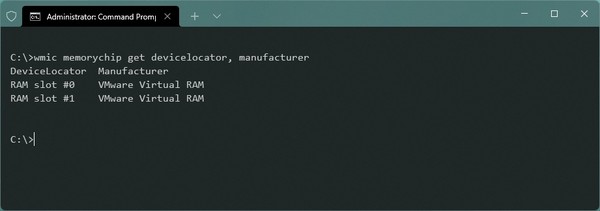
4. Confirm the RAM manufacturer name in the “Manufacturer” column.
Check the number of RAM
To determine the amount of RAM, follow these steps:
1. Open Start.
2. Search for Command Prompt, right-click on the top result and select Run as administrator.
3. Type the following command to find the RAM number and press Enter:
wmic memorychip get devicelocator, partnumber
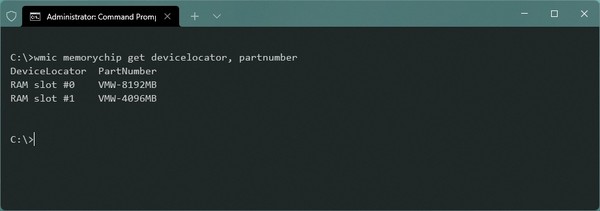
4. Confirm the RAM number in the “PartNumber” column.
Check serial number
1. Open Start.
2. Search for Command Prompt, right-click on the top result and select Run as administrator.
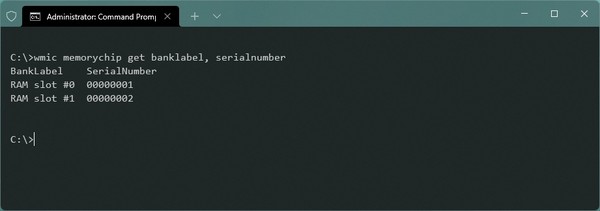
3. Type the following command to get the serial number of the RAM stick and press Enter:
wmic memorychip get devicelocator, serialnumber
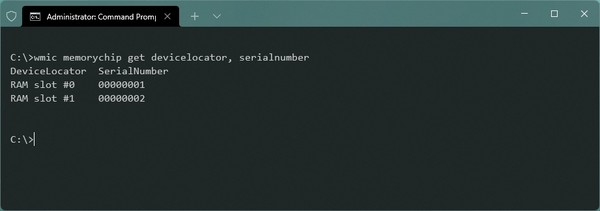
4. Confirm the serial number of the RAM in the column “SerialNumber”.
5. (Optional) Type the following command to find the physical location of the RAM on the motherboard and press Enter:
wmic memorychip get banklabel, serialnumber
Check the amount of RAM
On Windows 11, you can also use different commands to determine the total system capacity or the amount of space per stick of RAM.
Determine the amount of RAM per stick of RAM
To know how much RAM is available in each stick, follow these steps:
1. Open Start.
2. Search for Command Prompt, right-click on the top result and select the option Run as administrator.
3. Type the following command to determine the amount of RAM and press Enter:
wmic memorychip get devicelocator, capacity
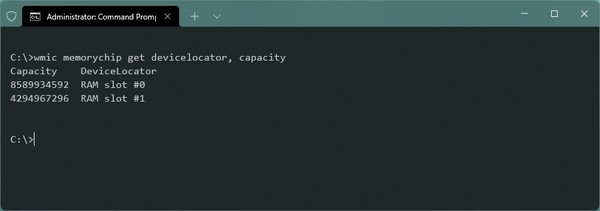
4. Confirm the amount of RAM per module in the “Capacity” column.
Since the capacity is returned in bytes, you must divide that number by 1,073,741,824 (1 gigabyte in bytes) to convert it to gigabytes.
Determine the total amount of RAM
To determine the total amount of RAM available on a Windows 11 device, follow these steps:
1. Open Start.
2. Search for Command Prompt, right-click on the top result and select the option Run as administrator.
3. Type the following command to determine the total amount of RAM available on the computer and press Enter:
wmic computersystem get totalphysicalmemory
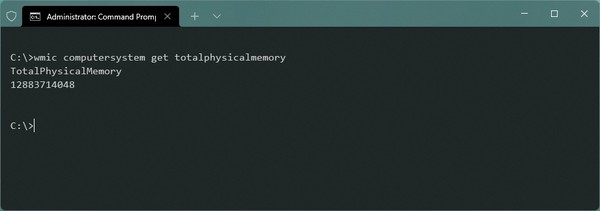
4. Confirm the total amount of RAM in the “Capacity” column.
To convert to gigabytes, you must divide the number by 1,073,741,824 (1 gigabyte in bytes).
Speed test
1. Open Start.
2. Search for Command Prompt, right-click on the top result and select the option Run as administrator.
3. Type the following command to test RAM speed and press Enter:
wmic memorychip get devicelocator, speed
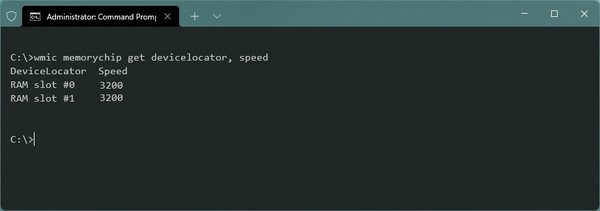
4. Confirm the speed of the RAM in the “Speed” column.
Check RAM type
To determine the type of RAM (such as DRAM, DDR4, RDRAM, etc.), follow these steps:
1. Open Start.
2. Search for Command Prompt, right-click on the top result and select the option Run as administrator.
3. Type the following command to check the RAM type and press Enter:
wmic memorychip get devicelocator, memorytype
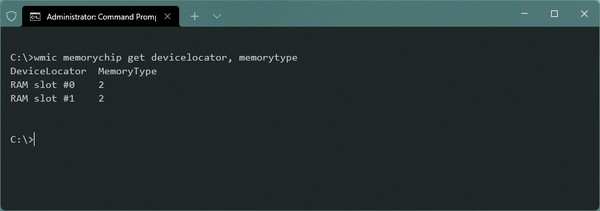
4. Confirm the RAM type in the “MemoryType” column.
Supported RAM Types
- 0: Unknown.
- first: Other.
- 2: DRAM.
- 3: Synchronous DRAM.
- 4: Cache DRAM.
- 5: EDO.
- 6: EDRAM.
- 7: VRAM.
- 8: SRAM.
- 9: RAM.
- ten: ROM.
- 11: Flash.
- twelfth: EEPROM.
- 13: FEPROM.
- 14: EPROM.
- 15: CDRAM.
- 16: 3DRAM.
- 17: SDRAM.
- 18: SGRAM.
- 19: RDRAM.
- 20: DDR.
- 21: DDR2.
- 22: DDR2 FB-DIMM.
- 24: DDR3.
- 25: FBD2.
- 26: DRR4.
Check form factor
To determine the form factor of a memory card (such as DIMM, SODIMM, etc.) on Windows 11, use these steps:
1. Open Start.
2. Search for Command Prompt, right-click on the top result and select the option Run as administrator.
3. Type the following command to check the form factor and press Enter:
wmic memorychip get devicelocator, formfactor
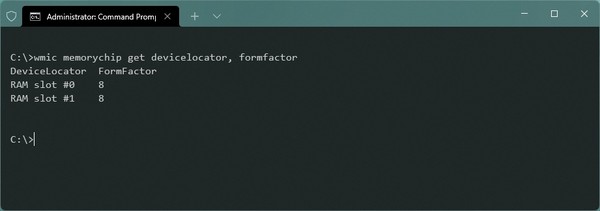
4. Confirm the form factor in the column “FormFactor”.
If the output is 8, the computer uses a DIMM module (usually available on desktop computers). Conversely, if the output is 12, the device uses a SODIMM module (usually used on laptops).
Form factor supported
- 0: Unknown.
- first: Other.
- 2: SIP.
- 3: DIP.
- 4: ZIP.
- 5: SOJ
- 6: Proprietary.
- 7: SIMM.
- 8: DIMMs.
- 9: TSOP.
- ten: PGA.
- 11: RIMM.
- twelfth: SODIMM.
- 13: SRIMM.
- 14: SMD.
- 15: SSMP.
- 16: QFP.
- 17: TQFP.
- 18: SOIC.
- 19: LCC.
- 20: PLCC.
- 21: BGA.
- 22: FPBGA.
- 23: LGA.
- 24: FB-DIMM.
Check out the full specs
You can use the commands above to find specific information about RAM. However, you can also view all RAM specifications with a single command on Windows 11.
1. Open Start.
2. Search for Command Prompt, right-click on the top result and select the option Run as administrator.
3. Type the following command to see all the details of the RAM and press Enter:
wmic memorychip list full
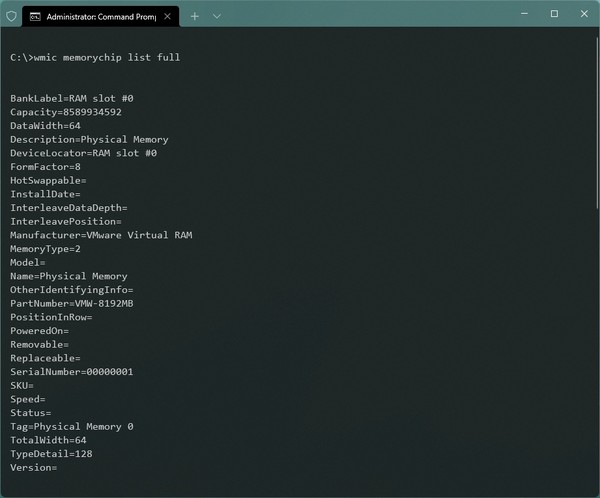
4. Confirm the specifications for each RAM stick available on the device.
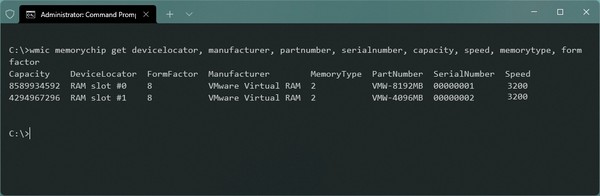
5. (Optional) Type the following command to view only specific details and press Enter:
wmic memorychip get devicelocator, manufacturer, partnumber, serialnumber, capacity, speed, memorytype, formfactor
In addition, you can also see 7 more ways to free up RAM on your computer here.







