

When buying a new computer or reinstalling the operating system, the most common question is which one to choose Win 11 Home or Win 11 Proand whether to continue using it Windows 10 Pro or upgrade to Windows 11. This article helps you check which version your device is compatible with, compare in detail each version in terms of features, security, configuration, and instructions to activate copyrighted Windows 10 Pro step by step, with how to handle common errors.
📢 Join the channel Telegram belong to AnonyViet
Update new articles, cool tools and IT tips fastest
Quick check: Is your computer compatible with Win 11 Pro or Windows 10 Pro?

Before buying a key, take 2 minutes to check the device. Windows 11 Pro more demanding hardware requirements Windows 10 Pro copyright. If your computer fails and still has Win 11 installed, you may not be able to install it, not receive updates, or your computer may not run smoothly. Checking first helps you choose the right version and not buy the wrong key.
Method 1: Use Microsoft’s PC Health Check (fastest)
- Load PC Health Check from Microsoft’s official site.
- Install and open the application.
- Press Check now in the “Introducing Windows 11” section.
- Read the results:
- “This PC meets Windows 11 requirements”: the machine works well Windows 11 Pro.
- “This PC doesn’t currently meet Windows 11 system requirements”: press See all results to see what the machine lacks (TPM, Secure Boot, CPU…).
Method 2: Check each criterion yourself (no need to install software)
| Criteria | How to check | Meets Windows 11 Pro requirements |
|---|---|---|
| TPM 2.0 | Press Windows + Rtype tpm.msc, Enter | Specification Version presently 2.0 |
| Secure Boot | Press Windows + Rtype msinfo32, Enter | Secure Boot State = On |
| UEFI | In msinfo32 | BIOS Mode = UEFI (not Legacy) |
| CPU | In msinfo32 see Processor | Intel Core 8th generation or higher, AMD Ryzen 2000 or higher |
| RAM | In msinfo32 see Installed Physical Memory | From 4GB (should be 8GB or more) |
| Hard drive | Open This PC | There are blank words 64GB |
| Architecture | Settings > System > About | System type = 64-bit |
Tip: If tpm.msc says “Compatible TPM cannot be found” or Secure Boot is running Offmany newer machines still have TPM (Intel PTT, AMD fTPM) but are turn off in BIOS. You just need to go into the BIOS and pop it up to meet the requirements, no need to upgrade the hardware.
Not sure of the results? Send a screenshot of msinfo32 to the ApexK3 support team via Zalo 0946.645.803 to get advice on the appropriate version before purchasing.
What is Win 11 Pro? What is Windows 10 Pro?
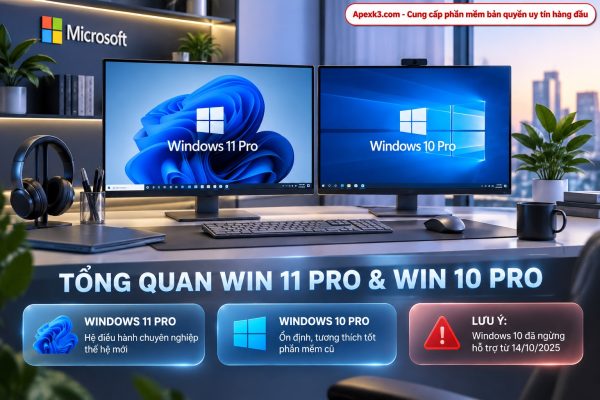
Windows 11 Pro (Windows 11 Professional) is the version of Windows 11 for professional users, freelancers, offices and small businesses. In addition to the features of the Home version, Win 11 Pro adds an advanced set of security, administration and virtualization tools.
Windows 10 Pro is the Professional version of Windows 10, launched in 2015. This used to be the most popular operating system on office computers in Vietnam thanks to its lightweight performance and good compatibility with old software. However, Microsoft has ended support for Windows 10 since October 14, 2025.
How are Win 11 Home and Pro different?
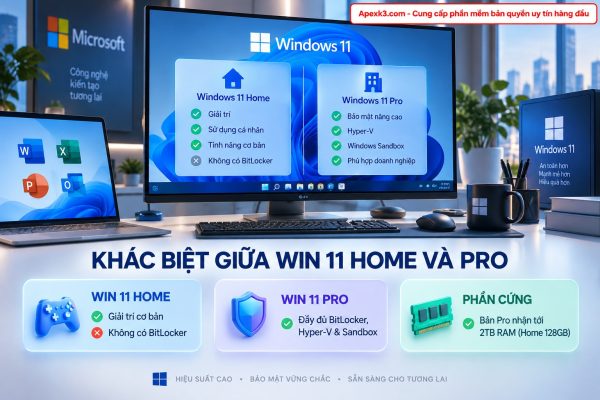
Win 11 Home and Win 11 Pro have it same interface, same configuration requirements and the same basic features. The difference lies in the group of security features, administration, virtualization and hardware limitations.
Comparison table of Win 11 Home and Win 11 Pro
| Features | Windows 11 Home | Windows 11 Pro |
|---|---|---|
| Object | Individuals, families, students | Office workers, IT, businesses, freelancers |
| Interface, Snap Layouts, virtual desktop | Have | Have |
| Windows Hello, Microsoft Store, Copilot | Have | Have |
| Device Encryption | Yes (basic) | Have |
| BitLocker and BitLocker To Go | Are not | Have |
| Remote Desktop | Just connect | Outgoing connections and receiving incoming connections |
| Hyper-V | Are not | Have |
| Windows Sandbox | Are not | Have |
| Group Policy (gpedit.msc) | Are not | Have |
| Domain Join, Azure AD / Entra ID | Are not | Have |
| Windows Update for Business | Are not | Have |
| Assigned Access (Kiosk mode) | Are not | Have |
| Create a local account during installation | Difficult (Microsoft account required) | Easier |
| Maximum RAM | 128GB | 2TB |
| Maximum number of physical CPUs | 1 | 2 |
Features only available on Win 11 Pro
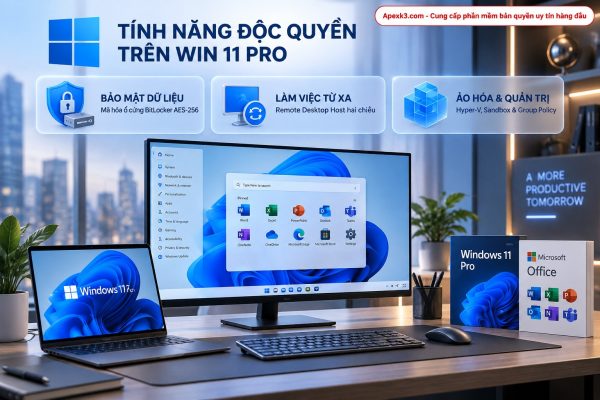
BitLocker – Comprehensive hard drive encryption
Win 11 Pro allows encryption of entire drive partitions (C:, D:, E:…) and USB, external hard drives via BitLocker To Go with AES 128/256-bit standard. If the laptop is lost or the hard drive is removed to another computer, the data remains unreadable without the password or recovery key. The Home version only has basic device encryption, with little customization and hardware dependency.
Remote Desktop Host – Control the computer remotely
The Home version can only connect to other devices. Win 11 Pro enables your device receive connection remotely via RDP protocol. This feature is essential for work-from-home (WFH) people who want to access their company computer without the need for third-party software.
Hyper-V – Hardware level virtualization
Hyper-V helps create virtual machines running Linux, Ubuntu, Windows Server or another version of Windows right on the current machine. Suitable for programmers, IT students and people who need to test the system.
Windows Sandbox – Safe testing environment
Sandbox creates a temporary version of Windows, completely isolated from the main computer. You may open strange .exe files or suspicious links within them; When you close the window, all data and viruses inside are deleted.
Group Policy – In-depth system administration
Group Policy Editor allows setting security policies, limiting user rights, blocking software installation, delaying updates… This is a familiar tool for IT administrators.
Domain Join and Azure AD
Win 11 Pro can join the business’s Active Directory or Microsoft Entra ID (Azure AD) system, helping the IT department centrally manage accounts and devices.
Supports more powerful hardware
Win 11 Home is limited to 128GB of RAM and 1 physical CPU. Win 11 Pro supports up to 2TB of RAM and 2 CPUs, suitable for 3D rendering workstations, movie editing, and running multiple virtual machines at the same time.
Should I choose Win 11 Home or Win 11 Pro?
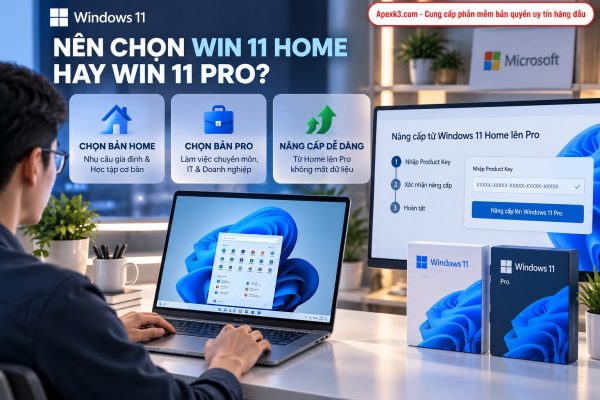
- Select Windows 11 Home If you just study, entertain, play games, do basic office work.
- Choose Windows 11 Pro If you need to secure data with BitLocker, work remotely, run virtual machines, use the machine for professional or business work.
You can too Upgrade from Win 11 Home to Win 11 Pro Without reinstalling the device, just enter the license Pro key (see instructions in the activation section).
How is Windows 10 Pro different from Windows 11?
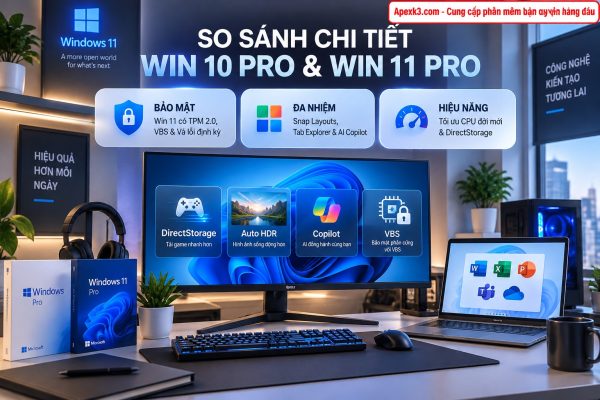
Win 11 Pro retains all advanced features of Windows 10 Pro such as BitLocker, Remote Desktop, Hyper-V, Sandbox, Group Policy. The difference lies in configuration requirements, security, interface, performance and support time.
Comparison table of Windows 10 Pro and Win 11 Pro
| Criteria | Windows 10 Pro | Windows 11 Pro |
|---|---|---|
| Launch year | 2015 | 2021 |
| Security support | Ended October 14, 2025 | Currently supported |
| CPU | 1 GHz | 1 GHz, 64-bit, 2 cores (8th generation Intel Core, AMD Ryzen 2000 or higher) |
| Minimum RAM | 1GB (32-bit) / 2GB (64-bit) | 4GB |
| Minimum hard drive | 32GB | 64GB |
| 32-bit version | Have | No, only 64-bit |
| TPM 2.0 and Secure Boot | Optional | Obligatory |
| Taskbar, Start menu | Left aligned, with Live Tiles | Centered, minimalist |
| Snap Layouts, Snap Groups | Are not | Have |
| File Explorer tab format | Are not | Have |
| Copilot (AI assistant) | Are not | Have |
| Phone Link | Limit | More complete |
| DirectStorage, Auto HDR (game) | Limit | Have |
Differences in security
This is the most important difference. Windows 11 Pro Requires TPM 2.0 chip and UEFI Secure Boothelps block malicious code from interfering right from the start. The operating system also has built-in protection layers such as Virtualization-Based Security (VBS), Kernel DMA Protection and optimize Windows Hello.
Meanwhile, Windows 10 Pro no longer receives regular security patches after the end of support date. Newly discovered vulnerabilities will not be patched, making machines more vulnerable to attacks over time.
Differences in interface and multitasking
Win 11 Pro has a rounded interface, centered Taskbar (can be moved to the left), neat Start menu. Multitasking features have been significantly upgraded:
- Snap Layouts: hover over the zoom button to select a split-screen layout.
- Snap Groups: remembers the group of windows that are open together.
- File Explorer has tabs: Open multiple folders in one window.
- Focus Sessions: Set focus timer, turn off notifications.
Windows 10 Pro keeps a familiar interface, suitable for people who do not want to change their usage habits.
Differences in performance and gaming
Win 11 Pro is better optimized for newer CPUs with performance cores and economy cores (Intel generation 12 and above) thanks to the Thread Director scheduler. Gamers enjoy DirectStorage (load games faster from NVMe SSD) and Auto HDR. On the contrary, on older machines with weak configurations, Windows 10 Pro often runs lighter.
Should I use Windows 10 Pro or upgrade to Win 11 Pro?
Let’s rely on the results in section Quick check top of article:
- The machine meets the requirements → upgrade Windows 11 Pro to receive permanent security updates.
- The device does not meet the requirements or the software does not support Win 11 → continue using Windows 10 Pro.
If the machine is qualified, Valid Windows 10 Pro license can be upgraded to Win 11 Pro for free on the same device via Windows Update.
Is activating Windows 11 Pro different from Windows 10 Pro?
The process is almost the same, only the menu location is different:
- Press Windows + I > System > Activation.
- At section Upgrade your edition of Windowsselect Change product key > Change.
- Enter Win 11 Pro key, press Next > Activate.
The CMD commands slmgr /ipk, slmgr /ato, slmgr /xpr and the Home to Pro conversion key can be used for both Windows 10 Pro and Win 11 Pro.
Where to buy reputable licensed Win 11 Pro and Windows 10 Pro keys?
When buying a key, ask the seller clearly: What type of key, what is the warranty when reinstalling the device, is there activation support?. Avoid keys that cost tens of thousands because the Volume keys are often sold retail and can easily be locked by Microsoft after a few months.
In ApexK3.com:
- Genuine Microsoft Win 11 Pro and Windows 10 Pro KeyDigital License permanently included with the device.
- Price only 250,000 VNDreinstalling Windows, replacing SSD, increasing RAM still activates automatically when online.
- Key delivery automatically via email within 5 minutesoperates 24/7.
- Lifetime 1-for-1 warranty for the machine.
- Consulting on choosing version and free activation support via Zalo 0946.645.803 and UltraViewer.
Frequently asked questions
How do I know if my computer can upgrade to Win 11 Pro?
Use Microsoft’s PC Health Check application, or check TPM 2.0 yourself with tpm.msc and Secure Boot with msinfo32 as instructed at the beginning of the article.
Can a device without TPM 2.0 install Win 11 Pro?
It is possible to install by circumventing the requirements, but Microsoft does not recommend it because the device may not receive updates and is less stable. In this case, you should use Windows 10 Pro.
Is Win 11 Pro heavier than Win 11 Home?
Are not. The two versions have the same configuration requirements and equivalent performance. Pro features only run when you turn them on.
Can Windows 10 Pro key activate Windows 11 Pro?
Have. A valid Windows 10 Pro key can usually activate Windows 11 Pro on the same device.
Can I still use Windows 10 Pro if support is no longer available?
Can still be used normally, but without receiving new security patches, the risk of being attacked gradually increases over time.
Will upgrading Windows 10 Pro to Win 11 Pro lose data?
No, if upgrading via Windows Update or Installation Assistant. However, you should still back up important data first.
Is it possible to downgrade from Win 11 Pro to Windows 10 Pro?
Okay. Within 10 days after the upgrade, go to Settings > System > Recovery > Go back. After 10 days, you need to reinstall Windows 10 Pro cleanly.
Does Win 11 Pro have a 32-bit version?
Are not. Win 11 Pro only has 64-bit version. If your device can only run 32-bit, you need to use Windows 10 Pro.






