How to turn off FaceTime on iPhone and iPad It’s actually very easy, but not everyone is tech-savvy enough to figure it out on their own. Sometimes you just want a little quiet or give the phone to your children to play without fear of them making the wrong call. Therefore, disabling this feature is extremely necessary. Let’s go together AnonyViet Let’s explore the steps in detail.
📢 Join the channel Telegram belong to AnonyViet
Update new articles, cool tools and IT tips fastest
Why is it necessary to learn how to turn off FaceTime on iPhone and iPad?
Surely anyone who uses Apple products knows this extremely famous exclusive video calling service. It’s really good, but it doesn’t always bring comfort to the user. Sometimes when I’m busy, someone keeps making video calls and it annoys me. Or let’s say you buy an old phone to set it up specifically for your children to watch cartoons, for example. You definitely don’t want your kids to accidentally press the wrong button and make a phone call to disrupt your boss or colleagues, right?
Therefore, proactively disabling this application is an extremely wise decision. Thanks to that, your phone will become much simpler and neater. Actually the shortcut FaceTime above iPhone and the iPad is not as complicated as many people think. You don’t need to download additional third-party software or intervene deeply in the system at all. Everything is available in the device’s factory settings.
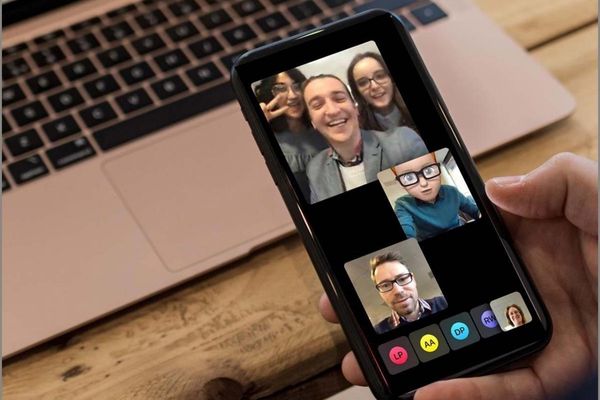
Instructions on how to turn off FaceTime on iPhone and iPad
To thoroughly clean this video calling application out of sight, just do it slowly by following the steps below. Surely everyone can do it.
Step 1: First, pick up the device and open it Settings.
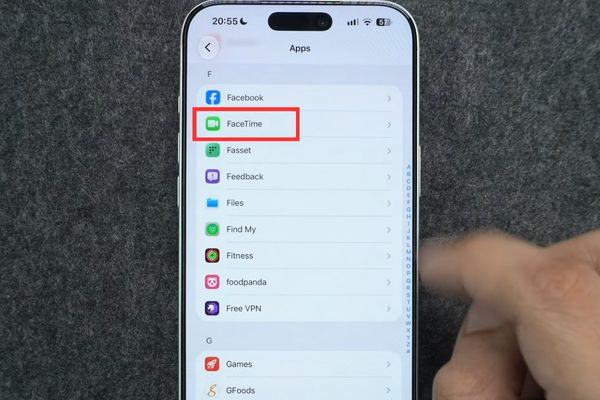
Step 2: Next, just swipe the screen slowly down then find and click on the item Apps.
Step 3: Take the time to browse and find the section with the name FaceTime.
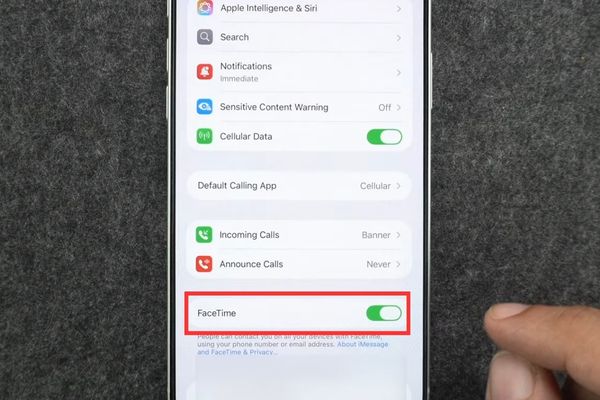
Step 4: To completely disable it, just flip the switch to the status turn off that’s it.
After applying this method to turn off FaceTime on iPhone and iPad, from now on no one will be able to make video calls to bother you anymore. It feels really peaceful!
How to completely disconnect an Apple account
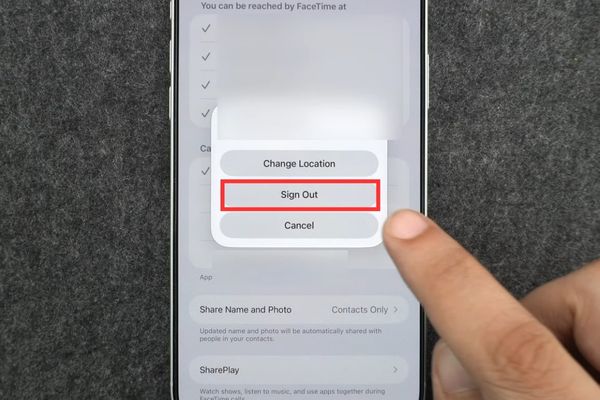
If you are a meticulous person and want to completely stop using this service, simply flipping the off switch is not enough. We need to log out of our Apple account from its system.
Step 1: Still in the settings screen of this application, look down below the caller ID section.
Step 2: You will see your Apple account email address sitting there. Please click directly on it.
Step 3: A small menu board will pop up and you just need to choose Sign Out (Sign out) is complete.
If you skip this step, the account will still be saved underground. Therefore, this sign out step is extremely suitable for those who want maximum information security. Many people think that turning off FaceTime on iPhone and iPad will affect the device, but in reality, the device still operates smoothly and normally, no problem.
How to remove FaceTime phone number or email
There is an interesting case where you still want to use this application to call your relatives but you hate having strangers dial your main phone number. Don’t worry because Apple allows us to customize this:
Step 1: Look for the place where the text is You can be reached by FaceTime at.
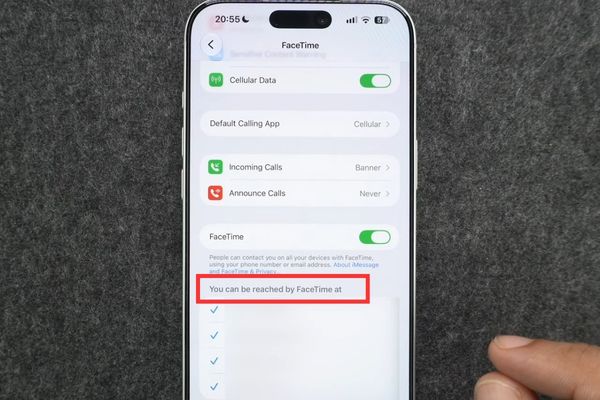
Step 2: Right below that line, the system will list all of your phone numbers and emails.
Step 3: You just need to tap on the phone number or email you no longer want to use to receive calls.
Step 4: When you see the green tick next to it disappear, it means you have successfully blocked that address.
Thanks to that, you can both retain excellent communication tools and filter out unnecessary problems. Too convenient, right!
Conclusion
Hopefully through this article you have understood clearly How to turn off FaceTime on iPhone and iPad to apply it to your device. Sometimes removing an unused application helps us feel a lot more comfortable. If you find it useful, don’t forget to share this tip with your friends.
Frequently Asked Questions (Q&A)
1. If I turn this feature off, can I make normal phone calls?
Okay. This only disables Apple’s video calling service, but regular mobile network calls using the SIM card still work normally.
2. Can I reopen the app after shutting it down?
Absolutely. You just need to go back to the old path in the settings and flip the switch to use it again immediately.
3. Will logging out of my Apple account from this service lose my device data?
Not at all. It only disconnects your account from this video calling application, so the images or contacts on your device are still absolutely safe.