TruyenDrive is the key to help you completely change your photo viewing habit on Google Drive into a professional story reading experience. Instead of having to manually click each image, this tool will automate all operations smoothly and intuitively. Let’s explore with AnonyViet immediately how to set up this utility.
📢 Join the channel Telegram belong to AnonyViet
Update new articles, cool tools and IT tips fastest
Overview of TruyenDrive and outstanding features
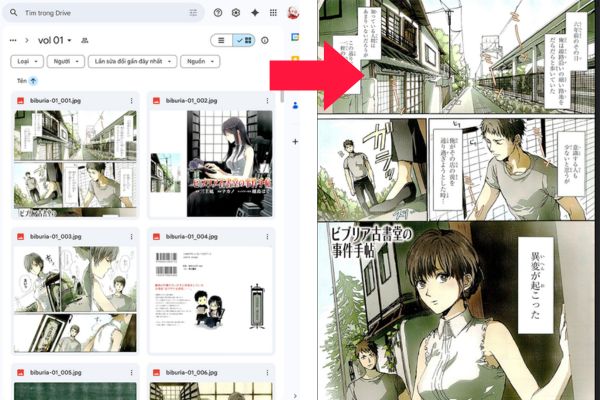
TruyenDrive is a potential project of the author Zennomiwas born with the purpose of removing barriers to the default photo viewing interface Google Drive. Normally, when storing comics in the cloud, users have to deal with opening each file one by one, which is time-consuming and lacks a seamless feeling. With this utility, the entire folder structure will be transformed into a modern story viewer, supporting rich reading modes.
Below is a table comparing the experience between viewing regular photos and using the utility:
| Features | Traditional Google Drive | Use TruyenDrive |
| Turn pages | Handcraft each photo | Automatically, using keyboard shortcuts/clicks |
| Chapter structure | Open each separate folder | Automatically identify and catalog |
| Experience | View single photos | Professional story reading interface |
| Save location | Do not have | Automatically save pages and chapters being read |
| Download photos | Slow, network dependent | Support preload (preload) |
When using TruyenDrive, you will notice a clear change thanks to the ability to automatically analyze folder structure. Whether you save the file as JPG, PNG or WEBPthis tool all processes smoothly. In particular, it supports reading modes from left to right (LTR), right to left (RTL) or vertical scrolling (TTB), meeting the needs of all manga readers from classic to modern.
Instructions for installing TruyenDrive on the browser
To get started, you need a userscript manager on your browser. The most popular and powerful today is Tampermonkey.
Step 1: Install extensions Tampermonkey from the online store that corresponds to the browser you are using (Chrome, Edge or Firefox).
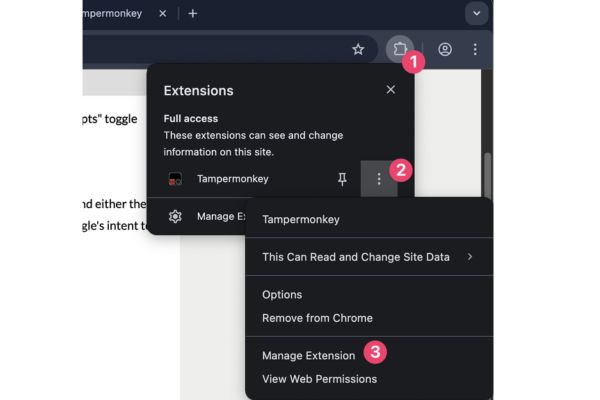
Step 2: Once installed, check Tampermonkey’s icon. If there is a red X, go to section Manage Extensions.
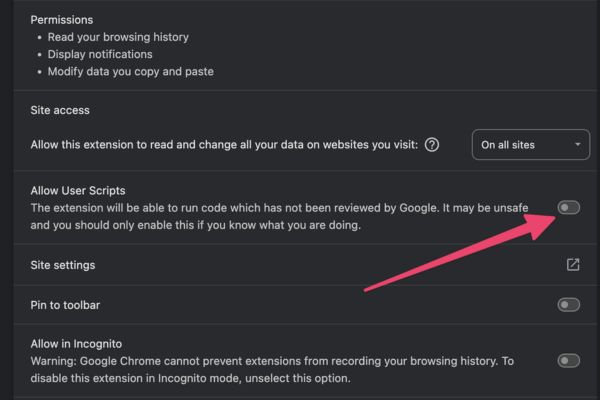
Then enable permission to run userscript (Allow User Scripts).
Step 3: Access the link containing the script’s installation file on GitHub HERE. The browser will automatically capture the link and display a confirmation window.
Step 4: Press the button Install to complete the integration.
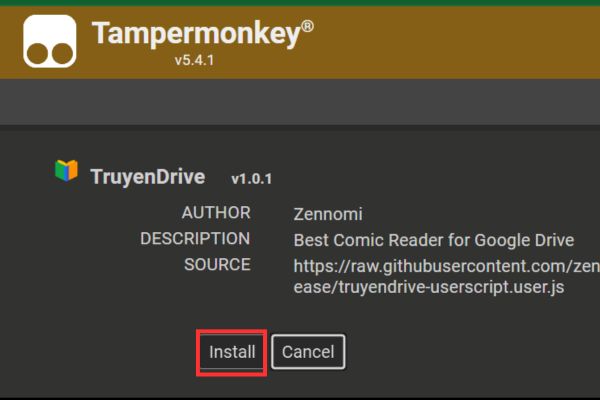
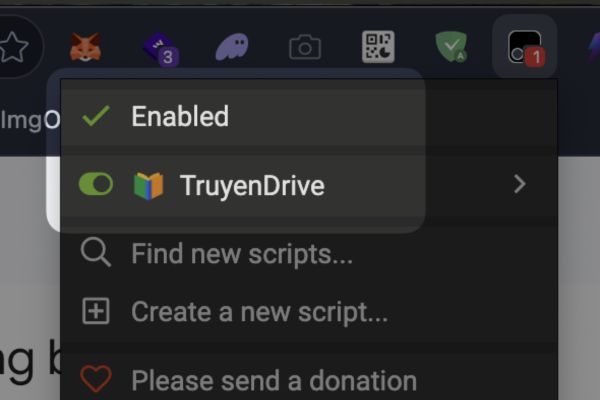
Step 5: Open your Google Drive page again, click on the Tampermonkey icon to check if the script has been activated. If successful, you will see the button “TruyenDrive” appears in the lower right corner of the screen.
Instructions for using TruyenDrive for newbies
Getting acquainted with TruyenDrive is very simple thanks to the friendly interface. Once installed, you just need to do the following to enjoy your comic collection.
Step 1: Access any Google Drive folder that contains story pages or
subfolders (chapters). This is link 1 story which you can test.
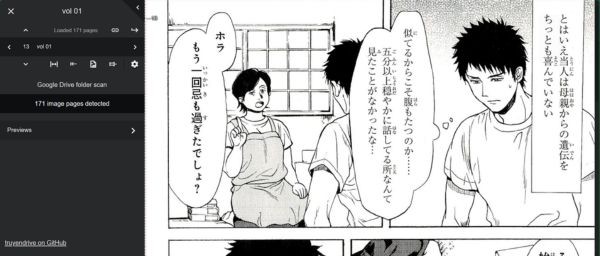
Step 2: Click the button “TruyenDrive” in the bottom right corner of the screen to open the story reader.

Step 3: In case the folder has a complex structure including images and subfolders, the system will display a suggestion dialog box for you to choose the desired reading mode.
Step 4: Use the arrow keys or click on the left/right edge of the screen to switch pages. To open the custom toolbar, click in the middle of the screen.
Step 5: Take advantage of the toolbar to adjust display mode, zoom in or change chapters. All information about the chapter and page you are reading will automatically be saved to the URL, making it easy to return to the correct location after closing the browser.
With TruyenDrive, scientific folder management such as division by chapter (each subfolder is a chapter) will bring the most optimal experience for users.
Conclusion
TruyenDrive Definitely an indispensable tool if you are a fan of storing and reading manga on the Google Drive platform. Your story reading experience will become smoother and more professional than ever thanks to smart features. Wishing you wonderful moments of relaxation with good stories.
Frequently Asked Questions (Q&A)
1. Does TruyenDrive change the original file on Google Drive?
No, the utility only reads data and displays the image viewing interface, does not change or delete any files in your folder.
2. Can I use the tool on my phone?
Currently, the utility is mainly supported on computers through the browser. Mobile versions are in development.
3. How to share a specific story chapter with others?
You just need to copy the link containing the parameter Truyendrive-chap=[id] created from the story reading interface and sent to the recipient.