How to turn off YouTube Shorts on iPhone helps you focus more on quality long-form content instead of getting caught up in the short video loop. This is a small tip but extremely effective for iOS users. Let’s learn how to set up with AnonyViet right below.
📢 Join the channel Telegram belong to AnonyViet
Update new articles, cool tools and IT tips fastest
Instructions on how to turn off YouTube Shorts on iPhone
Job YouTube Continuously promoting short videos has made many users feel uncomfortable because the content is disturbed. Although there is no complete shutdown button yet, YouTube’s new time management feature has opened up a new direction.
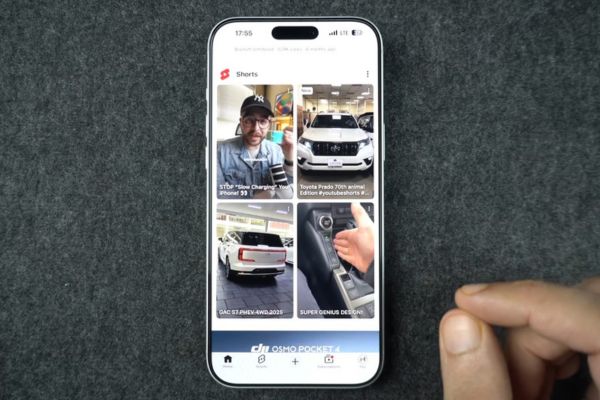
To get started, make sure that the YouTube app on iPhone has been updated to the latest version from the App Store. Then, follow the detailed instructions below:
Step 1: Open the YouTube app, then click on the “You” (You) is in the bottom right corner of the screen.
Step 2: At the personal page interface, click on the icon installation gear in the top right corner.
Step 3: In the list of options, find and select the item Time Management.
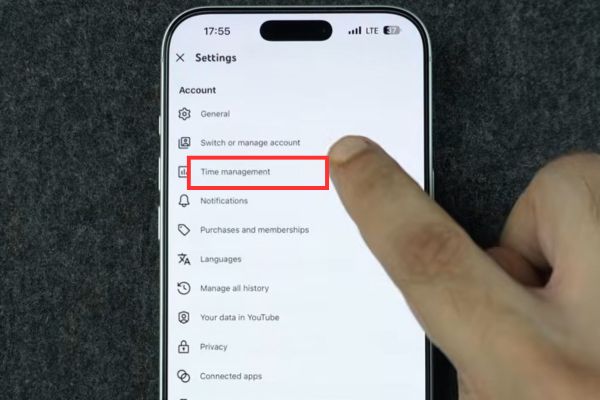
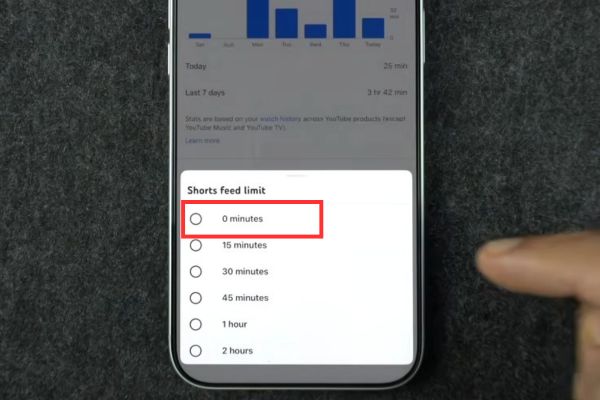
Step 4: You turn on the switch at item Shorts Feed Limit. A menu will appear, here you select the level “0 minutes” to block the display of Shorts on the homepage.
Step 5: Finally, you return to the tab Home and pull down to refresh. At this point, Shorts videos will no longer appear on your homepage.
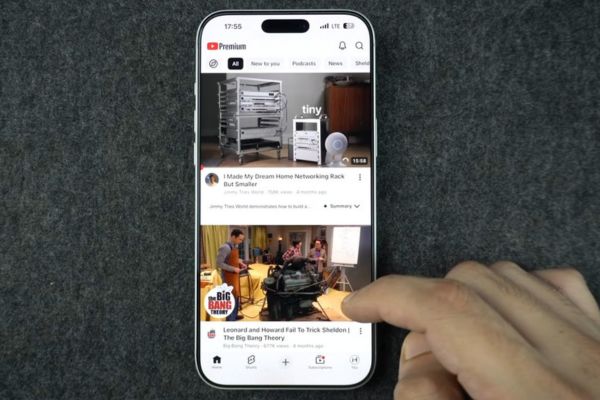
Compare experience before and after application
To give you a clearer view of the effectiveness of this method, let’s look at the comparison table below:
| Characteristic | Before setup | After setup |
| Home page | Contains many Shorts videos | No more Shorts videos |
| Shorts tab | Operating normally | Limited time |
| Experience | Easily distracted | Focus on long videos |
Important notes
It should be noted that this is a feature that YouTube rolls out in batches, so if you don’t see the “0 minutes” option yet, please wait patiently or check for app updates regularly.
Although the Shorts tab in the navigation bar still exists, when clicked, the system will notify you that you have reached the time limit. Here’s the shortcut YouTube Shorts on iPhone is “soft”, helping you practice the habit of watching videos more selectively.
Conclusion
Hopefully, with this guide on how to turn off YouTube Shorts on iPhone, you can confidently master your application interface. Limiting short videos will help you have more quality and focused entertainment moments. Wishing you success and great experiences.
Frequently Asked Questions (Q&A)
1. Does turning off YouTube Shorts on iPhone cause the Shorts tab to be lost?
No, the Shorts tab still exists in the navigation bar but will have limited viewing time, preventing you from continuously surfing the video.
2. Why don’t I see the 0 minutes option in settings?
This feature is being gradually updated by YouTube for global users. If you don’t see it yet, please update the application to the latest version or wait a few more days.
3. Can I completely turn off Shorts on YouTube?
Currently YouTube does not provide the option to turn it off completely, the above method is the most optimal way to hide Shorts from your homepage.