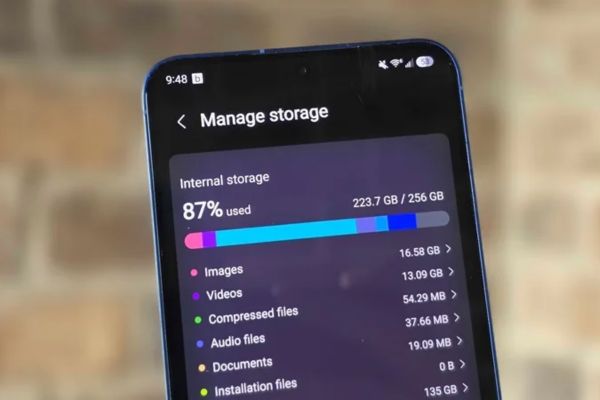
How to compress online videos for free is a great solution to help you reduce file size without installing complicated software. Reducing the capacity will help the process of emailing or sharing online become smoother than ever. Let’s go together AnonyViet Explore these methods in detail below!
📢 Join the channel Telegram belong to AnonyViet
Update new articles, cool tools and IT tips fastest
Reduce video size with available tools
Below are 2 default methods that you can apply immediately without downloading any additional third-party software.
Method 1: Convert to zip archive
Store data in format ZIP is a basic method that helps you group and compress files right on Windows. By creating an archive (like ZIP or 7Zip), the size of the video will be partially reduced.
Step 1: To process multiple videos at the same time, put them all in one folder on your computer.
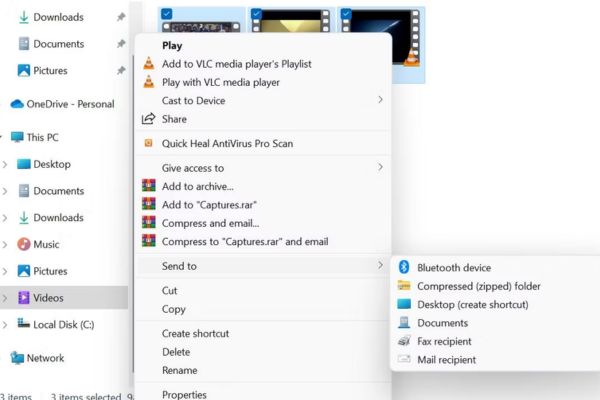
Step 2: Open the newly created folder, highlight all the videos that need to be processed. Then, right-click on any file and select the item Send to > Compressed (zipped) folder.
Step 3: The Windows operating system will automatically create a new archive file and place it right in the folder containing your original video.
This method is applicable to most standard file formats.
Important note: Putting videos into ZIP files usually does not bring about a very noticeable reduction in capacity. The reason is that today’s video files are inherently compressed at a very high level through codecs such as H.264 or HEVC. Therefore, compression to ZIP only supports shrinking by a very small percentage.
Method 2: Use the Video Editor application
On the Windows 11 operating system, there is a video editor called Video Editor, which provides many options for you to tweak and reduce file size.
Step 1: Click the icon Start menu, type search keyword “Video Editor” and open the app from the displayed results.
Step 2: Click to select item New video project. Here, you can name the video project to be compressed (or skip this naming step).

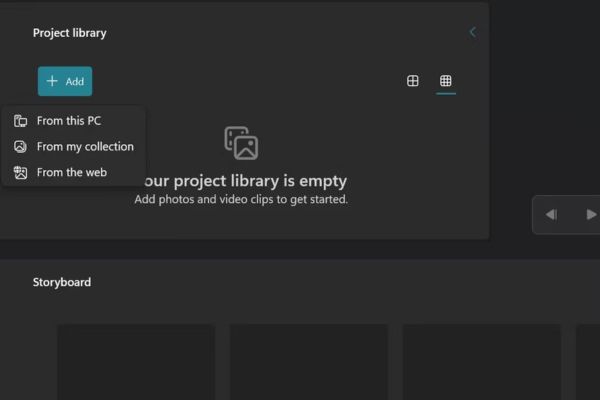
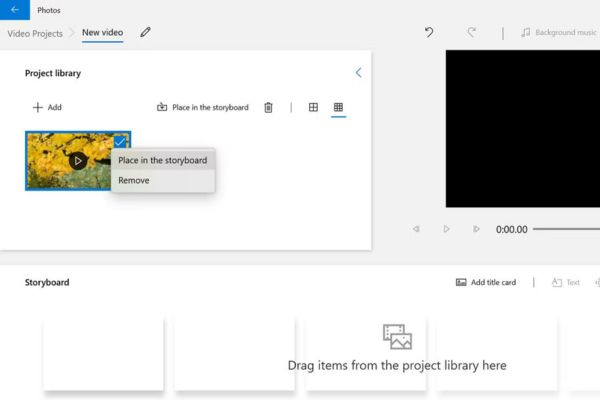
Step 3: Click the button + Add to upload the video you want to work on from your computer, gallery, or the web.
Step 4: Right click on the video you just added and select command Place in the storyboard to put the video in the progress bar (timeline).
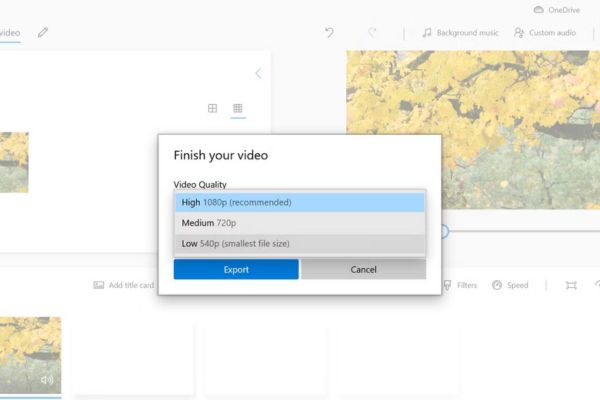
Step 5: Look at the top right corner of the screen, click the button Finish video.
Step 6: A drop-down menu titled Video Quality will appear. Please choose an appropriate resolution level to compress the file. The lower the resolution you choose, the smaller the output file size will be. Finally, press Export to complete.
It should be noted that this operation will directly impact image quality. If your goal is to reduce video quality in exchange for light storage, this is an extremely perfect tool. You should experiment a few times with different settings to find the best balance between capacity and sharpness.
3 free online video compression websites
Let’s take a look at the list of the top 3 websites today that help you optimize video size in just a few clicks without registering an account.
1. Youcompress
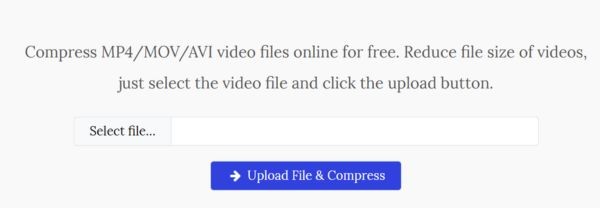
This is an extremely intuitive way to compress online videos, supporting popular formats such as MP4, MOV and AVI.
Step 1: Go to the website, click the button Select files to select a video from your device.
Step 2: Click select Upload File & Compress for the system to begin the process of shrinking capacity. Once completed, the screen will clearly display the new capacity level and the percentage that has been reduced.
Step 3: Press the button Download to save the new file to your computer.
2. XConvert
This website offers great flexibility as it allows you to get data from cloud storage platforms.
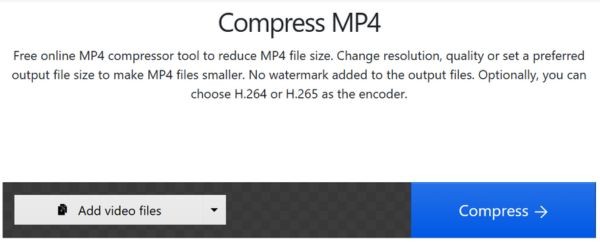
Step 1: Access XConvert, click Add File to upload videos (supports retrieving files from computer, Google Drive or Dropbox).
Step 2: Option to keep the original format or resize the video to your liking.
Step 3: Click Compress now for the system to process the file.
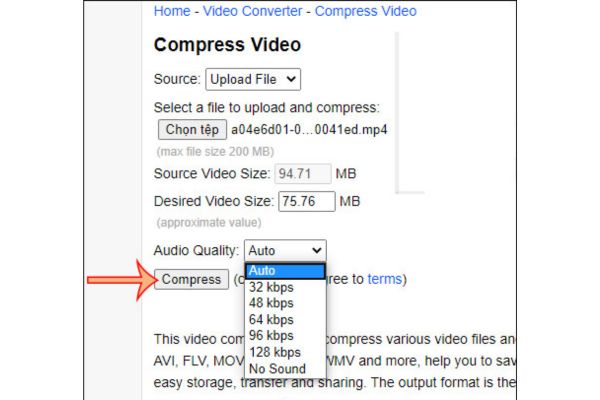
3. Online Converter
If you need a free way to compress online videos that support a variety of file extensions (MP4, AVI, FLV, MOV, 3GP, MKV, WMV,…) with maximum capacity up to 200MBthen this is the ideal choice.
Step 1: Upload the video from your computer’s hard drive or paste the video URL link directly into the blank box.
Step 2: Proceed to set parameters for output video after compression.
Step 3: Press the button Compress and wait for the results.
Frequently Asked Questions (Q&A)
1. Does compressing video into a ZIP file reduce the size much?
Trivial. Most video files today are already highly compressed using standards like H.264 or HEVC, so including a ZIP folder only provides a very small amount of additional compression.
2. Does reducing resolution using Video Editor on Windows blur the video?
Have. When you choose to export video at a lower resolution to reduce file size, the image quality and sharpness of the video will certainly be reduced.
3. Do online video compression sites limit upload capacity?
This depends on each website. For example, the Online Converter tool limits the maximum file upload size to 200MB, while other sites may have their own regulations.
Conclusion
Hopefully through this article, you have mastered it How to compress online videos for free as well as make good use of the features available on the computer. These tips will definitely help the process of sending files via email become smoother and faster. Don’t forget to share the article if you find this information useful.