The default font of Windows 10 is Segoe UI, which looks quite nice. However, if you are someone who does not like the classics but prefers other fonts and wants to replace the default font on the Windows 10 system, this article will be for you.
📢 Join the channel Telegram belong to AnonyViet
Update new articles, cool tools and IT tips fastest

How to change the default font using Registry
At the time of writing in March 2021, both Settings and Control Panel no longer have the option to change the system default font. Windows has blocked the above two, but I can still use the registry to change fonts on Windows 10.
And luckily this method is quite easy, all you need to do is create a registry hack file, add a new Font name and run that file to change the default font of Windows 10.
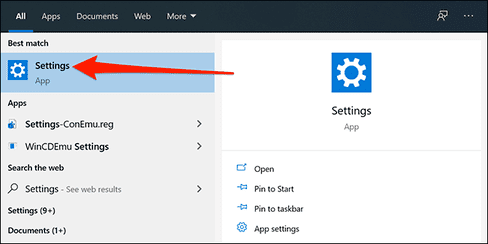
First, you need to know the exact name of the font you will set as the default font. Open Start Menusearch for keyword “Settings“, click on the first result. Or you can also use the keyboard shortcut Windows + I to quickly open the Settings window.
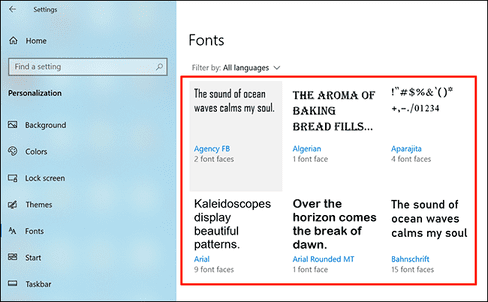
In Settings, select “Personalization“, then select “Font” on the left panel. Select the font you want to set as the default font for the system.
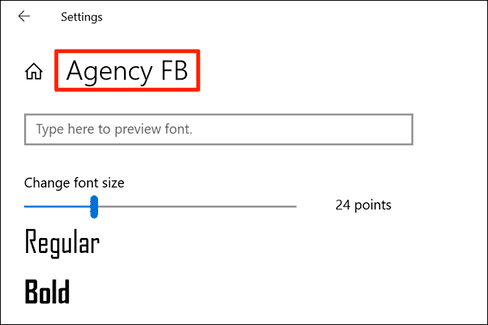
At the top of the screen, you will see the exact name of the font. Save the font name to use in the steps below.
Now, you need to create a registry hack to add this font to the Windows Registry. You can use text editors like Notepad to write registry hack scripts. If you don’t know how to create registry hack script then you can read this article okay.
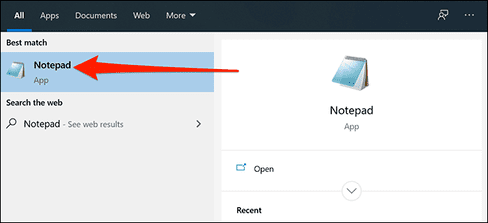
Press Start Menu, search for “notepad”, then select the first result.
Copy the following code and paste it into Notepad. Then, replace the word “NEW-FONT” with the name of the font you saved earlier. Remember to keep the quotation marks.
Windows Registry Editor Version 5.00

[HKEY_LOCAL_MACHINE\SOFTWARE\Microsoft\Windows NT\CurrentVersion\Fonts]
"Segoe UI (TrueType)"=""
"Segoe UI Bold (TrueType)"=""
"Segoe UI Bold Italic (TrueType)"=""
"Segoe UI Italic (TrueType)"=""
"Segoe UI Light (TrueType)"=""
"Segoe UI Semibold (TrueType)"=""
"Segoe UI Symbol (TrueType)"=""

[HKEY_LOCAL_MACHINE\SOFTWARE\Microsoft\Windows NT\CurrentVersion\FontSubstitutes]

"Segoe UI"="NEW-FONT"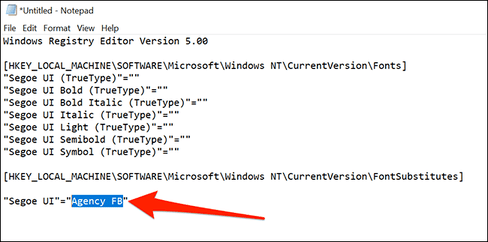
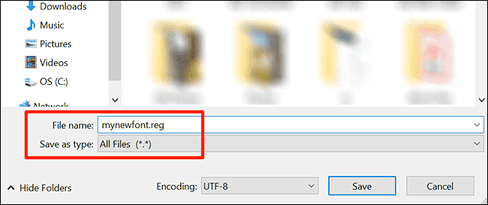
In Notepad, click File > Save As. Then, enter the file extension “.reg” in the “File name” section. For example, to save a file named “mynewfont”, you must enter “mynewfont.reg”. Select “All Files” in “Save as type”, choose a location to save your file and click “Save”.
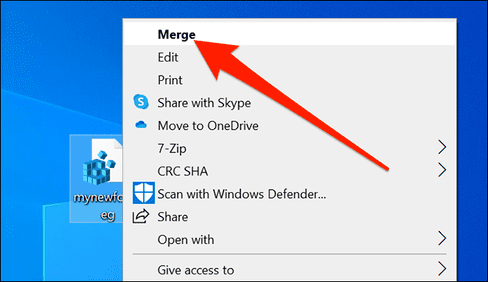
Open the folder where you saved the newly created Registry hack file. Right click on this file and select “Merge”. This will add the values in your file to the Windows Registry.
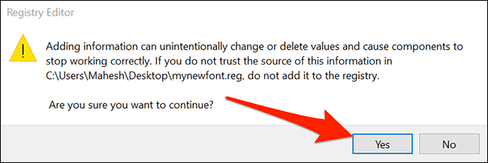
Click “Yes”, then click “Yes” again to add new values to the Windows Registry.
Finally, click Start menu, select the power icon and select “Restart” to restart the computer. This makes your changes effective.
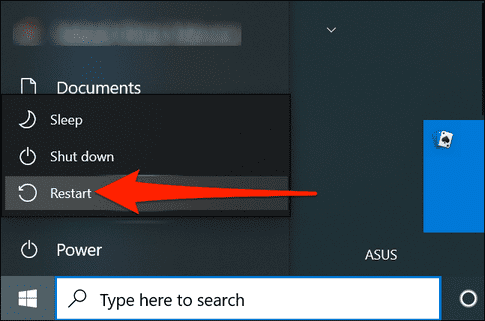
When your computer restarts, you’ll see that your chosen font is now the default font for nearly all control panels and tools on Windows.
To use another font as the default font, right-click on the file hack Registry and select “Edit” Replace your current font name with the new font name and click File > Save to save the file.
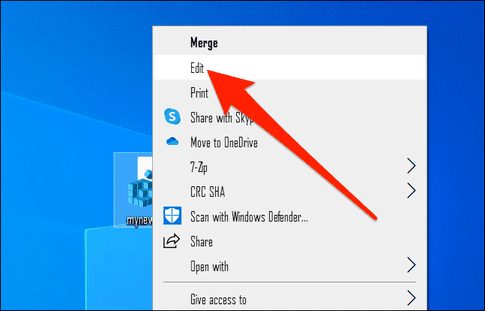
Then, right-click on your file and select “Merge”, next press “Yes” (twice) to change your default font.
How to return to the original default font on Windows 10
To reset your changes and use the original default font on your PC, simply create another Registry hack and enter the code below. Then just make a few clicks and you’re back to the default Windows font.
Open Notepad and copy the exact code below into Note pad.
Windows Registry Editor Version 5.00

[HKEY_LOCAL_MACHINE\SOFTWARE\Microsoft\Windows NT\CurrentVersion\Fonts]
"Segoe UI (TrueType)"="segoeui.ttf"
"Segoe UI Black (TrueType)"="seguibl.ttf"
"Segoe UI Black Italic (TrueType)"="seguibli.ttf"
"Segoe UI Bold (TrueType)"="segoeuib.ttf"
"Segoe UI Bold Italic (TrueType)"="segoeuiz.ttf"
"Segoe UI Emoji (TrueType)"="seguiemj.ttf"
"Segoe UI Historic (TrueType)"="seguihis.ttf"
"Segoe UI Italic (TrueType)"="segoeuii.ttf"
"Segoe UI Light (TrueType)"="segoeuil.ttf"
"Segoe UI Light Italic (TrueType)"="seguili.ttf"
"Segoe UI Semibold (TrueType)"="seguisb.ttf"
"Segoe UI Semibold Italic (TrueType)"="seguisbi.ttf"
"Segoe UI Semilight (TrueType)"="segoeuisl.ttf"
"Segoe UI Semilight Italic (TrueType)"="seguisli.ttf"
"Segoe UI Symbol (TrueType)"="seguisym.ttf"
"Segoe MDL2 Assets (TrueType)"="segmdl2.ttf"
"Segoe Print (TrueType)"="segoepr.ttf"
"Segoe Print Bold (TrueType)"="segoeprb.ttf"
"Segoe Script (TrueType)"="segoesc.ttf"
"Segoe Script Bold (TrueType)"="segoescb.ttf"

[HKEY_LOCAL_MACHINE\SOFTWARE\Microsoft\Windows NT\CurrentVersion\FontSubstitutes]

"Segoe UI"=-
Click File > Save As to save the new registry hack file.
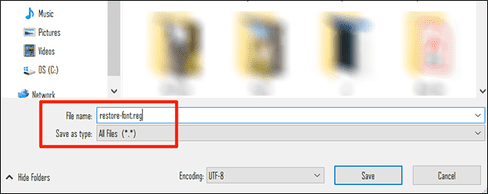
Right click on the newly created hack file and select “Merge”.
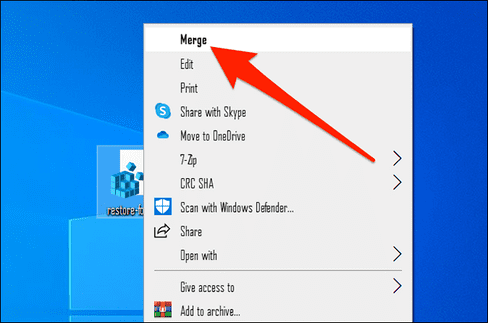
Click “Yes” twice to add the default font to the Registry.
Finally, restart your computer. Tada… your computer has returned to the default font. By the way, you can too Change the default font on the browser more.
Frequently asked questions
How can I change the default font of Windows 10?
Currently, Settings and Control Panel do not allow changing the default font. You need to create a .reg file (registry hack) with Notepad, containing the font replacement code, then run that file. Then restart the computer for the changes to take effect.
How to restore Windows 10 default font?
Create another .reg file with the default font restore script (Segoe UI) and run that file. Restart the computer to complete the process.
What should I keep in mind when changing the default font?
Please back up the .reg file before making changes. Note the exact font name you want to use to avoid errors. If you encounter problems, restore the default font according to the instructions.