Normally, each time you copy and paste, you can only do it once. If you continue to copy a second time, the data copied the first time will be overwritten. When pasting, you can only paste the data from the second copy. Currently, Windows 10 has a feature that allows copying and pasting multiple times without being overwritten thanks to the clipboard feature. To enable the multiple copy feature on Windows 10, do the following:
📢 Join the channel Telegram belong to AnonyViet
Update new articles, cool tools and IT tips fastest

To overcome these limitations of copying and pasting only once and to make the copy paste experience easier, starting with the October 2018 Update, Windows 10 introduces a clipboard to help manage text and images (up to 4MB) that you have copied. Additionally, you can also view and paste content from your clipboard history and even pin items that you copy and paste frequently so that when you restart your computer, the pinned content is still there.
For example, you have 2 paragraphs
- Paragraph 1: I am AnonyViet
- Paragraph 2: I have no name
Normally, you copy paragraph 1 and paste it into Word, then go back and copy paragraph 2 and paste it into Word, which is very time-consuming.
Now you just need to do the same, highlight paragraph 1 and press Ctrl + C, then continue to highlight paragraph 2 and press Ctrl + C.
Next press the key combination Windows + V to display the copy data saving frame and select the content to paste and you’re done.
Additionally, leveraging the same cloud technology to sync your Timeline content, your clipboard history is now syncable and accessible across all your devices.
So, in this article, I will guide you to set up and use the latest Windows 10 cache.
How to enable Clipboard Copy mode multiple times on Windows 10
Above Windows 10 version 1809you can enable the new clipboard using the Settings app and new keyboard shortcuts.
Turn on clipboard using Settings
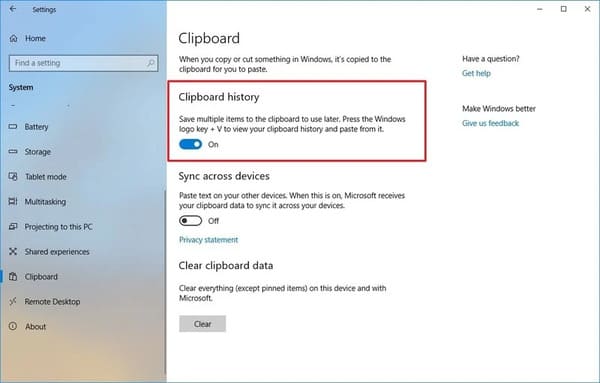
To enable clipboard in the Settings app, you need to follow these steps:
- Open Settings
- Click System
- Select Clipboard
- Turn on Clipboard history
Enable clipboard with keyboard shortcut
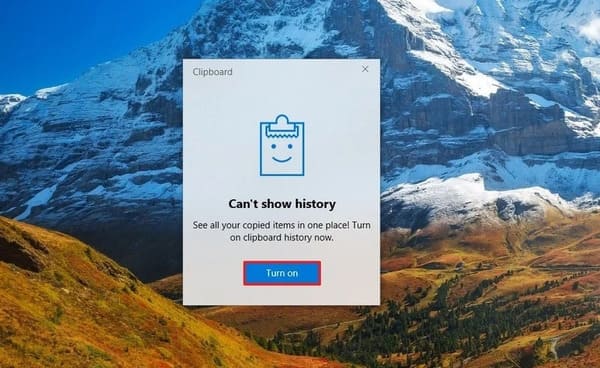
You can also turn on the clipboard with a keyboard shortcut:
- Press the shortcut Windows + V
- Click Turn on
Once you complete the steps, you can start using your new clipboard and manage many other settings.
Turn off cache on Windows 10
Establish Clipboard history is disabled by default, but you can check or disable it if the feature is enabled by following these steps:
- Open Settings
- Press System
- Select Clipboard
- Turn off Clipboard history
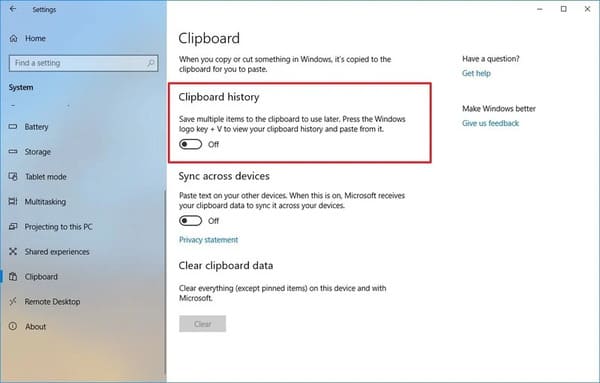
Once you have completed the above steps, the new clipboard will no longer be active, but it will not affect the functionality of the old clipboard.
How to synchronize clipboard history on Windows 10
Perhaps one of the coolest features of the new clipboard is the ability to paste text and images across your other devices. However, for security reasons, this is a feature that you must enable and configure manually using these steps:
- Open Settings
- Select System
- Select continue Clipboard
- Turn on the feature “Sync across devices”
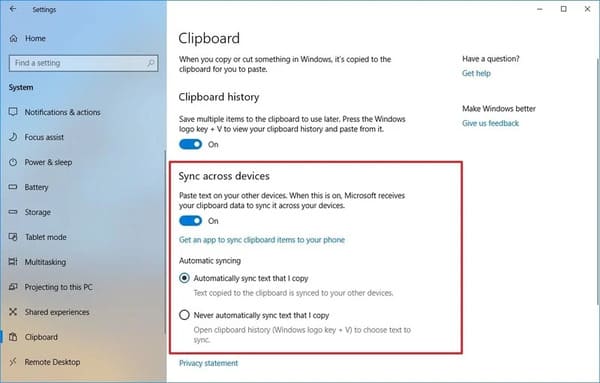
- Choose the automatic sync option you want to use:
-
- Automatically sync text that I copy: Your clipboard history syncs to the cloud and across your devices.
- Never automatically sync text that I copy: You must manually open your clipboard history and select the content you want to paste across devices.
After completing the steps above, your content history will sync to the cloud and across devices according to the settings you specified.
How to clear cache history on Windows 10
If you want to clear your clipboard’s history because you don’t want to use it anymore or it’s not working correctly and you want to reset the history to see if that fixes the problem, follow these steps:
- Open settings
- Select System
- Click Clipboard
- Below item “Clear clipboard data”press the Clear button.
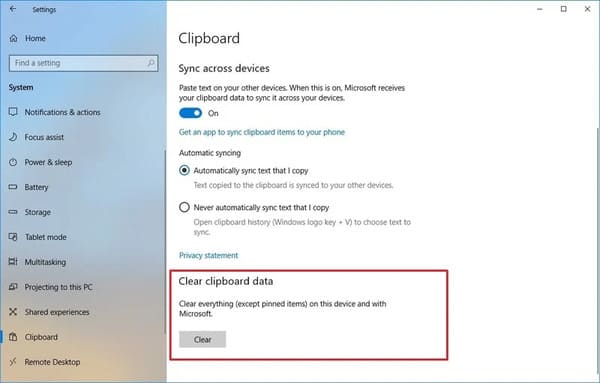
Once you’ve completed the steps above, the contents of your clipboard will be deleted from your device and Microsoft account, but pinned items will remain in your history until you delete them manually.
If you’re looking to delete one or two things, instead of deleting your entire history, you can open the Clipboard with Windows key + V and click the X button for each content you want to delete. Alternatively, you can also click the button Clear all in the history view to clear all clipboard content.
How to use clipboard Copy multiple times without overwriting data
Although the new clipboard introduces a new interface and some features, it’s not too difficult to use.
The new clipboard complements the old experience you already know. You can still use the keyboard shortcut Ctrl + C to copy and the keyboard shortcut Ctrl + V to paste. Same with the right-click menu.
However, you can now use keyboard shortcuts Windows + V to show clipboard history. In this new interface, you will find a list of items (such as text and images) that you have copied from different applications such as Microsoft Word, Snip & Sketch, OneNote, etc.
If you want to copy and paste content from the Clipboard history, follow these steps:
- Select text or image
- Right click and select Copy or Cut
- Open the application you want to paste
- Press Windows + V to open Clipboard history
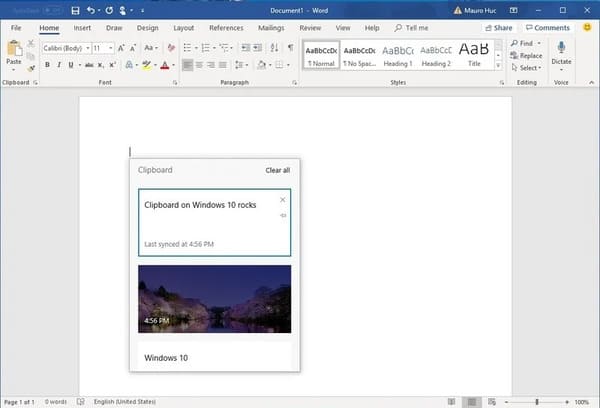
- Select the content you want to paste
You can also pin items that you frequently paste for quicker access.
- Press Windows + V to open Clipboard history
- Click the button Battery for the content you want

When you don’t need that content anymore, click the button again to unpin or button X to remove the pin from that content.
There are some obvious limitations to using clipboard history: anything you copy won’t appear in your history or sync across devices. For example, you can copy the name of a file, but copying a file to move it to another location will not appear in the Clipboard history.
Additionally, cloud clipboards support images, but only if you copy them in a document. You can’t copy an image file and expect it to appear in your Clipboard history or sync across devices.
Conclude
While the new clipboard experience can sync your history across devices, you can only access your history on computers running Windows 10 version 1809 or later or when using the same Microsoft account.
If you enable this feature, make sure you also understand the potential security risks. For example, if you are one of those people who often copies sensitive information (such as passwords, addresses, names, etc.), anything you copy to your clipboard will be stored as plain text, and anyone with access to your computer can view this information simply by using the Windows + V keyboard shortcut. Additionally, if you enable the sync option, you will also upload your history to Microsoft servers. If you want to completely disable Clipboard synchronization, you can read this article.
Frequently asked questions
How much content can I store in Clipboard history?
Clipboard history on Windows 10 stores text and images with a maximum capacity of 4MB.
How to enable/disable Clipboard history?
You can turn Clipboard history on/off by going to Settings > System > Clipboard and turning on/off the “Clipboard history” option. Or use the keyboard shortcut Windows + V and select “Turn on” or “Turn off”.
Can I sync Clipboard history between devices?
Yes, you can sync Clipboard history between devices by turning on the “Sync across devices” option in Settings > System > Clipboard. You can choose automatic or manual sync.