How to create drone footage using Flow AI is a new trend that helps you save money on buying expensive equipment. No need for complicated film editing skills or owning a bulky drone, you can still own impressive aerial footage. Let’s explore this interesting trick with AnonyViet right here.
📢 Join the channel Telegram belong to AnonyViet
Update new articles, cool tools and IT tips fastest
What is Google Flow and the power of AI in filmmaking
Artificial intelligence (AI) is invading every field, from content writing, art creation to filmmaking. Now, AI is so powerful that it can create entire movies, minimizing the need for a bulky film crew. Everything has gone further than our imagination, but at the same time, it has also opened up a world of limitless creativity.
In that context, Google introduced Flow in May 2025 through Google Labs. This is an AI filmmaking tool that uses powerful models like Veo, Imagen, and Gemini. Thanks to that, users can control camera movements, rotation angles and create cinematic scenes. One of the most interesting features is the way to create drone footage using Flow AI from a still photo, helping you solve the worry of not having a drone when traveling.
Compare real drone filming and using Google Flow
Before getting into the detailed instructions, let’s see the difference between using a real device and this AI technology:
| Criteria | Realistic Drone (Flycam) | Google Flow AI |
| Expense | Expensive (Device, batteries, accessories) | Free (Basic Plan) or much cheaper |
| Convenience | Bulky, need to carry and charge battery | Just need a computer/phone and internet |
| Skill | Need to learn to drive, risk of falling or losing signal | Just need to know how to enter commands (prompt) |
| Condition | Depends on weather and no-fly zones | Unlimited space and time |
| Quality | 100% authentic | Realistic simulation, depending on the original image |
As you can see, how to create the scene flycam with Flow AI brings outstanding convenience, especially in situations where you are “unable to help” because you forgot to bring the device.
Instructions on how to create drone footage using Flow AI
Prepare before implementation
- Account: You need a Google Flow account. When you log in for the first time, you will receive 100 free credits, enough to create about 5 videos.
- Image: Choose a sharp photo, preferably with only you as the subject with a background with few passersby so that the AI can best handle movement.
Steps to follow on Google Flow
To apply how to create flycam footage using Flow AI, follow this sequence:
Step 1: Visit the official website of Google Flow (in Google Labs) and sign in with your Google account.
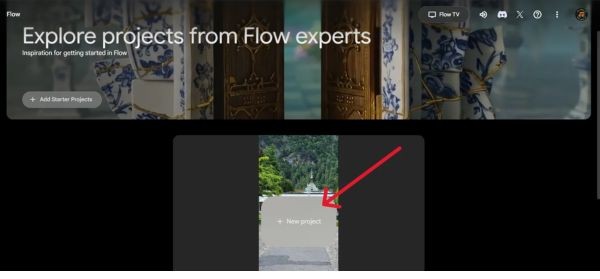
Step 2: At the main interface, click the button New Project to get started.
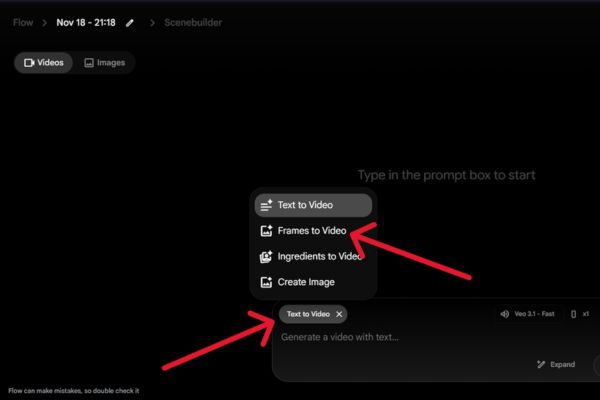
Step 3: In the input area, find and tap the button Text to Videothen select options Frames to Video. This mode allows AI to create videos based on existing frames instead of creating completely new ones.
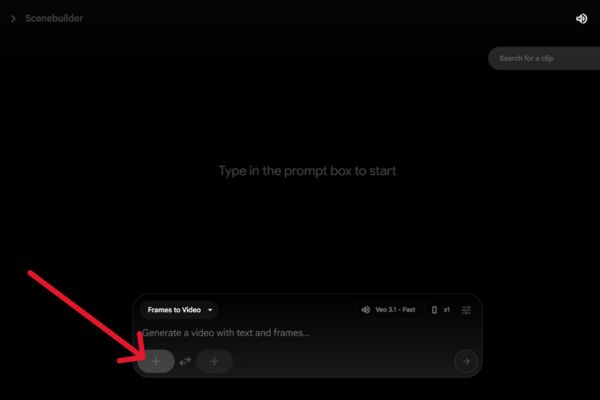
Step 4: Click on the icon Plus sign (+) on the left side and upload the photo you want to fake as drone footage.
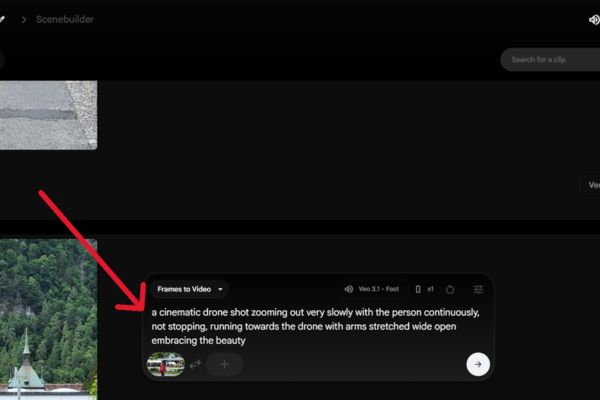
Step 5: Enter the command (prompt) describing the movement. This is the most important step in how to create drone footage with Flow AI. You can use the following command sample (translated into English so AI can understand best):
"A cinematic drone shot zooming out very slowly with the person continuously, not stopping, running towards the drone with arms stretched wide open embracing the beauty."
(Temporary translation: A cinematic drone shot zooms out very slowly, the character continuously runs towards the drone without stopping, his arms open wide to receive the natural beauty).
Step 6: Click the send arrow button. Flow will take about one to two minutes to process and create the video for you.
Results and tips
Once the process is complete, you will receive an extremely impressive moving video.
Note: The created video will have a small “Veo” logo in the lower right corner. You can remove it easily by slightly cropping the frame in your phone’s photo editor.
So you have a “genuine” flycam movie from still photos without spending a penny.
Conclusion
With the above instructions, hopefully you have grasped it How to create drone footage with Flow AI to enrich your travel archive. This technology has truly opened the door to unlimited creativity for common users. Try it now and share the results!
Q&A: Frequently asked questions
1. Is there a fee for using Google Flow to create videos?
Currently, when you log in for the first time, you are given 100 free credits, enough to create drone footage with Flow AI for about 5 videos. More advanced features may require payment in the future.
2. How to delete the Veo logo on the video after exporting?
Videos created by Google Flow will have the “Veo” watermark in the lower right corner. The simplest way is to use the photo editor on your phone to crop the edges and you will have a clean, beautiful video.
3. How should I use photos to get the best results?
To create the most effective flycam footage with Flow AI, choose a photo with a clear subject (preferably just you), an open background, and few passersby so the AI doesn’t get confused when creating movement.